

For podcast lovers, moving from the tiny screen of a smartphone to the biggest screen in the house can completely change the listening experience. Pocket Casts now offers a native Apple TV app, bringing its much-loved interface, seamless syncing, and robust playback tools directly to your living room. Whether you are throwing on a video podcast or want your favorite audio shows playing through your home theater system, the Apple TV app is designed to make it effortless.
Here is everything you need to know about setting up and using Pocket Casts on your Apple TV.
Table of contents
Getting Started: Requirements and Installation
Before you dive in, you will need the right hardware. The Pocket Casts native app requires a supported device, specifically an Apple TV HD or an Apple TV 4K, running tvOS 26 or later.
Don’t miss the best of The Mac Observer
Set us as a preferred source and our Apple reporting ranks higher in your Google Search results and Discover feed — one tap, no account changes.
To install the app:
- Turn on your Apple TV and navigate to the App Store.
- Go to the Search tab and look for Pocket Casts.
- Select Get to download and install the app to your Home Screen.
- Once installed, simply launch the app to begin the setup process.
Signing In for Seamless Syncing
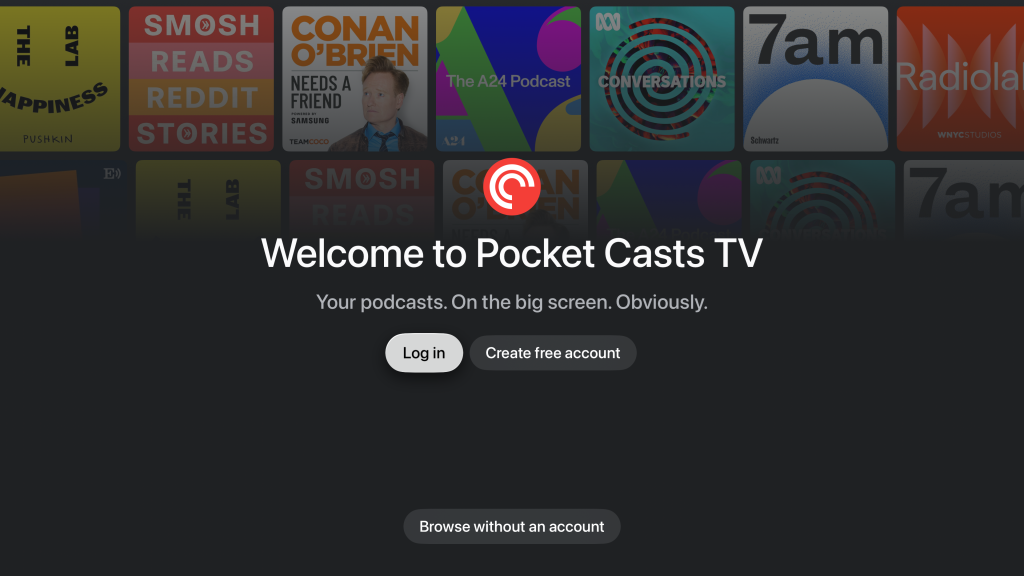
While you can technically choose “Browse without account” to explore the Home and Discover tabs or play episodes without logging in, signing in unlocks the true power of Pocket Casts. Logging into your account ensures that your subscriptions, custom playlists, Up Next queue, and listening progress sync in real time across your phone, tablet, and TV.
When you open the app, you will be prompted to log in. You have two main options:
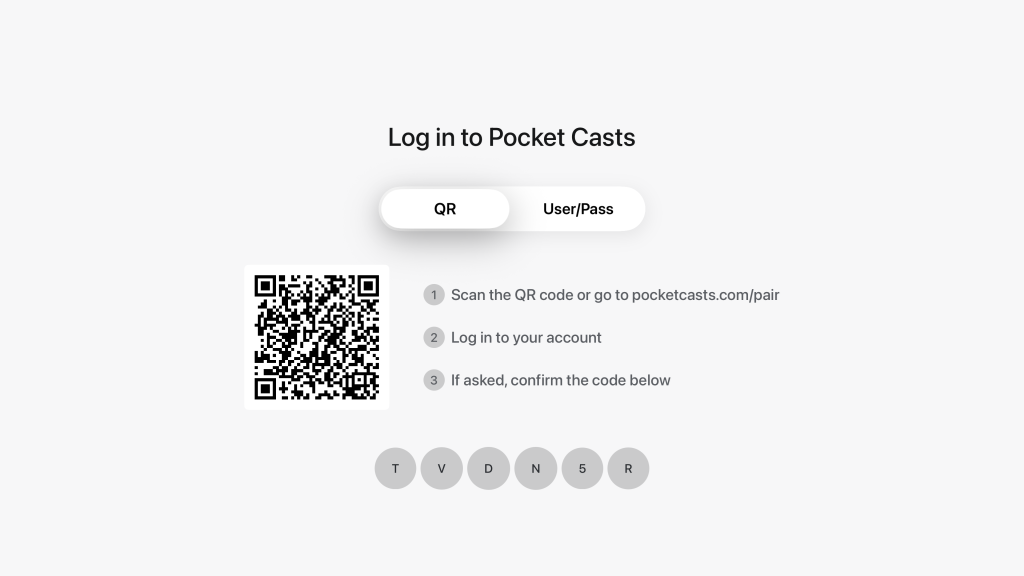
- Sign in with a QR code (Recommended): This is by far the fastest method. A QR code and a short numerical code will appear on your TV screen. Simply open your phone’s camera, scan the code, and follow the prompt to log in or create an account. Once you confirm the code on your phone, your Apple TV is instantly approved. (Note: Ensure your iOS or Android Pocket Casts app is fully up to date for this to work smoothly).
- Sign in with your email and password: If you prefer not to use your phone, you can switch to the manual login option and type your Pocket Casts credentials directly using your Apple TV remote.


Navigating the Big Screen Experience
The tvOS interface for Pocket Casts is clean, visual, and built specifically for a streamlined TV experience. All of your main navigation tabs run across the top of the screen:

- Home: A hub for your recently played content and personalized recommendations.
- Podcasts: A grid view of all the shows you currently follow.
- Playlists: Access to any custom or smart playlists you have built on your mobile app.
- Up Next: Your continuous play queue, perfectly synced from your other devices.
- Now Playing: The current episode you are listening to or watching.
- Search: A tool to discover new podcasts and specific episodes.
Additionally, you will find your profile picture in the top-left corner. Clicking this opens a dedicated menu where you can access your Starred episodes, view your Listening History, and manage your account settings.
Playback Features on tvOS
Pocket Casts built its Apple TV app to handle the essentials without feeling cluttered. Here is what you can expect when you hit play:
- Audio and Video Support: The app natively supports both standard audio podcasts and video podcasts, taking full advantage of your television screen.
- Playback Controls: While it doesn’t have every single hyper-specific setting found on the mobile app (like advanced listening stats), it does include the crucial ones. You can adjust your playback speed and toggle Volume Boost to make dialogue clearer through your TV speakers.
- Cross-Device Handoff: Because your listening progress syncs instantly, you can pause a podcast on your phone during your commute, walk into your living room, and pick it up on the Apple TV exactly where you left off.
What If I Want to Use a Feature Not on the TV App?
If you need to access highly specific features that haven’t made the jump to tvOS yet, such as sharing specific clips, viewing episode transcripts, or playing manually uploaded files, you can still use Apple’s built-in casting tools.
Simply open Pocket Casts on your iPhone or iPad, start playing the episode, open the full-screen player, and tap the AirPlay icon. Choose your Apple TV from the list. The audio (and video) will route directly through your television, while your phone acts as the ultimate remote control.
FAQs
No, it focuses on the essentials like streaming your subscriptions, playlists, and the Up Next queue. Advanced mobile features like manual file uploads are omitted, but your listening progress still syncs perfectly between devices.
Yes, you can browse the Home and Discover tabs and stream individual episodes as a guest. However, you must log in if you want to save your subscriptions, build playlists, or sync progress across your other devices.
Because the tvOS app does not natively support transcripts or manual file uploads, you will need to use AirPlay. Simply start playing the episode on your iPhone or iPad, tap the AirPlay icon, and send the audio or video straight to your Apple TV.


Discussion