

On iPadOS 26, some users find that swiping up does not close apps, and they must use the window controls instead. This usually happens because multitasking gestures or full screen settings changed after the update, and you can restore the swipe behavior with a few adjustments.
Table of Contents
Solutions
Turn Multitasking Gestures Back On
The Apple Support Communities thread for this iPadOS 26 bug shows that disabling multitasking gestures can break the usual swipe up behavior.
Time needed: 5 minutes
- Open Settings on your iPad.
- Tap Multitasking & Gestures.
- Choose Full Screen Apps.
- Enable Productivity Gestures and Four & Five Finger App Switching
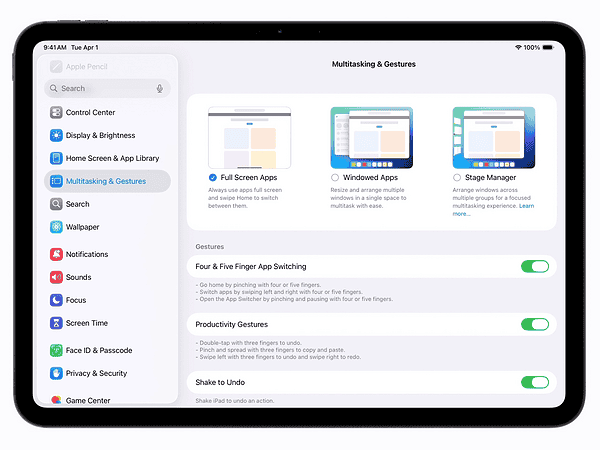
- Restart your iPad, then try swiping up to close apps again.

Use the App Switcher Gesture Correctly
Apple’s documentation for iPadOS 26 shows that you must open the app switcher first, then flick app thumbnails away to force close.
Don’t miss the best of The Mac Observer
Set us as a preferred source and our Apple reporting ranks higher in your Google Search results and Discover feed — one tap, no account changes.
- Swipe up from the bottom edge toward the center, then pause briefly.
- Wait for the app switcher to appear with all open app thumbnails.
- Find the app that will not close.
- Swipe its thumbnail up and off the top of the screen.
- Press the Home indicator or swipe up once more to return home.
Restart Your iPad To Clear Gesture Glitches
Several users in the discussion report that a simple restart restores swipe gestures that stopped working after updating to iPadOS 26.
- Press and hold the top button and either volume button.
- Drag the slider to power your iPad off.
- Wait at least thirty seconds.
- Hold the top button again until the Apple logo appears.
- Test the swipe up gesture on a few different apps.
- Alternatively, you can try restarting your iPad with a button combination.
Check trackpad and keyboard behavior in windowed mode

One user notes that the problem appears more often when using a Magic Keyboard or trackpad together with windowed multitasking.
- Disconnect your Magic Keyboard or trackpad.
- Try swiping up directly on the iPad screen.
- If gestures work, reconnect the accessory.
- Repeat the multitasking gesture and full screen steps above.
- Consider using full screen mode when you prefer simple swipe behavior.
Update iPadOS 26 and Contact Apple Support if Needed
If the swipe up gesture still fails to close apps across multiple reboots, you should install the latest iPadOS 26 update and escalate.
- Open Settings.
- Tap General, then Software Update.
- Install any available iPadOS 26 updates.
- Gather screenshots and a short description of the swipe issue.
- Contact Apple Support and mention the iPadOS 26 swipe up bug on your model.
Tips
- Keep multitasking gestures enabled if you prefer the classic swipe up behavior.
- Use full screen apps when you do not need complex window layouts.
- Restart your iPad after major updates to clear temporary system glitches.
- Test swipe gestures with and without accessories like Magic Keyboard or trackpads.
- Note which apps ignore swipes, since that information helps Apple diagnose issues.
FAQ
The Apple Support thread references iPadOS 26 on iPad Pro, and users report the issue starting after updating to that version.
Yes, apps stay in the app switcher, but iPadOS usually pauses them and limits resource use when they are not on screen.
No. Apple generally recommends leaving apps open unless they freeze, misbehave, or block other tasks such as updates.
Summary
- Reenable multitasking gestures
- Turn on full screen apps
- Use the app switcher correctly
- Restart and test accessories
- Update and contact support
Most bugs in iPadOS 26 come from temporary glitches, not permanent hardware faults. The swipe up issues, on the other hand, may be the result of changed multitasking settings. After you restore multitasking gestures, enable full screen apps, and restart, the familiar swipe to close behavior usually returns. If it does not, updating iPadOS 26 and working with Apple Support gives you the best chance at a lasting fix.



hello; I don’t know what I’ve done to alter what I’ve done to my iPad but all of a sudden where when I have, for ages swiping up from bottom of my screen to see what you term as thumb nails to sweep away the apps & pages I’ve looked at historically on and given day, I would be able to rid my self of the the so called thumbnails by swiping them up towards the top of my screen and they’d be gone, all of a sudden I can’t now swipe them away