

Apple Watch can place calls directly through its built-in microphone, speaker, and Phone app, and the process works through a paired iPhone or a cellular Apple Watch. The essential steps include checking connectivity, opening the Phone app, and selecting a contact or entering a number. Once set up, the watch can make calls when the iPhone is nearby or when the device uses its own cellular service.
Table of contents
What You Need to Make a Call
The Apple Watch must be paired with an iPhone for call routing unless it is a cellular model. Wi Fi calling or cellular service allows calls without the iPhone nearby, and the watch must have a stable connection. Features such as answering calls on Apple Watch are explained in detail in this article.
Before making a call, confirm the watch and iPhone are paired, as noted in general Apple Watch usage guidance. A proper connection prepares the watch for placing or receiving calls.
Don’t miss the best of The Mac Observer
Set us as a preferred source and our Apple reporting ranks higher in your Google Search results and Discover feed — one tap, no account changes.
Here’s How to Make Calls from Apple Watch
1. Use the Phone app on the watch
A direct way to place a call from the Apple Watch is through the built-in Phone app.
- Press the Digital Crown.
- Open the Phone app.

- Select Contacts, Recents, or the Keypad.
- Tap the number or contact.
- The call begins on the watch speaker.



This works when the iPhone is nearby or when the watch has its own network connection.
2. Call from the Contacts app
Using the Contacts app offers a simple way to reach someone quickly.
- Press the Digital Crown.
- Open Contacts.
- Scroll to the person you want to call.
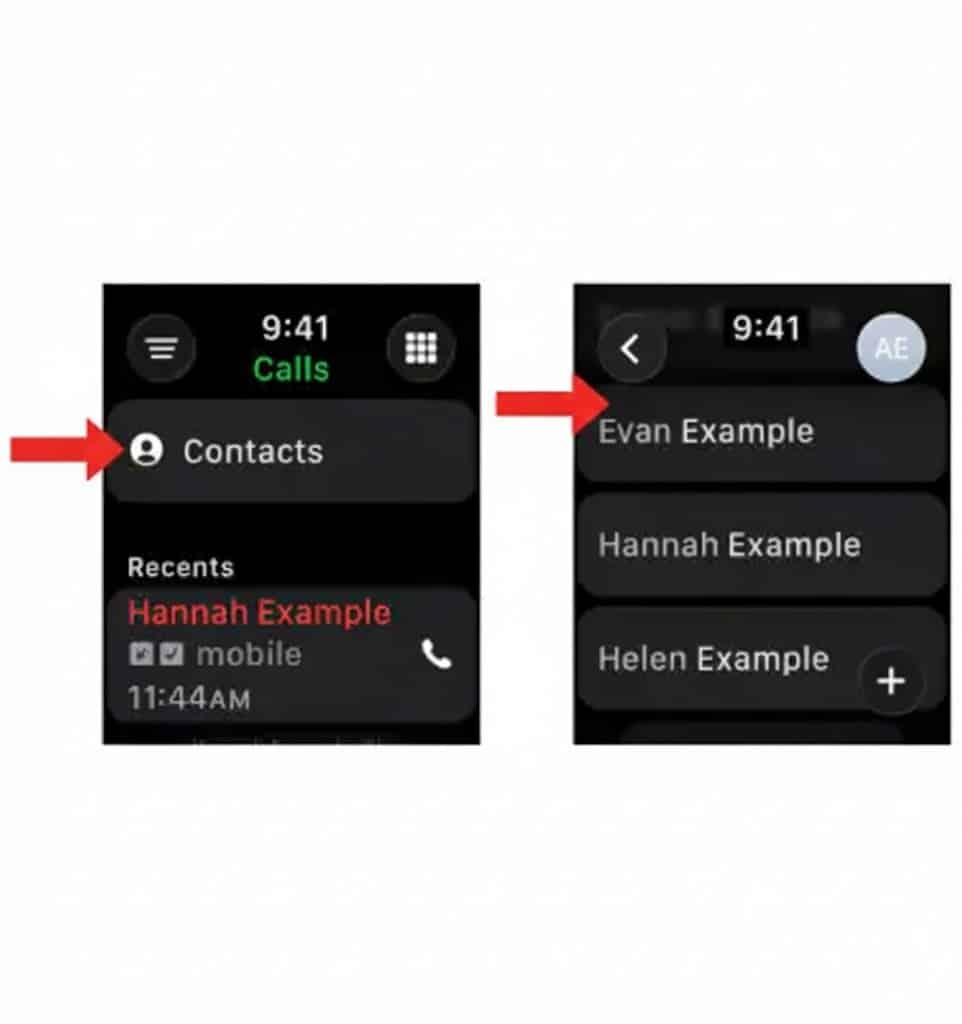
- Tap the phone icon to start the call.

This provides fast access to frequent contacts.
3. Ask Siri to call someone
Siri allows hands-free calling from the watch.
- Raise your wrist or press the Digital Crown.
- Say “Call [contact name]”.
- Siri places the call.
This is useful when both hands are busy or when quick access is needed.
4. Call back from a notification
Missed call notifications can be used to return calls instantly.
- Tap the notification.
- Select Call Back.
- The watch begins the call.
If call routing fails, guidance such as fixing call-answering issues may help.
5. Use the Recents list
The Recents list helps when calling previous numbers again.
- Open the Phone app.
- Tap Recents.
- Select a number you called before.
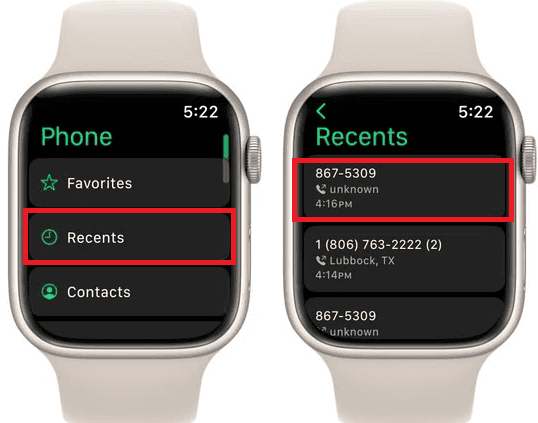
- Tap to begin the call.

This is ideal for quick redials.
Additional Tips
• Keep the iPhone within range for non-cellular models.
• Ensure Wi Fi calling is enabled if using it without the iPhone.
• Use Bluetooth earbuds with Apple Watch for clearer audio.
• Calls can be transferred between devices, as described in Apple Watch call handling tips.
Conclusion
Calling from an Apple Watch is simple once the device has a stable connection, the apps are accessible, and the settings are configured correctly. Whether the call is placed using Siri, the Phone app, or Recents, the watch offers a practical and reliable way to communicate without reaching for the iPhone.
FAQs
Yes, but only on cellular models or when Wi Fi calling is available.
The issue may relate to connectivity, permissions, or disabled settings.
Yes. The watch can pick up calls even when the iPhone is active.
Yes, as long as the carrier and devices support Wi Fi calling.


Discussion