
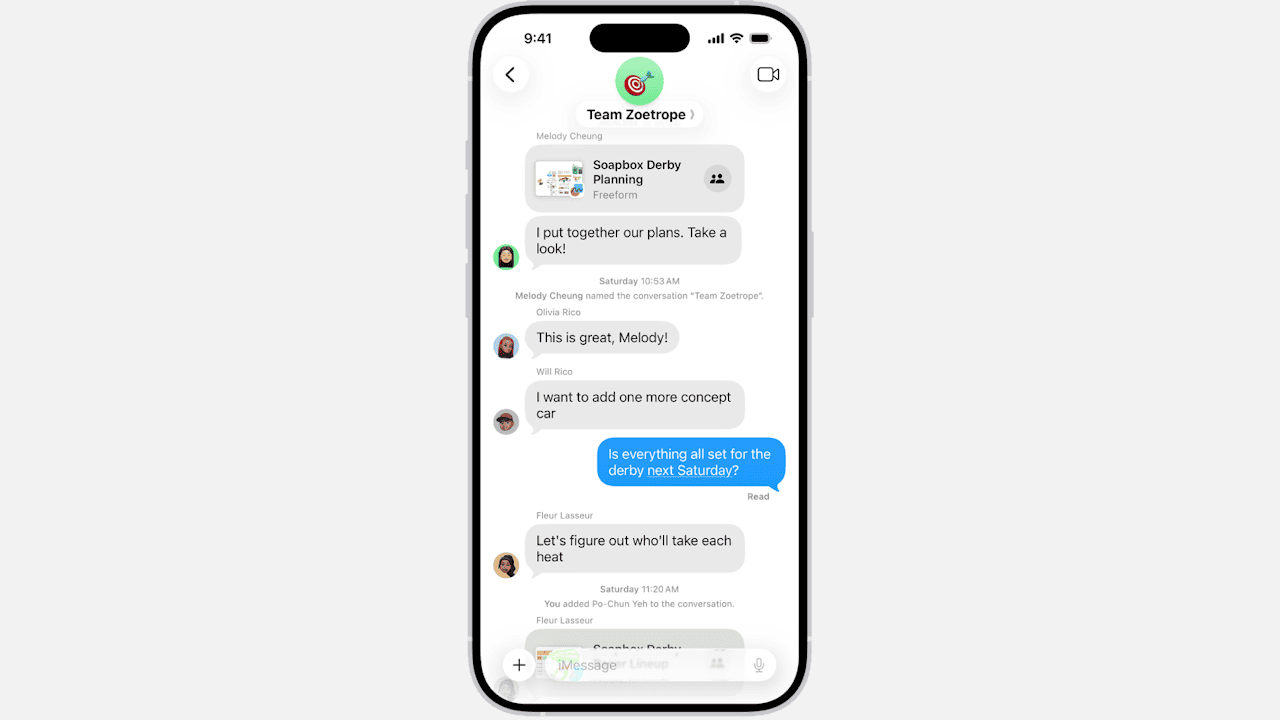
Group messaging on iPhone is convenient, but some users encounter the frustrating “You left the conversation” message in mixed group chats with Android participants. This glitch can disrupt communication, especially when syncing across iPhone and Mac. Below are practical solutions to resolve the issue and restore smooth group messaging.
Common Causes and Effective Fixes
1. Restart iMessage Services
Refreshing iMessage is often the quickest way to resolve temporary sync errors that cause the “You left the conversation” message. This process resets the connection between your iPhone and Apple’s servers, helping restore proper functionality in mixed group chats where iMessage and SMS/MMS may conflict.
- Go to Settings > Apps > Messages.
- Toggle iMessage off.

- Restart your iPhone.
- Toggle iMessage back on.
2. Verify Apple ID and Contact Settings
Apple ID misconfigurations or inactive contact details can disrupt group chat participation. Ensuring that your Apple ID is correctly signed in and that your phone number and email addresses are active helps stabilize communication. This step is especially important when using multiple Apple devices for messaging.
Don’t miss the best of The Mac Observer
Set us as a preferred source and our Apple reporting ranks higher in your Google Search results and Discover feed — one tap, no account changes.
- Open Settings > Apps > Messages > Send & Receive.

- Confirm your Apple ID is signed in.
- Verify your phone number and email addresses are active.
- Ensure the same Apple ID is used across devices.
3. Update iOS and Carrier Settings
Outdated iOS versions or carrier settings can cause compatibility issues in mixed group chats. Updating both ensures your device has the latest bug fixes and network configurations. This step is critical because many group chat errors are resolved through system updates that improve messaging reliability.
- Navigate to Settings > General > Software Update.
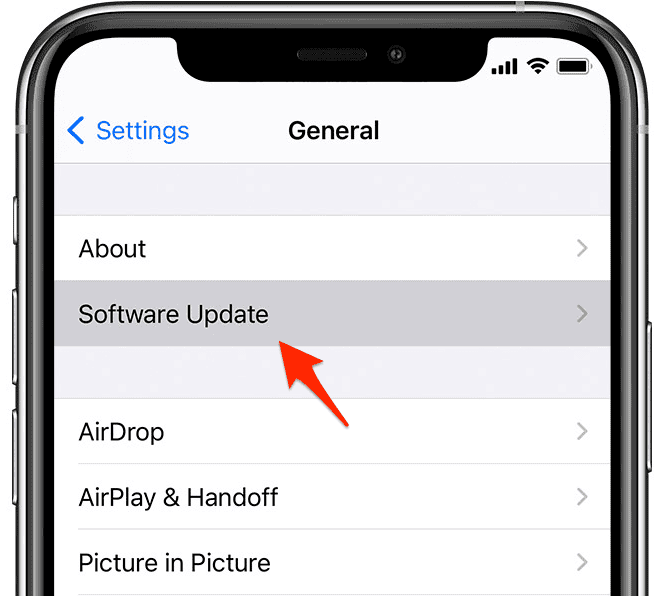
- Install the latest iOS version.
- Go to Settings > General > About.
- If prompted, update carrier settings.
4. Recreate the Group Thread
Sometimes the group chat itself becomes corrupted, leading to repeated errors. Deleting and recreating the thread resets its configuration and often resolves persistent issues. This approach is particularly useful when the error continues after other fixes, as it forces the system to rebuild the group connection.
- Delete the problematic group thread.
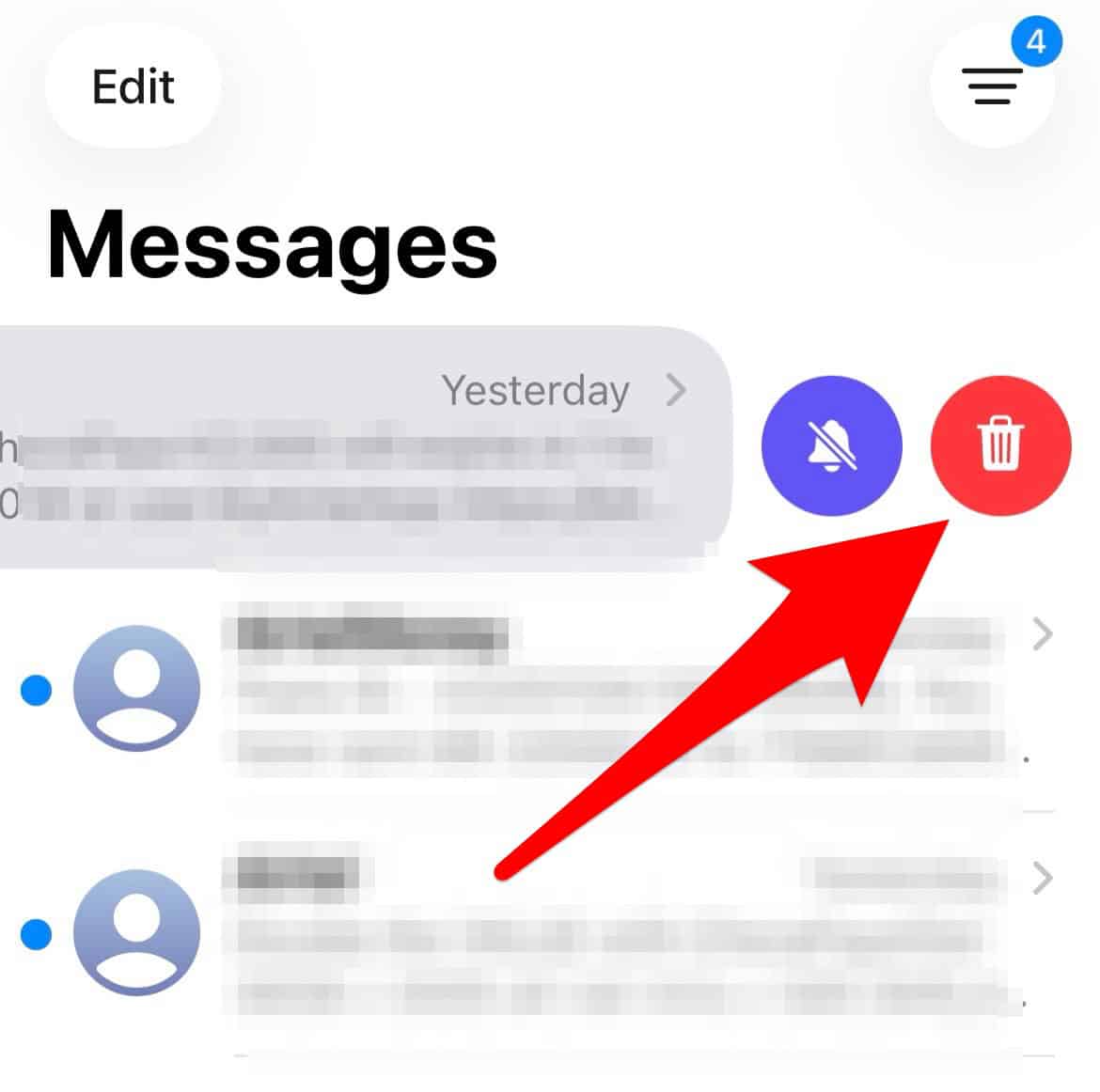
- Start a new group message including all participants.
- Send a test message to confirm functionality.
For guidance on creating group texts, see how to make a group text on iPhone with iMessage or SMS.
5. Sync Across Devices
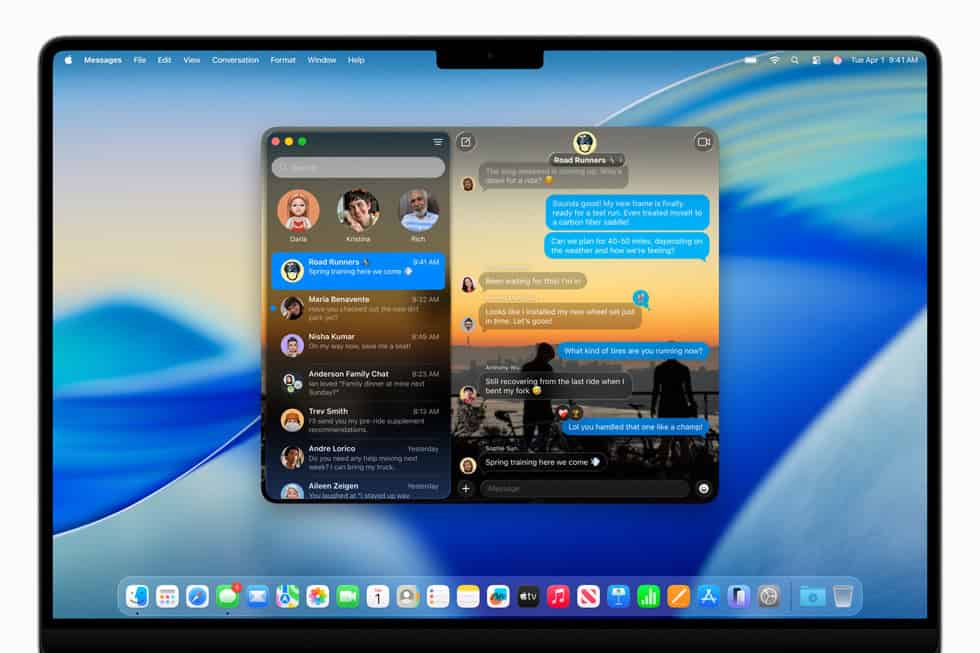
Users often report that while iPhone continues to send messages, Mac may block replies in mixed groups. Ensuring proper sync across devices helps maintain consistency. By verifying Apple ID settings and enabling all reachable addresses, you can reduce errors and keep conversations flowing across iPhone and Mac.
- On Mac, open Messages > Preferences > iMessage.
Confirm the same Apple ID is signed in. - Enable phone number and email addresses under “You can be reached for messages at.”
- Restart the Mac and test the group chat.
6. Manage Group Message Settings

Group message settings sometimes cause confusion, especially when photos or names change automatically. Adjusting these options can help stabilize conversations and prevent unnecessary disruptions. This step is useful when group identity changes trigger errors or when participants notice inconsistencies in how the group appears on different devices.
Learn more about group message photo automatically changing for more troubleshooting steps.
7. Send Messages Individually if Needed
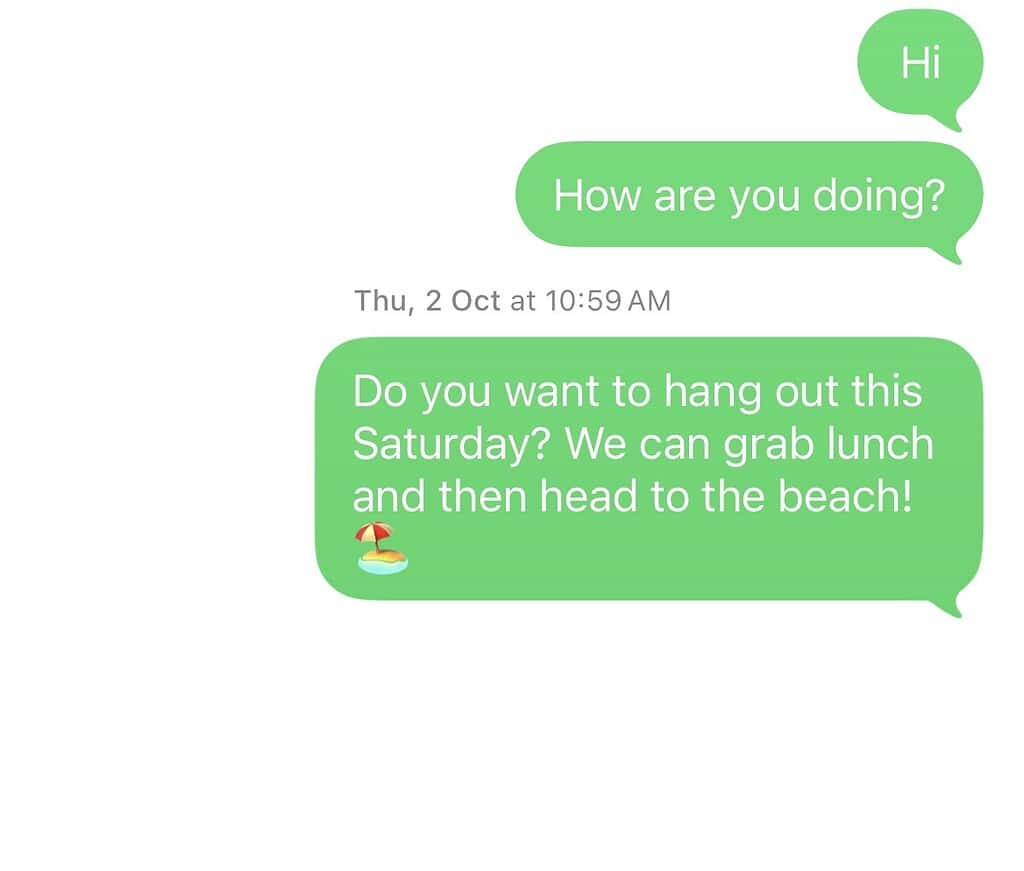
If the group thread continues to fail despite troubleshooting, sending messages individually ensures communication continues without interruption. While not ideal, this workaround prevents missed messages and keeps conversations active until Apple provides a permanent fix.
It is especially useful when urgent communication is required in mixed groups. See how to send group messages individually on iPhone for more information.
FAQ
It usually results from syncing conflicts between iMessage and SMS/MMS in mixed iPhone and Android groups.
No, the issue is limited to mixed groups with Android participants.
Yes, outdated carrier configurations may contribute to the error.
Apple has not confirmed a permanent fix, but updates often reduce the issue.
Resolving Mixed Group Chat Errors on iPhone
Fixing the “You left the conversation” issue requires a combination of iMessage resets, Apple ID verification, and thread recreation. While the bug persists for some users, these steps improve reliability. For more details on managing group chats, see using iMessage group chat on iPhone or iPad.




Discussion