

If you’ve changed carriers, sold your watch, or just don’t need cellular on your wrist anymore, you’ll eventually wonder how to delete eSIM on Apple Watch without breaking anything else. The good news is that Apple gives you a couple of clear ways to remove the cellular plan. You just need to know when to remove the plan only and when to erase the watch entirely.
Table of contents
How Cellular Plans Work on Apple Watch
Apple Watch doesn’t treat the eSIM like a normal SIM card you pop out. The cellular plan is tied to your Apple ID, your iPhone, and your carrier.
If you’re still using cellular and just want to tweak how it behaves, it’s worth understanding how to use cellular on the Apple Watch first. That gives you a clearer picture of what you’re actually deleting.
Don’t miss the best of The Mac Observer
Set us as a preferred source and our Apple reporting ranks higher in your Google Search results and Discover feed — one tap, no account changes.
Delete the eSIM from the Watch Only
If you want to keep using the watch, but without cellular:
- Open the Watch app on your iPhone

- Go to My Watch → Cellular
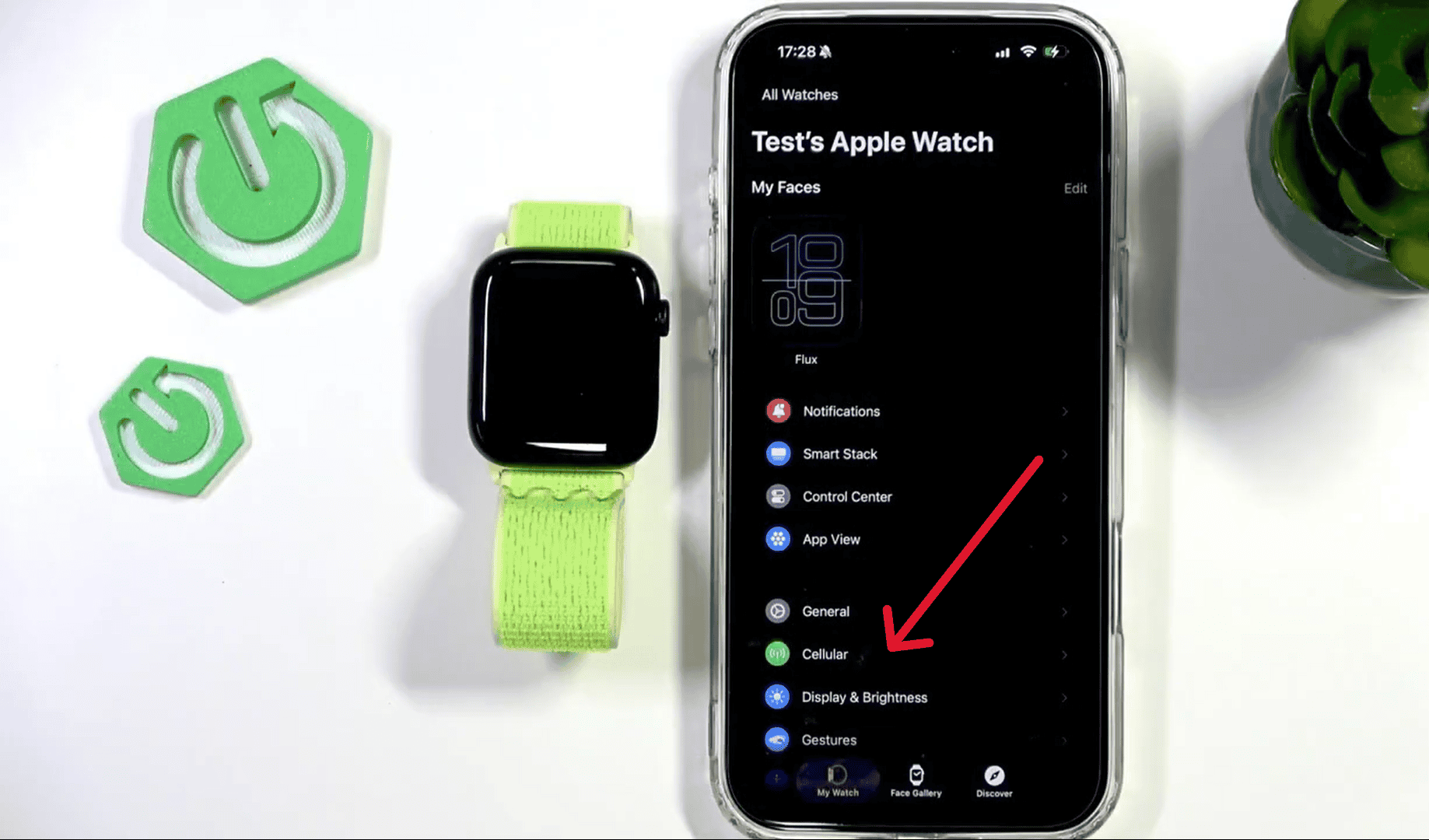
- Tap your plan
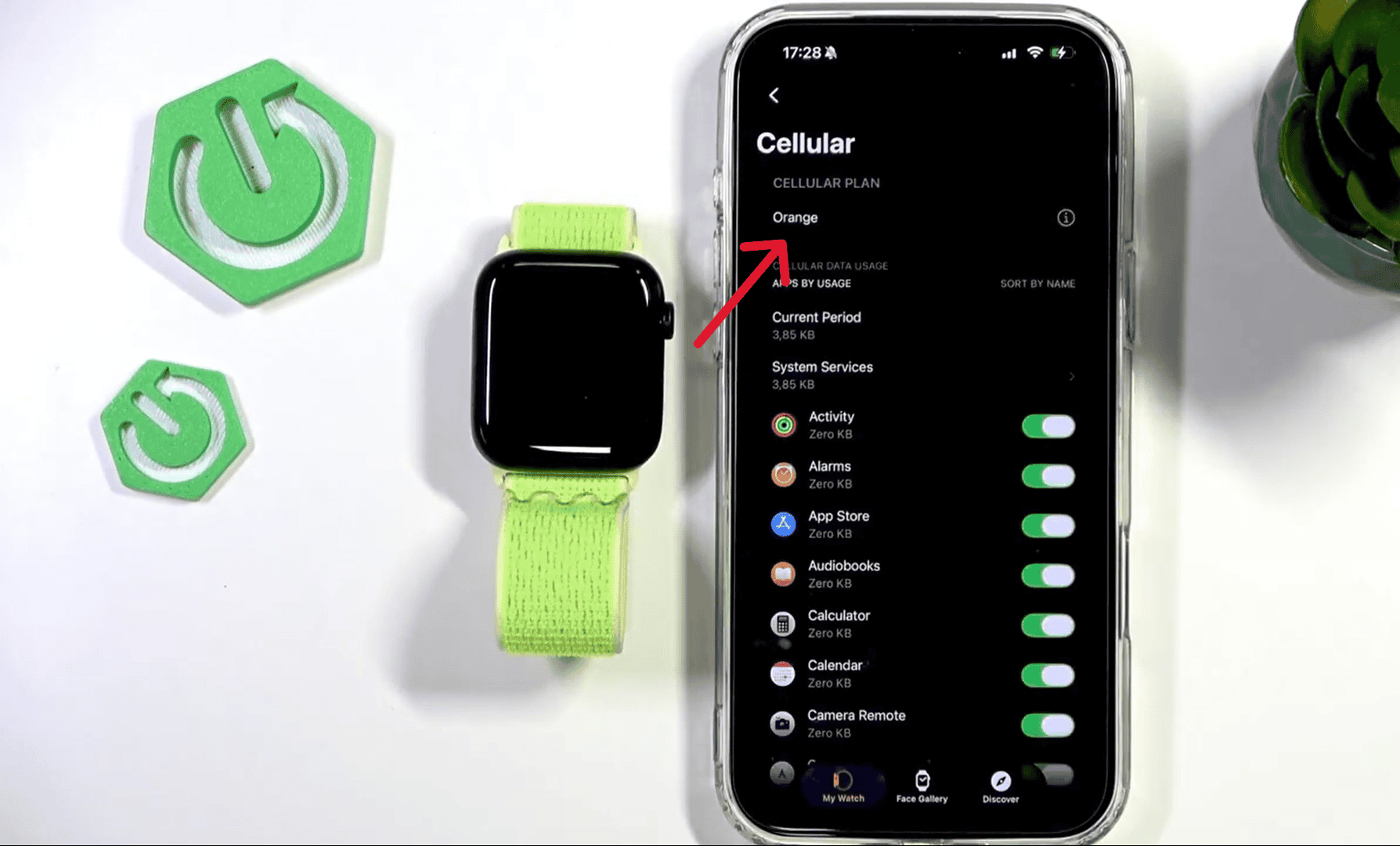
- Choose Remove [Carrier] Plan

- Confirm


Apple walks through this process on its page on setting up and using cellular on Apple Watch, including the part where you remove your plan when you no longer need it.
This removes the eSIM profile from the watch but does not automatically cancel billing with your carrier. You usually still need to contact the carrier to stop charges.
Delete eSIM While Erasing the Watch
If you’re selling, gifting, or trading in your Apple Watch, you should erase it completely and remove the eSIM at the same time.
On your iPhone:
- Open the Watch app
- Go to My Watch
- Tap your watch name
- Tap the info (i) button
- Choose Unpair Apple Watch
- When asked, select the option to remove the cellular plan
Apple explains what happens to the plan during this process in its article on erasing and unpairing Apple Watch. The key detail is that unpairing also turns off Activation Lock and disconnects the watch from your Apple ID.
When a Full Reset Makes Sense
Sometimes the plan is stuck, the watch is acting weird, or you’re switching owners. In that case, a reset plus plan removal is cleaner than just removing the eSIM.
You can follow the steps to restart, force restart, or reset Apple Watch, then re-add cellular later if you still need it.
Final Thoughts
Deleting the eSIM from Apple Watch is really about deciding whether you still plan to use the watch. If you’re keeping it, remove the cellular plan from the Watch app and confirm with your carrier. If you’re done with the device, unpair and erase it, making sure the plan is removed in the process. Once you understand that split, managing the eSIM on Apple Watch is straightforward.


Discussion