

Apple Notes is a versatile app, moving far beyond simple text entries. Adding visual context, like photos of whiteboards, receipts, or sketches, can greatly enhance your organizational system. Whether you’re using an iPhone, iPad, or Mac, the process for snapping a new photo or inserting one from your library is straightforward, letting you quickly enrich your digital documents and streamline your capture workflow.
Table of contents
Essential Methods for Capturing and Inserting Images into Notes
1. Capturing a New Photo on iOS/iPadOS
The quickest way to add visual information when you’re on the go is to use the in-app camera function. This saves the image directly into the note without necessarily cluttering your main Photo Library, making it a perfect solution for receipts or quick references.
- Open or create a note on your iPhone or iPad.
- Tap the camera icon (or the plus icon (+) then the camera icon) above the keyboard.
- Select Take Photo or Video.
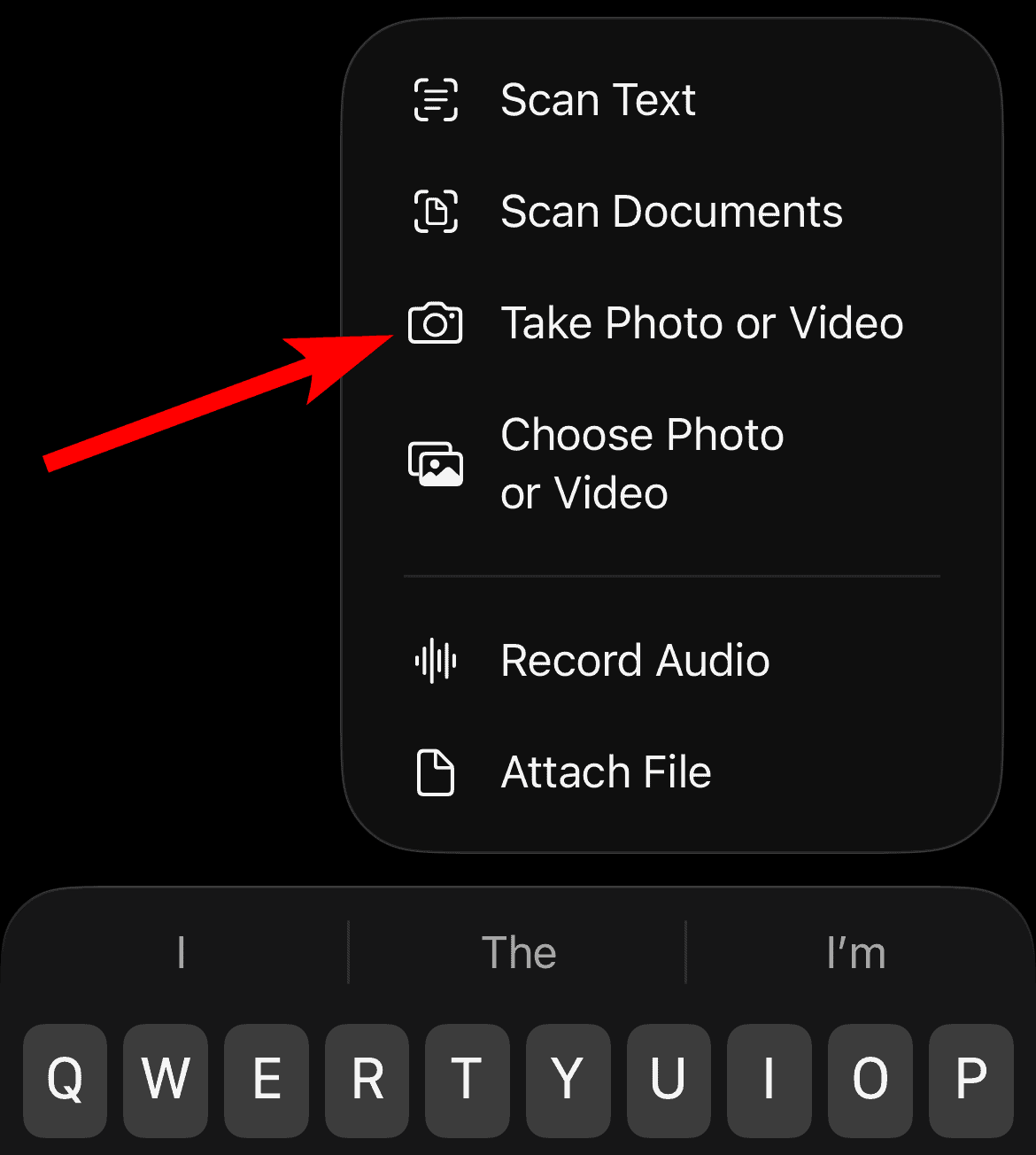
- Capture your image and tap Use Photo to insert it.

2. Capturing a New Photo on Mac Using an iPhone or iPad

You can take a photo in Apple Notes on a Mac by using the “Insert from iPhone or iPad” option to take a new photo directly or by inserting an existing one from your camera roll. This is also the easiest way to deal with photos if you are finding random notes appearing in your iPhone, as you can consolidate attachments into a single, manually organized note.
Don’t miss the best of The Mac Observer
Set us as a preferred source and our Apple reporting ranks higher in your Google Search results and Discover feed — one tap, no account changes.
- Open the Notes app on your Mac and create a new note or open an existing one.
- Go to File in the top menu bar.
- Select Insert from iPhone or iPad.
- Choose Take Photo to open your iPhone or iPad’s camera to capture a new image.
- Use the photo as needed. It will be inserted into your note.
If you are having trouble with note synchronization, you can find a useful guide on how to fix missing notes on your iPhone.
3. Tips for Optimizing Your Captured Image Quality

While using the built-in camera in Notes is convenient, a few simple adjustments can ensure the pictures you take are clear, legible, and useful for documentation. Focus on good lighting and stability to maximize the quality of the image you embed in your note, particularly for documents and receipts.
- Use Scan Documents: For text-heavy items (receipts, whiteboards), use the “Scan Documents” option instead of “Take Photo or Video.” It automatically crops and enhances contrast.
- Ensure Adequate Lighting: The Notes camera works best in well-lit conditions. Avoid shadows being cast by your hand or phone, especially when photographing flat papers.
- Hold Steady: To prevent blur, keep your device as still as possible when snapping the picture, waiting for the camera to auto-focus before pressing the shutter button.
- Crop and Adjust: If the photo is slightly crooked or dark, remember you can use the built-in Markup feature (tap the image in the note) to quickly crop the edges or increase brightness.
FAQ
- Do photos added to Notes count toward my iCloud storage? Yes, the data contained within Apple Notes, including photos and other attachments, is synchronized via and counts toward your total iCloud storage limit.
- Can I edit a photo once it’s in a note? While you can’t perform complex photo manipulation, you can use the Markup feature to draw, annotate, or sign a photo directly within the note after tapping on the image.
Streamlining Your Workflow with Visual Attachments
The ability to embed images and other media transforms Apple Notes from a simple text editor into a comprehensive visual and organizational hub. By mastering the quick-capture methods on iPhone and the efficient drag-and-drop or Share Sheet functions on Mac, you ensure that every piece of information, whether text or visual, is filed exactly where it needs to be.
This powerful functionality supports everything from academic study to professional project management. For users seeking to push the boundaries of note-taking further, or for a surprising, non-traditional use of the app, discover the hidden tricks that make Apple Notes a secret messenger.


Discussion