
If your Apple Watch started buzzing for no obvious reason after the watchOS 26.2 update, you’re not imagining things. A lot of users are reporting phantom vibrations with no visible notification, no alert banner, nothing. Just a tap on the wrist that leads to confusion and a quick glance at a perfectly idle screen. Let’s break it down and get practical about fixing it.
Table of contents
Why watchOS 26.2 Triggered Phantom Vibrations
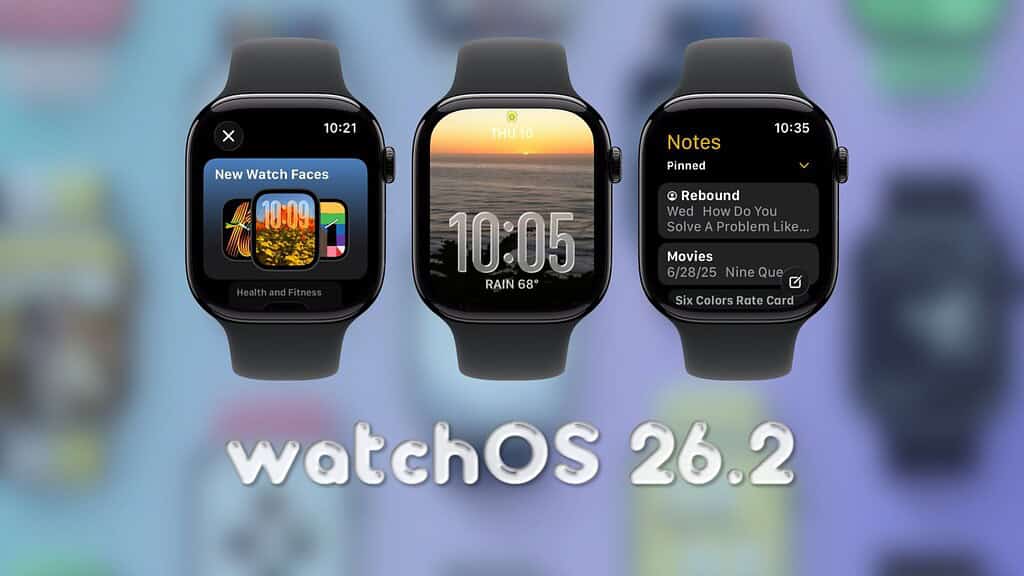
Here’s the thing. watchOS updates often tweak how notifications, background processes, and haptics are handled. In 26.2, Apple adjusted parts of the notification pipeline and system haptics. That’s likely where things went sideways.
The most common causes fall into a few buckets. Background apps sending silent or partial notifications. System alerts that trigger haptics but fail to render visually. Watch faces or complications refreshing data more aggressively than before. And plain old software bugs that slipped through.
Don’t miss the best of The Mac Observer
Set us as a preferred source and our Apple reporting ranks higher in your Google Search results and Discover feed — one tap, no account changes.
None of this means your watch is broken. It means the haptic engine is doing its job, but the software telling it when to buzz is getting confused.
Check Notifications First, Not Last
Start with notifications. This solves the issue more often than anything else.
- Open the Watch app on your iPhone.
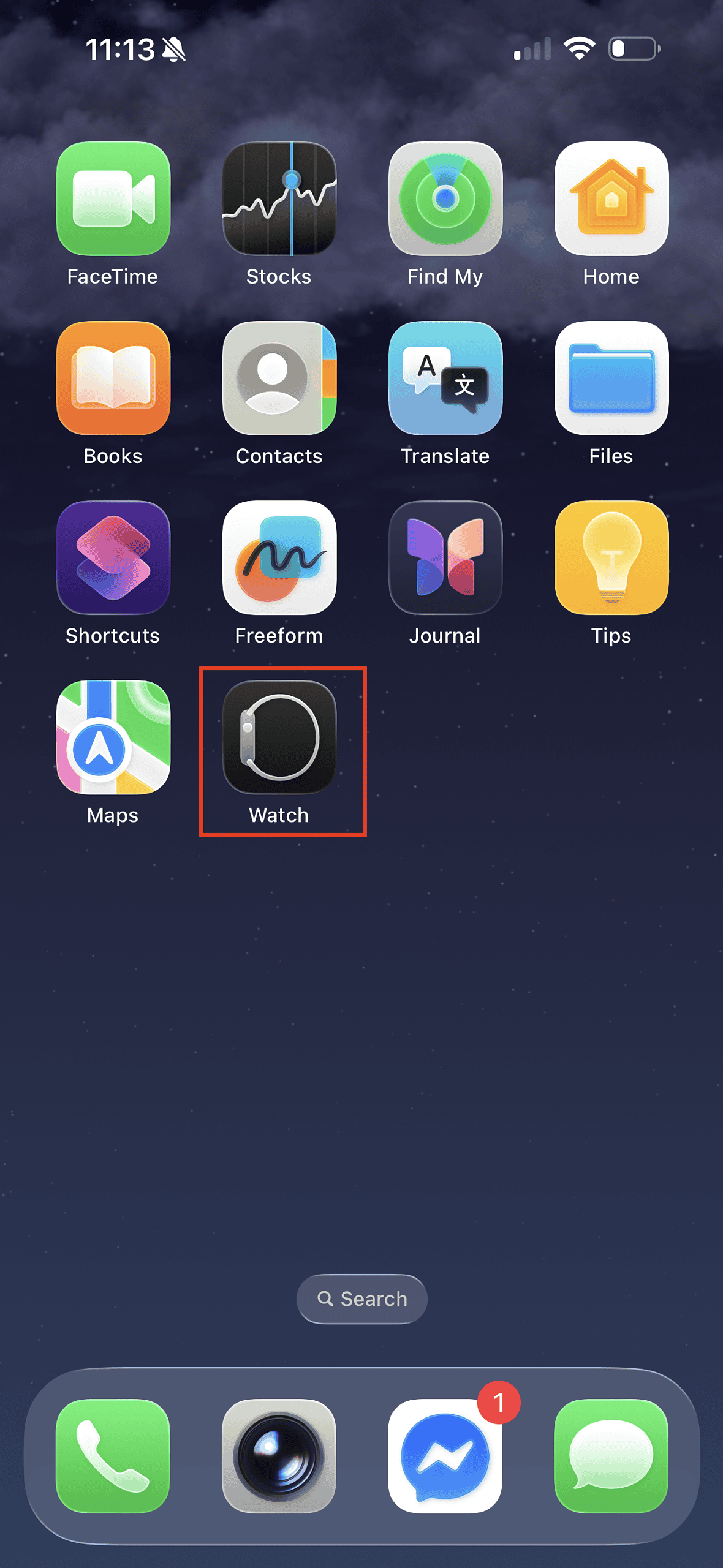
- Go to Notifications.
- Scroll through your apps one by one.
- If there’s an app you don’t need vibrating your wrist, turn it off.
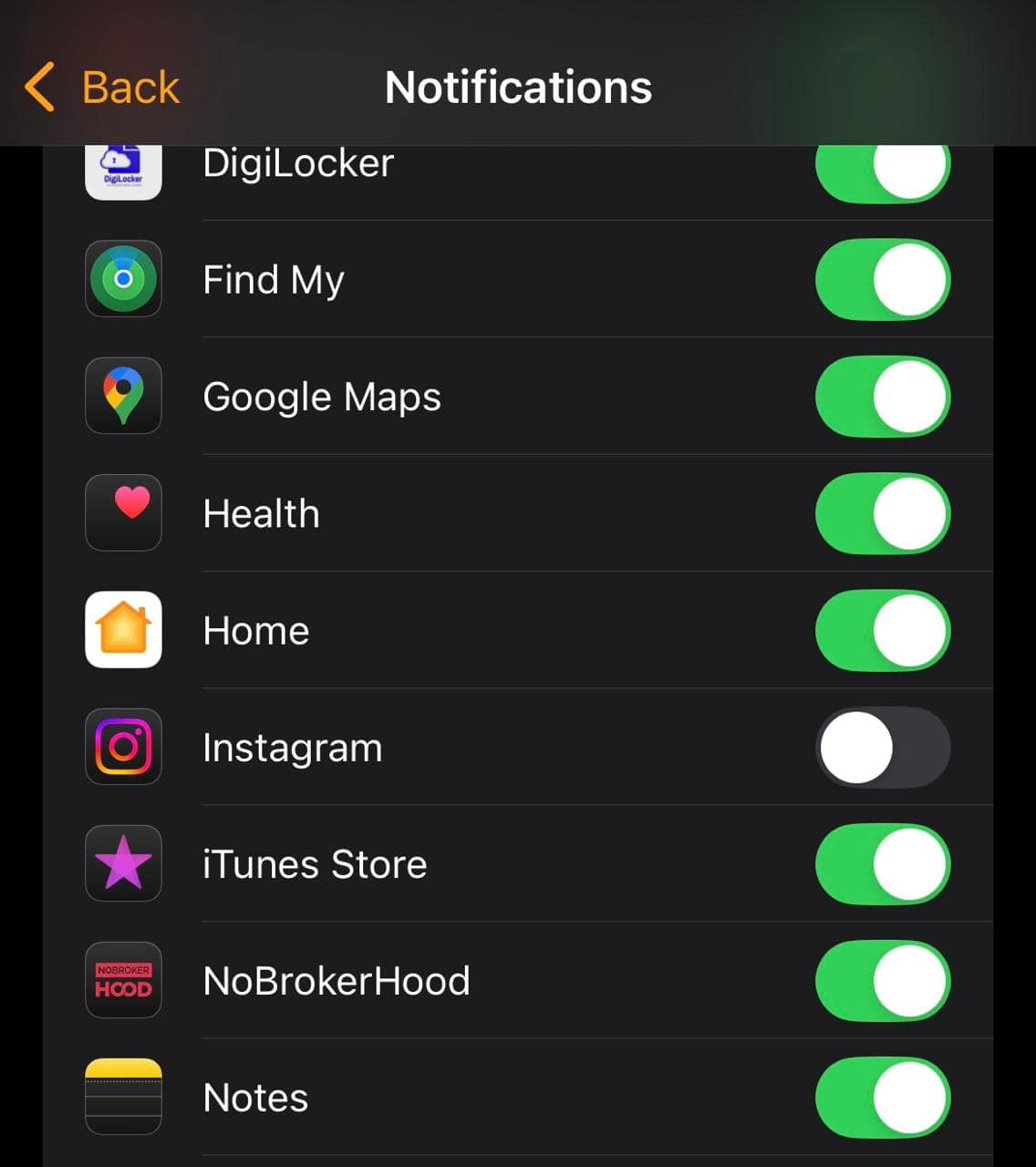
Pay close attention to messaging apps, fitness trackers, email clients, and anything that runs quietly in the background.
If you want to get more aggressive, temporarily disable notifications for most apps and see if the vibrations stop. Then re enable them slowly. This makes it much easier to spot the culprit.
Restart and Clear the Noise
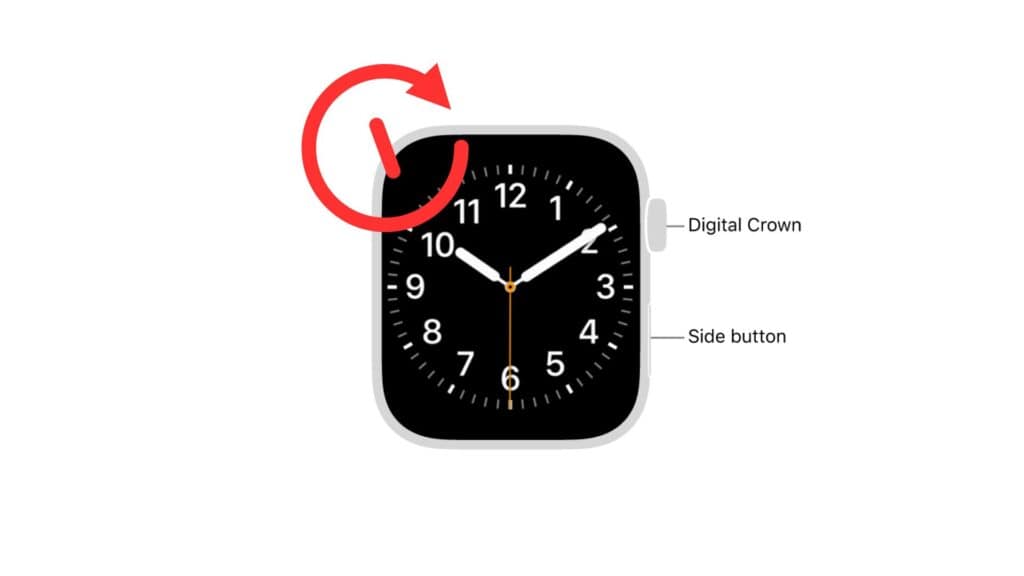
A restart sounds basic, but it matters. watchOS updates can leave background processes hanging around longer than they should.
Restart your Apple Watch. Restart your iPhone too. This resets the communication loop between the two devices and clears out stuck notification queues that often cause ghost haptics.
Watch Faces Can Be Sneaky
Some watch faces are more active than others. Complications that refresh weather, fitness, stocks, or calendar data can quietly trigger haptics after the update.
Switch to a simple watch face for a day. No complications. If the phantom vibrations stop, you’ve found a big clue. Add complications back one at a time until the buzzing returns.
Adjust or Disable Haptics If Needed
If the vibrations are driving you nuts and you need immediate relief, you can dial things back.
- On your Apple Watch, go to Settings, then Sounds and Haptics.
- From here, you can turn off alert haptics, crown haptics, or system haptics individually.
You don’t have to nuke everything, just enough to restore some peace while Apple sorts out the bug.
When to Reset or Call It In
If nothing helps, unpairing and re pairing the watch can reset deeper system issues. It’s a hassle, but it works for stubborn cases.
And if the watch is vibrating even with notifications off and haptics disabled, that’s when you contact Apple Support. Especially if the watch has seen water or impact damage.
The Bottom Line
Phantom vibrations after the watchOS 26.2 update are real, common, and mostly software related. Start with notifications, simplify your watch face, restart everything, and adjust haptics if needed. Apple will likely patch this in a future update. Until then, a little cleanup goes a long way in calming your wrist.




Discussion