

Connecting a HomePod to a Windows PC requires specific software because Windows does not natively support AirPlay. For listening to music, users can stream directly through the iTunes application by selecting the HomePod from the AirPlay menu. However, to play audio from browsers, games, or movies system-wide, third-party middleware like Tuneblade or Airfoil is necessary to bridge the connection between the operating system and the Apple speaker. That said, this is how you can connect a HomePod to a PC.
Table of contents
What you’ll need
Before attempting the connection, ensure both devices meet specific requirements. The most critical factor is the network. The PC and the HomePod must reside on the exact same Wi-Fi frequency band (2.4GHz or 5GHz). If the devices are on different bands, they may not communicate.
- A Windows PC with the latest version of iTunes installed.
- A HomePod or HomePod mini that is already set up using an iPhone or iPad. If this is a new device, refer to a HomePod mini quick setup and connection guide to get it ready.
- Third-party software (optional) if you intend to stream non-iTunes audio.
How to connect HomePod to PC
The standard method relies on Apple’s ecosystem tools available for Windows. iTunes acts as the bridge. It recognizes AirPlay-enabled devices on the network and sends audio signals directly to them. This method ensures high-quality audio synchronization but limits playback to media within the iTunes library.
Don’t miss the best of The Mac Observer
Set us as a preferred source and our Apple reporting ranks higher in your Google Search results and Discover feed — one tap, no account changes.
Steps to stream via iTunes
- Launch iTunes: Open the iTunes application on the computer. Ensure it is updated to the latest version to avoid compatibility errors.
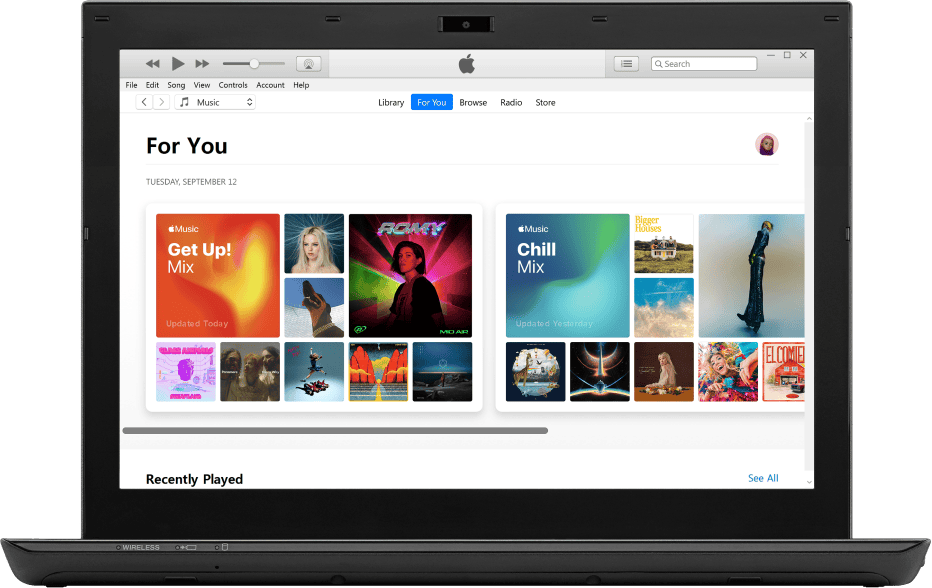
- Locate the AirPlay Icon: Look for the AirPlay icon at the top of the iTunes window. It resembles a rectangle with a triangle at the bottom and sits next to the volume slider.
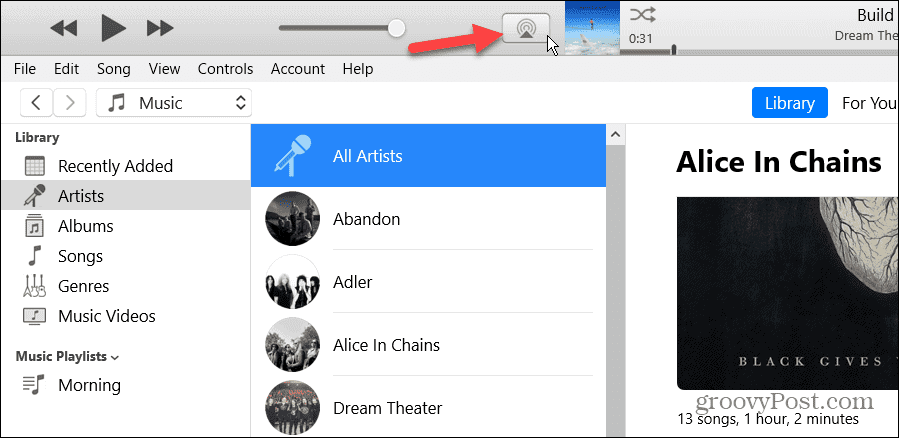
- Select the HomePod: Click the icon to reveal a list of available devices. The HomePod should appear in this list.
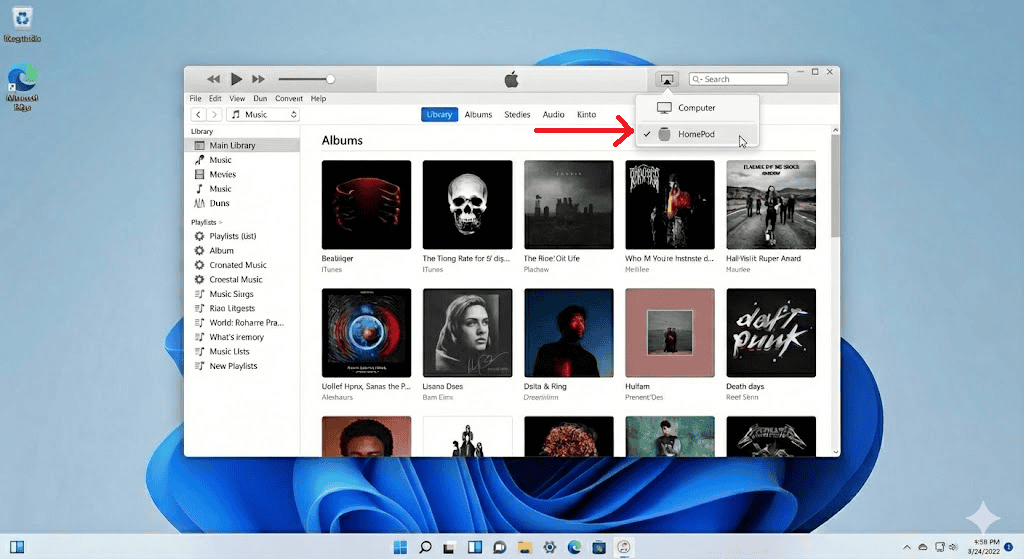
- Initiate Connection: Click the checkbox next to the HomePod’s name. It may take a moment to sync. Once connected, the audio from iTunes will route through the smart speaker.
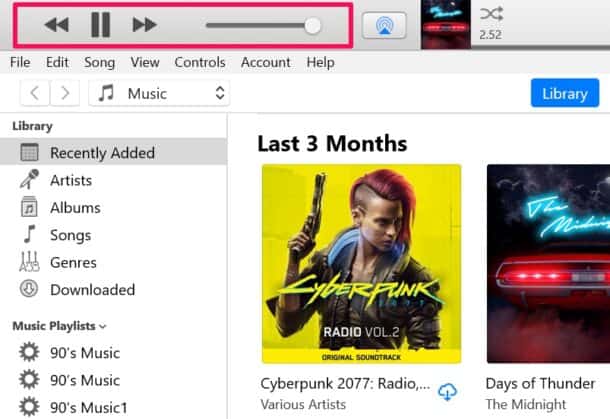
- Adjust Volume: Control the volume directly through iTunes or by using the touch controls on the HomePod.


If the speaker does not appear in the list, verify that the device is online. A HomePod not powering on or responding to touch commands will prevent iTunes from detecting it.
Additional Tips
- System-Wide Audio: iTunes cannot play audio from YouTube, Netflix, or PC games. To achieve system-wide audio, install a tool like Tuneblade. These programs capture the PC’s audio output and encode it as an AirPlay stream.
- Troubleshooting Network Glitches: If the connection drops frequently, check for local interference. Users have reported a HomePod’s network issue after iOS 26 update or similar software changes. Restarting the router often clears these temporary glitches.
- Check Configuration Status: Another common hurdle occurs during the initial handshake between devices. If the speaker appears in the list but refuses to play audio, check if the HomePod is stuck configuring within the Home app on your iPhone, as this status prevents new connections.
- Latency Management: AirPlay inherently has a delay of about two seconds. Video players like VLC allow you to adjust audio track synchronization to match the video manually if you are using middleware.
Conclusion
Pairing a HomePod with a PC requires navigating the limitations of AirPlay on Windows. While iTunes offers a native and free solution for music libraries, it does not support other audio sources by default. Users needing a full speaker experience for movies or gaming must rely on additional software to bridge the gap.
Success ultimately depends on a stable Wi-Fi network and ensuring both devices operate on the same frequency.
FAQs
No, the HomePod does not support standard Bluetooth audio streaming. It relies entirely on Wi-Fi and AirPlay for connectivity.
AirPlay often has a latency of roughly two seconds. iTunes compensates for this automatically, but system-wide audio via third-party tools may result in lip-sync issues during videos.
Yes, iTunes and major AirPlay middleware applications are compatible with Windows.
Yes, but only with third-party software like Tuneblade or Airfoil. Be aware that the wireless lag may make fast-paced competitive gaming difficult.


Discussion