
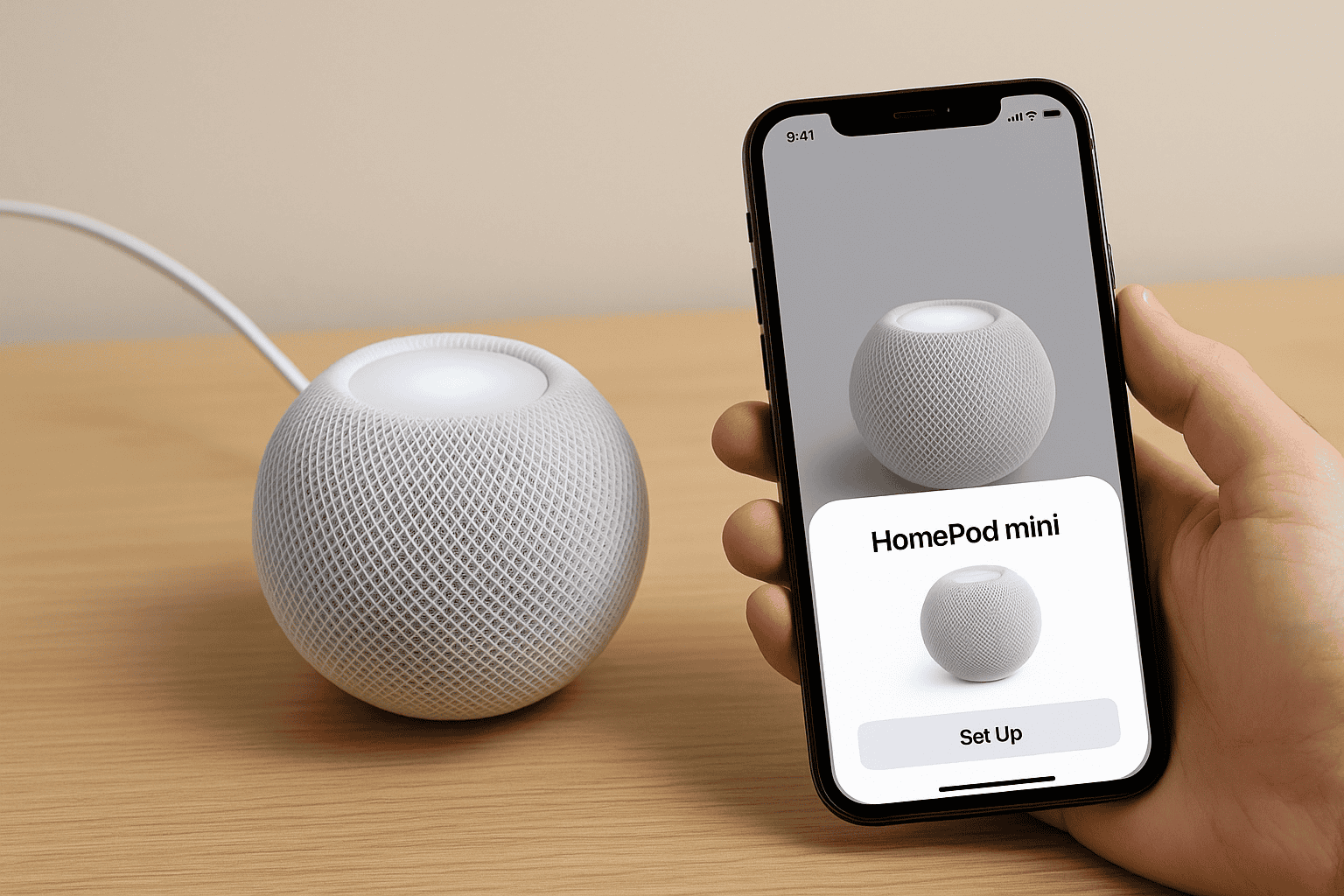
If you want to set up a HomePod mini and connect it to your Apple devices, you can complete everything with the Home app on your iPhone or iPad. I use this setup process each time I add a HomePod mini to a room or build out a HomeKit setup.
Table of contents
How to Set Up and Connect HomePod Mini
The HomePod mini pairs automatically with your Apple ID and Home app as soon as you bring your device close to the speaker. You only need a few minutes to get everything running.
Prepare your HomePod mini
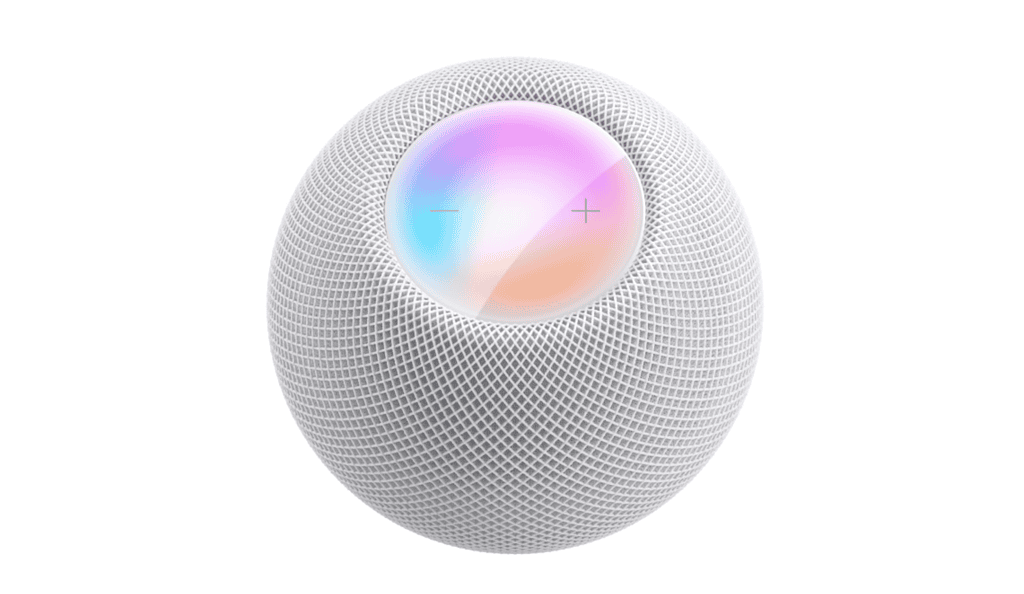
Before you start, plug the HomePod mini into power using the included adapter. The top light should turn on after a few seconds, which means it is ready to pair.
Don’t miss the best of The Mac Observer
Set us as a preferred source and our Apple reporting ranks higher in your Google Search results and Discover feed — one tap, no account changes.
Set up using your iPhone or iPad
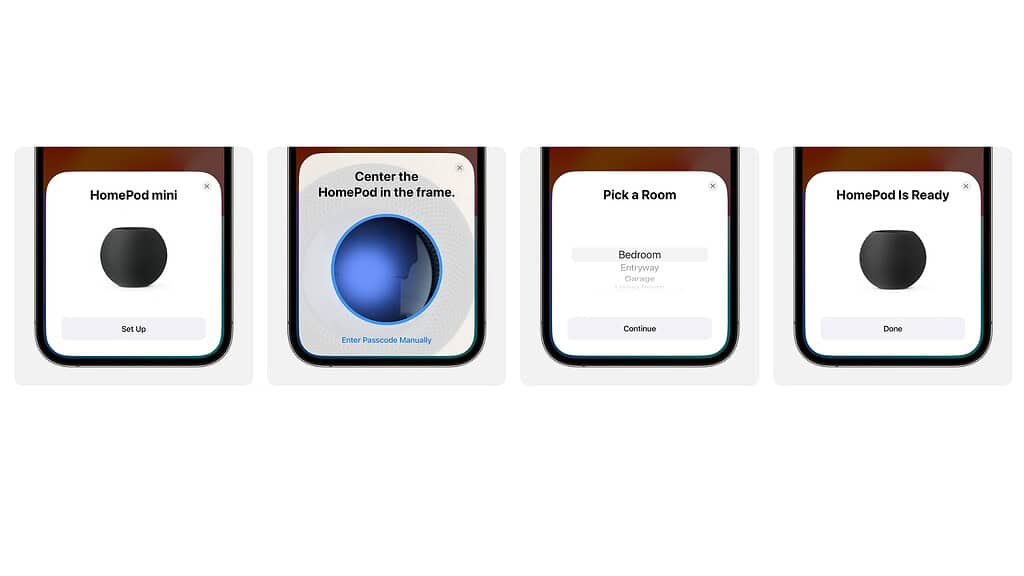
When the speaker powers up for the first time, your iPhone or iPad should detect it automatically.
- Hold your iPhone or iPad near the HomePod mini.
- A setup card appears on your screen.
- Tap Set Up.
- Choose the room where the HomePod mini will live.
- Enable personal requests if you want access to messages, reminders and notes.
- Confirm your Apple ID and Wi-Fi settings.
- Wait for the HomePod mini to finish activating.
After setup, the HomePod mini connects to your Wi-Fi and signs in with your Apple ID.
Connect and control in the Home app
Once the HomePod mini is added, you can manage it any time through the Home app.
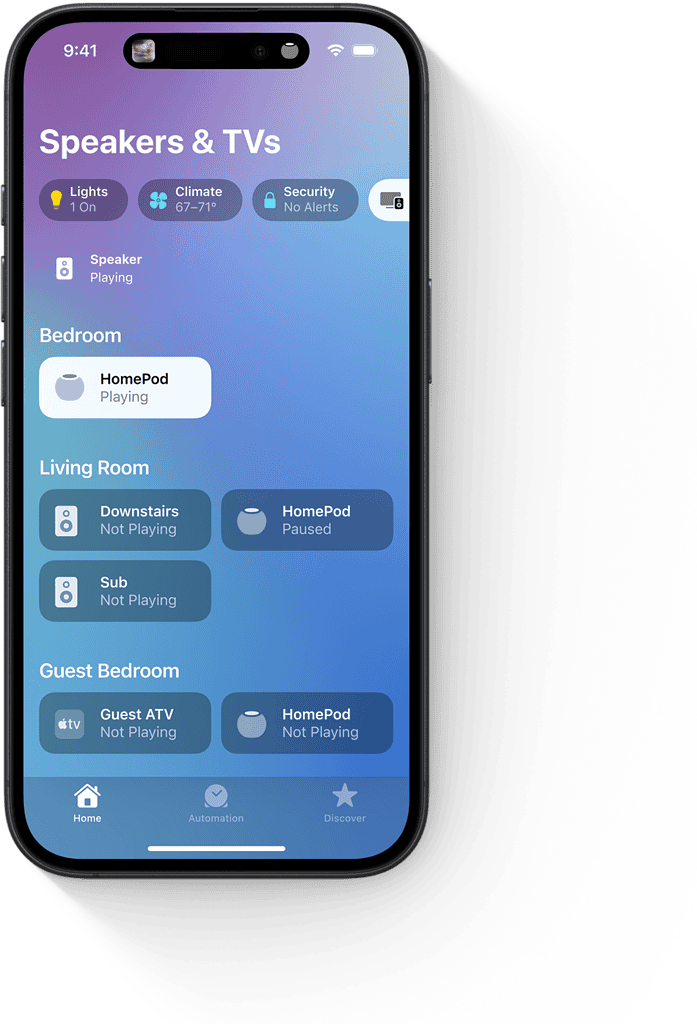
- Open the Home app.
- Select your HomePod mini from the grid.
- Adjust volume, alarms, Intercom settings and Siri preferences.
- Add automation or scenes if you use HomeKit accessories.
Tips for a Smooth HomePod Mini Setup
- Keep your iPhone or iPad updated to the latest iOS or iPadOS version.
- Stay within a close range of the HomePod mini during setup.
- Make sure your device is connected to the same Wi-Fi network you want the speaker to use.
- Restart your router if the HomePod mini has trouble joining your network.
- Use a dedicated room name to keep your smart home organized.
FAQ
Yes. It uses your Apple ID and Home app, so any device signed in with your account can control it.
No. It requires Wi-Fi for Siri, music playback and smart home features.
Yes. You can set it as a default audio output in Apple TV settings.
Summary
- Plug in the HomePod mini and wait for the top light.
- Hold your iPhone or iPad nearby to start setup.
- Tap Set Up and follow the prompts.
- Manage everything in the Home app once connected.
Conclusion
Setting up and connecting a HomePod mini takes only a few steps, and the Home app does most of the work for you. Once everything is paired, you can use Siri, control smart home devices, and enjoy audio throughout your home. The process is quick, reliable, and a simple way to expand your Apple ecosystem.




Discussion