

When a HomePod does not play Apple Music, the cause is usually related to setup status, network access, or device readiness, not the music service itself. In many cases, playback resumes after confirming the HomePod is fully configured, connected to Wi-Fi, and signed in with the correct Apple ID.
The steps below focus on fixing common setup and connection gaps that prevent Apple Music from playing.
Table of contents
Here’s How to Fix This Issue
1. Confirm the HomePod Setup Is Complete
Apple Music will not play if the HomePod setup did not finish properly.
Don’t miss the best of The Mac Observer
Set us as a preferred source and our Apple reporting ranks higher in your Google Search results and Discover feed — one tap, no account changes.
- Open the Home app on the paired iPhone.
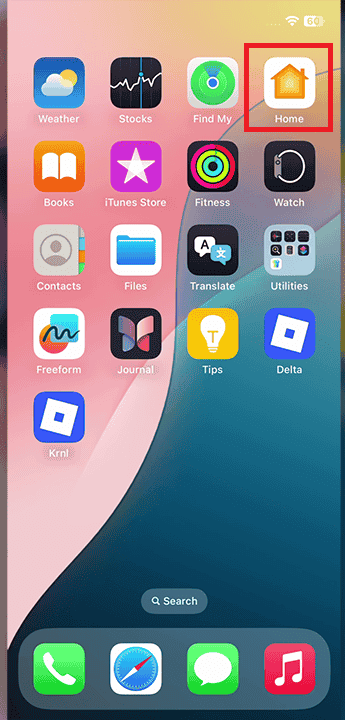
- Select the HomePod from the device list.
- Check if the HomePod shows setup warnings or limited controls.
- If setup appears incomplete, follow the on-screen prompts to finish configuration.

Playback issues are common when the HomePod is still syncing, as seen in cases where the device is stuck configuring.
2. Check Power and Startup Status
Unstable power can prevent Apple Music from streaming correctly.
- Unplug the HomePod from power.
- Wait at least 10 seconds.
- Plug the HomePod back in and allow it to fully start.
- Wait until Siri responds normally before testing playback.
Power-related problems can block music playback even when the HomePod appears online, similar to situations where the HomePod is not powering on correctly.
3. Restart the HomePod and Home App
Restarting refreshes the connection between the HomePod, Apple ID, and Apple Music.
- Open the Home app.
- Press and hold the HomePod tile.
- Scroll down and select Restart HomePod.
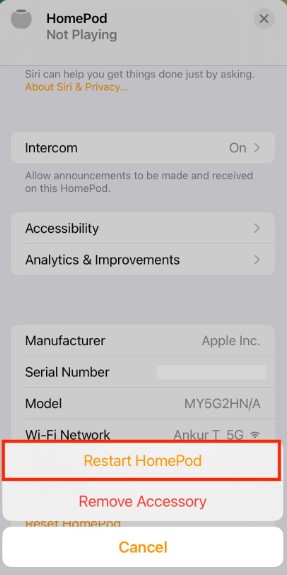
- Close the Home app completely.
- Reopen the Home app after the HomePod restarts.

This clears temporary sync issues that can interrupt playback requests.
4. Verify Network and Device Connectivity
HomePod requires a stable Wi-Fi connection to stream Apple Music.
- Confirm the iPhone and HomePod are on the same Wi-Fi network.
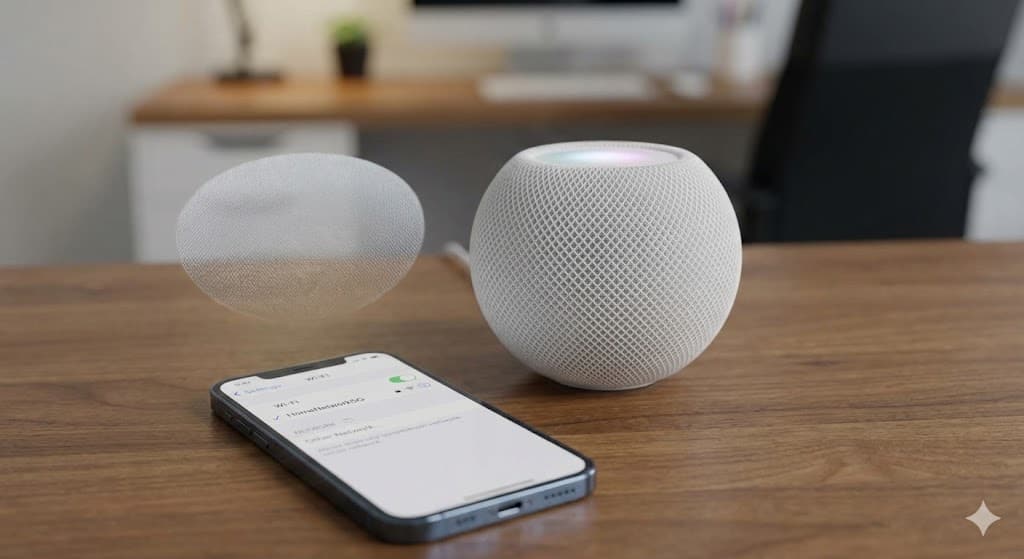
- Check that the network has internet access.
- Avoid switching networks during playback testing.
- Test another online service to confirm connectivity.

Network limitations often surface when HomePod is used alongside non-Apple devices, similar to issues seen when attempting to connect HomePod to a PC.
5. Review Apple ID and Media Access Settings
Apple Music will not play if media access is disabled for the HomePod.
- Open the Home app.
- Tap the three-dot menu and select Home Settings.
- Open People and select the primary Apple ID.
- Confirm Apple Music is enabled under Media.
- Verify the correct Apple ID is signed in.
Allow a few minutes for changes to sync before testing again.
6. Recheck Initial Setup Permissions
Skipped permissions during setup can block Apple Music access.
Steps
- Remove the HomePod from the Home app if issues persist.
- Restart the iPhone used for setup.
- Add the HomePod again using the Home app.
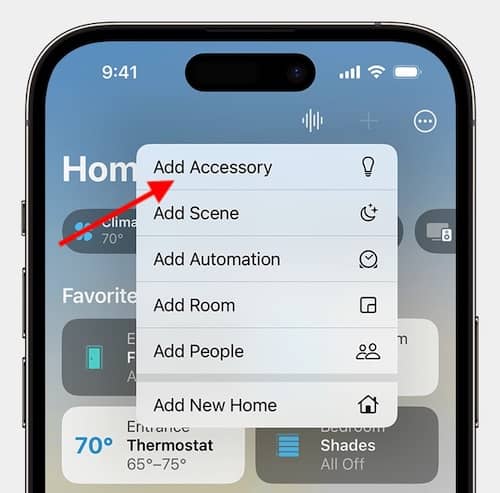
- Follow all setup prompts carefully.

A clean setup, similar to the process outlined in the HomePod mini quick setup and connection guide, often resolves persistent playback issues.
Additional Tips
- Keep HomePod and iPhone updated to the latest software
- Avoid switching Apple IDs within the same Home
- Place HomePod within strong Wi-Fi range
- Allow time for syncing after setup or account changes
- Use one Home hub during troubleshooting
Conclusion
HomePod playback issues with Apple Music are usually tied to setup completion, power stability, or network consistency. Step-by-step checks help confirm the device is fully configured and properly connected. Once the HomePod and Home app are in sync, Apple Music playback typically resumes without additional changes.
FAQs
This often happens when setup is incomplete or Apple Music access is not enabled.
Yes, but the HomePod must be fully set up through the Home app first.
Yes, both devices must remain on the same network for stable playback.
Resetting can help if setup or sync problems persist, but it should be used after other fixes.



Discussion