

Sharing is caring, especially when it comes to digital subscriptions. Apple’s Family Sharing feature is one of the best ways to save money, allowing up to six people to share a single plan for iCloud+, Apple TV+, and Apple Music. It also simplifies life by letting you share photo albums, calendars, and even your location.
Setting it up is surprisingly simple, but the process differs slightly depending on whether you are inviting an adult, a child, or even someone who doesn’t use an iPhone. Here is your complete guide to adding a new member to your Apple family group directly from your iPhone.
Table of contents
What You Need Before You Start
Before you start tapping through settings, ensure you have the basics covered:
Don’t miss the best of The Mac Observer
Set us as a preferred source and our Apple reporting ranks higher in your Google Search results and Discover feed — one tap, no account changes.
- Organizer Status: Only the Family Organizer can add new members.
- Payment Method: You must have a valid payment method linked to your Apple ID to share paid subscriptions.
- Apple IDs: The person you are inviting needs their own Apple ID. If they don’t have one, you can create one for them during the process.
How to Add a Member on iPhone
1. Open Family Settings
The hub for all your family management is built directly into iOS settings.
- Unlock your iPhone and open the Settings app.
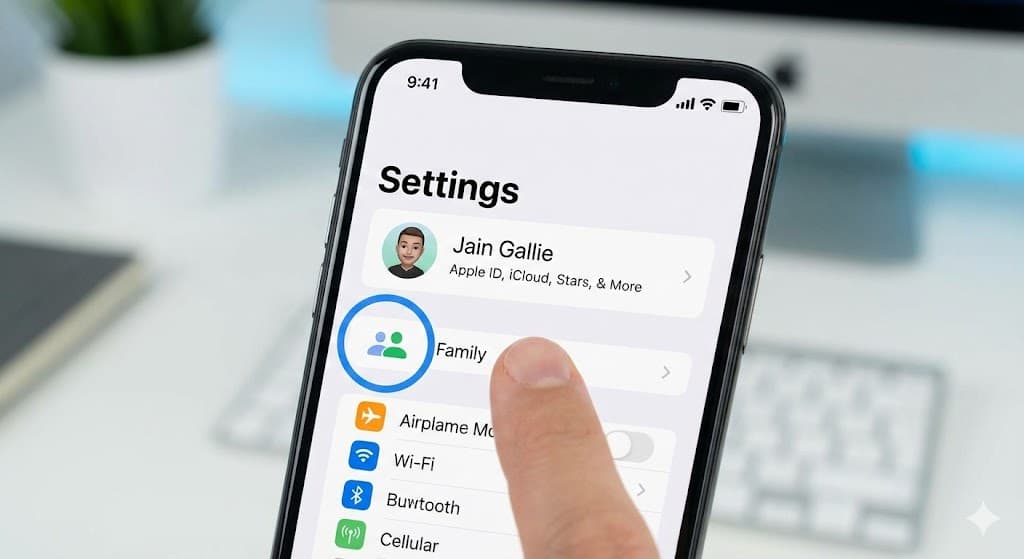
- Tap your Name (Apple Account) at the very top of the screen.
- Tap Family Sharing (or “Family” on newer iOS versions).
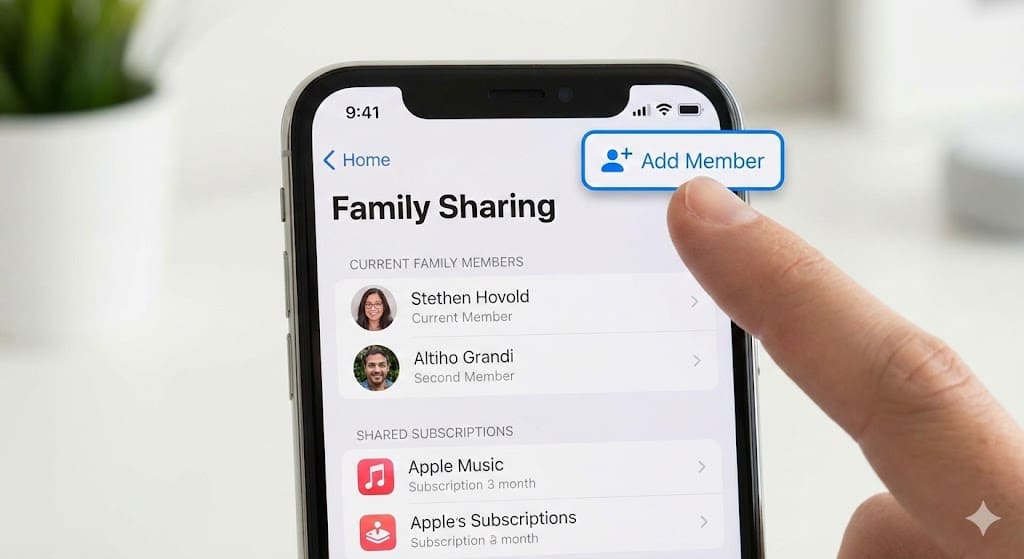
- In the top right corner, you will see a “person with a plus sign” icon or a button labeled Add Member. Tap it.

2. Send the Invitation
Your iPhone gives you flexibility in how you send the invite.
- Invite People: Use this for adults or teens who already have an Apple ID. You can send the invite via Messages, Mail, or AirDrop if they are standing right next to you.
- Create Child Account: If the member is under 13 (age varies by region), they cannot create their own account. You must choose this option to set up their ID and parental controls from scratch.

3. Accepting the Invite
Once you send the link, the recipient just needs to tap it and follow the on-screen instructions to join. Once they are in, they can immediately access shared perks. For example, they can start building their own collection and learn how to add to their Apple Music library using the family subscription you are paying for.

Special Cases: Children and Android Users
Adding Android Users: Many people assume Family Sharing is iPhone-only, but that isn’t entirely true. You can invite Android users to share your Apple Music subscription. While the experience is different, knowing the good, the bad, and the ugly of Apple Music on Android can help you set expectations for them. They will need to download the Apple Music app on their Android device to accept the invite.
Creating Child Accounts: For younger kids, you aren’t just adding a user; you are acting as a guardian. When you select Create Child Account, your iPhone will verify your identity (usually via the CVV of your credit card) to prove you are an adult. This allows you to enable “Ask to Buy,” ensuring they can’t rack up bills without your permission.
Troubleshooting Common Issues
Sometimes technology hiccups. If the process isn’t going smoothly, check these common solutions:
- Fixing “Cannot Join Family” Errors: An Apple ID can only belong to one family group at a time. If the person you are inviting is already part of another group (even an old, inactive one), they must leave that group before they can accept your invitation.
- Restoring Missing Shared Content: If a new member joins but cannot access your subscriptions, have them check their settings.
- For Apps: Go to App Store > Account > Purchased to see apps bought by other family members.
- For Music: Verify they are signed in with the correct Apple ID. If their library seems empty or tracks won’t play offline, they should check our guide on how to download music on Apple Music to ensure their settings are correct.
- Solving Invite Link Failures: If the invitation link times out or refuses to open, try resending it using a different method (e.g., send via Messages instead of Mail). If the issue persists, your internet connection might be the culprit. We have a helpful guide on what to do if Apple Music is not loading, which covers connectivity fixes that often resolve Family Sharing glitches as well.
Final Thoughts
Adding someone to your Apple Family account is a “set it and forget it” task. Once done, everyone benefits from premium services without the premium price tag of individual subscriptions. Whether you are managing screen time for a child or just sharing a playlist with a partner, the centralized control on your iPhone makes it effortless.
FAQs
Yes, but primarily for Apple Music and Apple TV+. They won’t be able to share apps, iCloud storage, or location in the same seamless way iPhone users can
No. Family Sharing is designed with privacy in mind. While you can create a shared photo album, your personal camera roll and text messages remain completely private and visible only to you.
If you remove someone, they immediately lose access to shared subscriptions. Any music or apps they downloaded via the family plan may stop working or require them to purchase their own copy.



Discussion