
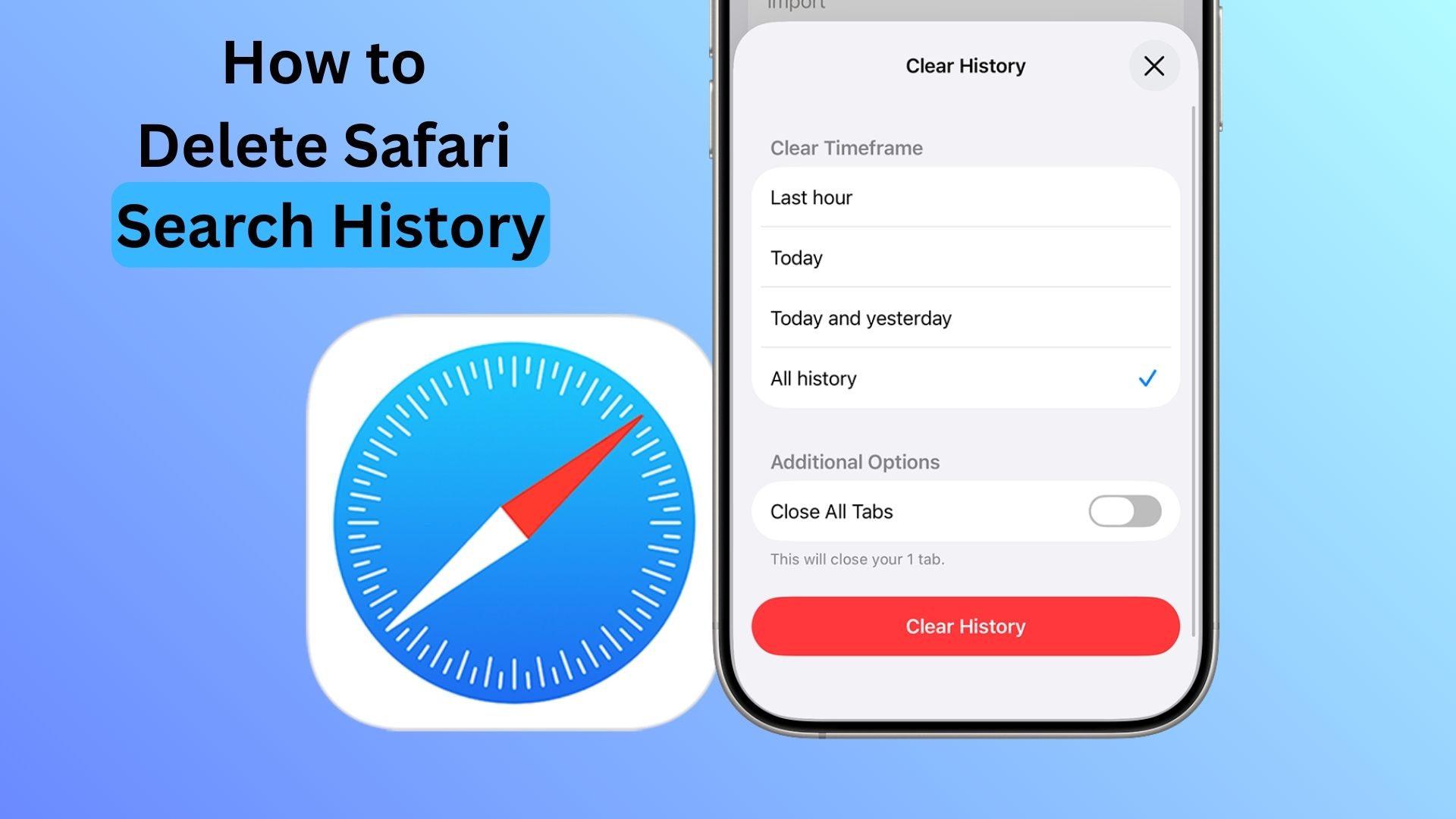
Apple updated its official support document on how to clear Safari history and related data on iOS 26, a change that MacObserver spotted in the latest version of the guide. The updated instructions show you how to delete your Safari search history, clear cookies and cache, remove specific sites from history, and use privacy options like cookie blocking or content blockers.
These steps live in Apple’s support article on deleting Safari history, cache, and cookies on iPhone.
The fastest way to delete Safari history on iPhone
Use this when you want to clear Safari history, cookies, and website data in one go.
Don’t miss the best of The Mac Observer
Set us as a preferred source and our Apple reporting ranks higher in your Google Search results and Discover feed — one tap, no account changes.
- Open Settings.
- Tap Apps.
- Tap Safari.
- Scroll down and tap Clear History and Website Data.

- Choose a timeframe, then tap Clear History.
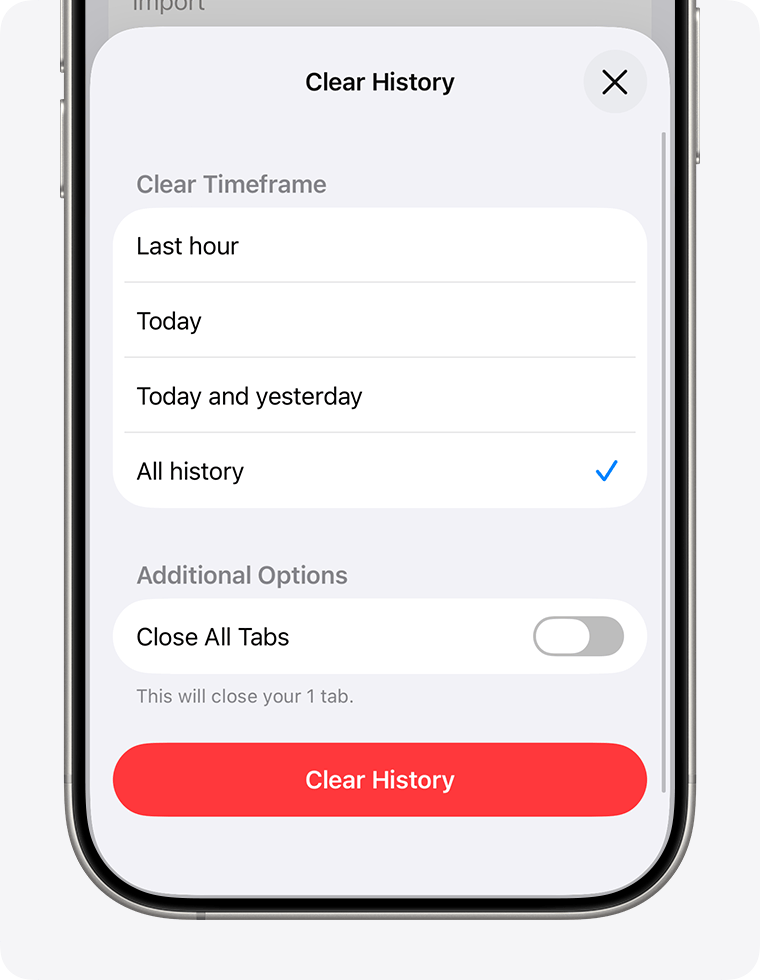
Apple notes two useful details:
- This does not change your AutoFill information.
- If Clear History and Website Data looks greyed out, you either have no data to clear or Screen Time restrictions are blocking it.
Clear cookies and cache, but keep your history
Use this when you want to remove website data (often used for tracking and saved site data) while keeping your browsing history.
- Open Settings.
- Tap Apps.
- Tap Safari.
- Tap Advanced, then Website Data.
- Tap Remove All Website Data, then tap Remove Now.
Apple says this removes data used for tracking and data websites use to save things like login info for faster browsing.
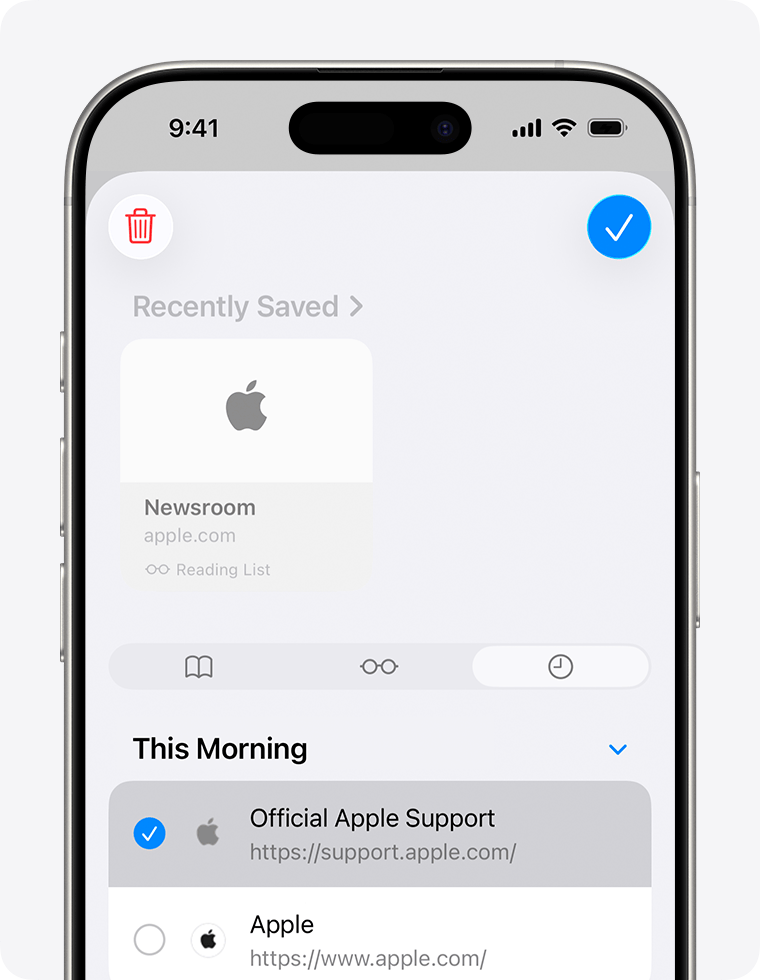
Delete one website from your Safari history
Use this when you only want to remove a specific site instead of clearing everything.
- Open Safari.
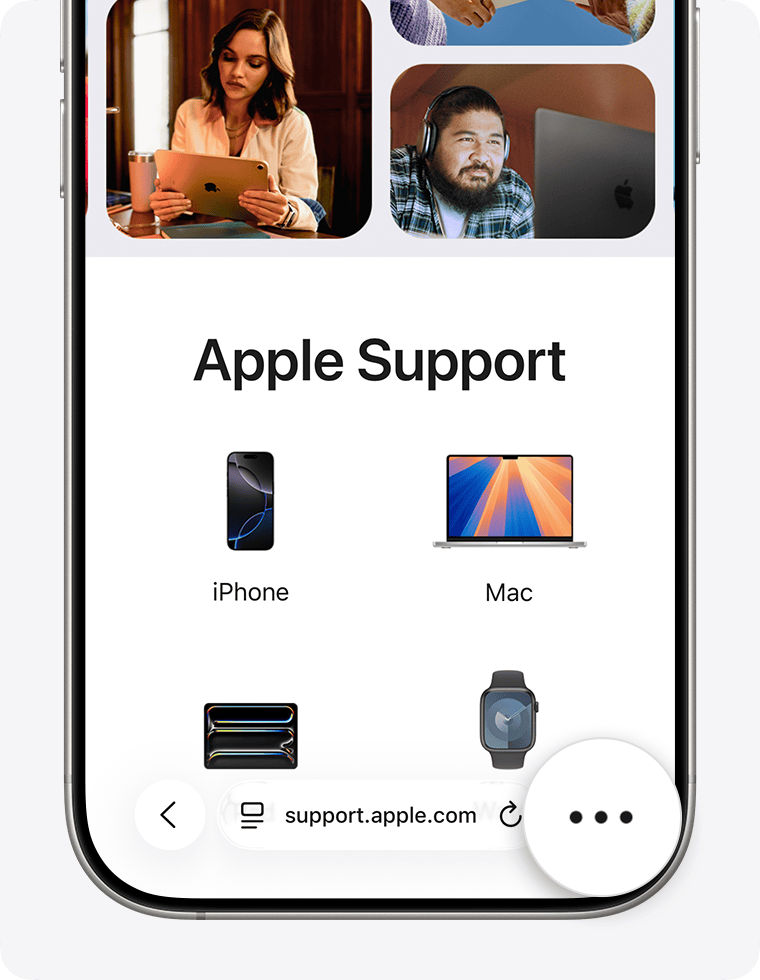
- Tap the More button, then tap Bookmarks.

- Tap History, then tap More again.
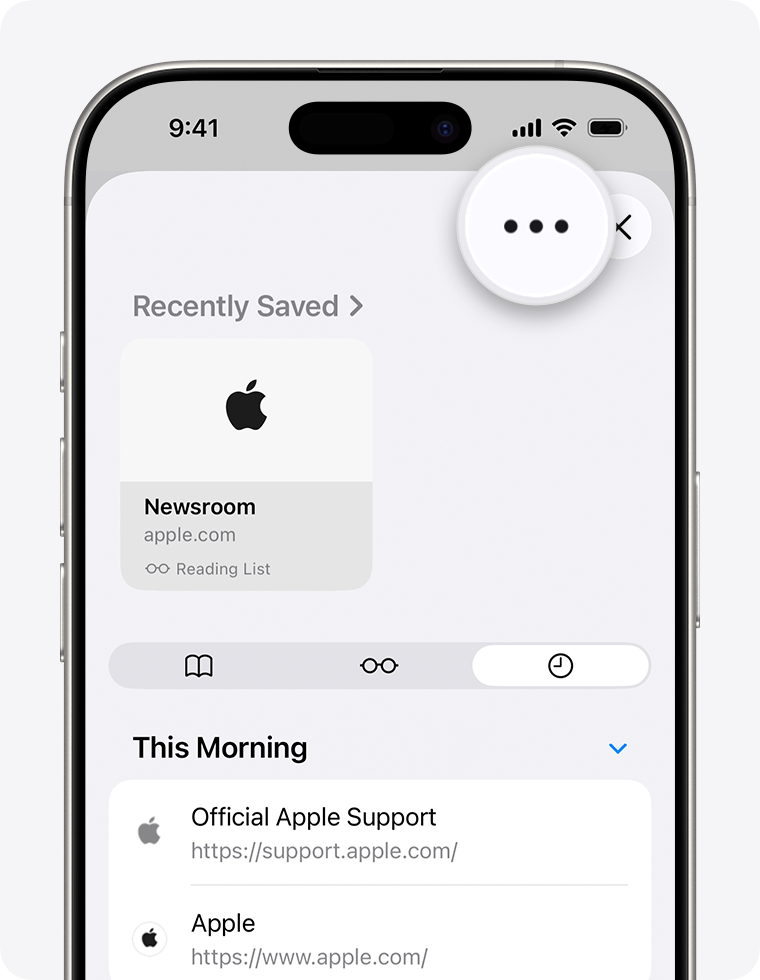
- Tap Select Websites, choose the site or sites, then tap the Bin button.
If you want more privacy, block cookies
Blocking cookies stops websites from placing data on your iPhone to remember you.
- Open Settings.
- Tap Apps.
- Tap Safari.
- Tap Advanced.
- Turn on Block All Cookies, then confirm.
Apple warns that blocking cookies can break parts of websites. You often cannot sign in, and some site features stop working.
Use content blockers in Safari
If you want Safari to block things like pop-ups and other content, you can use content blockers.
- Download a content-blocking app from the App Store.
- Open Settings.
- Tap Apps.
- Tap Safari.
- Tap Extensions.
- Turn on your content blocker.
Troubleshooting: when “Clear History” is greyed out
If you cannot tap the button, Apple points to two common causes:
- There’s nothing to clear. Safari has no stored history or website data right now.
- Screen Time restrictions are blocking changes. Check your Screen Time content and privacy restrictions related to web content.
FAQs
Clearing history and website data does not change your AutoFill information, according to Apple.
Clearing history and website data removes your history plus cookies and cache. Removing website data targets cookies and stored site data while keeping your browsing history.
Yes. Apple’s iPhone User Guide shows a Safari-app method where you open History, tap More, then Clear and choose a timeframe.
Summary
To clear history on iPhone, open Settings, go to Apps, select Safari, and tap Clear History and Website Data. If you only want to remove cookies and cache, go to Safari’s Advanced settings and remove Website Data instead. When you want tighter privacy controls, you can block cookies or enable content blockers, but expect some sites to work worse.




Discussion