

Music is the best passenger you can have on any road trip. If you have moved over to the Android ecosystem but still love your curated playlists on Apple Music, you do not have to leave them behind. Using Apple Music on Android Auto is actually quite seamless. It combines the massive library of Apple’s streaming service with Google’s driver friendly interface.
Whether you prefer a wired connection for lossless audio quality or the convenience of wireless connectivity, we have you covered. This guide will walk you through exactly how to set it up so you can keep your eyes on the road and your ears on the tunes.
Table of contents
What You’ll Need to Get Started
Before we jump into the setup, let’s make sure you have all the necessary gear and software. The good news is that if you have a modern Android phone, you likely have most of this ready to go.
Don’t miss the best of The Mac Observer
Set us as a preferred source and our Apple reporting ranks higher in your Google Search results and Discover feed — one tap, no account changes.
- An Android Phone: You need a device running Android 6.0 or higher.
- The Apple Music App: Since it is not a native Google app, you need to download it from the Google Play Store. If you are new to the app on this platform, you might want to read up on how to use Apple Music to get familiar with the interface first.
- A Compatible Car or Stereo: Your vehicle needs to support Android Auto.
- Apple Music Subscription: You need an active subscription to stream or play downloaded tracks.
- USB Cable: A high quality cable is essential if your car does not support wireless Android Auto.
Here’s How to Play Apple Music on Android Auto
Once you have your prerequisites sorted, getting the music playing is straightforward. We will break this down into the most common methods so you can choose what works best for your vehicle.
1. The Wired Connection (Most Reliable)
This is the standard way to connect and usually offers the most stable audio connection with the least amount of lag.
- Unlock your phone and ensure you are signed in to the Apple Music app.
- Connect your phone to your car’s USB port using a compatible cable.
- Launch Android Auto on your car’s display if it does not start automatically.
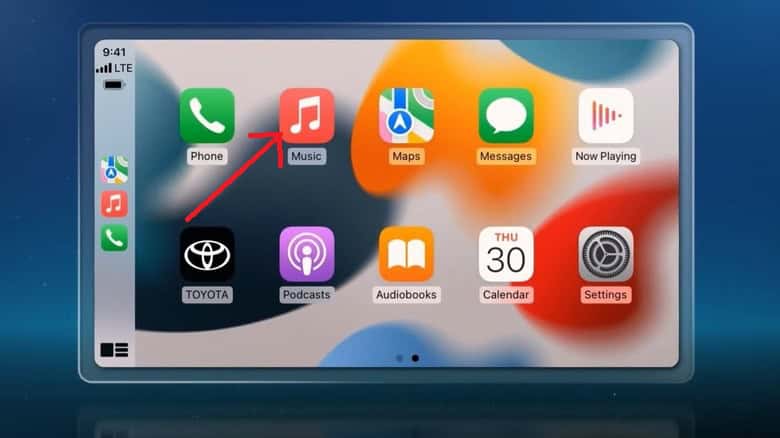
- Tap the App Launcher (the grid icon usually at the bottom left).
- Select Apple Music from the list of available apps.
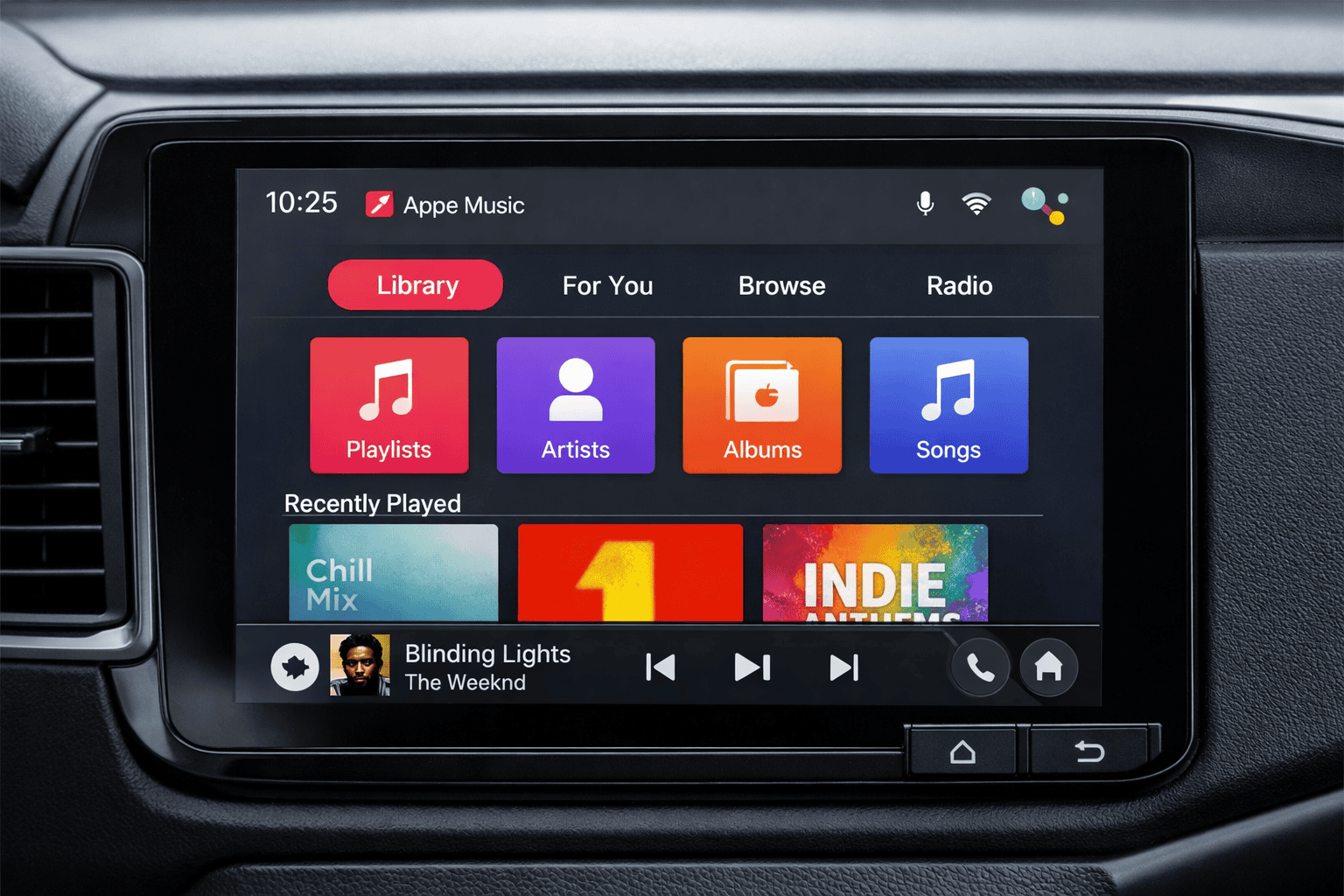
- Choose your song. You can now browse your Library, Listen Now, or Radio tabs directly from your car screen.


2. The Wireless Connection (Most Convenient)
If your car and phone support wireless Android Auto, you can leave the cables at home. This is great for short trips where you do not want to fiddle with plugs.
- Enable Bluetooth and Wi-Fi on your Android phone.
- Pair your phone with your car’s Bluetooth system while the car is in Park.
- Follow the prompt on your phone or car screen that asks if you want to launch Android Auto.
- Select “Yes” or “Start.”
- Open Apple Music via the Android Auto interface just like you would in the wired method.
Note: Wireless Android Auto can drain your battery faster. If you are planning a long drive, you might want to plug in anyway. For more general advice on this ecosystem, check out our guide on how to use Apple Music on Android devices, which covers tips outside the car as well.
3. Using Voice Commands
Safety comes first. You do not need to touch the screen to change the track. Since Google Assistant integrates with Android Auto, it can control Apple Music for you.
- Say “Hey Google” or press the voice command button on your steering wheel.
- Give a command like “Play my Road Trip playlist on Apple Music” or “Play Taylor Swift on Apple Music.”
- Confirm if asked. Sometimes Google Assistant needs you to specify “on Apple Music” the first few times until it learns your preference.
Additional Tips
To get the absolute best experience, there are a few settings and tricks you should know about.
- Download Music for Offline Listening: Signal can be spotty on highways. To avoid silence during dead zones, download your favorite playlists ahead of time. You can learn the specifics in our guide on Apple Music: How to Download Music.
- Set Apple Music as Default: Open the Google app on your phone, go to Settings, then Google Assistant, and tap Music. Select Apple Music as your default provider so you do not have to say “on Apple Music” every time.
- Check Audio Quality: If you are worried about data usage, check the settings in the Apple Music app on your phone. However, if you want the best sound, ensure you are streaming in high quality. Just remember that the Apple Music on Android experience: The Good, The Bad, and The Ugly can vary depending on your specific phone model and car speakers.
Final Thoughts
Using Apple Music on Android Auto is a fantastic way to bridge the gap between two rival ecosystems. It proves you do not have to sacrifice your preferred music service just because you switched phone platforms. With a simple setup, you get the safety of Google’s driving interface mixed with the playlists you know and love. So plug in, turn up the volume, and enjoy the ride.
FAQs
If the app is missing from your car screen, go to the Android Auto settings on your phone. Look for “Customize Launcher” and ensure Apple Music is checked and not hidden.
It shouldn’t. However, Bluetooth connections can sometimes compress audio more than a wired USB connection. If you are an audiophile, stick to the wired method for the best fidelity.
It can, especially if you have “Lossless Audio” enabled. We recommend downloading your heavy rotation playlists over Wi-Fi before you leave to save data.


Discussion