

There is nothing more annoying than glancing at your wrist mid-workout or while driving only to see the blue padlock icon staring back at you. You type in your passcode, go back to what you were doing, and ten seconds later, it’s locked again. It kills your momentum and makes simple tasks frustratingly difficult.
If your Apple Watch keeps locking unexpectedly, it usually means the device thinks it has been removed from your wrist. However, this isn’t always because of a loose band. It can be caused by sensor interference, software glitches, or even your own skin.
Here is a practical guide to troubleshooting this issue so you can keep your watch unlocked and ready when you need it.
Table of contents
Common Reasons Your Watch Locks
Before diving into the fixes, it helps to understand why the watch locks itself. The Apple Watch uses a feature called Wrist Detection to secure your data. When the sensors on the back lose contact with your skin, the watch assumes you have taken it off and locks immediately to protect your Apple Pay and personal information.
The most common culprits include:
- Loose fit: The band is not tight enough to keep the sensors flush against your skin.
- Tattoos: Ink (especially dark or saturated colors) can block the infrared light used for wrist detection.
- Dirty sensors: Sweat, lotion, or sunscreen can build up on the back crystal.
- Software bugs: Glitches in watchOS can sometimes cause the sensors to misread contact or the screen to become unresponsive.
Here’s How to Fix the Locking Issue
If you are ready to stop typing that passcode a hundred times a day, follow these proven methods.
1. Adjust the Fit and Clean the Sensors
The simplest explanation is often the right one. If the watch moves even slightly during vigorous movement, the sensors might disconnect for a fraction of a second, triggering the lock.
- Tighten the band: Move it one notch tighter, especially during workouts. It should be snug but comfortable.
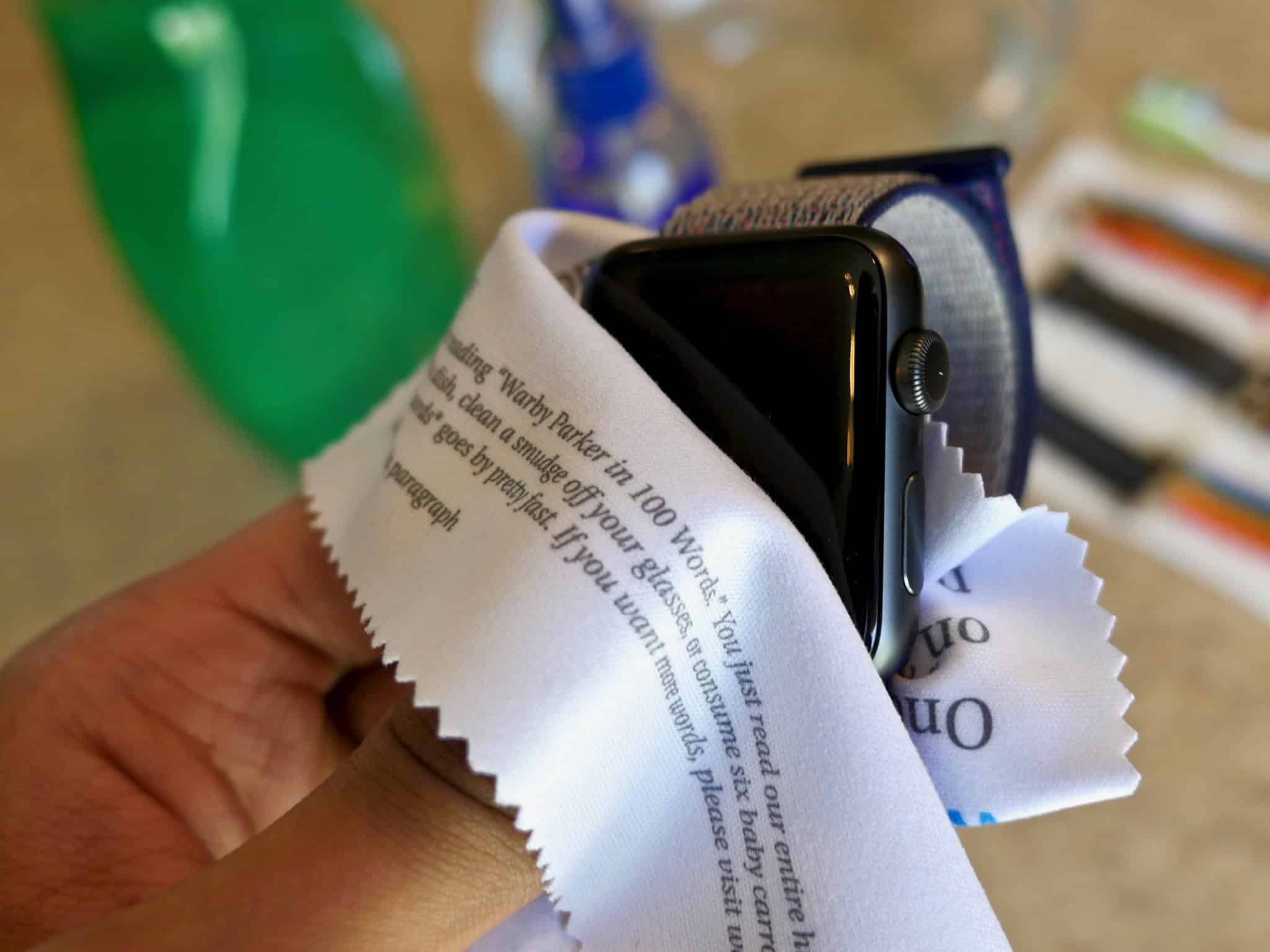
- Clean the back crystal: Take the watch off and wipe the back sensors with a microfiber cloth. Dried sweat or lotion creates a barrier that mimics “air,” tricking the watch into thinking it is off-wrist.

2. Check for Ghost Touches or Screen Issues
Sometimes the issue is not the sensor but the screen itself. If your display is acting strangely or registering touches you didn’t make (ghost touches), it might be locking itself as a failsafe.
This has been a specific pain point for some users on recent software versions. If you are noticing that your touchscreen is not working on watchOS 11 properly, the erratic behavior could be the root cause of the locking. Ensuring your screen is clean and free of water droplets is a good first step here.
3. Turn Off Wrist Detection
If you have wrist tattoos or if the sensors just won’t work for you, this is the most effective fix. However, it comes with a trade-off.
- Open the Watch app on your iPhone.
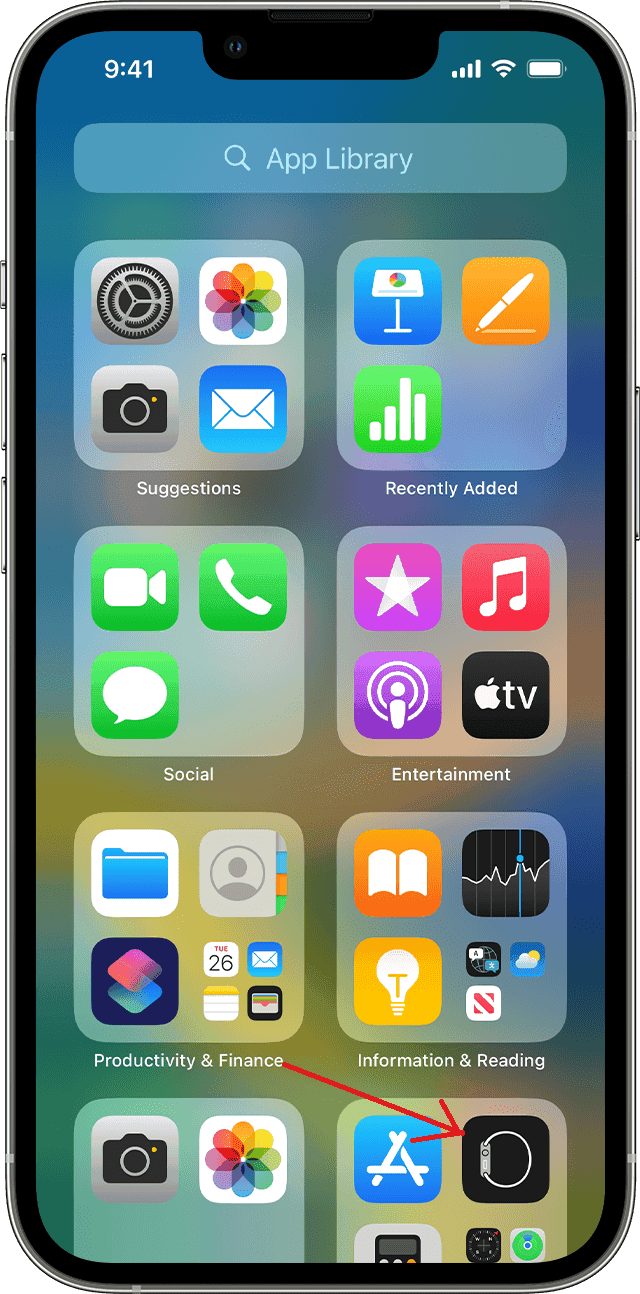
- Tap Passcode.
- Toggle off Wrist Detection.
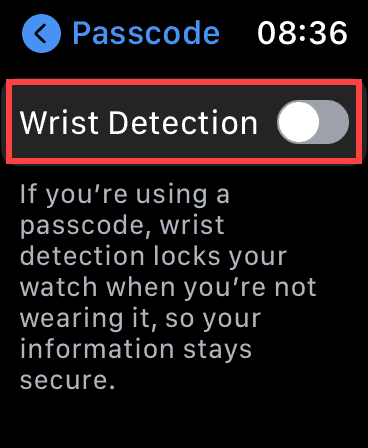


Warning: Turning this off will stop the random locking, but you will lose key features. Apple Pay will no longer work, your High/Low heart rate notifications will stop, and you will face issues with your Apple Watch not unlocking your Mac automatically.
4. Restart and Update Your Devices
Software glitches can cause background processes to crash, leading to performance issues like auto-locking.
- Force Restart: Hold down the Side button and the Digital Crown simultaneously for at least 10 seconds until you see the Apple logo.
- Check for Updates: Go to General > Software Update in the Watch app.


Be aware that updates can sometimes bring their own bugs. For example, some users experienced their Apple Watch battery draining quickly after the iOS 26.0.2 update. If your locking issue started right after an update, it might be related to system instability.
5. Unpair and Re-pair
If nothing else works, you might need to reset the connection between your watch and phone. This clears out corrupted cache files that could be causing the error.
- Go to the Watch app on iPhone.
- Tap All Watches at the top left.
- Tap the “i” icon next to your watch and select Unpair Apple Watch.

- Set it up again as a new watch or restore from a backup.

If the screen remains black or unresponsive during this process, you may need to troubleshoot why your Apple Watch won’t turn on after a hard reset before you can attempt to pair it again.
Additional Tips
- Try a different wrist: If you have a tattoo on one wrist but not the other, simply switching wrists is the best solution that allows you to keep Wrist Detection enabled.
- Epoxy Bottle Cap Sticker: Some Reddit users have found success by placing a small, clear epoxy sticker over the sensors. This can sometimes help the light penetrate through tattoos, though results vary.
- Check your sleeve: If you wear long sleeves or gloves that push against the Digital Crown or the screen, they might accidentally lock the device.
Final Thoughts
An automatically locking Apple Watch turns a smart convenience into a constant annoyance. For most people, a simple cleaning or band adjustment solves the problem instantly. For those with tattoos, the choice often comes down to switching wrists or disabling Wrist Detection and sacrificing Apple Pay. Start with the hardware fixes first before messing with your settings, and you will likely be back to a seamless experience in no time.
FAQs
Sweat can slide between the sensor and your skin, breaking the contact. A loose band can also cause the watch to bounce, momentarily losing wrist detection.
Not always, but it is very common. Darker ink and high saturation block the light sensors. Open designs or lighter colors usually cause fewer issues.
It is safe, but it makes your watch less secure. Without it, anyone who steals your watch can access your data without a passcode. You also lose health tracking features and Apple Pay.


