Apple is retiring AirPort Utility, the app that runs AirPort Express, AirPort Extreme and AirPort Time Capsule base stations. Clean installs of macOS 27 leave it out, the iPhone and iPad app is coming off the App Store for new downloads, and Apple no longer guarantees it works on version 27 of either platform.

Time Capsule owners have a bigger problem. An Apple support page dated September 14 says Time Machine backups to a Time Capsule or AirPort Extreme rely on Apple Filing Protocol (AFP), “which isn’t supported in macOS 27 or later.”
What Apple says is changing
Both app changes sit under “Deprecations” in Apple’s developer release notes for macOS 27 Golden Gate and iOS 27. The Mac entry reads:
Don’t miss the best of The Mac Observer
Set us as a preferred source and our Apple reporting ranks higher in your Google Search results and Discover feed — one tap, no account changes.
“AirPort Utility is no longer included with new clean installations of macOS. However, if you update macOS when AirPort Utility is already installed, it remains on your system but functionality is not guaranteed starting in macOS 27.”
The iPhone and iPad entry reads:
“AirPort Utility will no longer be available for new downloads from the App Store. If you previously downloaded the app, you can still re-download it. When using AirPort Utility on iOS 27 and later, functionality is not guaranteed.”
Neither entry gives a date for the App Store change or for when the app might stop working. Both describe the app, not the base stations. The App Store listing was still online on September 15.
Time Capsule backups on macOS 27
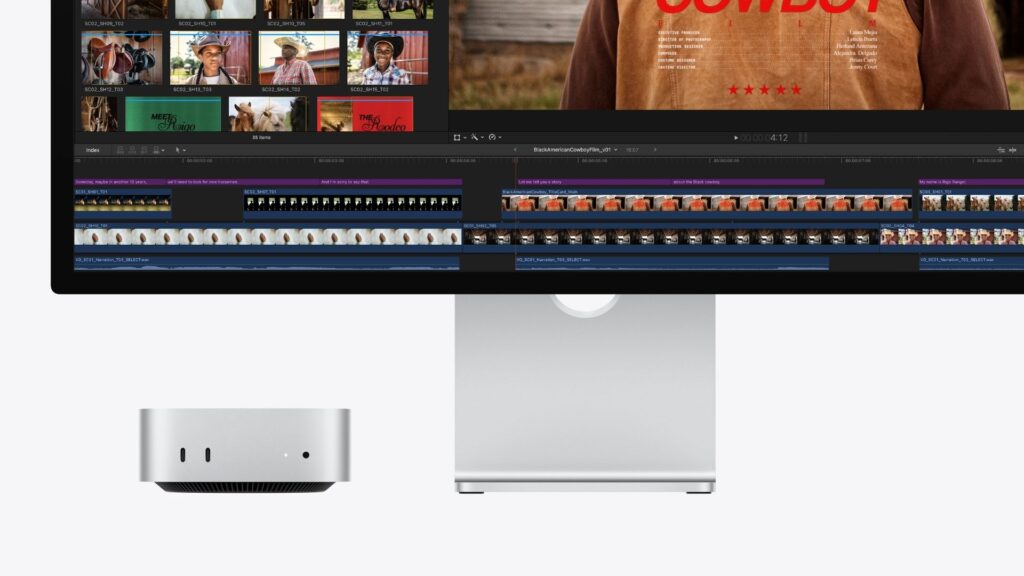
Apple’s “Backup disks you can use with Time Machine” page now calls the AirPort option “no longer recommended, because Time Machine backup and other data transfer to or from these devices use Apple Filing Protocol (AFP), which isn’t supported in macOS 27 or later.” That covers a Time Capsule’s built-in disk and a USB drive attached to an 802.11ac AirPort Extreme or a Time Capsule.
The words “to or from” count. They cover data coming off the device, which includes restoring from an existing backup, not only making new ones.
One Apple page hasn’t caught up. The macOS 27 edition of the Mac User Guide still lists AirPort Time Capsule as a Time Machine destination. The support article is newer and more specific.
What still works
If AirPort Utility was on your Mac before you upgraded, it stays, without Apple’s guarantee. If you have ever downloaded the iPhone or iPad app, you can download it again. Apple’s AFP statement is tied to “macOS 27 or later”, so it doesn’t describe a Mac still running an earlier version.
The hardware is already out of Apple’s service. Its vintage and obsolete products list, dated August 31, 2026, places the AirPort Extreme 802.11ac and AirPort Time Capsule (2TB and 3TB) among obsolete products, for which Apple discontinues all hardware service.
What to do now
These steps come from Apple’s own guides. Do the AirPort Utility ones on a Mac where the app still runs.
- Export your base station settings. In AirPort Utility, choose File > Export Configuration File, enter a name and location, and click Save. A checkbox lets you encrypt the passwords in the file. To apply it later, select a base station, click Edit, choose File > Import Configuration File, open the file and click Update.
- Download the iPhone app if you rely on it. Apple lets anyone who previously downloaded AirPort Utility re-download it, so getting it before it leaves the App Store keeps that door open.
- Move Time Machine to a supported disk. Apple calls an external storage device connected to your Mac “the most common Time Machine setup” and suggests one with at least twice your Mac’s storage. Open System Settings, click General, then Time Machine, then Add Backup Disk. A second Mac shared as a network backup destination also works if both run macOS 11 or later. If a Mac in your home still backs up to a Time Capsule and hasn’t installed macOS 27, give it a new backup disk first. Our guide to backing up before installing macOS 27 covers the rest.
- Erase it before it leaves your hands. For a Time Capsule, select it in AirPort Utility, click Edit, then Disks, then Erase Disk, pick a security method and click Erase, then Update. When the erase finishes, choose Base Station > Restore Default Settings to return any AirPort base station to factory settings.