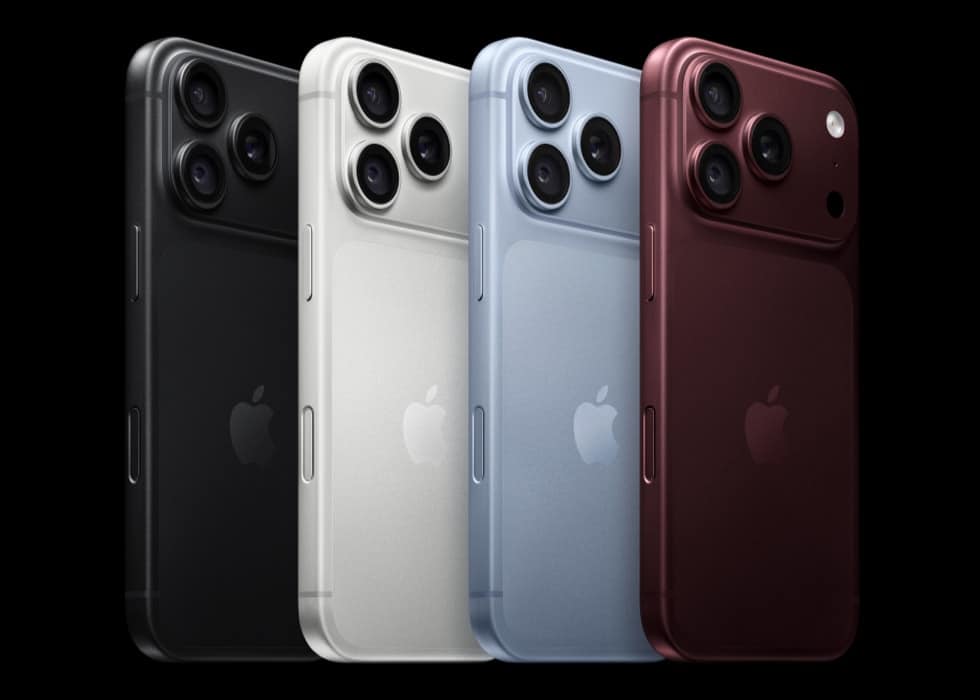
Before you box up an activated iPhone 18 Pro Max for a repair, trade-in, return or new owner, open Settings > General > Transfer or Reset iPhone and tap Prepare to Ship. Apple published the requirement on September 18 in a support document, because the Pro Max battery is now over 20 watt-hours and single-cell batteries that size face extra shipping rules in most countries and regions.
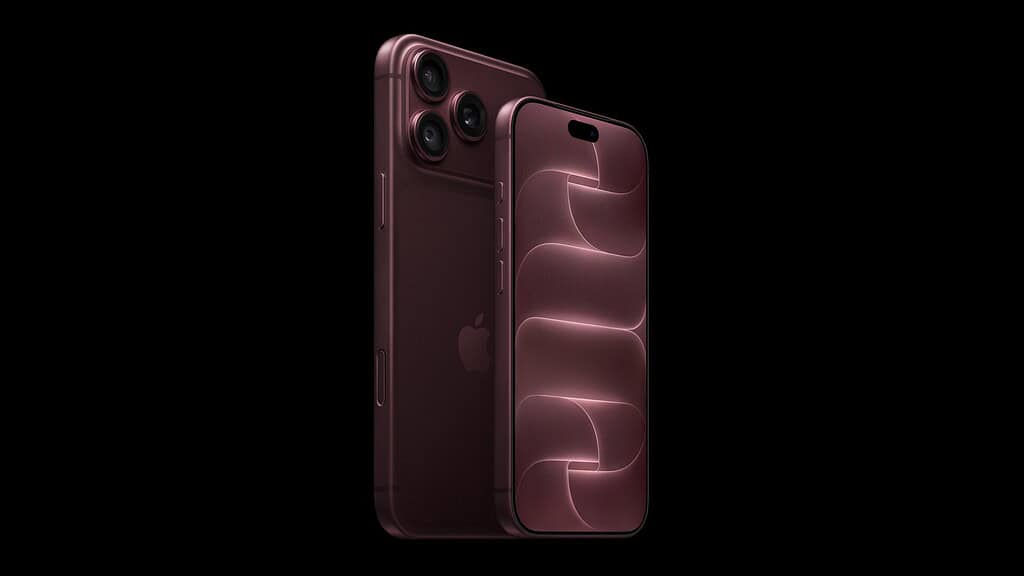
The feature drains the battery below 20 Wh and sets a charge limit so it stays there in transit. Apple says no other iPhone model needs it.
Why the 20 Wh line matters
“iPhone 18 Pro Max offers a huge increase in battery life, in part due to increasing the battery capacity to over 20 watt-hours (Wh),” Apple’s document says. New phones leave the factory with firmware that holds capacity under 20 Wh, and activation lifts that limit. Once the phone is yours, the full battery is too, which is why the limit has to go back on before it travels again.
Don’t miss the best of The Mac Observer
Set us as a preferred source and our Apple reporting ranks higher in your Google Search results and Discover feed — one tap, no account changes.
This isn’t a safety warning. “The battery in iPhone 18 Pro Max is safe, including for shipping and air travel,” Apple writes, and the process “isn’t required while traveling.” A Pro Max you never activated, or never took out of the box, is still under the limit, so an unopened return needs nothing.
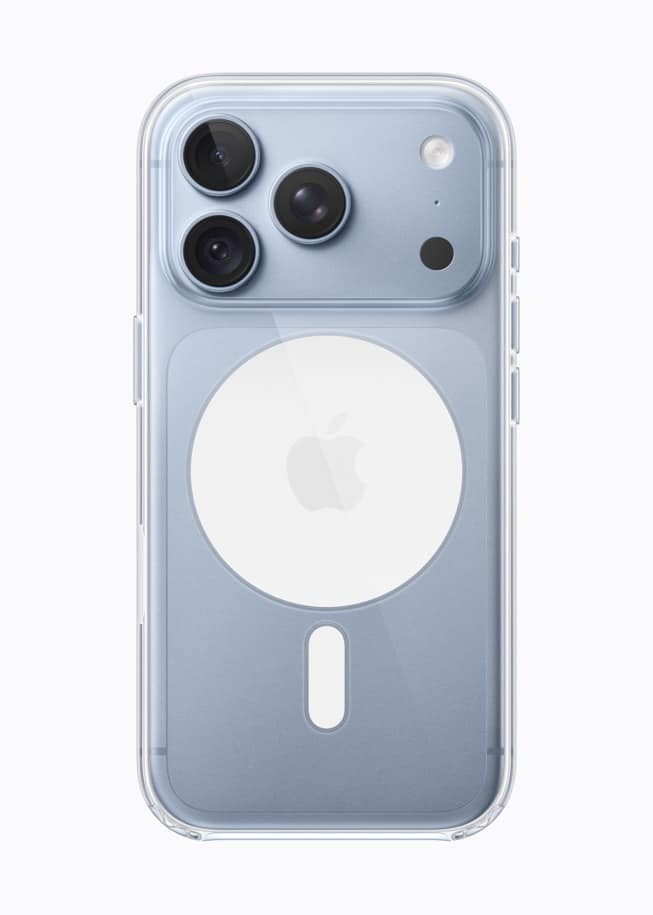
Steps for a repair, trade-in or return
Use this path when the phone is going to Apple, a reseller or a carrier:
- If your iPhone is connected to a charger, disconnect it. Apple says this speeds up the process.
- Contact Apple or the company you’re shipping to. Some have steps you need to complete first.
- Open Settings, tap General, tap Transfer or Reset iPhone, then tap Prepare to Ship.
- Select Repair, Trade-in, or Return.
- If asked, enter your Apple Account password.
- If you’re asked whether to continue without a recipient, tap Continue.
- Follow the on-screen instructions, including whether to erase the iPhone and sign out of your Apple Account. For a return or trade-in you must remove Activation Lock. Apple says erasing is best but not required.
- When the screen shows your iPhone is ready to ship, follow the instructions from Apple or the company receiving it.
This route caps charging at 80 percent for 14 days, “so that it remains below the 20-Wh requirement,” and you can’t switch it off until those 14 days are up. Start it when the box is ready, not when you first think about a trade-in. That is a different clock from the iPhone 18 Pro return window, which runs from delivery.
If the process fails, or you never see “Your iPhone is ready to ship,” Apple’s advice is plain: “Don’t ship your device, because you’ll likely need specific packaging.” Contact Apple or the receiving company instead. The same applies if the screen is broken and you can’t reach Settings.
Selling it or giving it away
For a phone going to a friend, relative or buyer, follow the same path but select Other instead of Repair, Trade-in, or Return, then finish the on-screen steps. There’s no 14-day lock on this route, and Apple says you can undo it at any time. Before a sale, check that erasing the phone has actually removed Activation Lock.
What to expect while it runs
The drain can take a few minutes, or up to a couple of hours from a full charge, and the phone may get warmer than usual. Apple calls that expected. You can keep using the phone unless you’ve erased it. When it’s done, Settings shows “Ready to Ship” with a red badge. On an erased phone, tap the Info button on the Hello screen and look for Yes next to “Ready to Ship”.
How to undo it
Open Settings > General > Transfer or Reset iPhone, tap “Ready to Ship”, then tap Undo Shipping Preparation. Your old charge limit doesn’t come back on its own, so set it again in Settings > Battery > Charging. Our charge limit guide covers how to keep an 80 percent limit and still top up to full when you need it.