
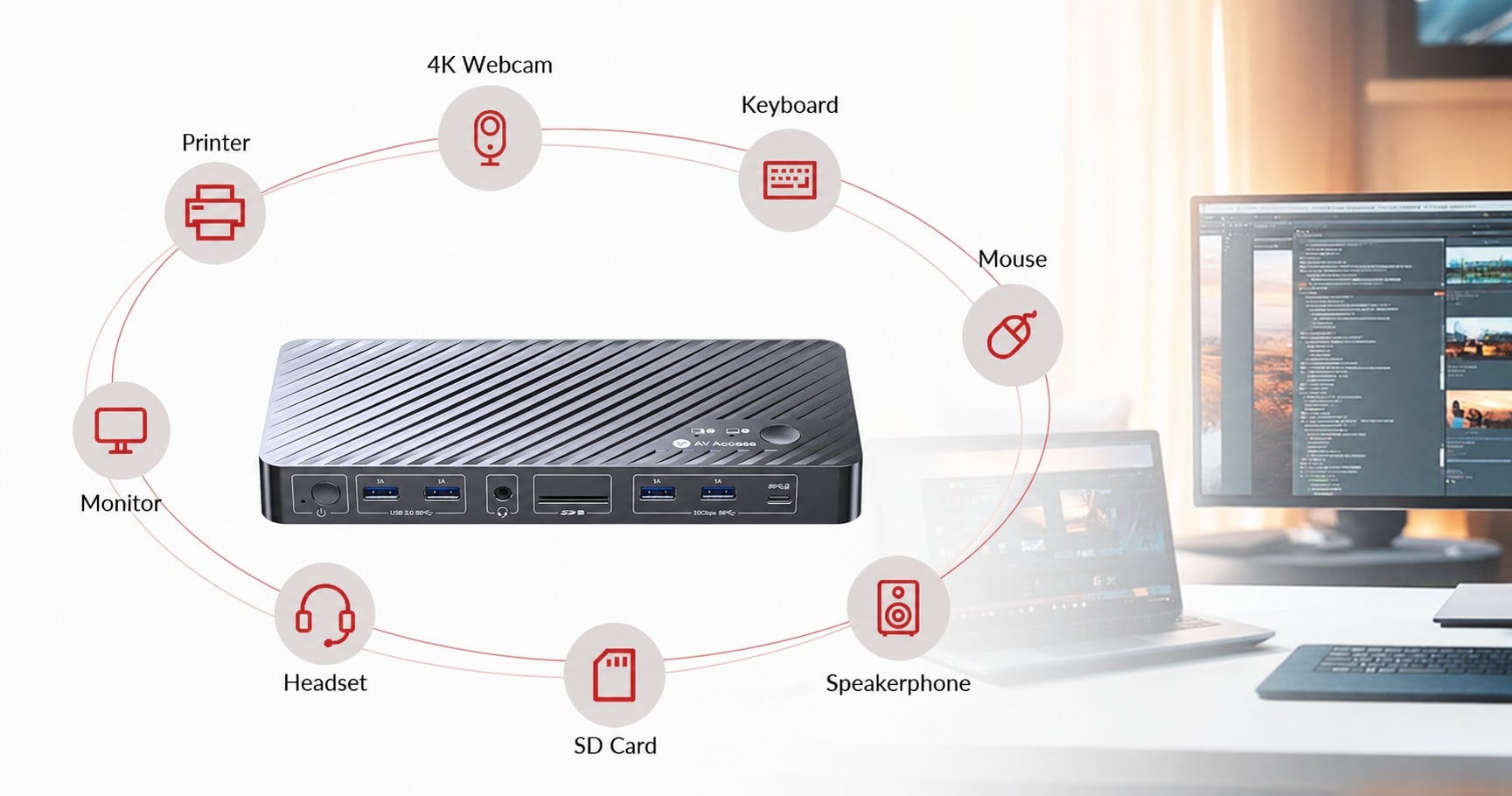
There’s no denying MacBooks are powerful, but their slim design often comes at the expense of connectivity. With fewer built-in ports, connecting multiple monitors, external storage, wired networking, and everyday peripherals can quickly become a tangle of adapters and cables.
Things get even more complicated if you also use a desktop computer and want to share the same workstation without constantly switching connections. This is where a docking station like the iDock M10 comes into play.
What is the AV Access iDock M10?
The iDock M10 is a 10-in-1 docking station with a dual-computer KVM switch. It allows a MacBook and desktop computer (Mac Studio, Mac Mini, PC) to share two monitors, a keyboard, mouse, and other peripherals. It also supports dual 4K display. You get up to 100W USB-C Power delivery, Gigabit Ethernet, and high-speed USB connectivity, all without requiring DisplayLink software.
Don’t miss the best of The Mac Observer
Set us as a preferred source and our Apple reporting ranks higher in your Google Search results and Discover feed — one tap, no account changes.
In this iDock M10 review, let’s take a closer look at its main features and how it functions as an all-in-one hub for a more flexible Mac setup.
Dual-Computer KVM Switching: Share Your Workspace
The built-in KVM switch allows you to connect two computers and share the same monitors, keyboard, mouse, and other peripherals. This is particularly useful if you use a MacBook for work but also have a Mac or Windows desktop on your desk. Rather than connecting and disconnecting cables every time you change computers, the iDock M10 lets you switch between the two at the press of a button.
I found switching to be straightforward. The button is on the front of the dock and there’s even a wired remote for extra convenience. You can connect your MacBook through its dual USB-C input, while a desktop computer uses HDMI, DisplayPort and a USB host connection.
Once everything is set up, both computers can access the shared monitors and connected accessories, including USB devices, audio equipment, and Ethernet.
Dual 4K Monitor Support Without DisplayLink
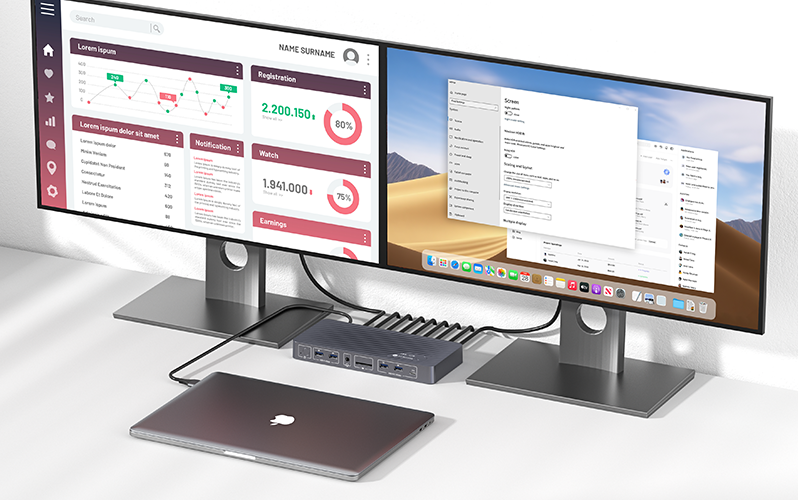
Another reason I wanted to try the iDock M10 is its ability to support two external monitors at up to 4K resolution (60Hz). I always prefer to use one screen for the main creative task and the other for researching in-browser and side tasks.
Better still, the iDock M10 achieves this without requiring DisplayLink software, so there’s nothing to configure, no latency, and valuable system resources aren’t hogged by software compression.
In practise, dual-monitor support depends on your MacBook’s processor and native display capabilities. Base M1 and M2 models are limited to one external display through this setup, while base M3 MacBooks can run two extended displays with the lid closed. M4, M5 and supported Pro and Max models can also drive two external displays, subject to their individual specifications.
This is an important distinction, as the iDock M10 doesn’t bypass Apple’s built-in display limitations. Nevertheless, for compatible MacBooks, it provides a convenient way to enjoy a dual-monitor workstation without relying on additional software.
10-in-1 Connectivity
As its name suggests, the iDock M10 offers a comprehensive selection of connections, helping you get more from your MacBook without relying on a collection of separate adapters.
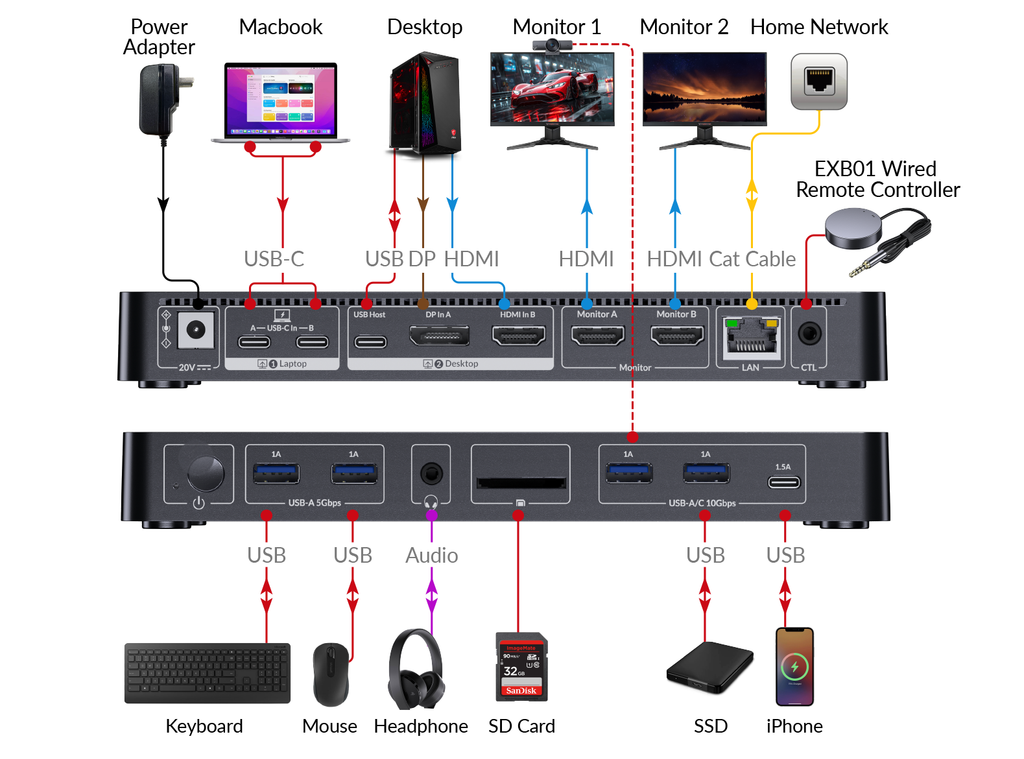
Its 10-in-1 design brings together high-speed USB connectivity, a card reader, wired networking, and audio connections. This makes it suitable for everything from everyday office work to more demanding creative setups.
For transferring files and connecting peripherals, the dock includes 10Gbps USB-A and USB-C data ports. These are particularly useful for external SSDs, allowing you to move large files without being restricted to slower USB connections. There’s also an SDXC card reader supporting cards up to 2TB, with transfer speeds of up to 104MB/s. Photographers and videographers should find this especially useful when importing images and footage directly from their cameras.
Elsewhere, Gigabit Ethernet provides a wired networking option for more consistent connectivity, while the audio connections let you hook up compatible headphones and other equipment.
The front USB-C port is worth noting, though, as it’s designed for data transfer rather than charging your MacBook. However, the host connection delivers 100W of power.
Up to 100W USB-C Power Delivery
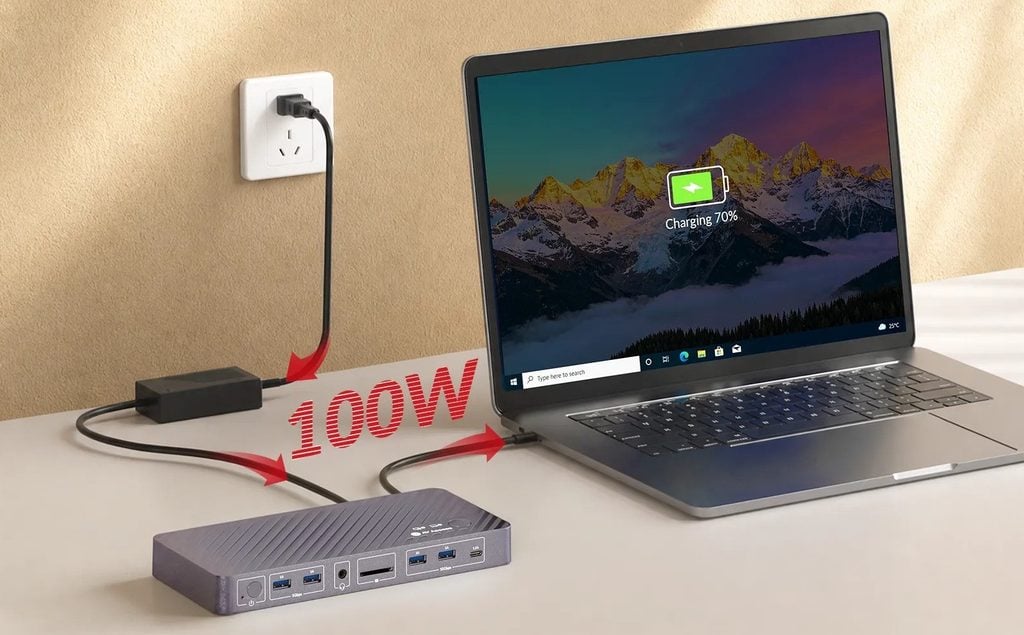
You can use a single USB-C connection for docking and charging, rather than having to connect a separate power adapter alongside your monitor and peripheral cables. It’s great if you regularly move between working on the go and using your MacBook at a desk, as you can simply connect it to the iDock M10 to get your workstation up and running while keeping its battery topped up.
Having this much power available makes the iDock M10 suitable for a wide range of compatible MacBooks, including more demanding models.
Getting Started
Setting up the iDock M10 simply involves connecting your MacBook, second computer, monitors, and peripherals to the relevant ports on the rear of the dock.
The supplied cables cover the standard MacBook, Mac, and Windows desktop configuration, helping to keep additional cable purchases to a minimum. Once everything is connected, switching between computers is straightforward using either the front-panel button or included wired remote.
I was particularly impressed with the dock’s EDID emulation, which prevents monitors from disconnecting and reconnecting when switching.
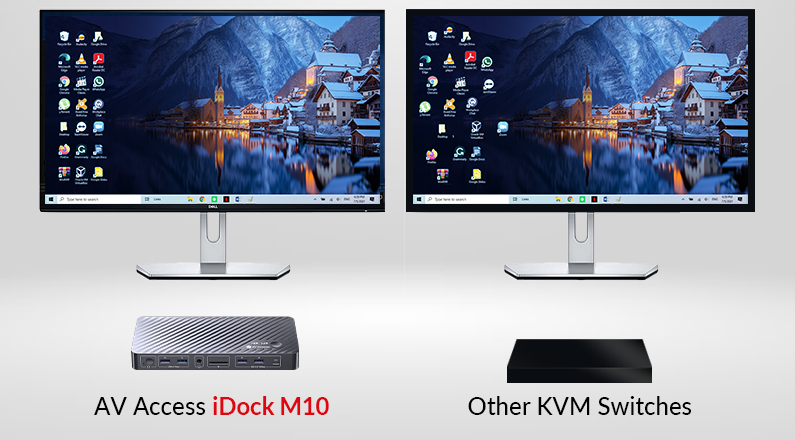
In short, this reduces the problem of windows and icons moving around or the display settings resetting. For the most part switching is smooth and instant.
iDock M10 Review – Verdict
The AV Access iDock M10 has a base price of $289.99 ($246.49 until Nov 30 for Black Friday), putting it towards the more expensive end of the docking station market. However, the combination of KVM switching, dual 4K monitor support, 100W charging, and extensive connectivity makes it much more than a standard USB-C hub.
It offers a high level of convenience for hybrid workers and anyone with a multi-computer desk setup.
Get it through the AV Access website and Amazon.




Discussion