
Quit Photos, copy Photos Library.photoslibrary to a suitable external drive, then double-click the copy on that drive. This lets you keep using the same library, including albums and edits, without keeping the working copy on the Mac’s internal storage. Keep the original in place until you’ve opened the external library and checked your backup.
Check the drive before copying anything
Use a directly connected external hard drive or SSD. In Finder, select the drive, press Command-I, and check Format. Apple supports APFS and Mac OS Extended (Journaled) for a Photos library. Use a different drive from your Time Machine backup. Apple also advises against putting a working library on an SD card, USB thumb drive, network share, or cloud-synced folder.
Check available space on the destination and the size of the library in Finder. If you use Optimize Mac Storage, the library’s current size can be smaller than your full-resolution collection. Allow extra room if you intend to download all originals later. If the drive is the wrong format and already contains other files, choose another suitable drive. Reformatting would erase what’s on it.
Open the copy and confirm it’s the right one
- Quit Photos. In Finder, choose Go > Home and open Pictures. If you keep your library elsewhere, open that folder instead.
- Drag the entire Photos Library package to the external drive. Wait for Finder’s copy operation to finish.
- In the external drive’s Finder window, double-click the copied library. Check a familiar album, a recent photo and an older edited image. In Photos > Settings > General, confirm the library location points to the external drive.
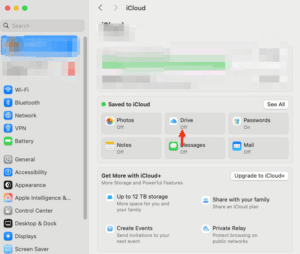
- If you use iCloud Photos or want other apps’ photo pickers to see this library, click Use as System Photo Library in General. A dimmed button means it’s already the system library. If you switched libraries, check Photos > Settings > iCloud afterward. Enabling iCloud Photos for a different library merges its contents with the existing iCloud collection.
The external working library still needs its own backup. If you keep any images as referenced files outside the package, moving the library doesn’t move those originals. Preserve those files and back them up separately. If you want a complete offline backup of an optimized library, open Photos > Settings > iCloud and choose Download Originals to this Mac. Allow enough free space and wait for the full-size downloads to finish. Then back up the external library to a separate disk before reclaiming internal space. Apple explains how to download the originals. Apple explains what a library backup includes.
If Photos looks empty the next time you open it
Check the cable and power before importing anything. If the external library was unavailable when Photos launched, it may have opened a new empty library in Pictures. Quit Photos, reconnect the drive, then hold Option while opening Photos. Choose the external library and check your albums again. Next time, connect the drive before opening Photos.
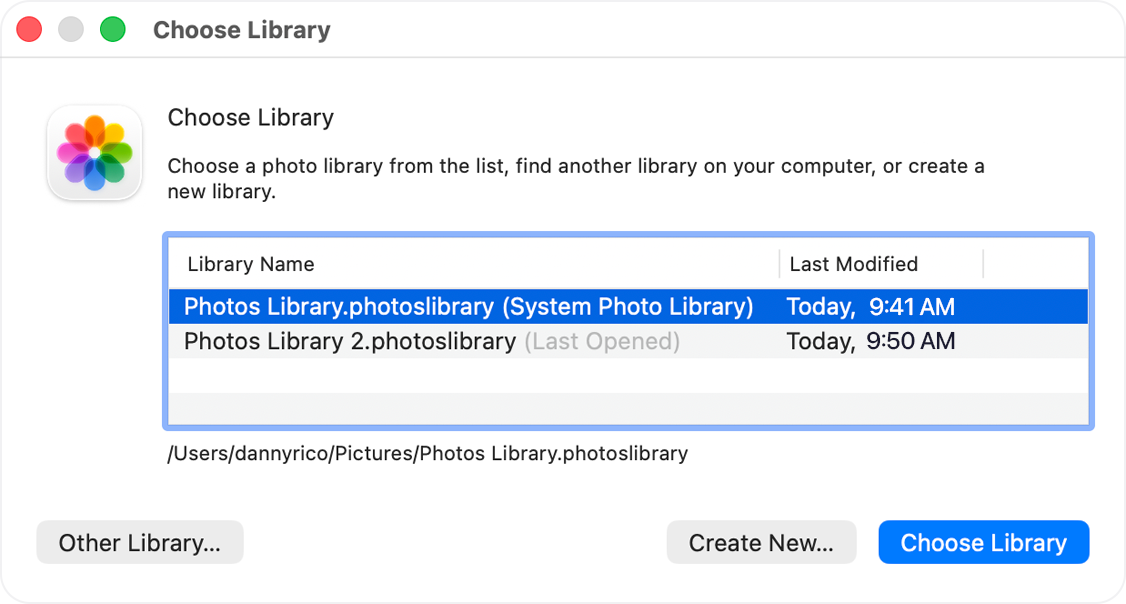
Apple’s library relocation instructions cover permissions errors. See also Apple’s System Photo Library settings and The Mac Observer’s guide to backing up photos.
Don’t miss the best of The Mac Observer
Set us as a preferred source and our Apple reporting ranks higher in your Google Search results and Discover feed — one tap, no account changes.
Discussion