

When Apple Podcasts stops playing episodes or refuses to load new ones, it’s usually something simple, like a volume issue, a bad connection, or a corrupted download. Still, it can be annoying when you’re ready to listen, and nothing happens. Let’s walk through the most common reasons Apple Podcasts acts up and how to get it working again.
Table of contents
Why Apple Podcasts Stops Working
When Apple Podcasts won’t play or download, the issue typically comes down to a few culprits: weak internet, a bad download, or a sync error between devices. Sometimes the app itself glitches after an update. It’s rare, but storage shortages or outdated system settings can also interfere with playback. The good news? Almost every one of these problems is easy to fix.
Fixes for Apple Podcasts Not Playing
Check Your Volume and Output
Start simple. Make sure your iPhone, iPad, or Mac isn’t muted and the volume is up. Also check that audio isn’t being routed to another device, like a Bluetooth speaker or AirPods.
Don’t miss the best of The Mac Observer
Set us as a preferred source and our Apple reporting ranks higher in your Google Search results and Discover feed — one tap, no account changes.
- On iPhone or iPad, tap the AirPlay icon in the playback screen to see your active output.

- On Mac, click the speaker icon in the menu bar to confirm which output is selected.

Restart the Podcasts App
Close the app completely and reopen it.
- On iPhone or iPad, swipe up from the bottom and remove Podcasts from your open apps.
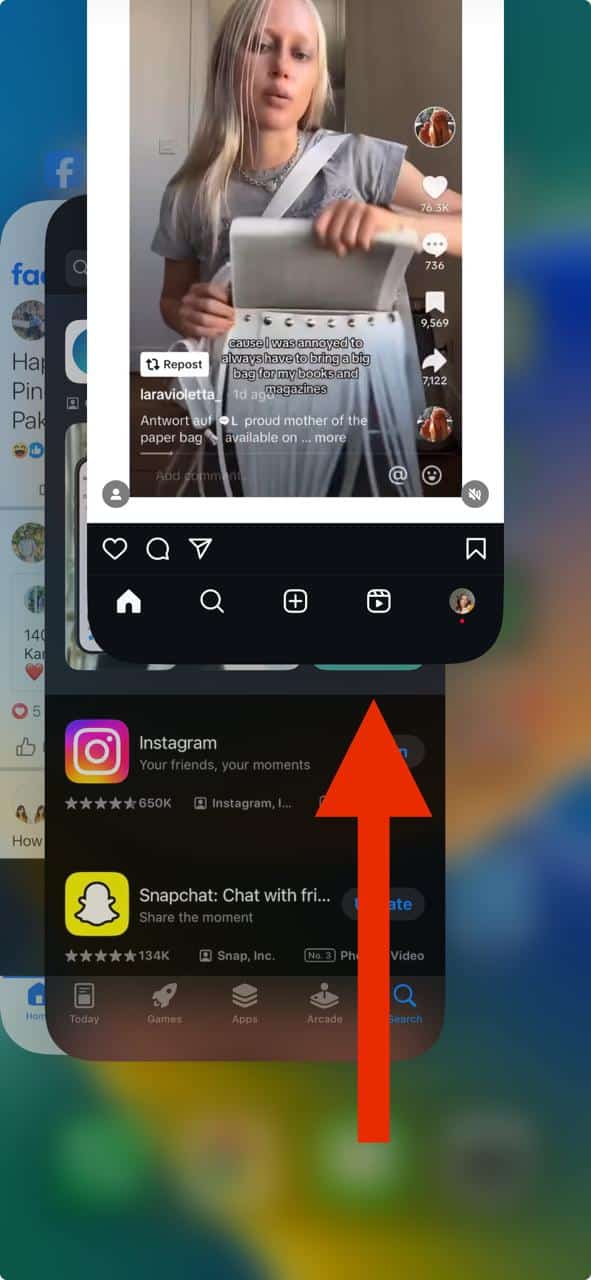
- On Mac, right-click the app icon and choose Quit. Reopen it and try playing again.

Re-download the Episode
If a podcast refuses to play, the file might have corrupted while downloading. Delete it and re-download a fresh copy.
- On Mac, hover over the episode in your Downloaded list, select the ••• menu, then click Remove Download.
- On iPhone or iPad, swipe left on the episode and tap Delete, then re-download it.
Check Your Internet Connection
If episodes won’t stream or download, test your Wi-Fi or cellular connection with a quick speed test. Poor signal strength is often the hidden reason for failed playback. If you’re in a weak spot, switch to a stronger network or try again later.
Turn Off Low Data Mode
Low Data Mode can block background downloads or streaming. Go to Settings > Cellular > Cellular Data Options and turn it off temporarily.
Toggle Data Off and Back On
Sometimes a bad connection can confuse the app, even with downloaded files. Turn off Wi-Fi and Cellular Data, wait a few seconds, then turn them back on. Try playing the episode again.
Restart Your Device
If playback still fails, restart your iPhone, iPad, or Mac. This clears out temporary glitches and resets system audio connections.
Unfollow and Re-follow the Podcast
Unfollowing a show removes it from your library and resets its download list. After unfollowing, follow it again and download the latest episode.
Free Up Storage Space
If your device is nearly full, new episodes may not download. Go to Settings > General > iPhone Storage (or About This Mac > Storage) and delete large files, unused apps, or old podcasts.
Reset Sync Settings
Sync errors between devices can cause weird behavior.
- On iPhone or iPad, go to Settings > Podcasts, turn off Sync Library, wait a few seconds, then turn it back on.
- On Mac, open Podcasts > Preferences > Advanced, and toggle Sync Library off and on again.
Reinstall the Apple Podcasts App
If none of these fixes work, uninstall the Podcasts app completely and reinstall it from the App Store. This gives you a clean slate and often clears deep configuration bugs.
Getting Apple Podcasts Working Smoothly Again
Most Apple Podcasts issues come down to connection or download hiccups, and they usually disappear after a restart or re-download. If the app still refuses to cooperate, reinstalling it or resetting sync settings should bring it back in line. Once it’s fixed, you can get back to doing what you opened the app for, actually listening.


Discussion