

After updating to iOS 26, some iPhone users have noticed and reported issues on several forums while trying to take screenshots. From screenshots not saving to glitches when sharing them, these problems are common after major updates. Since iOS 26 introduces over 200 changes across iPhone, iPad, and Mac, it is not surprising that some bugs have slipped through.
If your screenshots are not working properly after the update, this guide covers the most frequent issues and shows you how to fix them quickly.
Common Screenshot Problems After iOS 26
Several screenshot-related issues have been reported right after the rollout of iOS 26. Here are the most common:
Don’t miss the best of The Mac Observer
Set us as a preferred source and our Apple reporting ranks higher in your Google Search results and Discover feed — one tap, no account changes.
- Screenshots are not saving to Photos even though the shutter sound or flash appears.
- Screenshot preview freezing or disappearing before you can edit or share it.
- Screenshots are not sending in Messages or other apps, often failing to attach.
- Button combination is unresponsive, especially on newer models with updated gesture controls.
- Screenshots appear with glitches or lower resolution than expected.
Apple itself confirmed over 200 documented changes in iOS 26, and some of these adjustments affect how core features like screenshots behave.
Table of contents
Step-by-Step Fixes for iOS 26 Screenshot Issues
1. Restart Your iPhone
A simple restart often clears temporary bugs after an update. Hold the Side button + Volume down until the power slider appears, then reboot. Restarting also forces system processes to reload, which can clear out memory leaks that sometimes cause screenshot glitches.
If the issue continues, try a force restart by quickly pressing Volume Up → Volume Down → hold Side button until the Apple logo appears.
2. Check Storage Space
Screenshots may fail to save if your iPhone is low on storage. Go to Settings → General → iPhone Storage and free up space if needed. Make sure to also clear cached app data and old system updates that may take up hidden space.
iOS 26 requires more free storage than previous builds, so aim for at least 5–10GB of free space for smooth performance.
3. Update All Apps
Some apps may not handle screenshots correctly until updated. Open the App Store → Profile → Update All. Outdated apps may have compatibility issues with the new screenshot API changes in iOS 26. Developers often release patches shortly after a major iOS release, so checking daily for updates is recommended.
4. Confirm Screenshot Shortcut
The standard method still applies: press Side button + Volume Up on modern iPhones. If you need a refresher, here’s a full guide on how to take a screenshot on iPhone X, which also applies to newer devices. If the button combination is unresponsive, test whether both buttons work individually, as hardware wear can also cause failures.
You can also enable AssistiveTouch → Device → More → Screenshot to take captures without using hardware buttons.
5. Check Photos App Permissions
If screenshots are not appearing in Photos, make sure the app has permission. Go to Settings → Privacy → Photos and confirm that Photos is enabled for saving.
On iOS 26, permissions may reset during the update process, causing apps to temporarily lose access. Also, check iCloud Photos settings to ensure screenshots sync properly across devices.
6. Fix Screenshots Not Sending
If you can capture screenshots but they do not send in Messages, the issue might be related to iMessage or MMS. This guide on fixing pictures not sending on iPhone walks you through resetting network settings and checking carrier support.
7. Reset All Settings
If problems persist, go to Settings → General → Transfer or Reset iPhone → Reset → Reset All Settings. This resets preferences but does not delete your data. It will restore system defaults for Wi-Fi, Bluetooth, and privacy settings, which may fix conflicts introduced by iOS 26.
Keep in mind that you will need to re-enter Wi-Fi passwords and reconfigure Face ID or Touch ID afterward.
New Features May Affect Screenshots
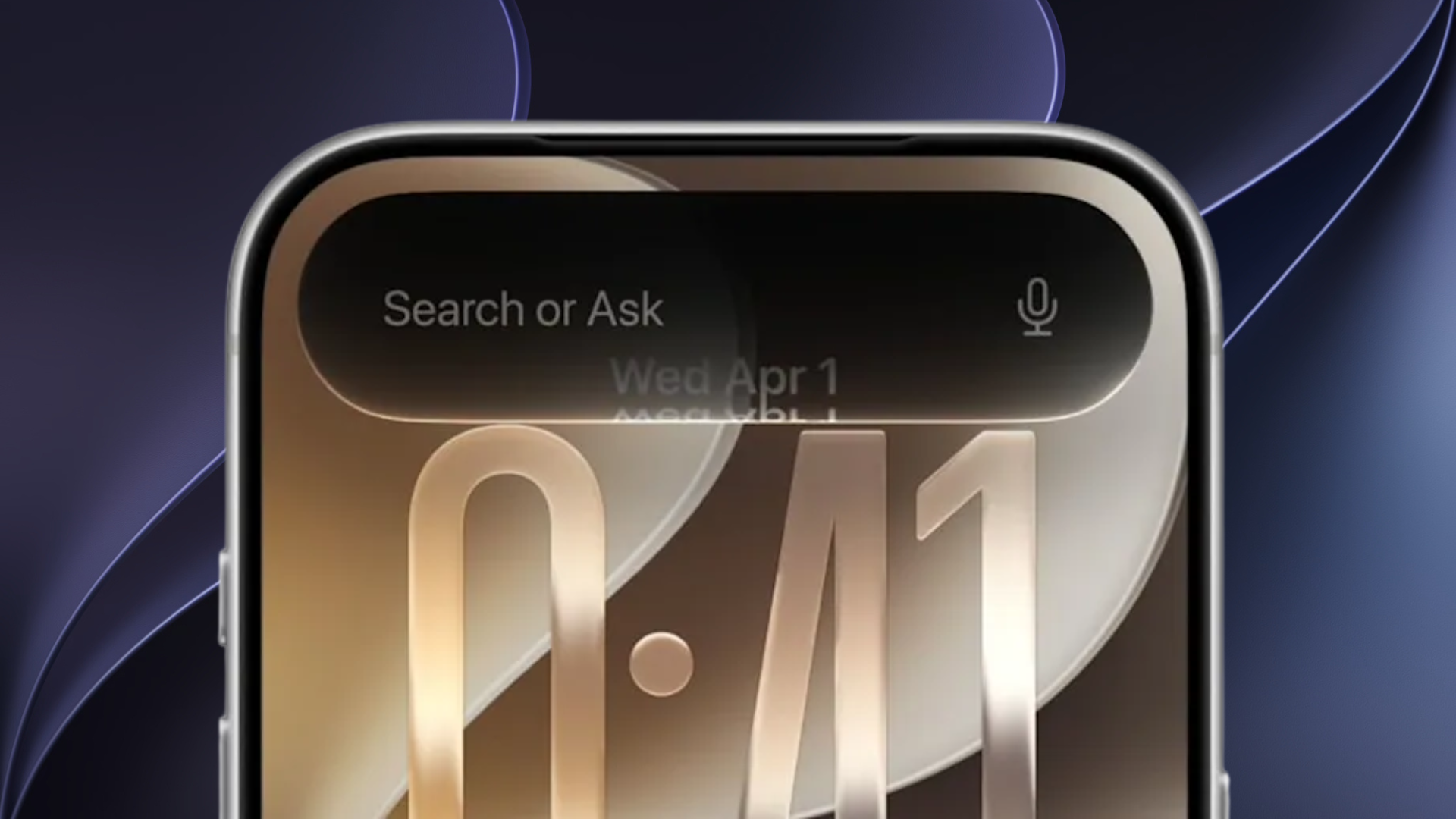
With iOS 26 introducing new features, some screenshot issues may be tied to redesigned UI elements. For example, the new Liquid Glass design changes how previews overlay your wallpaper and widgets. Visual Intelligence can also act on screenshots, which might cause delays when saving or editing them for the first time.
Keep Screenshots Working in iOS 26
Most screenshot problems in iOS 26 are temporary and caused by background processes right after updating. Restarting, checking storage, and confirming settings usually resolve the issue. If screenshots still fail, updating apps and waiting for Apple’s next patch is the best approach.
FAQs
It may be due to low storage or Photos app permission issues.
Background indexing and Visual Intelligence in iOS 26 can cause temporary lags.
This may be a network or MMS issue. Reset network settings and check carrier support.
Yes, features like Liquid Glass and Visual Intelligence change how screenshots display and process.
Yes, minor patches are often released soon after a major update to resolve common bugs.



Screenshots cannot be saved to Photos. This option does not appear on the list anymore. Very frustrating.
Screenshots are showing in three layers. If I try to capture the smallest one, and paste it elsewhere (not save to photos) it cuts it off on the sides and top. I tried all the fixes and the only way I can capture a screenshot now is to save it to photos. So now one extra step (going into photo library to use in and then going back and deleting) instead of simplifying the screenshot.
Screen shots are still not working on my Macbook Pro. I restarted a couple times and it’s a no go. HELP!!!!!!!
Same here.