

Apple is expanding its battery protection tools to the Mac. The new macOS 26.4 beta adds Charge Limit, a setting that lets you choose how far your battery charges instead of always reaching full capacity. Until now, the feature existed only on iPhone and iPad, where it helped users slow long-term battery wear.
The idea is you set a maximum level between 80% and 100%, and your Mac stops charging around that point. Because lithium batteries age faster when they stay full for long periods, holding the charge slightly lower reduces chemical stress. People who keep their laptops plugged into a desk setup benefit the most, since their machines sit connected to power for hours every day.
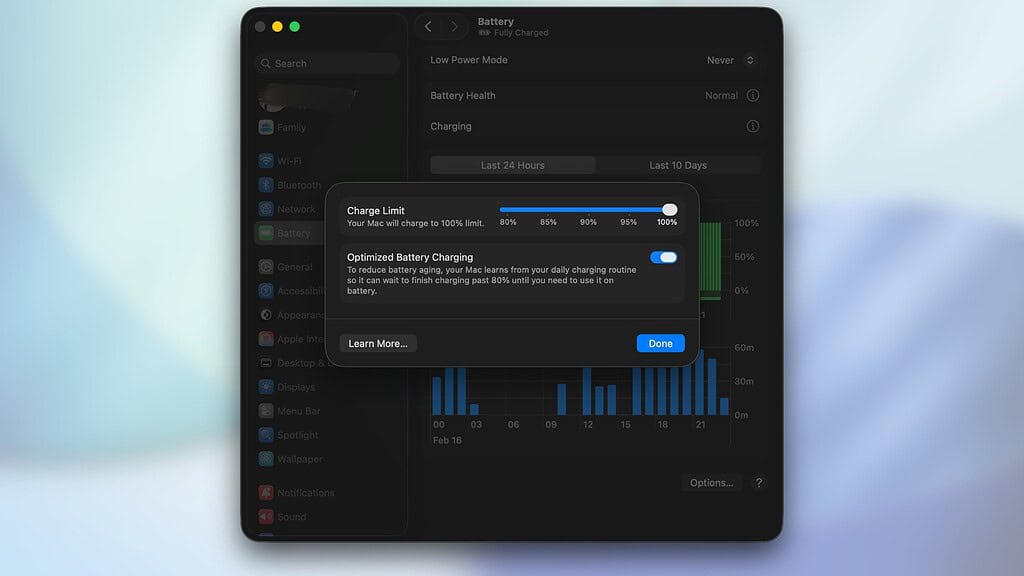
Apple notes the system will occasionally charge to 100% to “maintain accurate battery state-of-charge estimates”. That means the computer recalibrates its reading from time to time so the percentage indicator stays reliable.
Don’t miss the best of The Mac Observer
Set us as a preferred source and our Apple reporting ranks higher in your Google Search results and Discover feed — one tap, no account changes.
Automation through Shortcuts
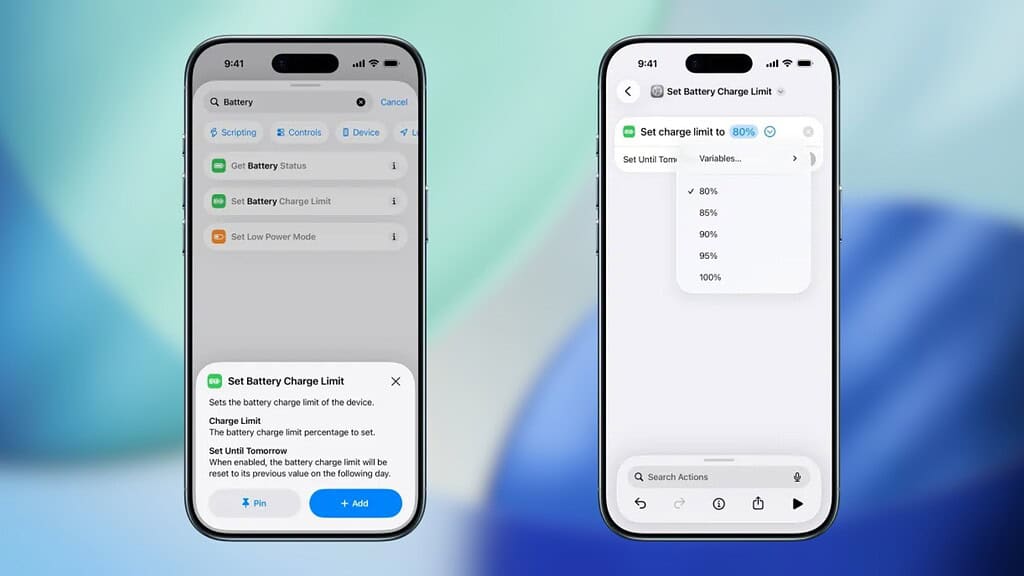
The update also connects Charge Limit to the Shortcuts app, so you can control it automatically instead of adjusting it manually each day. You can build simple routines that react to time, location, or usage patterns.
Examples include:
- Set charge limit to 80% when arriving at your office
- Allow 100% before travel days
- Lower charge level overnight
- Raise limit on weekends or long sessions
This matters because laptop use often changes during the week. A fixed setting works, but automation adapts to real routines without constant attention.
Daily use impact
Charge Limit suits people who stay near a charger more than heavy mobile users. If you travel often, you still raise the limit for longer battery life during trips. However, for desk workers and students, keeping the battery below full capacity slows wear and preserves long term health.
MacBooks spend much of their life plugged in, so this addition finally matches how people actually use them.




Discussion