

If you just picked up AirPods Pro 3, pairing them should feel instant. These are the first AirPods with a redesigned pairing gesture, and once you know how it works, connecting them to your iPhone, Mac, or any other device is effortless. Here’s the thing: pairing mode isn’t complicated, but Apple does it differently depending on which device you’re using. So let’s walk through the fastest way to get your AirPods Pro 3 connected and ready to use.
Table of contents
How Pairing Mode Works on AirPods Pro 3

Unlike earlier AirPods, you don’t hold a button on the back of the case. For AirPods Pro 3, Apple moved the pairing trigger to the front of the case. When the light flashes white, the earbuds are in pairing mode and ready for any Bluetooth device.
That small change trips people up, so keep it in mind as we go.
Don’t miss the best of The Mac Observer
Set us as a preferred source and our Apple reporting ranks higher in your Google Search results and Discover feed — one tap, no account changes.
Connect AirPods Pro 3 to Your iPhone Fast

If you’re pairing them for the first time, Apple wants this part to be painless.
- Make sure your iPhone is on the latest iOS version.
- Open the case with the AirPods inside.
- Hold it next to your iPhone.
- A card pops up automatically.
- Tap Connect and follow the instructions.
Once that’s done, your AirPods sync to every other Apple device tied to the same Apple ID. No extra setup needed.
If the animation never appears, don’t worry. That’s where pairing mode comes in.
Put AirPods Pro 3 Into Pairing Mode Manually
This is the move you’ll use when the normal setup screen doesn’t show up or when you want to connect the earbuds to something else.
- Open the case.
- Double tap the front of the case until the status light flashes white.
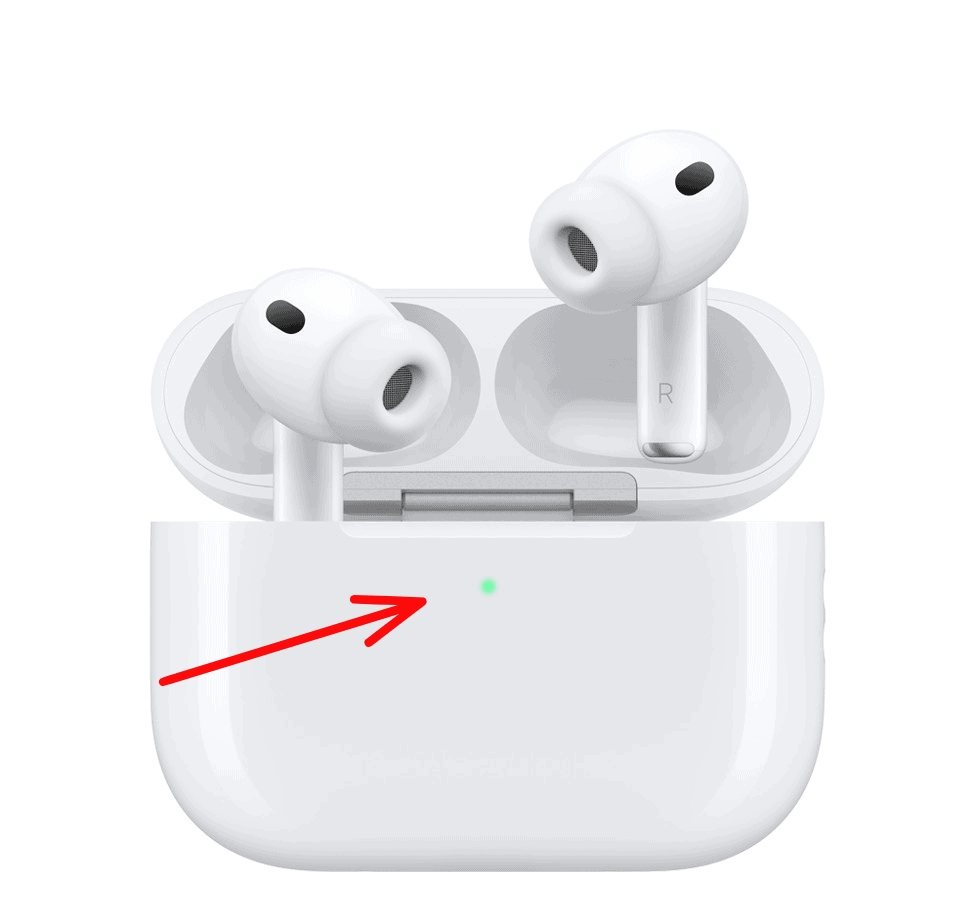
- On your device, open Bluetooth settings and select your AirPods.

That’s it. No extra waiting, no long press. Just a quick double tap.
Pair AirPods Pro 3 With a Mac
The shortcut animation doesn’t always appear on macOS, so pairing mode often becomes your starting point.
- On your Mac, open System Settings.
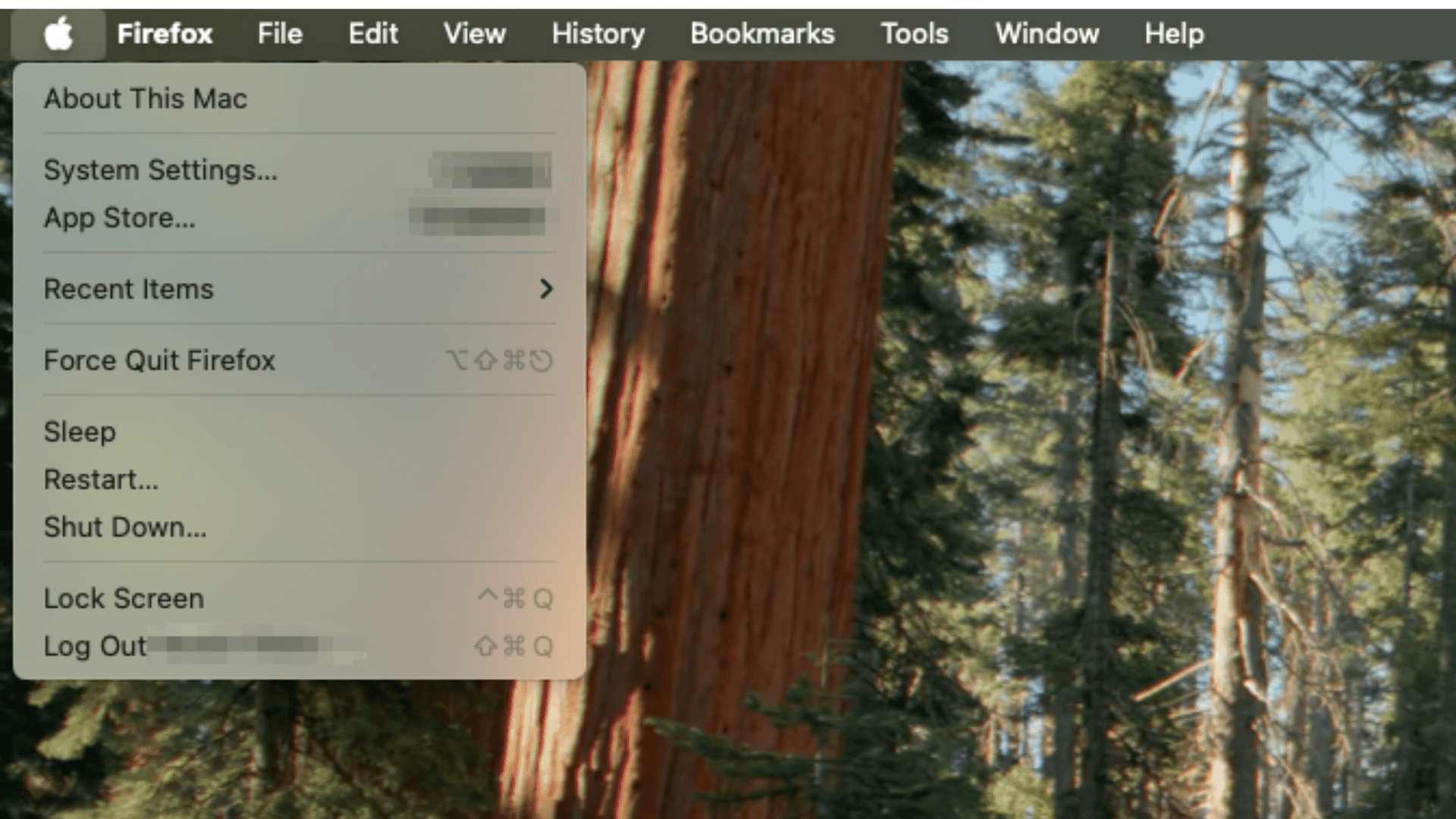
- Go to Bluetooth.
- Open the AirPods case.
- Double tap the front until the white light flashes.
- Select your AirPods from the device list.

Once paired, macOS brings up the usual AirPods options, including noise control and automatic switching.
Pair AirPods Pro 3 With a Non-Apple Device
Yes, you can use AirPods Pro 3 with Android, Windows, game consoles with Bluetooth, and more. You lose Siri, but everything else works fine.
- Turn on Bluetooth on your non-Apple device.
- Open the AirPods case.
- Double tap the front until it flashes white.
- When the earbuds appear in the Bluetooth list, select them.
The process is simple. The only thing you won’t have is ecosystem perks.
Pairing With Apple TV or Vision Pro
If you own an Apple TV or Vision Pro, connecting AirPods Pro 3 is the same idea.
Apple TV:
- Go to Settings > Remotes and Devices > Bluetooth.
- Put your AirPods in pairing mode.
- Choose them on screen.
Apple Vision Pro:
- Go to Settings > Bluetooth.
- Trigger pairing mode.
- Tap your AirPods in the list.
With Vision Pro, AirPods Pro 3 unlock low-latency Lossless Audio, which is a real upgrade over standard Bluetooth.
If Pairing Still Doesn’t Work
A few quick steps usually clear the road:
- Make sure Bluetooth is on.
- Make sure the earbuds are actually inside the case.
- Update iOS, macOS, or whatever device you’re using.
- If they belonged to someone else, they must remove them from their Apple ID.
- If things get stubborn, close the case, wait ten seconds, then try pairing mode again.
The Bottom Line
AirPods Pro 3 connect quickly once you know the new pairing gesture. Just open the case, double tap the front, wait for the white flash, and connect through Bluetooth. Whether you’re using an iPhone, a Mac, or a completely different device, the process is simple once you know where to start.


Discussion