

Apple invites are a convenient way to manage invitations for events, beta apps, and other Apple-related activities. Whether you’re receiving an invite to try a new app or attending a virtual event, knowing how to use Apple invites can make the process smooth and straightforward. In this guide, I’ll walk you through everything you need to know, step by step.
Table of Contents
What Are Apple Invites and Why They Matter
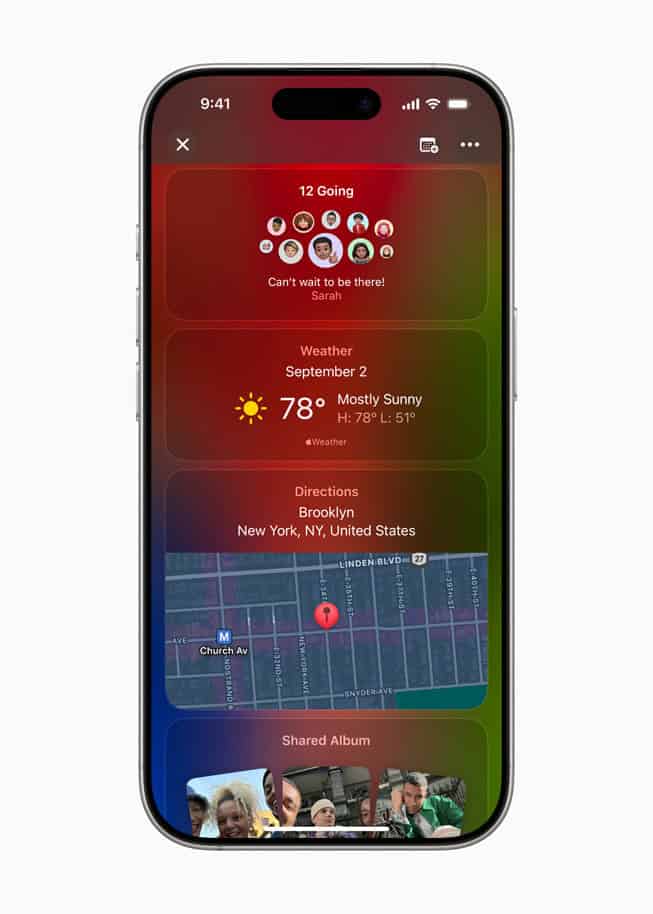
Apple invites are digital invitations sent through your Apple ID to participate in events, beta programs, or new app experiences. They’re designed to streamline the process of accepting, managing, and tracking invitations.
Some key benefits of Apple invites include:
Don’t miss the best of The Mac Observer
Set us as a preferred source and our Apple reporting ranks higher in your Google Search results and Discover feed — one tap, no account changes.
- Convenience: Receive and respond to invitations directly from your device.
- Organization: Keep all invites in one place so you never miss an event or opportunity.
- Access: Participate in exclusive beta testing or events that may not be publicly available.
How to Accept an Apple Invite
Accepting an Apple invite is simple. Here’s how to do it on your device:
- Open the Apple Invites app or check the invitation in your Mail or Messages app.
- Tap the invitation to view details, including the event name, date, and time.
- Select Accept to confirm your attendance. You can also choose Maybe if you’re unsure.
- The invite will automatically be added to your Calendar, helping you stay organized.
Always double-check the event details before accepting, especially if it’s a beta testing invite or an app trial.
How to Manage Apple Invites

Keeping track of multiple invites is easy if you follow these steps:
- View Pending Invites: Open the Apple Invites app and tap “Pending” to view invitations awaiting a response.
- Decline or Postpone: Tap ‘Decline’ if you cannot attend, or ‘Maybe’ to keep the option open.
- Notifications: Ensure notifications are enabled so you never miss a new invite.
Managing invites efficiently ensures you don’t miss out on important events or beta opportunities for apps.
Using Apple Invites for Beta Testing
One of the most popular uses of Apple invites is accessing beta apps through Apple’s TestFlight system. Here’s how to join a beta program:
- Receive an invite via Mail or the Apple Invites app.
- Tap the Join Beta link. This will redirect you to the TestFlight app.
- Install the beta app and follow the on-screen instructions.
- Provide feedback within TestFlight if prompted, helping developers improve the app.
Apple recently updated the Apple Invites app, which may improve beta invite management; however, many users have noticed only minor changes.
Common Issues and Troubleshooting

Sometimes invites don’t appear, or your device may not process them correctly. Try these fixes:
- Ensure your Apple ID is active and correctly signed in on all devices.
- Check your Mail and Messages apps for hidden invites.
- Restart your device to refresh system settings.
If the issue persists, updating your iOS or the Apple Invites app often resolves most problems.
Tips to Make the Most of Apple Invites
- Stay Organized: Keep all invitations in the Apple Invites app to avoid missing events.
- Enable Notifications: Allow alerts to track new invites immediately.
- Explore Features: Discover the latest event planning features in the Apple Invites app to enhance your efficiency.
By following these tips, you can ensure you’re always on top of your invitations, whether for apps, events, or beta programs.
Conclusion

Apple invites simplify the way you receive, accept, and manage invitations across your devices. By understanding how to use them properly, you can participate in events, try beta apps, and stay organized with ease. Following the step-by-step guidance above ensures you make the most of this feature, keeping your Apple experience seamless and efficient.
For a more detailed breakdown, please also refer to our comprehensive guide on using Apple invites.




Discussion