

Apple Music shuffle has a habit of turning on when you least want it. You tap a song expecting the album to play in order, and suddenly track seven shows up first. Here’s the thing: stopping shuffle is easy once you know where to look, but the controls are buried just enough to be annoying. Let’s break it down, device by device, and then fix the cases where shuffle refuses to behave.
Table of contents
Stop Shuffle on iPhone or Android
This is where most people get tripped up because the shuffle button isn’t always visible.
- Open the Apple Music app and start playing any song.
- Tap the player bar at the bottom to open the Now Playing screen.
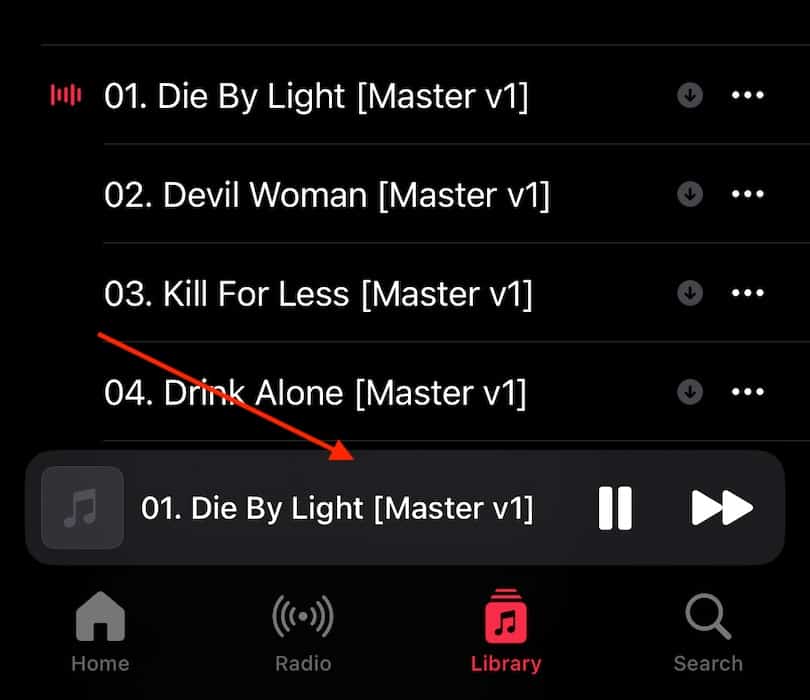
- Tap the Up Next or queue icon.
- Look for the Shuffle icon, the two crossing arrows.

- If it’s highlighted, tap it once to turn shuffle off.


That’s it. When the icon is no longer highlighted, Apple Music will play songs in order.
Don’t miss the best of The Mac Observer
Set us as a preferred source and our Apple reporting ranks higher in your Google Search results and Discover feed — one tap, no account changes.
One important catch: if AutoPlay is turned on, shuffle and repeat controls can be grayed out. Turn off AutoPlay first, then try again.
Stop Shuffle on Mac
On a Mac, Apple Music gives you a few ways to control shuffle.
The quickest method:
- Open the Music app.
- Start playing a song.
- Look at the playback controls at the top.
- Click the Shuffle icon if it’s highlighted to turn it off.
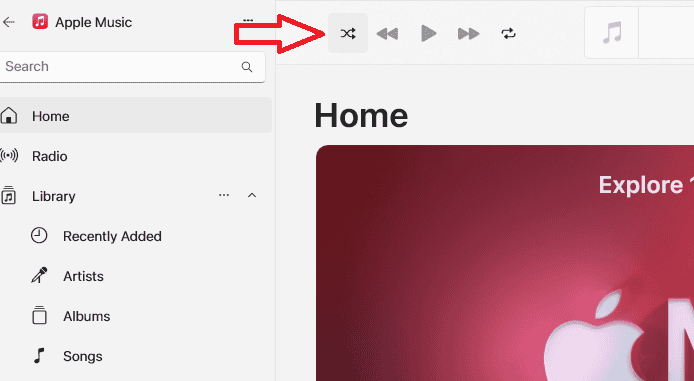

You can also do this from the menu bar:
- Click Controls.
- Click Shuffle.
- Make sure it’s unchecked.
Once shuffle is off, albums and playlists will play in their original order.
Stop Shuffle on Windows (iTunes)

If you’re using iTunes on Windows, the logic is the same.
- Open iTunes and play a song.
- Find the Shuffle icon near the playback controls.
- Click it once if it’s highlighted.
Or use the menu:
- Click Controls.
- Select Shuffle to toggle it off.
When the icon is gray, shuffle is disabled.
Why Shuffle Keeps Turning Back On
If shuffle feels like it’s fighting you, there are a few common reasons.
First, you might be tapping Play on a playlist that’s already set to shuffle. Try tapping a specific song instead.
Second, AutoPlay can override your controls. Turn it off if shuffle and repeat are locked.
Third, Apple Music sometimes remembers shuffle settings per device. Turning it off on your phone doesn’t always affect your Mac.
And yes, sometimes the app just glitches. Restarting the app or the device usually clears it.
When Nothing Works
If shuffle still won’t stay off, try these quick fixes:
- Restart your device.
- Update Apple Music or iTunes.
- Reinstall the app if the problem persists.
As a last resort, playing downloaded or local MP3 files gives you full control over playback order, but most people won’t need to go that far.
The Bottom Line
Stopping shuffle on Apple Music isn’t hard, but it’s not obvious either. Once you know where the shuffle icon lives and how AutoPlay affects it, you’re back in control. Albums play in order. Playlists behave. And your music finally sounds the way you expect.


Discussion