

If you’re trying to figure out how to add contacts on Apple Watch, the first thing to know is this: the watch doesn’t manage contacts on its own. Everything you see on your wrist comes from your iPhone. Once that part is clear, the workflow becomes much simpler.
Table of contents
How Contacts Sync to Apple Watch
Apple Watch mirrors the contacts stored on the iPhone it’s paired with. You don’t create or edit contacts directly on the watch.
Apple’s instructions for adding and managing contacts on iPhone walk through where those details actually live. Any change you make there syncs to the watch automatically in the background.
Don’t miss the best of The Mac Observer
Set us as a preferred source and our Apple reporting ranks higher in your Google Search results and Discover feed — one tap, no account changes.
How to Add a New Contact
To add a new person so they show up on your Apple Watch:
- Open the Contacts app on your iPhone
- Tap the + button
- Enter their name, phone number, and any other details
- Tap Done
Give it a moment, and that contact will also appear on the watch.
Once your contacts are in place, you can decide how you want to handle them on the wrist. For example, if you start getting calls from numbers you’d rather avoid, it’s easy to block calls on Apple Watch without touching your phone.
How to Access Contacts on Apple Watch
You use the Phone app on the watch to get to your contacts:
- Press the Digital Crown
- Open the Phone app
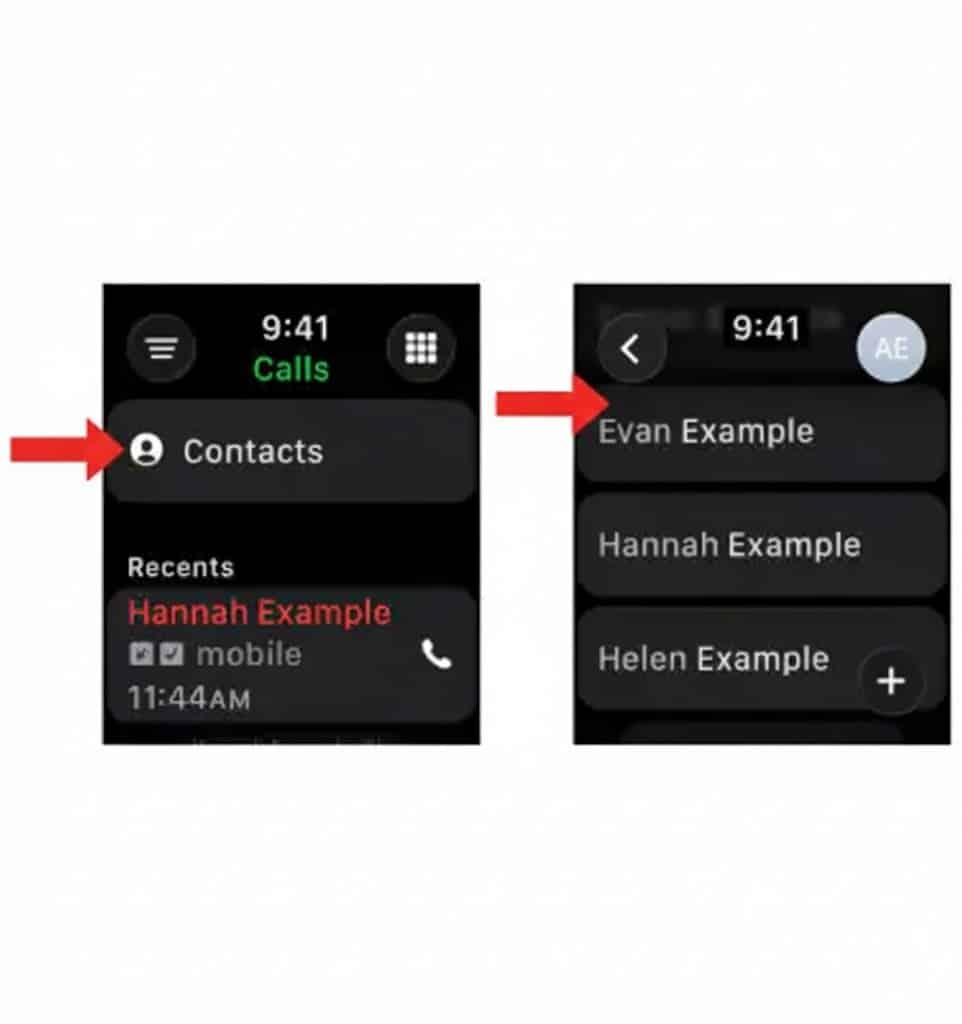
- Tap Contacts
- Scroll with your finger or the Digital Crown
- Tap a name to call or message


Apple covers the full call workflow in its page on using the Phone app on Apple Watch, including how to switch between speaker, iPhone, and Bluetooth audio.
You can also ask Siri to do the work:
“Call Ahmed” or “Message Sara” will pull directly from your synced contacts.
Use Favorites for Faster Access
If you regularly talk to a small group of people, it’s worth setting them as Favorites on your iPhone. Those Favorites carry over to Apple Watch and sit right at the top of the Phone app, which makes calling from your wrist much faster.
On the iPhone:
- Open the Phone app
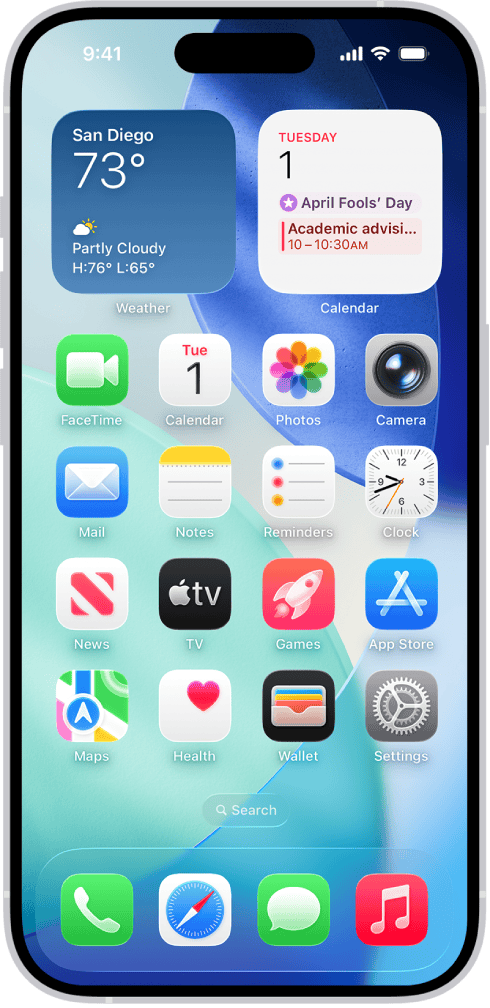
- Go to Favorites
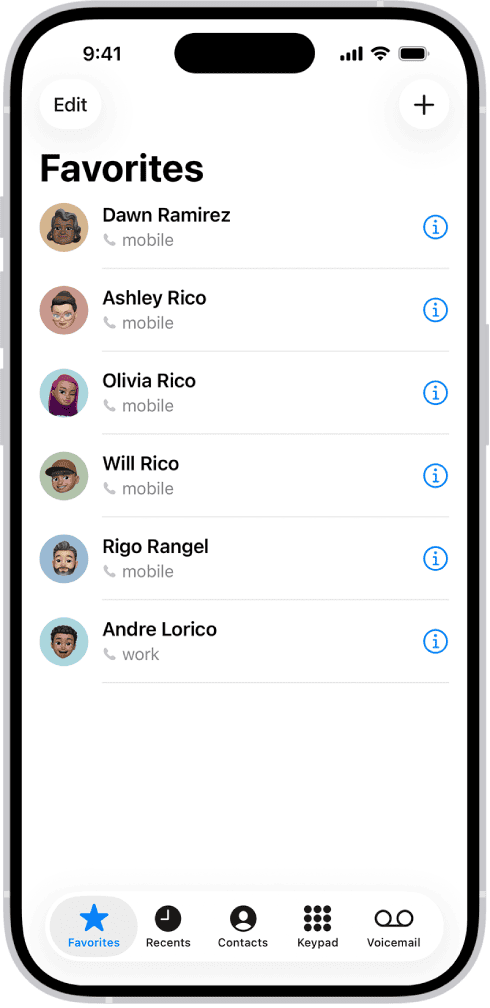
- Tap the +
- Choose the contact and number


Next time you raise your wrist, they’ll be at the top of the list.
How Contacts Fit Into the Rest of Your Watch
Once contacts are in place, they integrate with many other watch features. It’s common to tweak calls, notifications, and media around the same time. If you’re already customizing how you use the watch for communication, it’s usually when people also start to add music to Apple Watch, so workouts and calls all live on the same device.
Final Thoughts
Apple Watch doesn’t really have its own contacts; it borrows everything from your iPhone. You add and edit people on the phone, then use the watch to call, message, favorite, or block them. Once you accept that split, “Apple Watch How to add contacts” stops being a separate process and turns into something you do once on iPhone, then enjoy everywhere.




Discussion