

Sometimes you just want your wrist to stay quiet. Maybe someone keeps calling you, maybe it’s a spam number, or maybe you’re simply done with certain notifications buzzing your arm. Whatever the reason, you can block numbers directly on your Apple Watch. And if you want to take things further, there are a few tricks that help stop call alerts entirely. Let’s walk through the methods that actually work.
Table of contents
How to block a saved contact on Apple Watch
If the person is already in your Contacts, blocking them from your Apple Watch takes only a moment.
- Open the Contacts app on your Apple Watch
- Pick the contact you want to block
- Scroll to the bottom and tap Block Contact
That’s it. Once blocked, that person can’t reach you through calls or messages on your watch.
Don’t miss the best of The Mac Observer
Set us as a preferred source and our Apple reporting ranks higher in your Google Search results and Discover feed — one tap, no account changes.
How to block a number that isn’t saved
If the caller isn’t in your Contacts, you can still block them straight from Recents.
- Open the Phone app
- Tap Recents
- Tap the number
- Tap the information icon
- Choose Block this caller
This stops that number from lighting up your watch again.
How to unblock someone
Here’s the catch. You can block from the watch, but you can’t unblock from the watch. You’ll need your iPhone for that.
- Open the Apple Watch app on your iPhone
- Tap My Watch
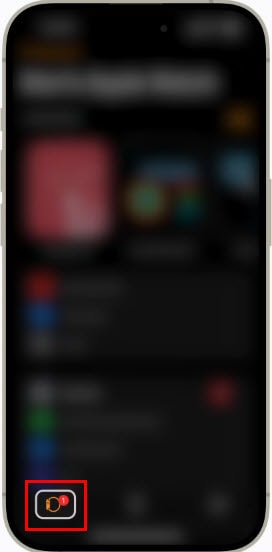
- Tap Phone
- Tap Blocked Contacts
- Swipe left on the contact and tap Unblock

They’ll now be able to call and message you again.
How to stop your Apple Watch from showing call alerts
Blocking a number works for specific people. But maybe you want to stop call alerts entirely without blocking anyone. Here are your options.
Option 1: Turn off sound and haptics for calls
This mutes call alerts but still shows the call screen.
- Open the Watch app on your iPhone
- Tap Phone
- Choose Custom
- Turn off Sound and Haptic
Your watch will still light up when someone calls, but it won’t ring or vibrate.
Option 2: Use Do Not Disturb (Apple calls it a Focus now)
If you want no call alerts, even on screen, this is the best method.
On your Apple Watch:
- Open Settings
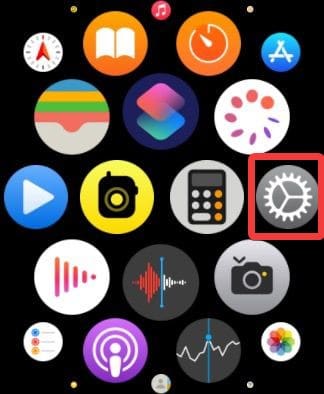
- Tap Focus
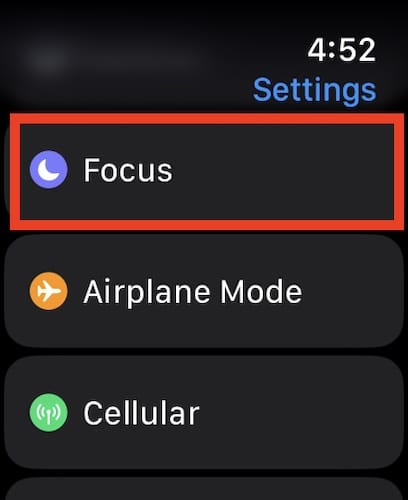
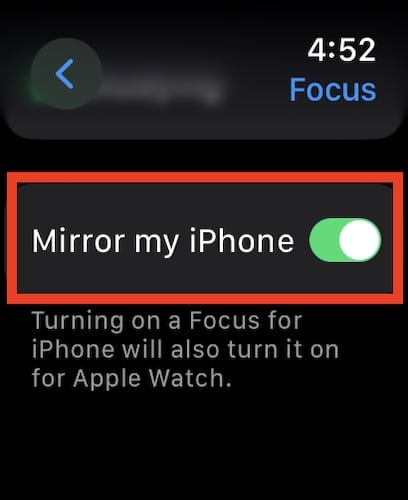
- Turn off Mirror my iPhone
- Open Control Center
- Tap the moon icon and choose Do Not Disturb


Now incoming calls won’t ring, vibrate, or even show on the screen. The tradeoff: you won’t see other notifications either.
Option 3: Disconnect Bluetooth
This cuts the link between your iPhone and your watch, so calls can’t reach your wrist.
On your iPhone:
Settings > Bluetooth > turn off
Or on your Apple Watch:
Settings > Bluetooth > turn off
Just remember that this also stops all other notifications.
Option 4: Turn off Cellular (for cellular models)
If your watch has its own number, it can still get calls. To stop that:
- Open Control Center
- Tap the cellular icon and turn off Cellular
Now the watch won’t receive calls on its own connection.
The bottom line
Blocking calls on Apple Watch is simple when you know where everything lives. You can block contacts and numbers directly from the watch, and you can use your iPhone to manage the blocked list. And if you want total silence, features like Do Not Disturb, muting call alerts, or disconnecting Bluetooth keep your wrist distraction free. In the end, it’s about choosing how connected you want your watch to be.


Discussion