

Your Apple ID, now called an Apple Account, is the key to services like iCloud, the App Store, Apple Music, FaceTime, and Find My. If you’ve switched to a new email address or phone number, it’s a good idea to update your Apple ID so you continue receiving verification codes, security alerts, and account-related notifications without interruption.
The good news is that changing your Apple ID does not delete your photos, purchases, contacts, subscriptions, or other account data. Apple allows you to update the primary email address or phone number linked to your account while keeping everything associated with it intact.
Before you begin, make sure you have access to the new email address or phone number you want to use and keep a recent backup of your important data.
Table of contents
Before making any changes, keep these points in mind:
- Sign out of Apple services and devices where you’re using the current Apple ID.
- Create a backup of important data on your iPhone, iPad, or Mac.
- Ensure your new email address or phone number is active and accessible.
- If you use iCloud Backup, verify that your iCloud storage has enough available space.
- After changing your Apple ID, sign back into all Apple devices and services using the updated account details.
- You can use a third-party email address, an iCloud email address, or a phone number as your Apple ID.
How to Change Apple ID on iPhone or iPad
The easiest way to change your Apple ID is directly from your iPhone or iPad. Apple has updated the process in recent iOS versions, making it possible to change your primary email address or phone number from the Sign-In & Security section.
- Open Settings on your iPhone or iPad.
- Tap your name at the top.
- Select Sign-In & Security.
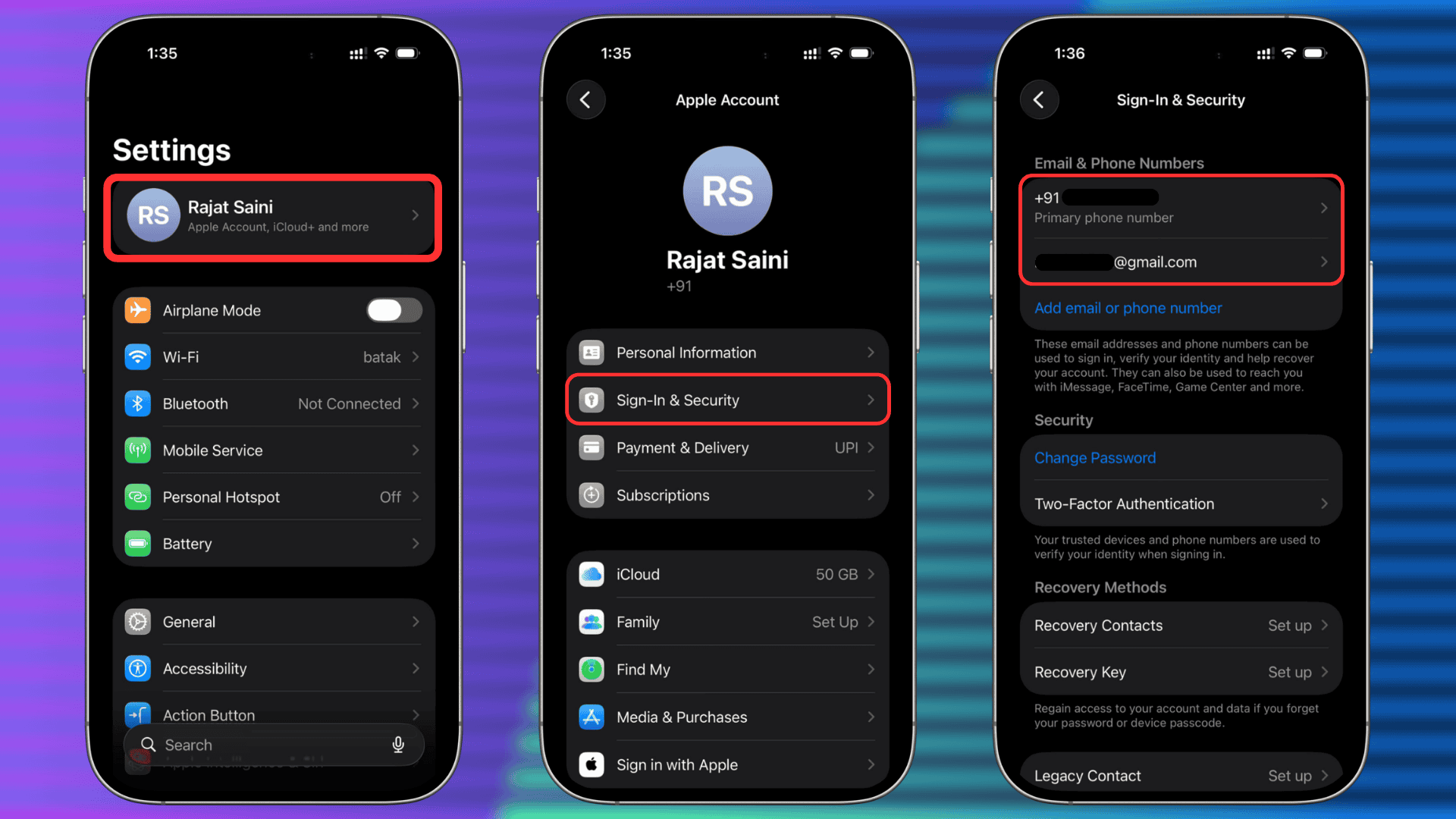
- Tap your current primary email address or phone number.
- Choose Remove from Account or disable Primary Email/Primary Phone Number if available.
- Tap Add New Primary Email or Phone Number.
- Enter the new email address or phone number.
- Tap Continue.
- Enter the verification code sent by Apple.
- Follow the on-screen instructions to complete the process.

Once verified, the new email address or phone number becomes your Apple ID.
How to Change Apple ID on Mac
If you’re using a Mac, you can make the same change through System Settings.
- Click the Apple menu and select System Settings.
- Click your profile name.
- Choose Sign-In & Security.
- Click your current primary email address or phone number.
- Select the option to remove or change it.
- Add a new primary email address or phone number.
- Enter the required verification code.
- Confirm the changes.
Your Mac will automatically update the Apple Account details after verification.
How to Change Apple ID on the Web
If you don’t have access to an Apple device, you can update your Apple ID online.
Apple recommends using a trusted device whenever possible, but the web method remains available for many users.
- Visit account.apple.com and sign in.
- Go to Sign-In & Security.
- Click Email & Phone Numbers.
- Select your current primary email address or phone number.
- Choose the option to remove or replace it.
- Enter the new email address or phone number.
- Click Continue.
- Enter the verification code sent by Apple.
- Save the changes.
After verification, you can use the new email address or phone number to sign in across Apple services.
How to Change an Apple ID Phone Number
Some users use a phone number instead of an email address as their Apple ID. Apple allows you to switch to another phone number or even convert the account to an email-based Apple ID.
- Open Settings.
- Tap your name.
- Select Sign-In & Security.
- Tap your primary phone number.
- Choose Remove from Account.
- Select Add New Primary Phone or Email.
- Enter the new phone number or email address.
- Verify the code sent by Apple.
- Complete the setup.
Apple will update your sign-in credentials immediately after verification.
What Happens After You Change Your Apple ID?
Changing your Apple ID does not create a new account. Your purchases, subscriptions, iCloud data, contacts, photos, and App Store history remain linked to the same Apple Account.
However, you should:
- Sign back into all Apple devices.
- Update FaceTime and Messages if prompted.
- Check iCloud syncing on all devices.
- Verify that your new email address or phone number is receiving Apple notifications.
Apple also notes that a removed email address may become available for use with another Apple Account after a waiting period in some cases.
FAQs
Can I change my Apple ID without losing data?
Yes. Apple allows you to change the primary email address or phone number associated with your account without affecting purchases, contacts, photos, subscriptions, or iCloud data.
Can I use a Gmail address as my Apple ID?
Yes. Apple supports Gmail, Outlook, Yahoo, and other third-party email providers as Apple ID email addresses.
Can I change my Apple ID from an email address to a phone number?
Yes. Apple supports phone number-based Apple Accounts in supported regions and allows switching between email and phone number sign-in methods.
Do I need to create a new Apple Account?
No. You only need to update the primary email address or phone number associated with your existing account.
Why can’t I change my Apple ID?
You may not see the option if you’re using an older version of iOS, have account restrictions, or are trying to use an email address already associated with another Apple Account.
Summary
- Back up important data before making changes.
- Open Sign-In & Security on your Apple device or online.
- Remove or replace your current primary email address or phone number.
- Add your new email address or phone number.
- Verify the code sent by Apple.
- Sign back into your Apple devices and services.
- Confirm that iCloud, Messages, and FaceTime are working correctly.
Conclusion
Changing your Apple ID in 2026 is a straightforward process whether you’re using an iPhone, iPad, Mac, or a web browser. Apple now makes it easier to update your primary email address or phone number without creating a new account or losing access to your purchases and personal data. As long as you verify your new contact information and sign back into your devices afterward, the transition should be smooth and hassle-free.


