
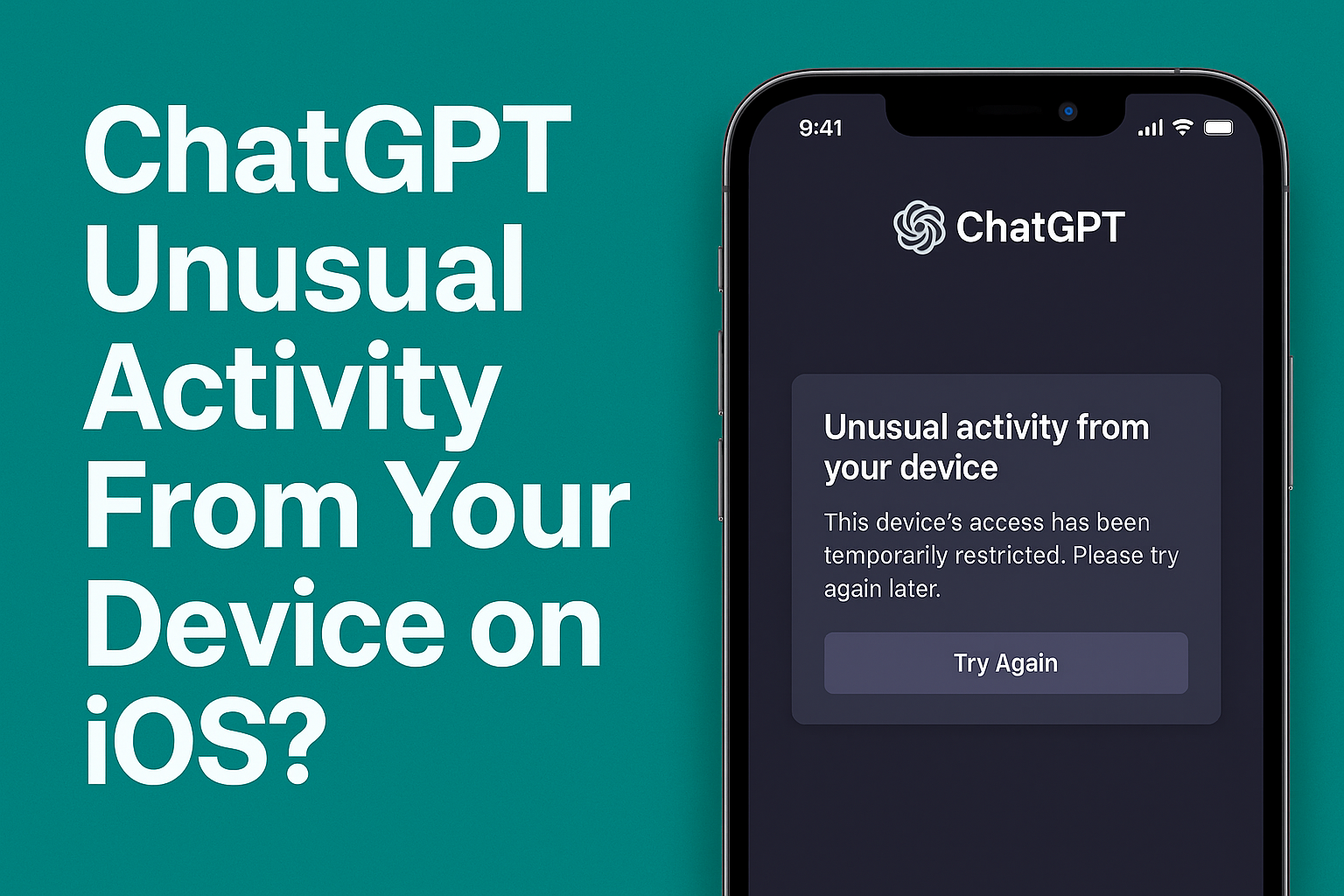
If you recently tried opening ChatGPT on your iPhone and were blocked by a warning that says ChatGPT unusual activity from your device ios, you’re not alone. This alert can look alarming at first, especially when you haven’t knowingly done anything suspicious.
In most cases, the message does not mean your iPhone is hacked. Instead, it usually points to network behavior that ChatGPT’s security systems interpret as risky. Here’s what’s actually happening and what you should do next.
Table of contents
What “Unusual Activity From Your Device” Really Means

Image Source: YouTube
Don’t miss the best of The Mac Observer
Set us as a preferred source and our Apple reporting ranks higher in your Google Search results and Discover feed — one tap, no account changes.
ChatGPT monitors traffic patterns to prevent abuse, spam, and automated requests. When its system detects activity that falls outside normal usage patterns, it may temporarily restrict access and display the unusual activity message.
Common triggers on iOS include:
- Frequent login attempts in a short time
- Rapid repeated requests to the app or website
- VPN or proxy usage
- Shared IP addresses (such as public Wi-Fi)
- Switching between networks repeatedly
None of these automatically means your device is compromised, but they can look suspicious to automated security filters.
Does This Mean Your iPhone or Apple ID Is Threatened?
Not necessarily. The warning usually applies to ChatGPT’s servers, not directly to your Apple ID or iPhone. However, if you notice the message repeatedly, especially alongside strange device behavio,r it’s still wise to check your broader account security.
Apple explains what to do in its official guidance on what to do if you think your Apple ID has been compromised, including how to reset passwords and review the devices you’re signed in on.
For long-term protection, Apple strongly recommends enabling two-factor authentication for your Apple ID, which adds an extra verification step and blocks most unauthorized access attempts.
Why iPhone Users See This Warning More Often
iOS users tend to encounter this warning more often because of:
- Network switching between Wi-Fi and mobile data
- Privacy tools that mask IP addresses
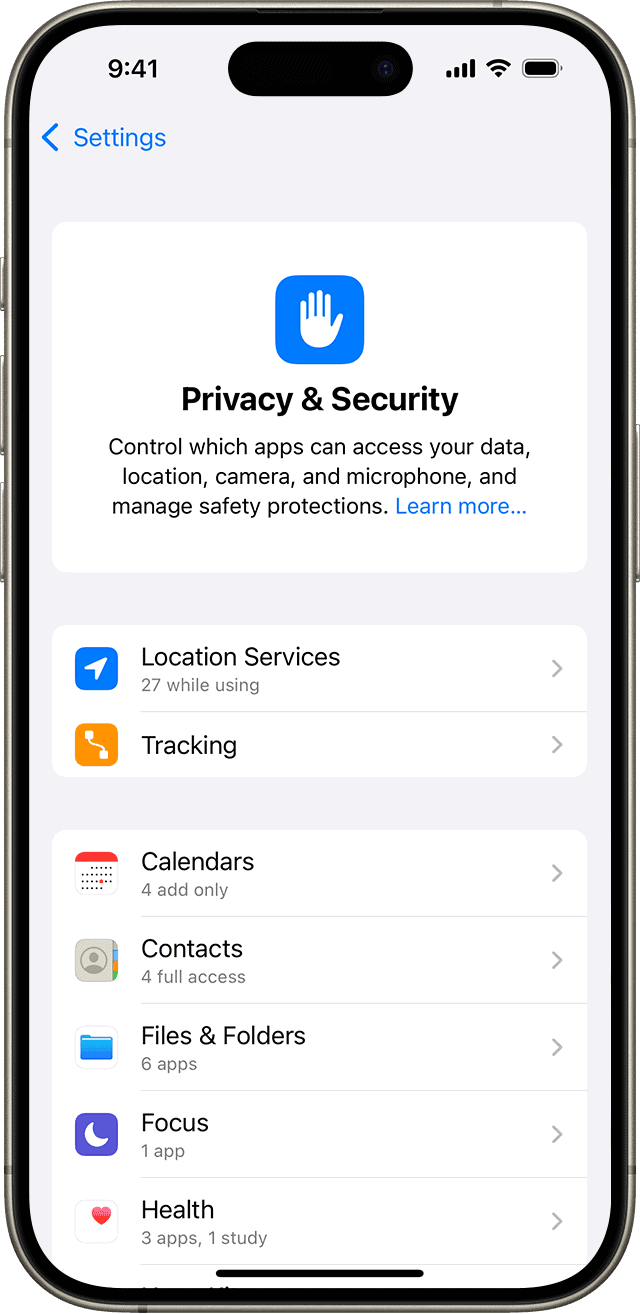
- VPN-based browsing for added security
- Repeated background app refresh activity

If you frequently experiment with ChatGPT features, shortcuts, or automation tools, your usage pattern may also look unusual to ChatGPT’s monitoring systems.
This is especially common among users who rely heavily on ChatGPT for productivity on their phones. Our guide on how to use ChatGPT on iPhone in various ways explains how different usage methods can influence how the service behaves on iOS.
How to Fix the “Unusual Activity” Warning on iOS
If the warning blocks you, try these steps in order:
- Turn off any VPN or proxy services and reopen ChatGPT.
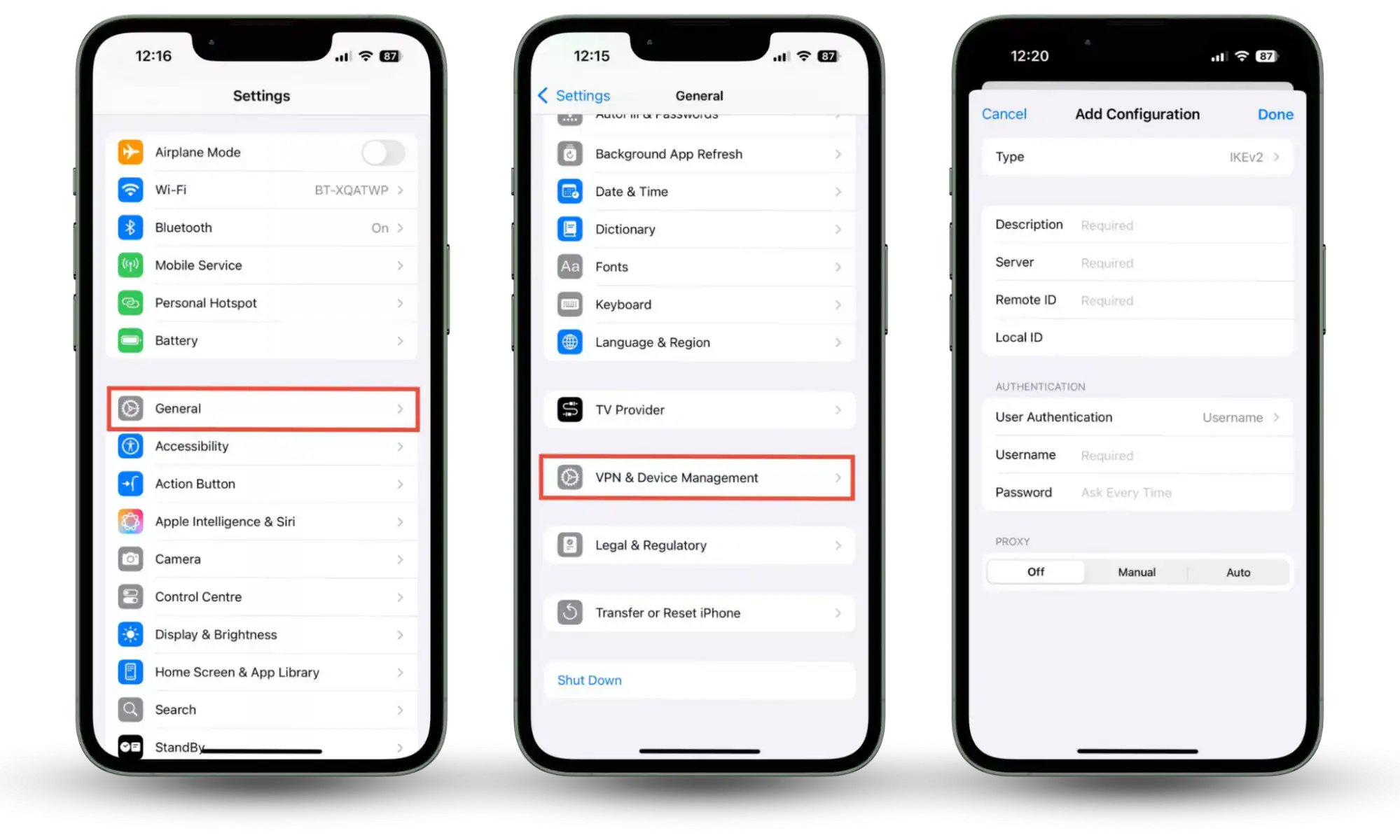
- Switch networks (from Wi-Fi to mobile data or vice versa).
- Log out and log back in to your ChatGPT account.
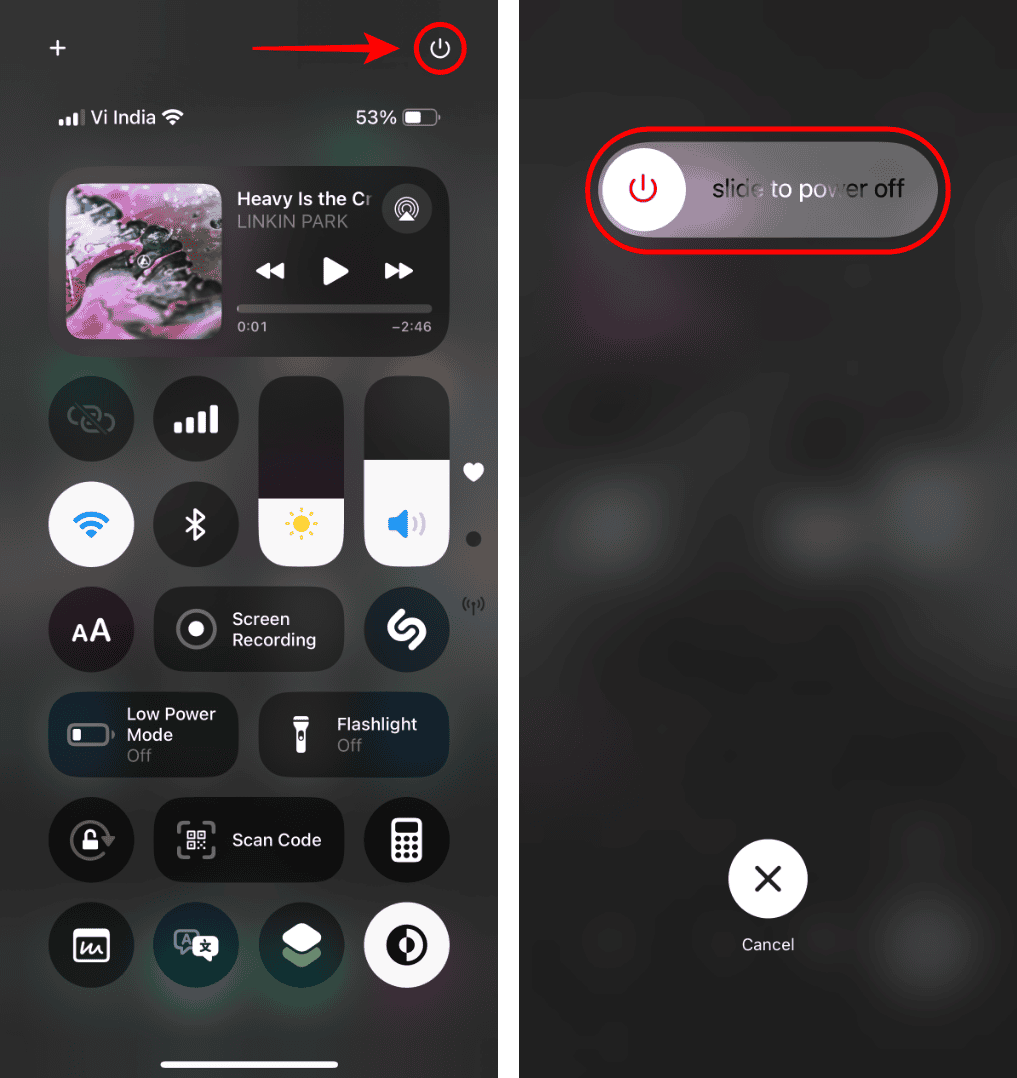
- Restart your iPhone to refresh network sessions.
- Wait a few hours before retrying if the block is temporary.

In most cases, access is restored automatically once ChatGPT’s system no longer detects abnormal traffic from your IP address.
Is This Related to Ads or Tracking on iPhone?
Some users worry that the warning is tied to advertising or tracking behavior as ChatGPT continues to evolve. While monetization is changing, Apple users still benefit from strong built-in privacy protections.
If you’re concerned about this shift, this breakdown of how iPhone users can avoid ChatGPT ads using built-in iOS controls explains what Apple restricts at the system level and how that affects ChatGPT usage.
When You Should Take Extra Precautions
You should act more urgently if the warning appears alongside any of the following:
- Unknown logins to your ChatGPT or Apple accounts
- Unexpected password-reset emails
- Sudden account logouts across multiple apps
- Unrecognized devices in your Apple ID settings
In those cases, updating your Apple ID password immediately and enabling two-factor authentication is strongly advised.
The Bottom Line
Seeing ChatGPT’s unusual activity from your iOS device usually means ChatGPT’s servers detected irregular traffic patterns, not that your iPhone is infected or hacked. The issue is most often caused by VPN use, IP changes, or heavy request activity and typically resolves on its own.
Still, it’s smart to review your Apple ID security settings and use Apple’s built-in protection tools to keep your device and personal data safe.




Discussion