

iPadOS 26 has introduced several improvements, but some users encounter touchscreen responsiveness issues after updating. The screen may stop responding to taps, gestures might fail to register, or certain areas become unresponsive. These problems can stem from software glitches, calibration issues, or conflicts with the new operating system.
If you are having an issue with your iPad, then we have covered all proven methods to restore normal touchscreen functionality on iPads running iPadOS 26 in this article.
Table of contents
Why Is This Happening?
iPadOS 26 touchscreen problems typically occur due to software conflicts introduced during the update process. Background processes may interfere with touch input recognition. Cached data from the previous OS version can cause unexpected behavior.
Hardware calibration settings sometimes become misaligned after major system updates. The touch controller needs to recalibrate to work properly with new software parameters. Third-party apps not optimized for iPadOS 26 may create conflicts that affect overall system responsiveness.
Screen protectors, especially older or improperly installed ones, can interfere with touch sensitivity. Dirt, moisture, or debris on the display surface blocks accurate touch detection. Static electricity buildup occasionally disrupts the capacitive touch sensors.
Some iPadOS 26 bugs affect specific iPad models more than others. Apple typically addresses these issues in subsequent point updates. Temperature extremes can temporarily affect touchscreen performance until the device returns to normal operating range.
Here’s How to Fix Your iPad’s Touchscreen Issues
1. Force Restart the iPad
A force restart clears temporary system files and refreshes all running processes. This method resolves most minor software glitches affecting touchscreen response.
For iPads with Face ID:
- Press and quickly release the Volume Up button
- Press and quickly release the Volume Down button
- Press and hold the Power button until the Apple logo appears
- Release the button and wait for the iPad to restart completely
For iPads with a Home button:
- Press and hold both the Home button and Power button simultaneously
- Continue holding until the Apple logo appears on screen
- Release both buttons and allow the restart to complete
The iPad should respond normally after the restart finishes. Test the touchscreen by opening different apps and performing various gestures. If problems persist, proceed to the next solution.
2. Remove Screen Protector and Clean the Display
Screen protectors can lose adhesive quality over time, creating air gaps that interfere with touch detection. Damaged or scratched protectors may cause dead zones on the screen. Remove them, clean the screen with a microfiber cloth, and test gestures again. Consider replacing the screen protector with a higher quality option if needed.
3. Update to the Latest iPadOS Version
Apple releases point updates to fix bugs discovered in major releases. These updates often include touchscreen calibration improvements.
- Open the Settings app on the iPad
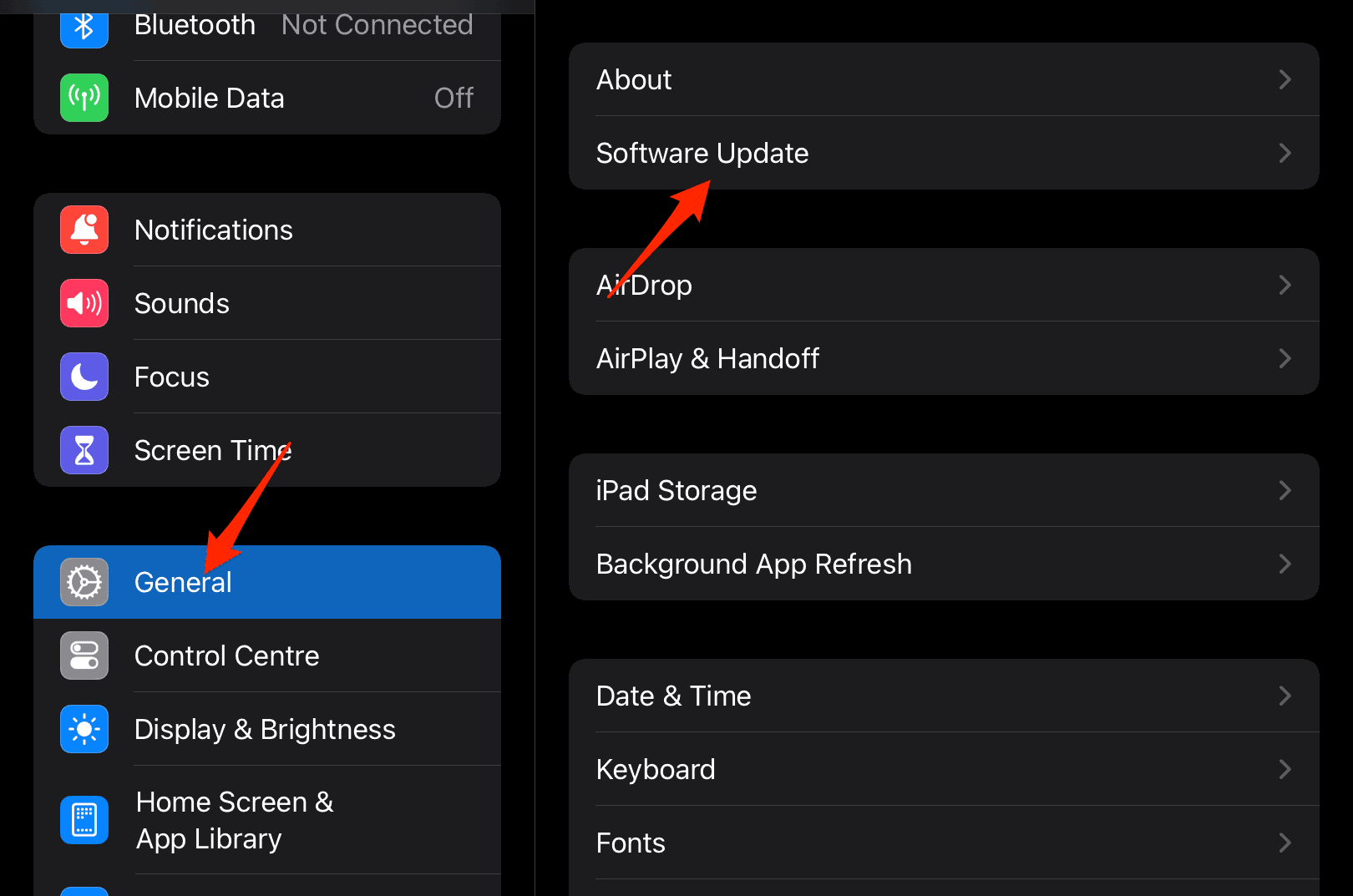
- Tap General from the left sidebar
- Select Software Update from the menu
- Wait while the system checks for available updates
- Tap Download and Install if an update appears
- Enter the passcode when prompted
- Agree to the terms and conditions
- Wait for the download to complete
- Tap Install Now to begin the update process
- The iPad will restart automatically when finished

Keep the iPad connected to a stable Wi-Fi network throughout the process. Ensure battery level stays above 50% or connect to power. Similar to issues when users can’t update to iOS 26.1, connectivity problems may interrupt the update.
4. Reset All Settings
This method returns system settings to defaults without deleting personal data. It clears configuration issues that might affect touchscreen performance.
- Open Settings and navigate to General
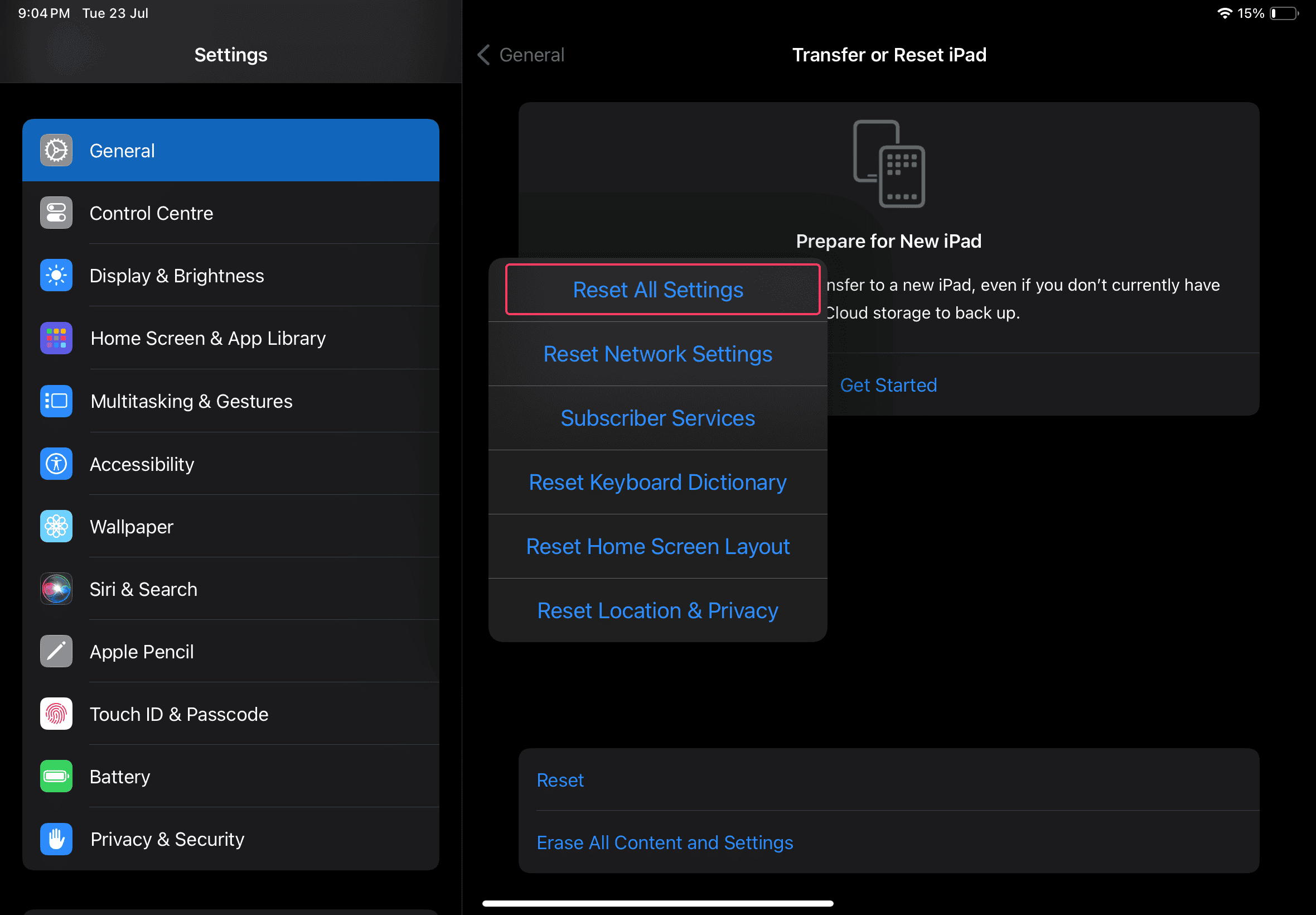
- Scroll down and tap Transfer or Reset iPad
- Select Reset from the options
- Choose Reset All Settings from the menu
- Enter the iPad passcode when requested
- Confirm the reset action
- Wait while the process completes
- The iPad will restart automatically

After restart, reconfigure Wi-Fi networks, wallpapers, and other preferences. Touchscreen calibration returns to factory defaults. Test responsiveness across multiple apps and system interfaces.
5. Calibrate the Touchscreen Through Accessibility
iPadOS includes accessibility features that can help recalibrate touch input sensitivity. These settings adjust how the system interprets touch gestures.
- Open Settings and select Accessibility
- Tap Touch under the Physical and Motor section
- Enable Touch Accommodations
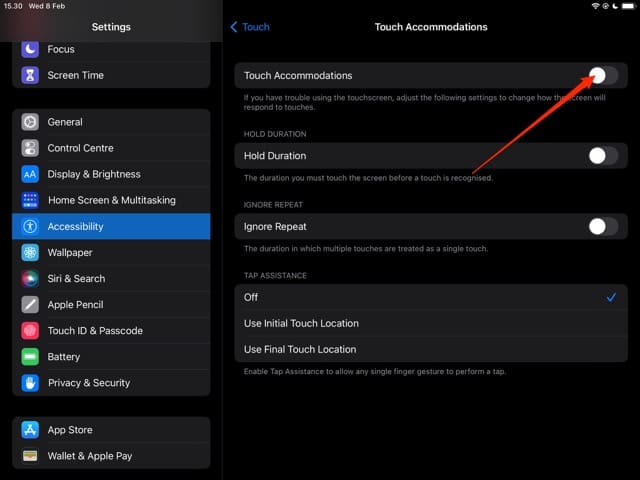
- Adjust Hold Duration to set how long touches must be held
- Increase the value if accidental taps occur frequently
- Configure Ignore Repeat if multiple taps register from single touches
- Set the duration for ignoring repeated touches
- Test Tap Assistance options if needed
- Enable Use Initial Touch Location for more precise input
- Exit Settings and test touchscreen behavior

These adjustments help users with different touch patterns. Experiment with different values to find optimal settings. Disable Touch Accommodations if it makes problems worse.
6. Disable AssistiveTouch Temporarily
AssistiveTouch creates an on-screen button for accessibility purposes. Sometimes this feature conflicts with normal touch input on iPadOS 26.
- Navigate to Settings and open Accessibility
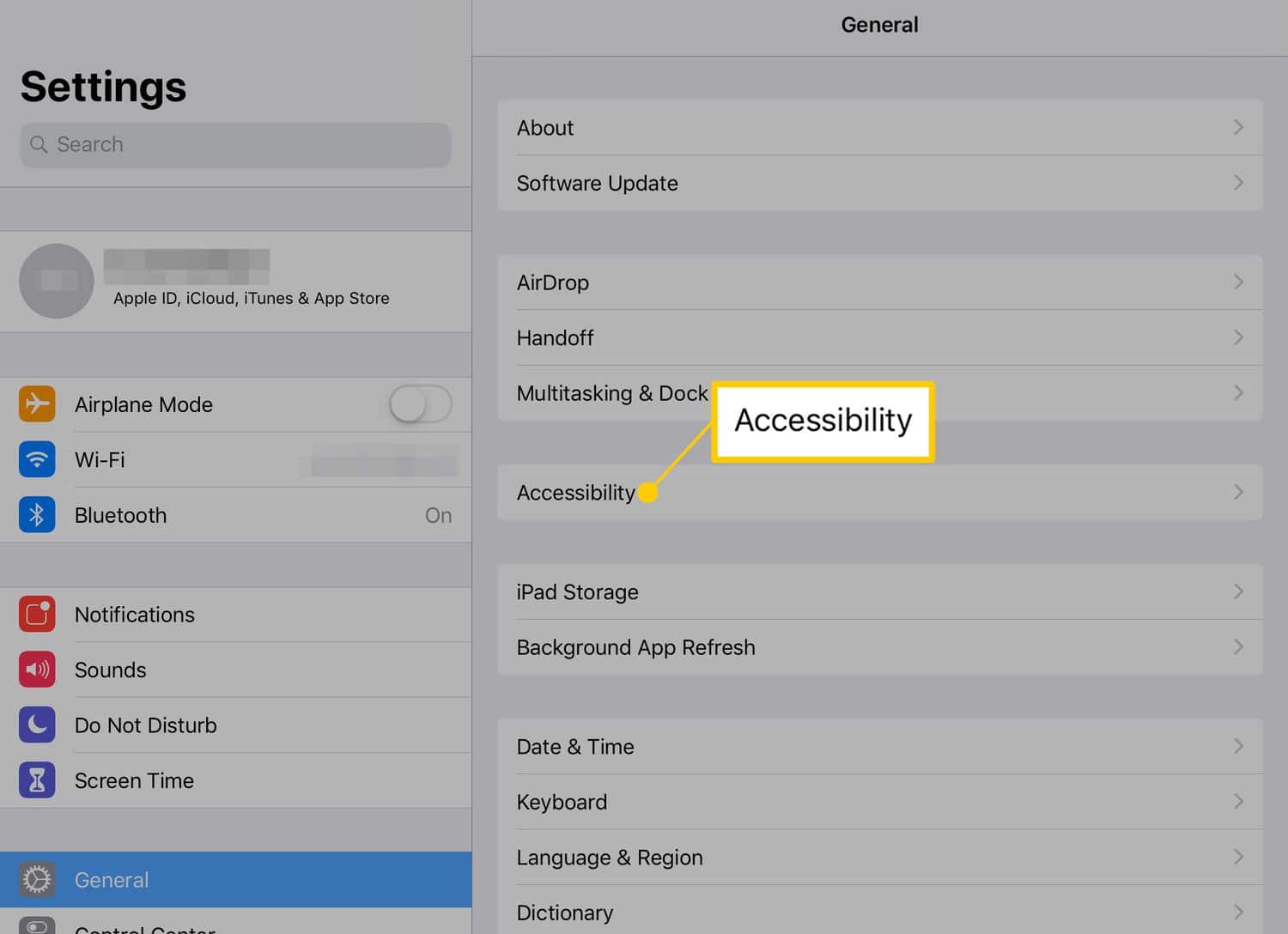
- Select Touch from the menu options
- Tap AssistiveTouch at the top of the list
- Toggle off the AssistiveTouch switch
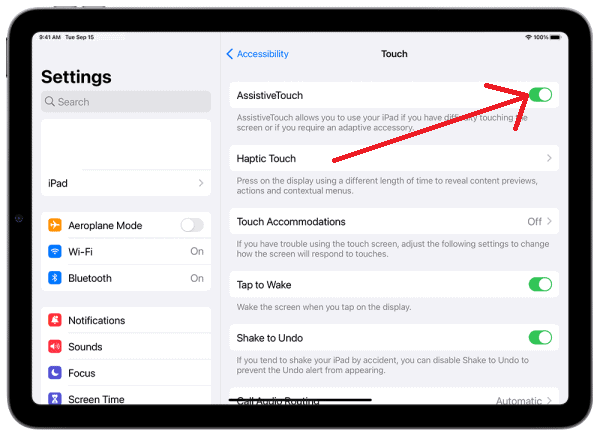
- Exit Settings and test touchscreen functionality
- Try various gestures and multi-touch actions
- Open different apps to verify improvements


Re-enable AssistiveTouch if needed after confirming it was not causing conflicts. Some users find that toggling the feature off and back on resolves temporary glitches.
7. Check for Physical Damage
Physical damage may not always be immediately visible. Inspect the iPad carefully for signs of impact or stress.
- Examine the screen for cracks, even hairline fractures
- Check the edges and corners for impact damage
- Look for discoloration or dead pixels on the display
- Test if specific screen areas consistently fail to respond
- Apply gentle, even pressure across different parts of the screen
- Note if certain zones work better than others
- Inspect the charging port and speakers for debris
- Check if the device has been exposed to liquid
Physical damage requires professional repair. Apple Stores and authorized service providers can assess hardware issues. Attempting DIY repairs may void warranty coverage.
8. Restore iPad Using Recovery Mode
Recovery mode reinstalls iPadOS completely, often fixing deep system issues. This process erases all data, so back up important files first.
- Connect the iPad to a computer with iTunes or Finder
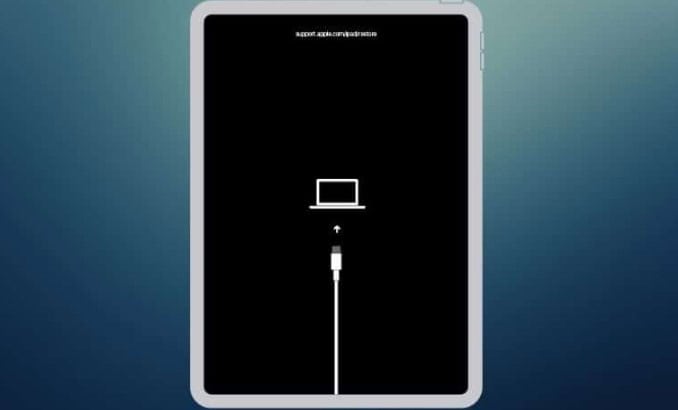
- Open iTunes on Windows or Finder on Mac
- Force restart the iPad but continue holding buttons
- Keep holding when the Apple logo appears
- Release when the recovery mode screen shows
- The computer will detect the iPad in recovery mode
- Click Restore iPad in the prompt that appears
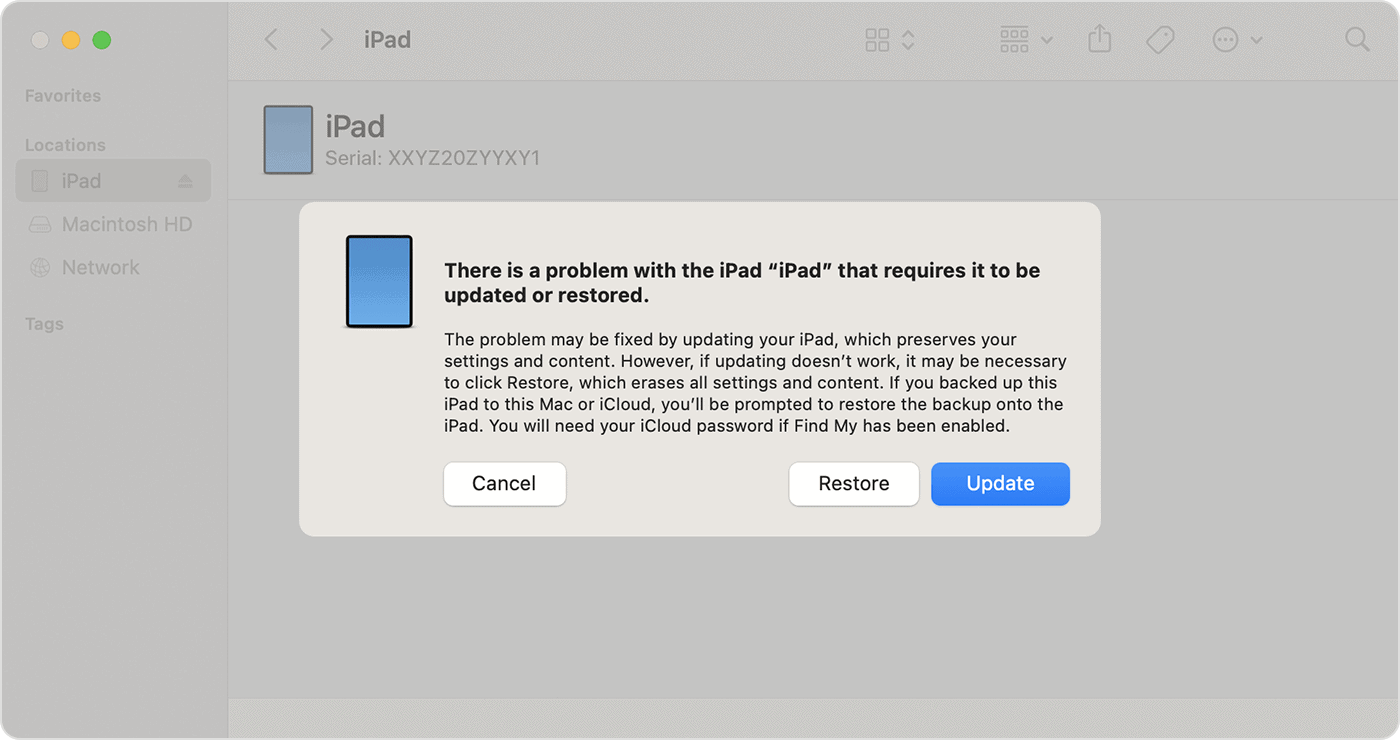
- Confirm the action to begin the restore process
- Wait while the software downloads and installs
- The iPad will restart with factory settings
- Follow on-screen setup instructions
- Restore from backup or set up as new


Recovery mode provides a clean installation of iPadOS 26. This eliminates corrupted system files that might affect touchscreen drivers. Similar recovery processes help when Excel isn’t working or other apps malfunction severely.
Additional Tips
Regular maintenance prevents many touchscreen issues:
- Restart the iPad weekly to clear cached data and refresh system processes. This simple habit prevents many minor glitches from accumulating.
- Keep iPadOS updated with the latest point releases. Apple continuously improves system stability and fixes known bugs through these updates.
- Avoid using the iPad in extreme temperatures. Cold weather makes screens less responsive while heat can damage internal components.
- Remove unnecessary apps that run background processes. Too many active processes can slow down system responsiveness and affect iPad performance on iPadOS 26.
- Use official Apple accessories when possible. Third-party chargers and cables sometimes introduce electrical interference that affects touch sensors.
Fixing Your iPad’s Touchscreen the Right Way
Maintaining free storage, installing updates in time, and restarting the device when apps freeze can reduce touchscreen issues. Most touch problems link back to minor software interruptions, so following these structured steps usually restores normal response without hardware repair.
FAQs
Factory reset erases all data from the iPad. Users must back up to iCloud or a computer before resetting. Restoring from backup after reset brings back personal data. The “Reset All Settings” option preserves data while fixing many software issues.
App-specific touchscreen problems indicate compatibility issues with iPadOS 26. Developers must update apps to work correctly with new operating systems. Reinstalling or updating the problematic app usually resolves these issues. Contact app developers if problems persist after updates.
Apple typically releases point updates within 2-4 weeks after identifying widespread issues. Critical bugs receive faster patches through emergency updates. Minor issues might wait for the next scheduled update. Reporting problems through Feedback Assistant helps Apple prioritize fixes.
Restarting clears temporary files and resets all system processes. This fixes minor software glitches causing touchscreen issues. Force restart works better than normal shutdown for frozen or unresponsive devices. Many touchscreen problems resolve after a simple restart.


