

If you just updated to iOS 18/18.5, and having heating issues, you’re not alone. If your iPhone is overheating after the iOS 18.5 update, we recommend turning off background app refresh, quitting background apps, and restarting your iPhone.
Apple’s iOS 18.5 promises several security fixes and new features, but for many users, it also sparked overheating problems. Well, it’s normal for a smartphone to get warm after an update or during heavy usage. However, if your iPhone overheats most of the time, you shouldn’t ignore it.
Why Your iPhone Overheats After iOS 18.5 Update?
Overheating problems may arise due to several reasons. Increased background activity, like reindexing data and updating apps, can overload the system temporarily. Misbehaving or outdated apps may use more resources than usual, while excessive battery drain can lead to increased heat output.
Don’t miss the best of The Mac Observer
Set us as a preferred source and our Apple reporting ranks higher in your Google Search results and Discover feed — one tap, no account changes.
System overload from low storage and heavy usage also contributes to the issue. Environmental factors like direct sunlight exposure and high ambient temperatures, and hardware issues such as a faulty processor or worn-out battery, can worsen the problem.
8 Ways to Fix iOS 18.5 Overheating Problems
1. Turn Off Background App Refresh
Time needed: 5 minutes
Background App Refresh is a feature that allows apps to run in the background and check for updates and new data. While this feature fetches up-to-date content and notifications for you, it also take up a lot of resources. When multiple processes run in the background, they might stress the battery and CPU, causing your iPhone to overheat.
Apple also mentions that when you first set up your iPhone or restore it from a backup, it might get warm due to increased background activity. Once the process is completed, your device should return to a normal temperature.
To avoid overheating, follow these steps and disable Background App Refresh on your iPhone:
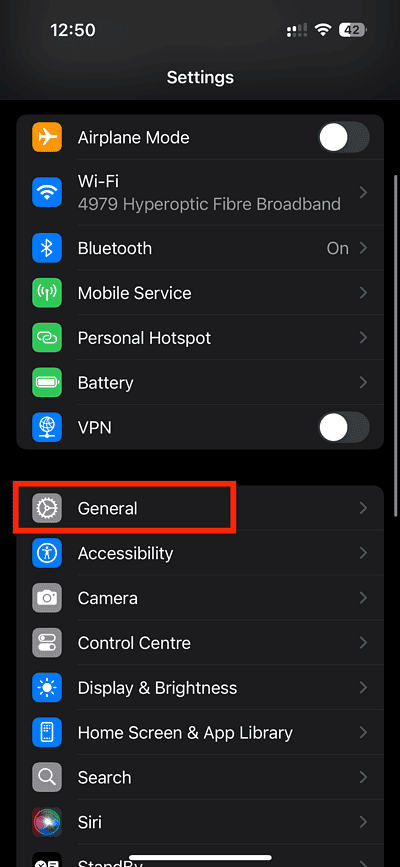
- Go to Settings > General.
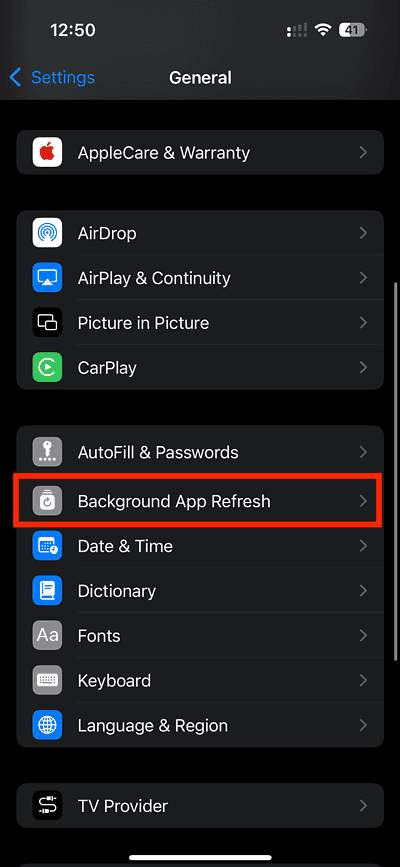
- Scroll down a little and tap Background App Refresh.
- Again, tap Background App Refresh
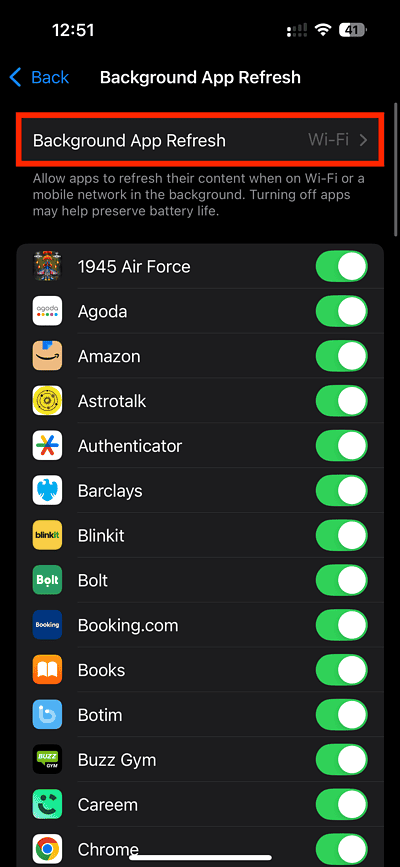
- Choose Off.

- If you want, you can disable this feature for specific apps. Simply toggle off individual apps on the Background App Refresh Page.


2. Quit Background Apps
After you update to iOS 18.5 or any other software version, some apps may consume more resources than usual, which may cause your device to get warmer. If you aren’t actively using certain apps, it’s best to close them and free up some resources.
To fix overheating issues due to background apps in iOS 18.5, follow these steps:
- From the Home Screen, swipe up from the bottom and pause in the middle to open App Switcher.

- Go through your open apps and swipe up each app you wish to close.

3. Update Apps
Some apps might not be compatible with iOS 18.5, and this can result in issues like battery drain and overheating. To ensure a smooth functioning, we recommend updating your apps.
- Open App Store and tap the Profile icon from the top right.
- Scroll down and tap Update for available apps.
- To update all apps at once, hit the Update All button.

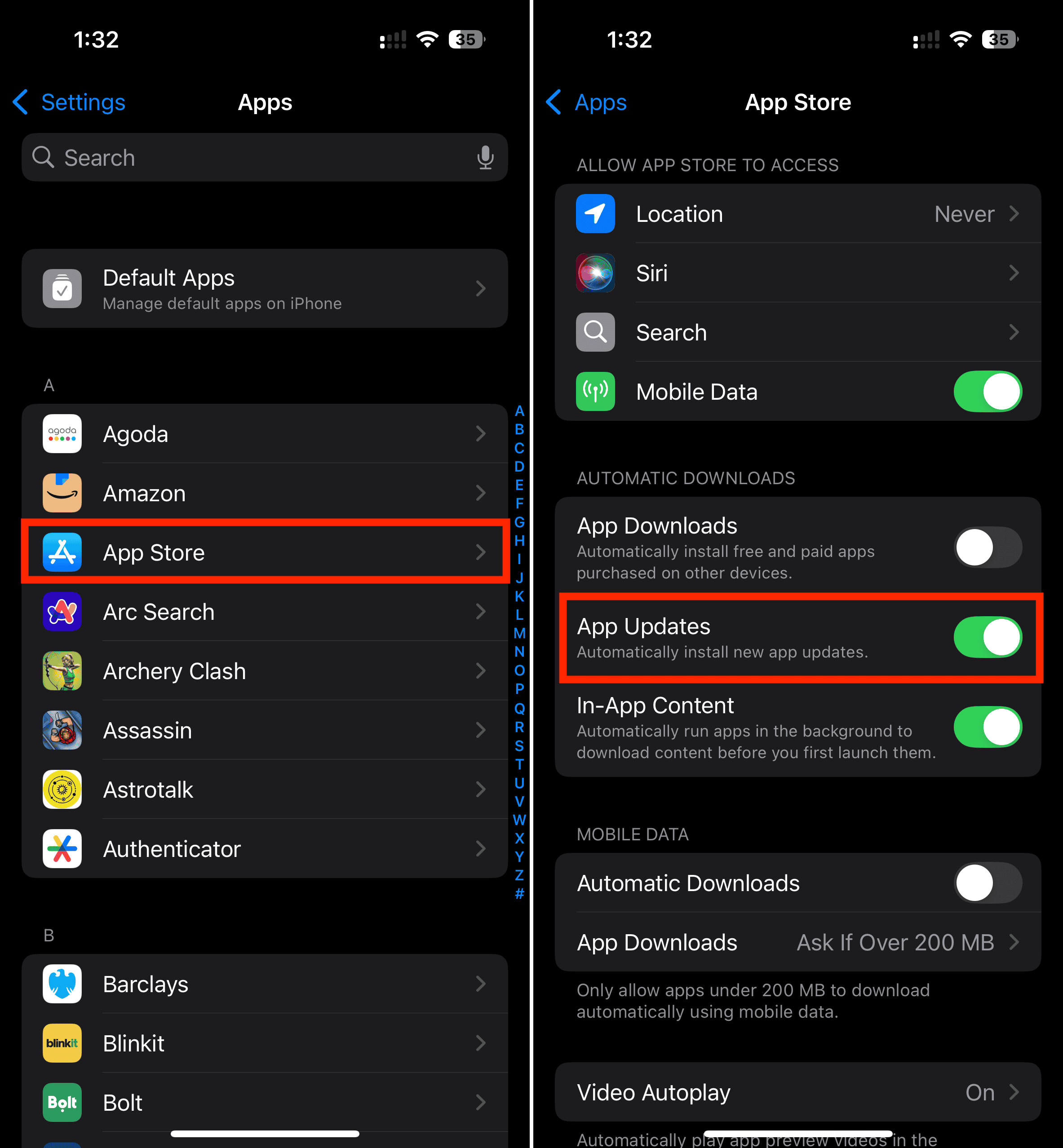
- To allow iOS to automatically update apps for you, go to Settings > Apps > App Store and turn on App Updates.

Also, if you’ve recently downloaded some apps from unofficial or non-verified sources, it’s better to uninstall them right away. These apps could be the real culprits causing your iPhone to overheat behind the scenes.
4. Restart iPhone
A restart may sound basic, but it’s an effective way to wipe off any temporary glitches causing your iPhone to overheat after the iOS 18.5 update. It also refreshes the system’s cache, memory, and background processes, giving your iPhone a clean state.

Hold the Power and Volume Up/Volume Down buttons until the power slider appears. Alternatively, long-press the Power icon in the Control Center. Drag the slider to turn off your iPhone. Wait for a few seconds and turn it back on.
5. Free Up Storage
When your iPhone is running low on storage, the system has to work harder even for normal tasks. This not only slows down the overall performance but can also trigger overheating problems. To allow your iPhone to run smoothly, you must maintain at least 5GB of free storage space.
To check the available space on your device, go to Settings > General > iPhone Storage. If the storage space is almost full, you can delete older media, unused apps, or get more iCloud space.

For more details, check out these 6 free and easy ways to get more storage on an iPhone.
6. Limit Power-Hungry Features
Certain features, like Location Services and Mobile Data, consume a significant amount of resources. If your iPhone remains warm most of the time, consider turning off these power-hungry features, at least for some time. Also, refrain from using an overly bright display all the time.
We also have another useful tip. Avoid using your iPhone while charging, especially for heavy tasks like gaming or demanding apps. This combo can quickly push your iPhone to heat up.
7. Reset All Settings
As a last resort, you can try to reset all settings after iOS 18.5. This process will wipe off any iOS bugs from the system and restore your iPhone to its default settings. It won’t delete any downloaded data, so there’s no need to back up your iPhone.
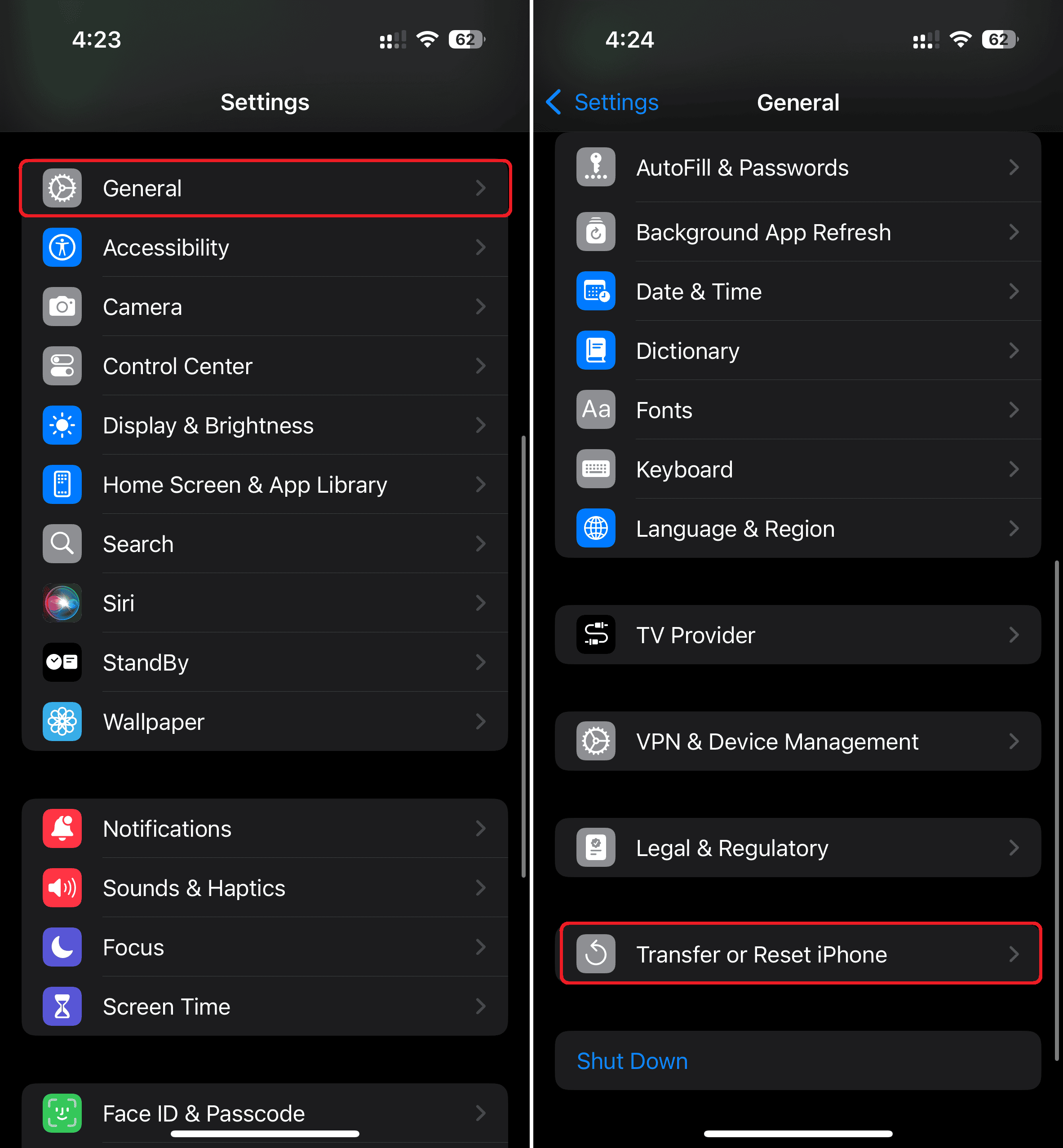
- Open Settings > General.
- From the bottom, tap Transfer or Reset iPhone.
- Tap Reset and choose Reset All Settings.
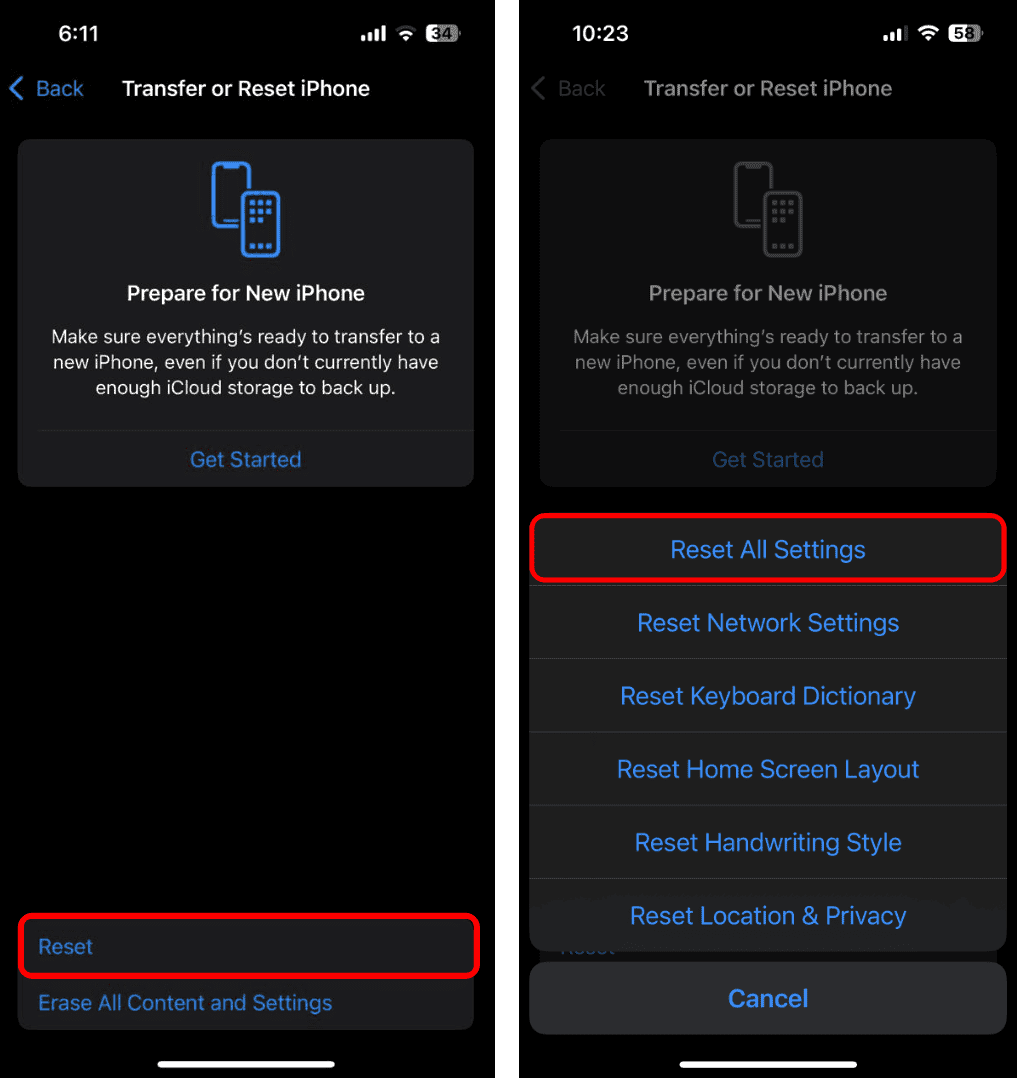
- If asked, enter your iPhone’s passcode and tap Reset All Settings to confirm your decision.


8. Wait for the Next Update
Though unlikely, if nothing works for you, the only thing you can do is wait for Apple’s next iOS update. The Cupertino tech giant regularly releases software updates with security patches, bug fixes, and performance enhancements. Keep an eye on the Software Update section and install the latest version as soon as it’s available—it might bring the fix your iPhone needs.



Discussion