

Your morning shouldn’t start with ten taps, three apps, and mild irritation before coffee. If you’re holding an iPhone in 2026, you already have the tools to make mornings run quietly in the background. The Shortcuts app isn’t a novelty anymore. It’s the control panel for how your day begins.
Here’s the thing. Good automation doesn’t try to do everything. It removes friction from the moments that repeat every single day.
Table of contents
What Morning Automation Actually Means
A morning automation is a set of actions that run when something happens. That trigger could be your alarm going off, your phone disconnecting from the charger, or a specific time of day. Once triggered, your iPhone does the boring parts for you.
Don’t miss the best of The Mac Observer
Set us as a preferred source and our Apple reporting ranks higher in your Google Search results and Discover feed — one tap, no account changes.
Think less magic trick, more invisible assistant.
Shortcuts still uses the same core ideas it always has. Actions are single steps. Shortcuts chain those steps together. Automations run them automatically without asking.
If you remember nothing else, remember this. Start with one trigger and three actions. Anything more comes later.
The Best Trigger for Mornings
In 2026, the most reliable morning trigger is still your alarm.
- Open Shortcuts.
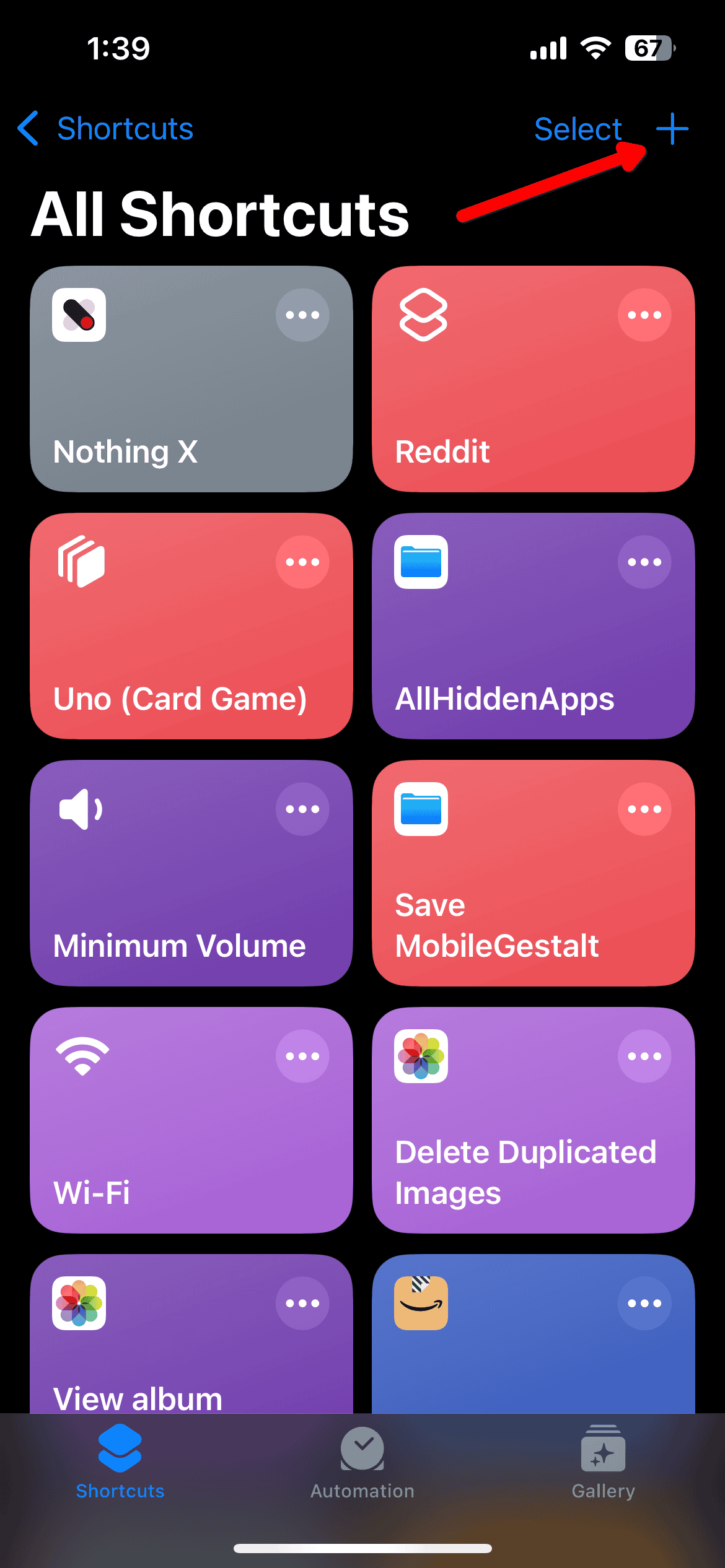
- Tap Automation.
- Create a new personal automation.
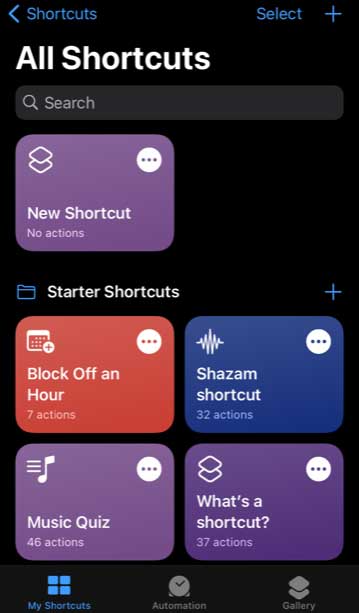
- Choose Alarm.
- Select When Alarm Is Stopped.


Not snoozed. Stopped. This matters.
Why? Because it means your routine starts when you actually wake up, not when you negotiate with your pillow.
From here, you build the flow.
A Simple Morning Routine That Actually Helps
Start small. Here’s a routine that works for most people and doesn’t feel gimmicky.
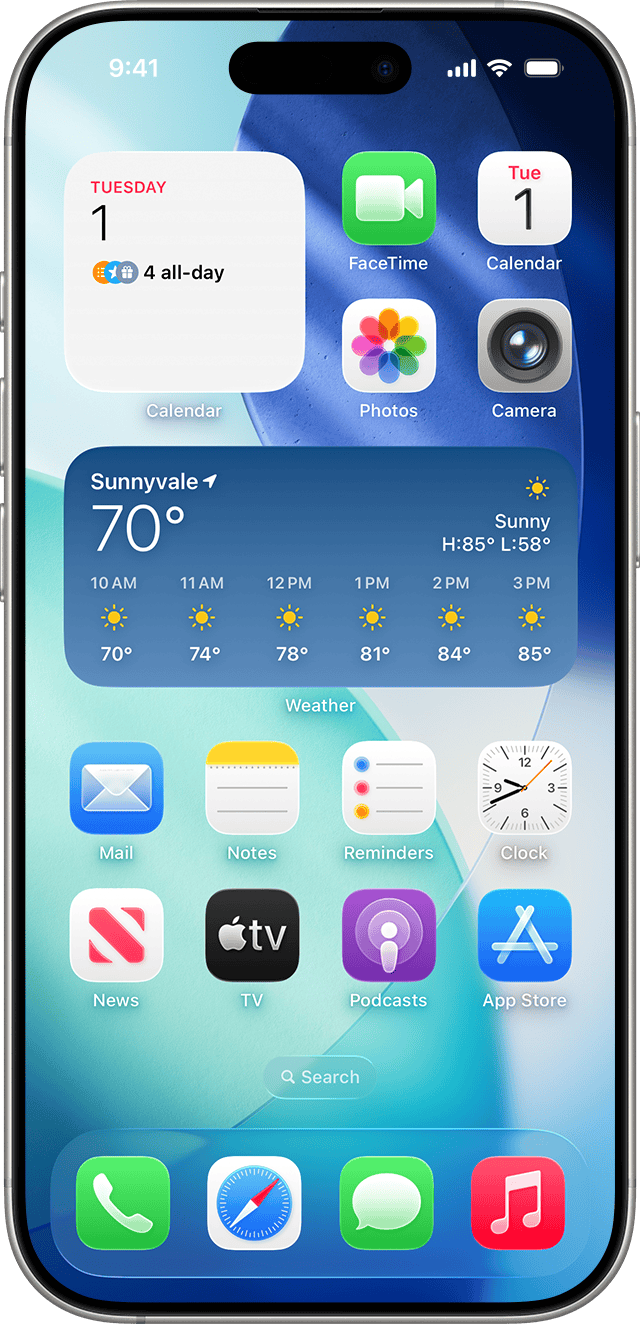
- First action: Get current weather. You’ll find it under Weather.
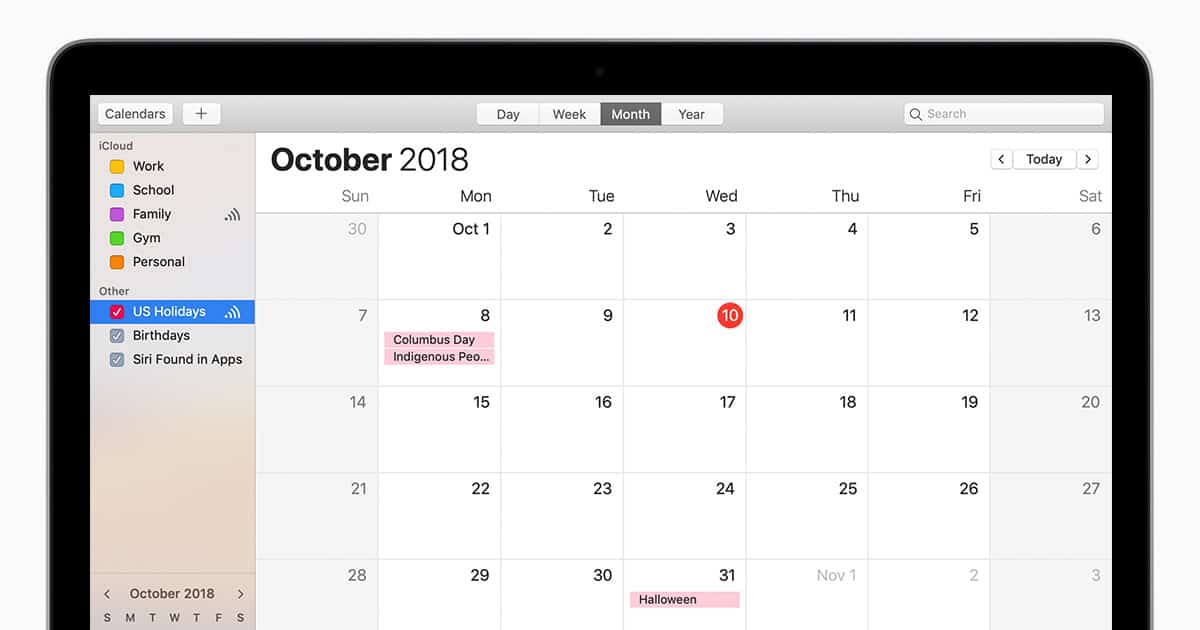
- Second action: Get today’s calendar events. This pulls your schedule without you opening Calendar.
- Third action: Show result. Combine the weather and your first event into one clean text block.
- Optional fourth action: Play music or a podcast. Choose something calm. You’re waking up, not storming a beach.


Name it something obvious like Morning Briefing. Turn off Ask Before Running. That last part is key. Automation that asks permission defeats the point.
Now when you stop your alarm, your phone tells you what the day looks like and eases you into it.
Going One Level Deeper Without Overdoing It
Once that works for a week, add logic.
Use an If action. For example, if the temperature is below a certain number, show a reminder to grab a jacket. If it’s raining, surface your commute time instead.
Another solid upgrade is battery logic. If your battery is below 40 percent when you wake up, automatically turn on Low Power Mode. You’ll stop thinking about it entirely.
Variables help here. They let you reuse information like weather conditions or calendar titles without rebuilding everything.
This is where Shortcuts stops feeling like a toy and starts feeling useful.
Syncing Your Morning Across Devices
If you use a Mac or iPad, your shortcuts sync through iCloud automatically. Build it once on your iPhone and it shows up everywhere.
You can even create a Mac shortcut that opens your work apps when your iPhone runs its morning routine. That’s not showing off. That’s eliminating context switching.
One trigger. Multiple devices. Same outcome.
Common Mistakes to Avoid
Don’t automate your entire life on day one. That’s how shortcuts end up abandoned.
Don’t stack ten notifications in a row. If your routine creates noise, it’s failing.
And don’t forget to test it. Run it manually once. Then trust it.
The Real Payoff
Morning automation isn’t about productivity theater. It’s about starting the day without decision fatigue.
Your phone already knows the time, the weather, your schedule, and your habits. Let it act like it.
Set it up once. Then wake up to a morning that’s already handled.


Discussion