

The iOS/iPadOS clipboard is invisible by design. There’s no built-in “Clipboard app” or history list you can open. Instead, you preview what’s copied by pasting into a safe place (like Notes) or by using a quick Shortcut that shows the clipboard on demand. In this guide, we will talk you through both, explaining privacy prompts (“Allow Paste?”), and shows how to clear the clipboard and fix common paste issues.
Table of contents
Before you start
- There’s no native clipboard viewer or history. You can only see the current item on the clipboard.
- Clipboard privacy: Apps must ask to paste. You’ll see a prompt/banner when an app tries to read the clipboard.
- Universal Clipboard: If you have a nearby Mac or iPad signed into the same Apple ID with Handoff on, you can copy on one device and paste on another.
- Keep it private: Don’t paste sensitive data into apps that sync or send content unless you trust them.
The fastest ways to view the clipboard
1. Paste into Notes (safe, built-in, works for text, links, images)
- Open Notes on your iPhone or iPad.
- Tap New Note.

- Long-press in the note and tap Paste.
- You’ll immediately see the current clipboard contents: text, links, or images.
- If you don’t want to save it, just close the note without keeping changes.

Why this works: Notes keeps everything local until you choose to sync/share. It’s the simplest viewer for both text and images.
2. Make a one-tap “View Clipboard” Shortcut (quick preview without saving)
- Open Shortcuts → tap + (top-right).
- Tap Add Action → search Get Clipboard → add it.
- Tap + again → add Show Result (or Quick Look for images/files).
- Tap the name (top) → rename to View Clipboard → Done.
- Optional: tap Share → Add to Home Screen to create an icon; or add it to the Shortcuts widget.
How to Use it: Tap the Home Screen icon (or run from Spotlight/Widgets). A panel pops up showing the exact clipboard contents, no need to paste anywhere.
Don’t miss the best of The Mac Observer
Set us as a preferred source and our Apple reporting ranks higher in your Google Search results and Discover feed — one tap, no account changes.
Power tip: On iPhone, assign it to Back Tap → Settings → Accessibility → Touch → Back Tap → choose Double Tap or Triple Tap → select View Clipboard.

In some cases, Apple’s Shortcuts Gallery also includes a ready-made option called Adjust Clipboard that works in a similar way. If you see it in the Gallery, you can add it directly instead of building your own. Either way, you can pin the shortcut to your Home Screen, add it to the Shortcuts widget, or assign it to Back Tap for quick access.
3. Use Universal Clipboard to view on a nearby Mac
If you’d rather preview on a bigger screen:
- On iPhone/iPad: Settings → General → AirPlay & Handoff → Handoff: On.
- On Mac: System Settings → General → AirDrop & Handoff → Allow Handoff: On.
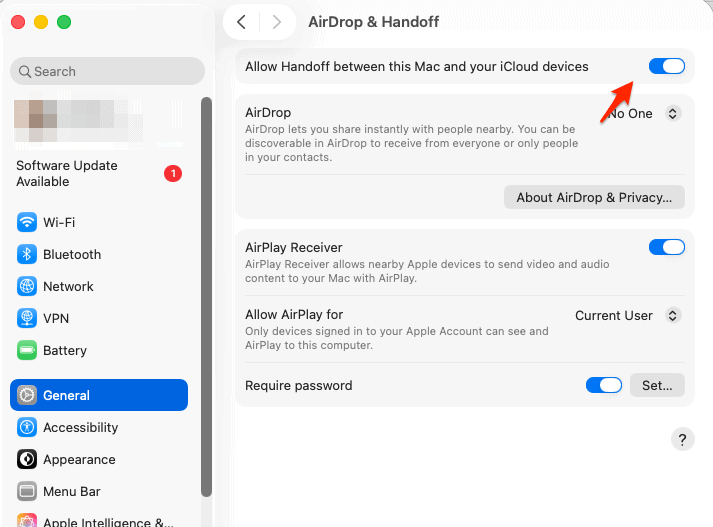
- Turn on Wi-Fi and Bluetooth on both devices, signed into the same Apple ID.
- Copy on iPhone/iPad → switch to your Mac → Paste into TextEdit/Notes.

Why this helps: You can inspect long text, URLs, or images comfortably on the Mac without saving them on the phone.
Bonus: How to clear the clipboard
There’s no “Clear Clipboard” button, but you can overwrite it.
1. Quick overwrite (no Shortcut):
Copy a single space (or any harmless emoji), which replaces sensitive contents.
2. Make a “Clear Clipboard” Shortcut:
- Go to Shortcuts → + → Add Action → search Set Clipboard.
- Leave the text field blank (or put a single space).
- Name it Clear Clipboard → add to Home Screen or Back Tap.
Control “Allow Paste?” privacy prompts (per-app)
If an app won’t paste (or asks too often):
- Go to Settings → [App Name] → Paste from Other Apps.
- Choose Allow, Ask, or Don’t Allow.
- Allow: Pastes without prompts.
- Ask: Prompts each time (the default for many privacy-sensitive cases).
- Don’t Allow: Blocks paste into that app.
This is useful if you paste a lot into trusted apps (e.g., Notes, Password managers) and want to reduce interruptions.
For further reading, check out our full guide on how to copy and paste on Mac.
Troubleshooting: Paste doesn’t appear or is greyed out
- Nothing to paste: Make sure you copied something first.
- App won’t paste: Check Settings → [App] → Paste from Other Apps (set to Allow).
- Universal Clipboard won’t show up on your Mac: Ensure you have the same Apple ID, Wi-Fi/Bluetooth on, and Handoff enabled on both devices; keep devices nearby and awake.
- Clipboard content disappeared: It can be replaced by your last Copy or lost after restarts. Just copy again.
FAQs
Not natively. iOS/iPadOS only keeps the current clipboard item. History requires a third-party app.
There’s no fixed timer. It stays until you copy something else, an app overwrites it, or the device restarts.
Yes, with Universal Clipboard via Handoff. Copy on one device, paste on another, if they’re signed into the same Apple ID and near each other with Wi-Fi/Bluetooth on.
That’s a privacy prompt. You can change it per app in Settings → [App] → Paste from Other Apps.
Yes, use the View Clipboard Shortcut with Quick Look, or paste into Notes and discard the note.
Summary (ordered steps)
- Quick view: Paste into Notes to see what’s on the clipboard.
- Make a Shortcut: Get Clipboard → Show Result/Quick Look for one-tap previews.
- Optional: Add the Shortcut to Home Screen, Back Tap, or Widgets.
- Universal Clipboard: Copy on iPhone/iPad → paste on Mac (Handoff on, same Apple ID).
- Clear it: Overwrite by copying a space, or run a Clear Clipboard Shortcut.
- Tame prompts: Adjust Paste from Other Apps per app if you paste often.
Conclusion
While iPhone and iPad don’t offer a built-in clipboard viewer or history, you have fast, reliable ways to see, manage, and clear what’s currently copied. Pasting into Notes is the simplest; a tiny View Clipboard Shortcut makes it instant. With Universal Clipboard, you can also preview content on a nearby Mac. Once you set up the Shortcut (and Back Tap if you like), checking the clipboard becomes a single tap, exactly how it should feel.


Discussion