

Apple Intelligence is a major iOS 26 feature, but many users report it missing or malfunctioning. Whether it’s due to device compatibility, regional restrictions, or download errors, let’s break down the most common causes. I will provide actionable solutions to get Apple Intelligence working again on your iPhone.
Table of contents
Why Apple Intelligence Fails to Load or Function on iOS 26
Check Device Compatibility
Apple Intelligence is only available on select models like the iPhone 15 Pro, iPhone 16 Pro, and newer. If you’re using an unsupported device, the features won’t appear. To verify eligibility and enable the feature, refer to our guide on enabling Apple Intelligence.
Enable Siri & Search Settings
Even on supported devices, Apple Intelligence may be disabled by default.
Don’t miss the best of The Mac Observer
Set us as a preferred source and our Apple reporting ranks higher in your Google Search results and Discover feed — one tap, no account changes.
- Go to Settings > Siri & Search
- Toggle on Apple Intelligence
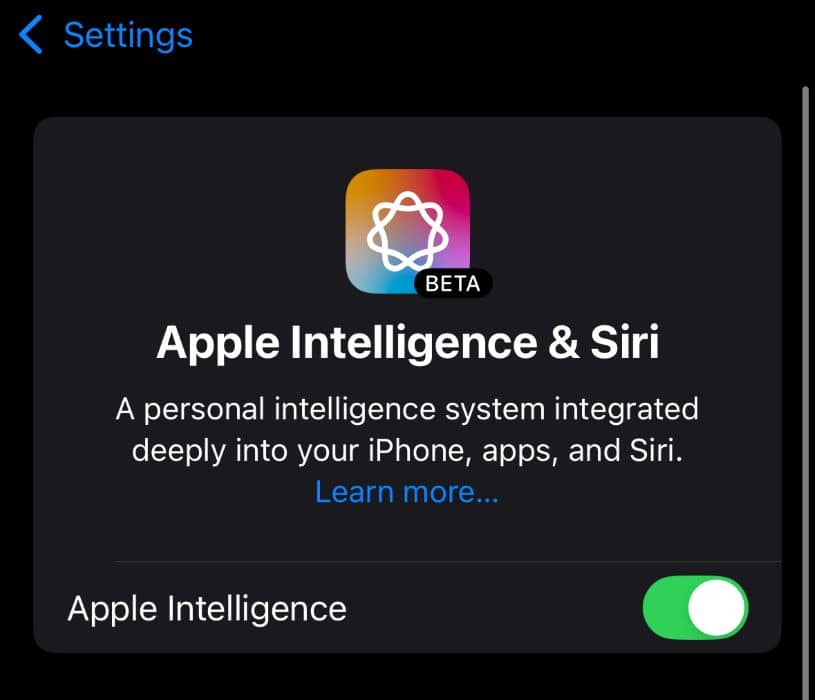
- Restart your device

Resolve Stuck Downloads
Some users experience Apple Intelligence stuck on “Preparing” or “Downloading.” This is often due to network instability or carrier restrictions.
Steps to fix:
- Connect to a stable Wi-Fi network
- Reset all settings by going to Settings > General > Transfer or Reset iPhone.

- Tap Rest > Reset All Settings
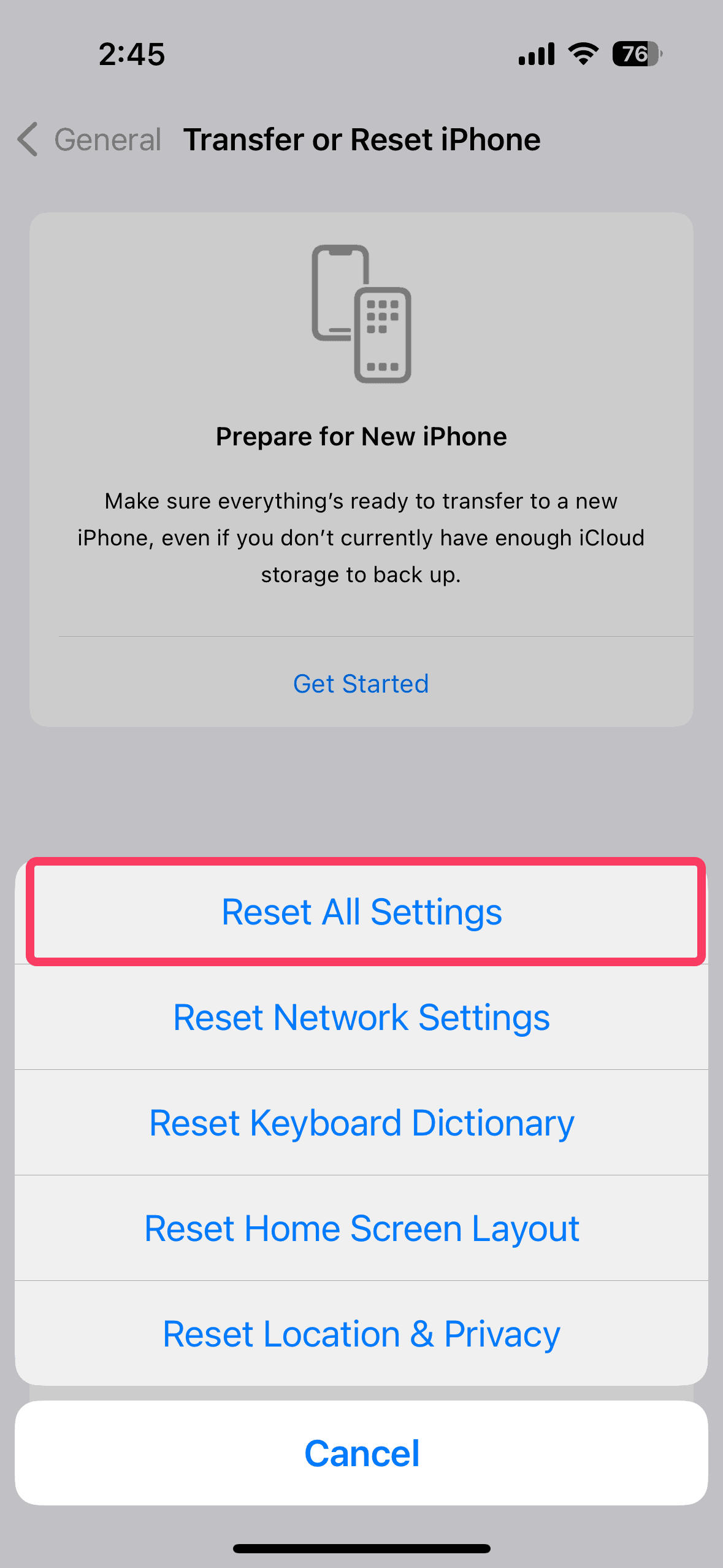
- Retry the download.


If using iPhone 17, there’s a confirmed solution for your device.
Check for Regional Restrictions
Apple Intelligence is currently limited to specific regions. If you’re outside supported areas, the feature may not activate.
To bypass this limitation:
- Use a VPN set to a supported country
- Ensure your Apple ID region matches the VPN location
- Restart your device
Try enabling Apple Intelligence now. If it works, you’ll now be able to access Apple Intelligence Anywhere
Update iOS and iCloud
Outdated software or unsynced iCloud accounts can block Apple Intelligence.
To update iOS, follow these steps.
- Connect to Wi-Fi and plug into power
- Go to Settings > General > Software Update
- Tap Download and Install if iOS 26 is available
- Enter your passcode and wait for the update to finish
To sync your iCloud, follow the steps below.
- Go to Settings > [Your Name] > iCloud
- Sign in and enable iCloud Drive, Siri, and iCloud Backup
- Check storage under Manage Storage
- Restart your device to apply changes
For more troubleshooting tips, visit Fix Apple Intelligence Not Showing
Frequently Asked Questions
No. It’s limited to newer models like iPhone 15 Pro and above.
Only in supported regions. VPNs and region-switching may help.
Common causes include poor Wi-Fi, carrier blocks, or corrupted settings.
Yes. iCloud sync is essential for full functionality.
How to Restore Apple Intelligence on iOS 26
If Apple Intelligence isn’t working on iOS 26, start by confirming device eligibility and regional support. Then, enable the correct settings, update your software, and troubleshoot any download issues. With these steps, most users can restore full functionality. For persistent problems, refer to the Apple Intelligence patch for a proven solution.


great T/S article. I was able to turn off/on my Nord VPN and all the AI tools started working again. I’m on iPhone 15 pro IOS 26.5