

If you came from a Fitbit—or any tracker that puts your step count front and center—you probably noticed something odd on day one with an Apple Watch. You can see your rings, your calories, your stand hours, and even your distance. But not your steps. Apple tracks them, but it won’t show them on the watch face. Here’s the thing. You can get steps on your Apple Watch face, but you need a third party app to do it. Once you set it up, your step count is always one glance away.
Table of contents
Why Apple doesn’t show steps on the watch face
Apple built its fitness system around rings. Move, Exercise, and Stand. Steps are tucked deeper inside the Activity app, and Apple hasn’t added a native complication for them. If you want steps on your face, you need a step counting app that offers its own complication. The good news is that several do.
Two solid options: Pedometer++ and Duffy. Both sync with Apple Health, both update through the day, and both drop your step count right onto your watch face.
Don’t miss the best of The Mac Observer
Set us as a preferred source and our Apple reporting ranks higher in your Google Search results and Discover feed — one tap, no account changes.
Step 1: Install a step counter app
Pick an app you like. Pedometer++ is simple and free. Duffy focuses on clean step tracking and works well for people moving from Fitbit. Install the app on your iPhone, then confirm it’s also installed on your Apple Watch.
When the app opens for the first time, give it access to Motion and Fitness. This lets it read your Health data so the step count stays accurate.
Step 2: Add the step complication to your watch face
Now it’s time to put those steps where you actually want them. You can edit your watch face either on the watch or through the Watch app on your iPhone.
On the watch:
- Press and hold the watch face
- Tap Edit
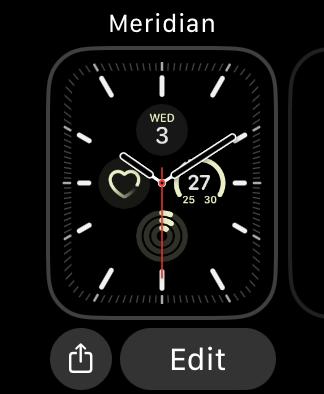
- Swipe to the complications screen
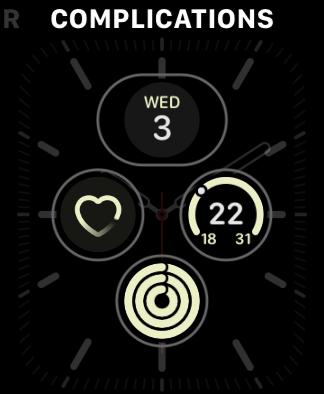
- Tap the spot where you want your steps
- Scroll to your step app and choose the complication style
- Press the Digital Crown to save


In the Watch app on iPhone:
- Open Watch
- Tap My Watch
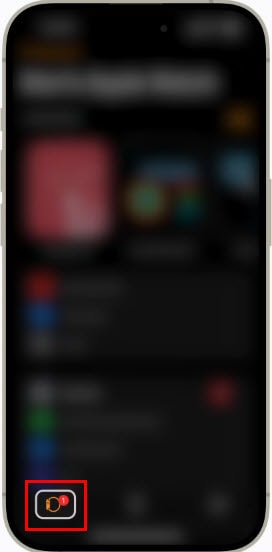
- Select the watch face you want to modify
- Pick a complication slot
- Scroll to your step app and choose the step display you prefer
- Save the face

Pick a face with plenty of complication options like Infograph or Modular if you want big, readable numbers.
Step 3: Keep your step data accurate
Most step apps update automatically through Background App Refresh. If it ever seems stuck, tap the complication to open the app on your watch. It forces a refresh from Apple Health.
One more tip: make sure your Apple Watch is set as the primary data source for steps in the Health app. Go to Health, select Steps, scroll to Data Sources, and drag your watch to the top of the list.
The bottom line
Your Apple Watch already counts your steps. Apple just doesn’t surface them on your watch face. With a quick download and a complication swap, you can fix that and bring your steps back to where they belong—right on your wrist, ready whenever you glance down.


Discussion