
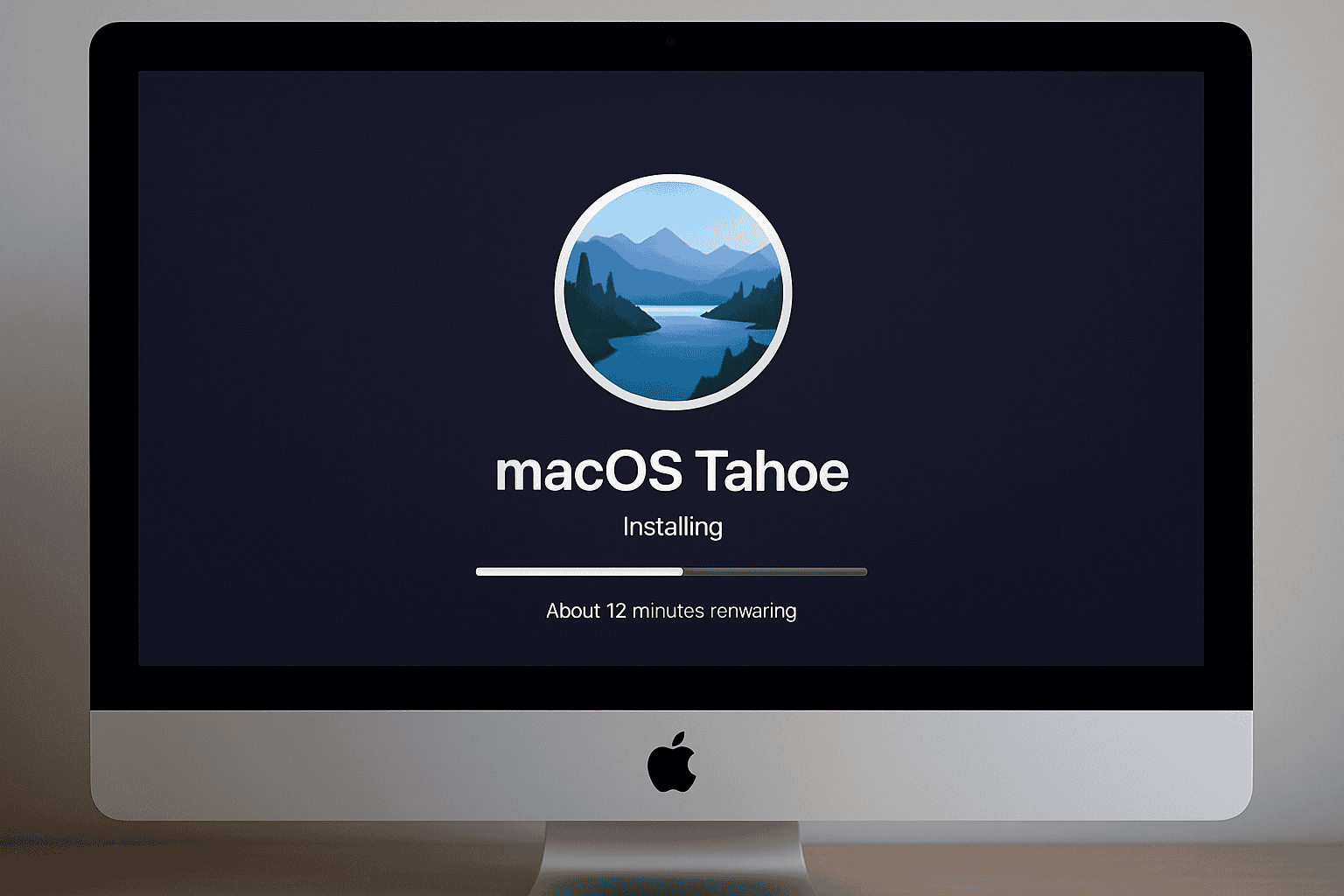
If apps feel like they’re waking up from a long nap every time you click them in macOS Tahoe, you’re not alone. After the update, many users noticed Safari stuttering on launch, Finder taking a beat before responding, and everyday apps dragging their feet. The slowdown isn’t random, and thankfully, it’s often fixable. Let’s walk through what’s actually happening and what you can do to speed things up.
Table of contents
Why Apps Feel Slow in macOS Tahoe
Here’s the thing. Tahoe does a ton of work behind the scenes right after installation, and that load spills into how quickly apps open. A few common culprits show up again and again.
Heavy reindexing
Spotlight and Photos rebuild their databases after you install Tahoe. This can take over your CPU for 24 to 48 hours, depending on your drive size.
Don’t miss the best of The Mac Observer
Set us as a preferred source and our Apple reporting ranks higher in your Google Search results and Discover feed — one tap, no account changes.
New caching behavior
Tahoe leans on deeper system caching meant to boost long term performance, but in the first couple of days it clogs storage and slows down app launches.
App compatibility gaps
Not every developer has optimized for Tahoe yet. Older versions of apps tend to lag, freeze, or crash until they’re updated.
Low free storage
Tahoe needs breathing room. If you’ve dipped below 15 to 20 percent free space, apps will feel heavier and slower.
Background processes piling up
Login items and services you forgot existed can hog CPU and memory, especially after a major update.
Now that you know what’s happening, let’s fix it.
How to Make Apps Open Faster on macOS Tahoe
1. Check What’s Eating Your Resources
Before making big changes, open Activity Monitor and see what’s actually slowing things down.
Applications > Utilities > Activity Monitor
Look at CPU and Memory tabs.
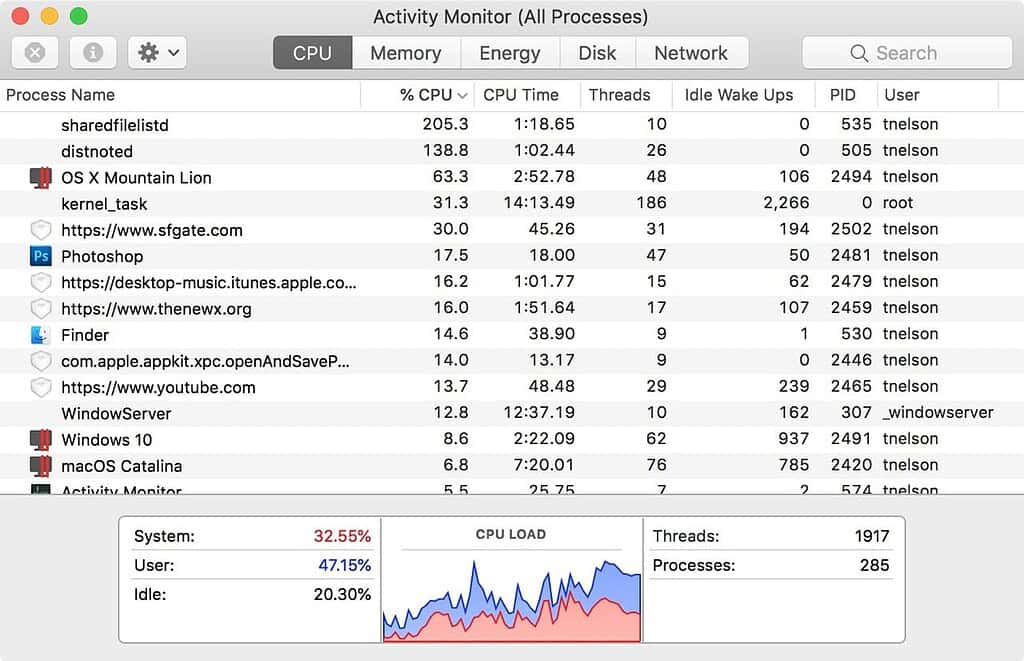
Image Source: eshop
If you see mds, mdworker, or PhotoLibrary processes running hard, that’s macOS doing its indexing. Let it finish. But if a random app you don’t even use is chewing up resources, force quit it or uninstall it.
This one step alone can reveal the whole problem.
2. Run Basic Maintenance
Even after indexing settles, Tahoe can feel sluggish until you clear out leftover cache and system clutter. Tools like CleanMyMac help automate routine maintenance tasks, and in testing, they made app launches noticeably faster.
Open CleanMyMac
Choose Performance
Scan
View All Tasks
Run what you need
Think of this as clearing the cobwebs after a renovation.
3. Trim Your Startup Items
Tahoe has a habit of reloading old login items. I’ve seen Zoom, Dropbox, and outdated utilities pop back into startup lists after the update.
Go to System Settings
General
Login Items and Extensions
Turn off anything you don’t need firing up every time you boot. Fewer background apps mean faster launches for everything else.
4. Update Your Apps
This one sounds obvious, but it matters with Tahoe. Some third party apps weren’t optimized at launch, and they run like they’re stuck in molasses until developers push updates.
Check the App Store for available updates
Manually update apps from developer websites
If you use creative tools, video software, browsers, or anything heavy, make this a priority.
5. Clear Out Old System Junk
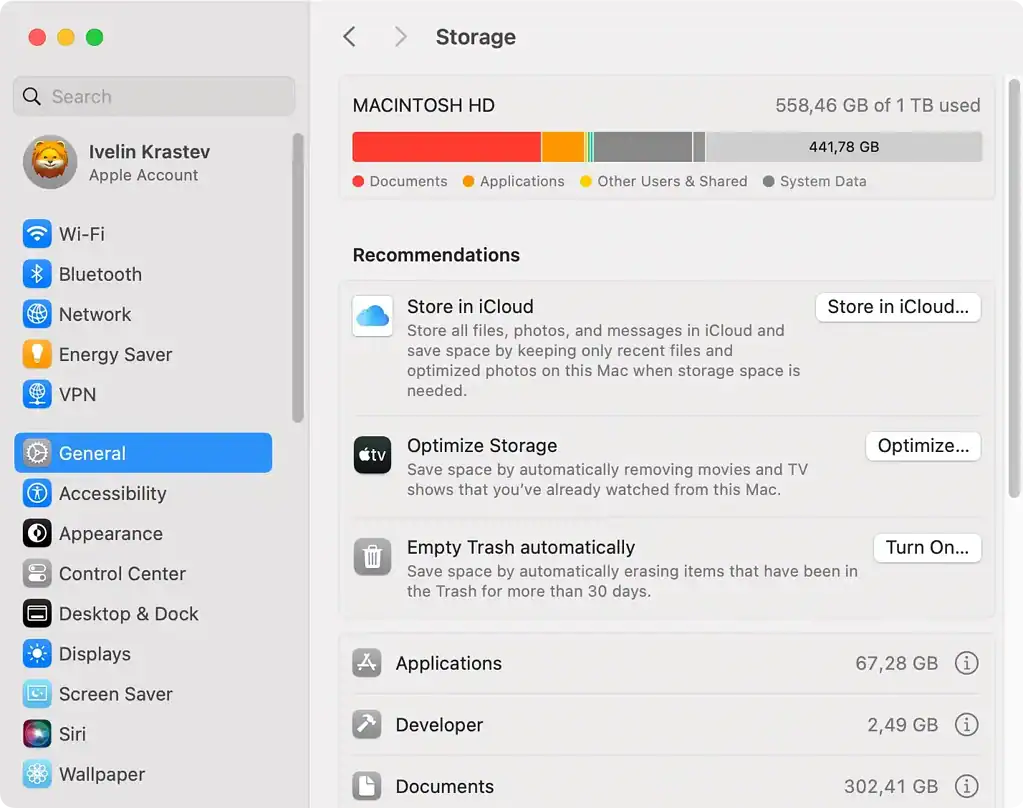
Image Source: Spyhunter
A full cache or bloated system library makes apps slow to open. After upgrading to Tahoe, some users found tens of gigabytes of leftover junk sitting around.
Using CleanMyMac or your preferred tool
Cleanup
Scan
Review junk
Remove
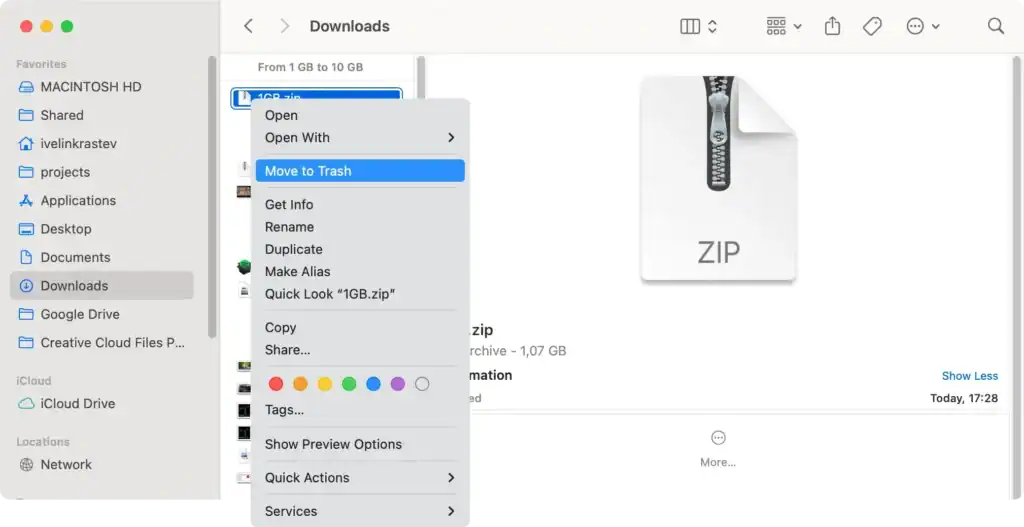
Image Source: Spyhunter
You’re not deleting anything important, just outdated caches, logs, and temporary files that Tahoe no longer needs.
6. Look at iCloud Syncing

Image Source: iboysoft
Tahoe’s iCloud sync is aggressive. If Photos or Desktop, and Documents are syncing thousands of items, apps will crawl.
Go to System Settings
Apple Account
iCloud
Drive
Toggle off Desktop and Documents temporarily
See if app performance improves. If it does, give your Mac a day or two to finish its indexing before turning sync back on.
7. Keep Free Space Above 15 Percent
Apps slow way down when your Mac is low on space. Tahoe especially needs room for virtual memory and caching.
Check storage
System Settings
General
Storage
If you’re tight on space, free up room by:
Moving media to cloud or external storage
Deleting old downloads
Removing unused apps
Cleaning up your desktop
Emptying the Trash
Your system will thank you.
8. Give macOS Tahoe Time to Settle
This part is frustrating, but honest. Major macOS updates need time. Spotlight, Photos, Mail, and other services run heavy optimization tasks in the background.
Most people see performance return to normal within 72 hours. So if you just updated, don’t panic yet.
Final Thoughts
Apps opening slowly on macOS Tahoe is annoying, but it usually traces back to indexing, caching, storage pressure, or unoptimized apps. With a bit of cleanup, a few smart adjustments, and some patience, your Mac should feel quick again.
If you want, I can turn this into a shorter version for a blog intro, a more technical guide, or a troubleshooting checklist.




Discussion