

Apple CarPlay lets you drive hands-free while streaming music, getting directions, and using your favorite apps, all without touching your phone. But what do you do when Apple CarPlay stops working? Whether it won’t connect, the apps won’t open, or your phone charges but CarPlay still doesn’t respond, there’s a way to get it back on track, and I’ll help you do it.
 NOTE
NOTE
1. Check Your Wired or Wireless Connection
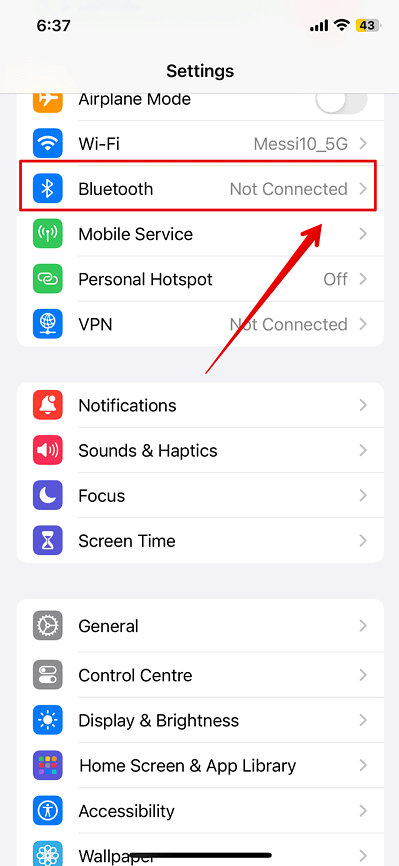
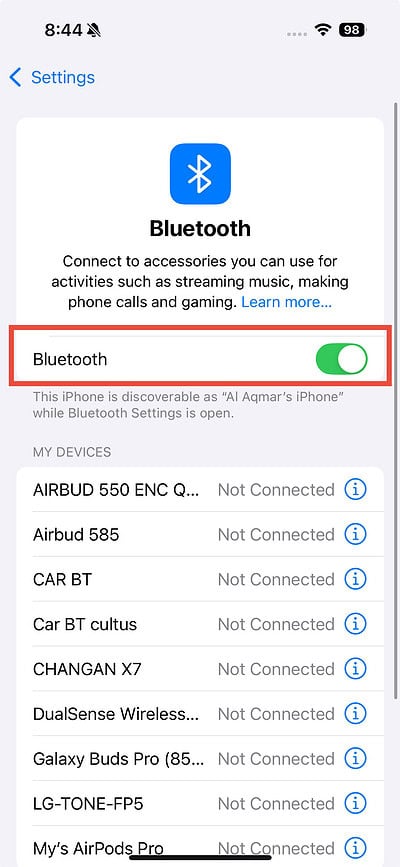
If you’re using a wired connection, try reconnecting with a different USB cable. Your stereo may have more than one USB port; switch to another and see if that helps. If you’re using a wireless connection, make sure Bluetooth is turned on.
Time needed: 1 minute
- Go to Settings.
- Tap Bluetooth.
- Turn the Bluetooth toggle on.


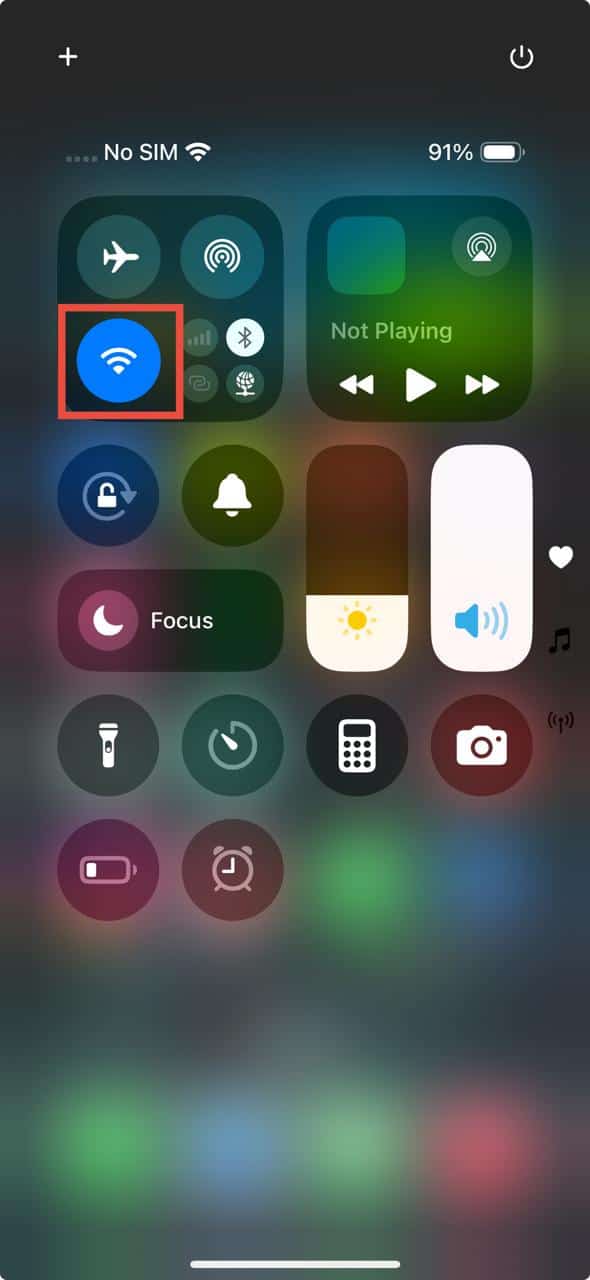
Make sure that Wi-Fi is also turned on.
Don’t miss the best of The Mac Observer
Set us as a preferred source and our Apple reporting ranks higher in your Google Search results and Discover feed — one tap, no account changes.
- Swipe down from the top right corner of the screen to bring up the Control Center.
- Tap the Wi-Fi icon to turn it on.

2. Make Sure CarPlay is Turned On
If your iPhone isn’t connecting to CarPlay, you might have disabled the feature or never turned it on. Here’s how you can check and enable it:
- Go to Settings > General.
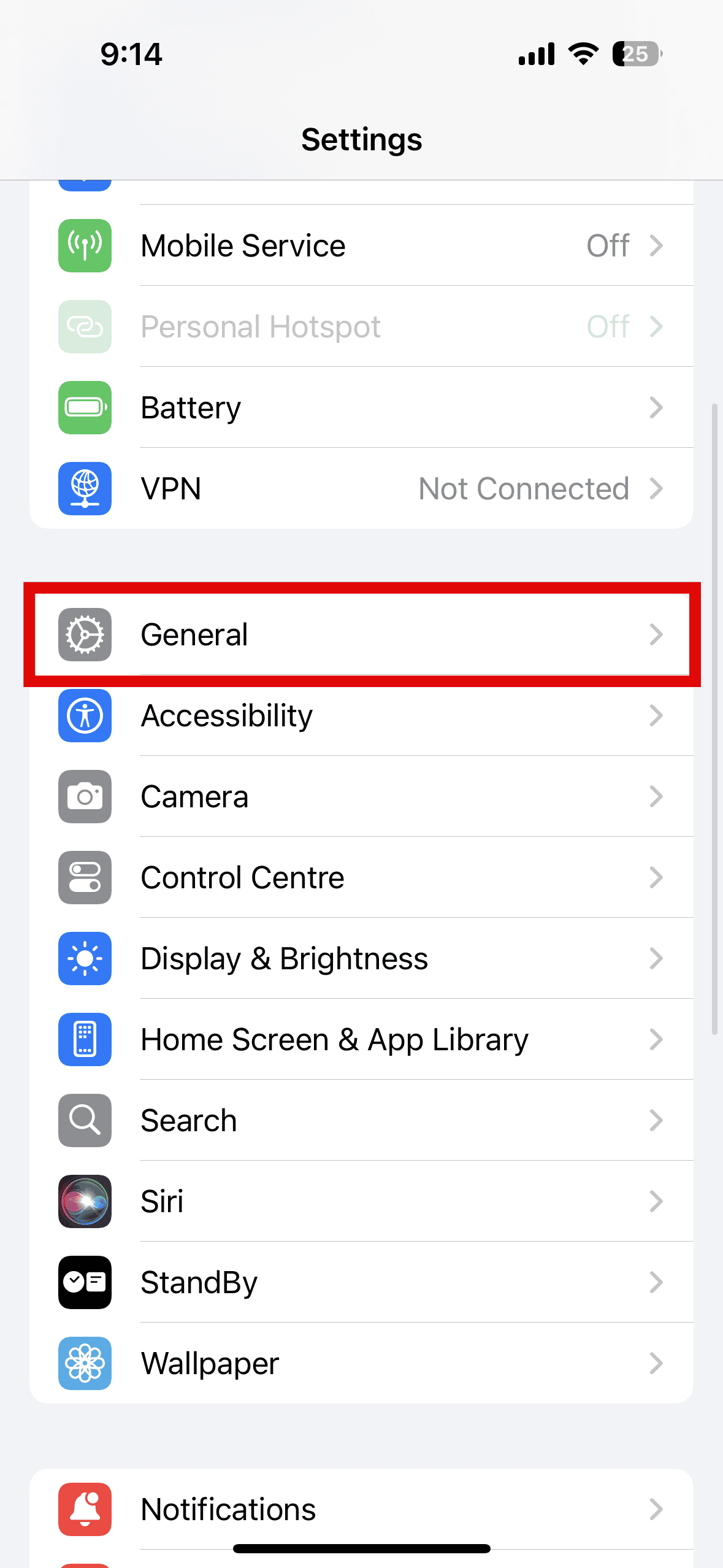
- Tap CarPlay and select your car to reconnect it to the app.
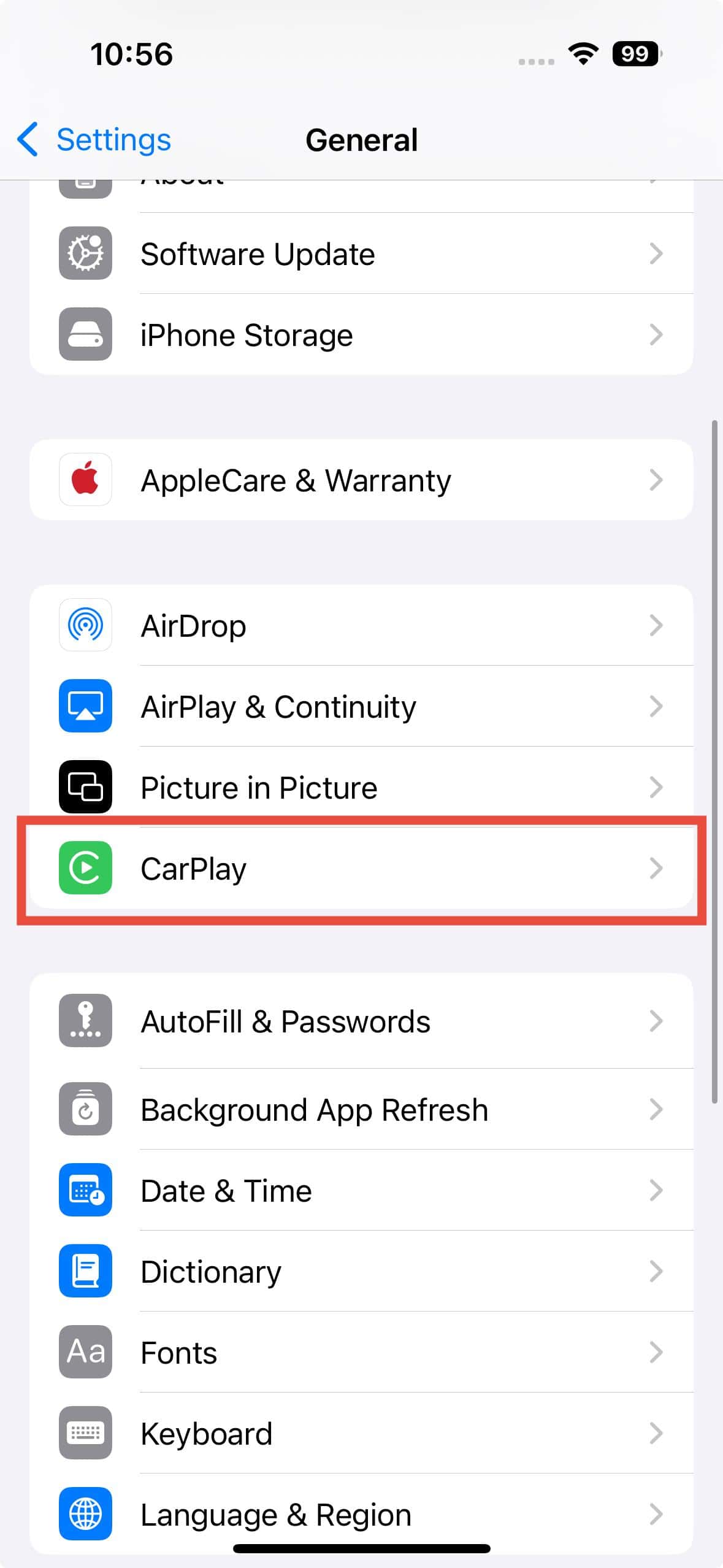
- Ensure Allow CarPlay When Locked is turned on so CarPlay functions while your phone is locked.
- If your car is already connected, tap your car, then tap Forget This Car. Then connect it again.


3. Update iOS
Apple often releases updates for your iPhone’s operating system to help keep your device secure and running smoothly. These updates are key to your phone’s performance. If you skip them, you might run into software problems or glitches, like CarPlay suddenly not working.
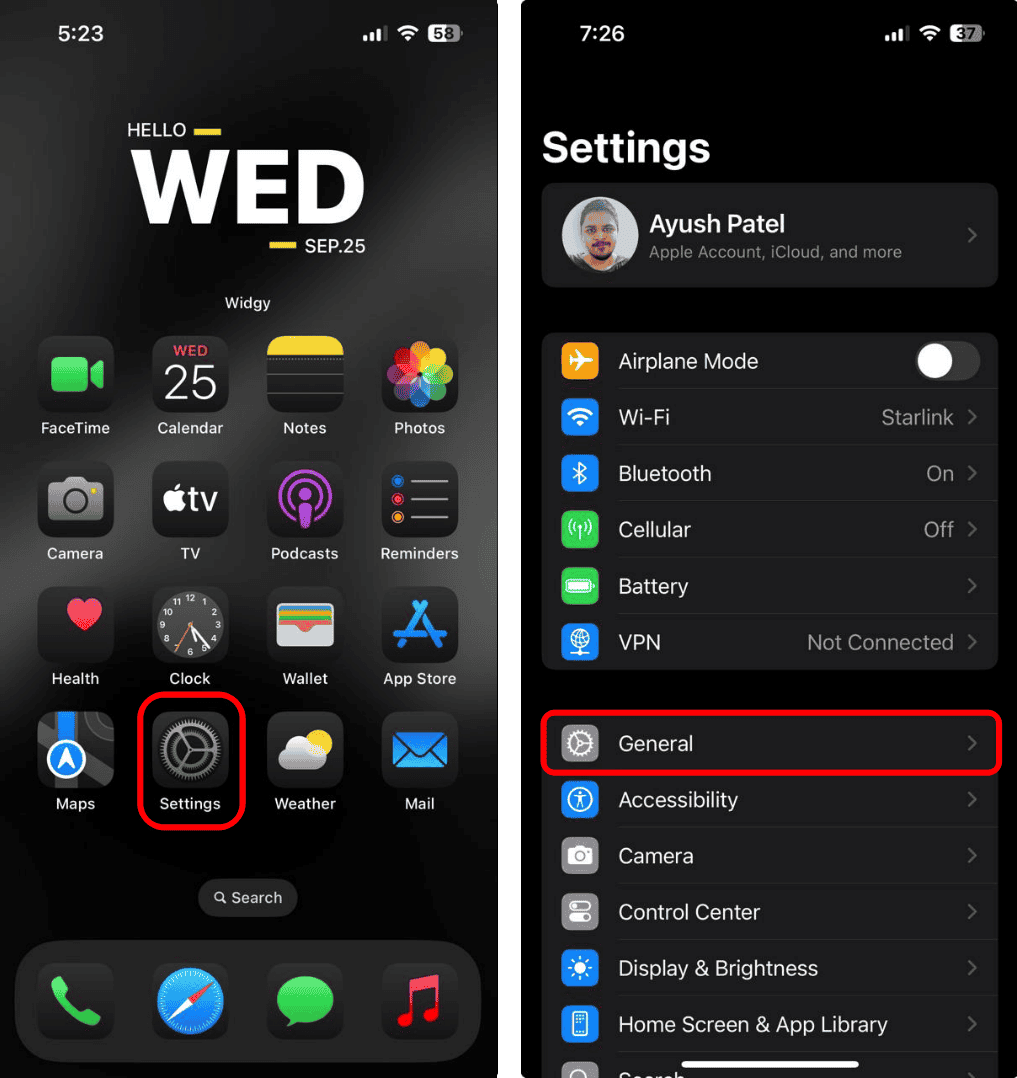
- Open the Settings app and tap General.
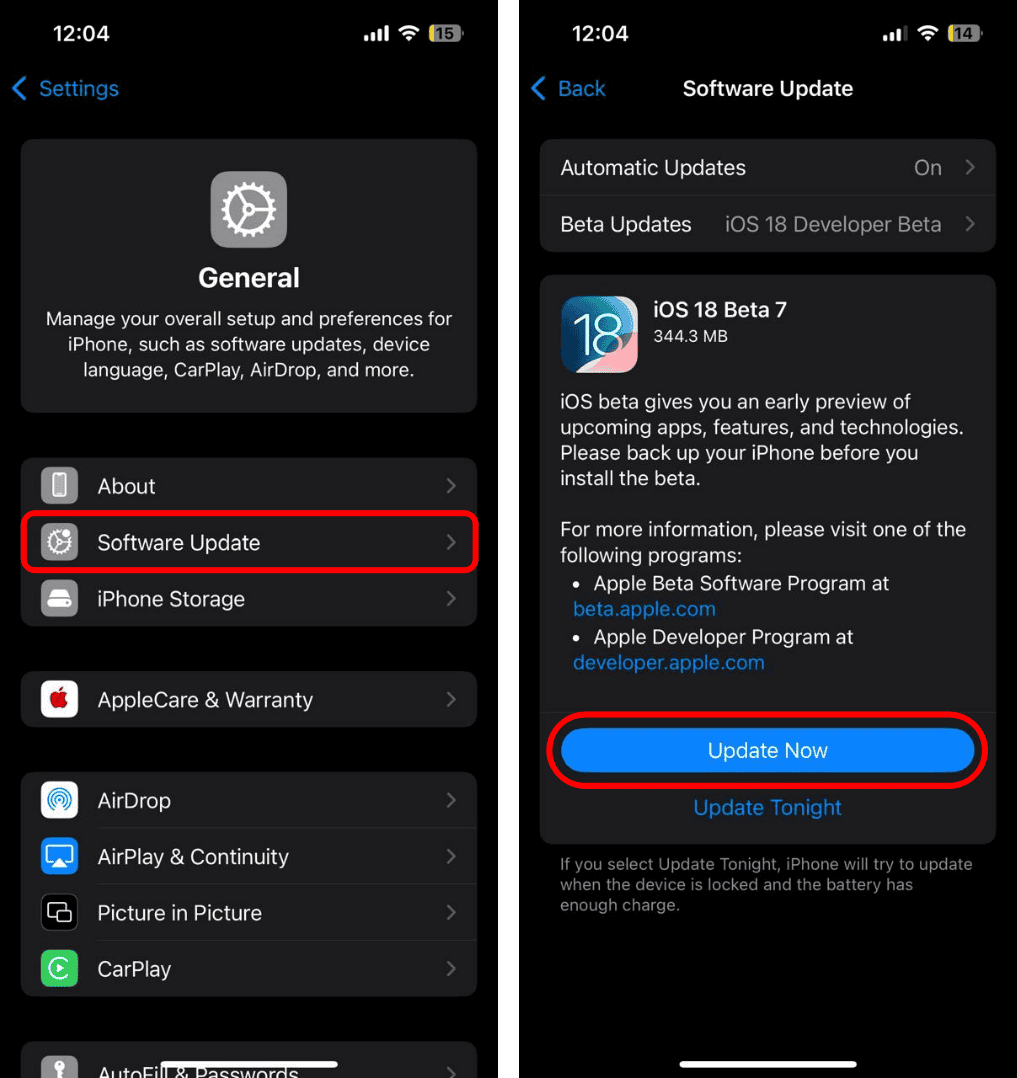
- Tap Software Update. If an update is available, tap Update Now.


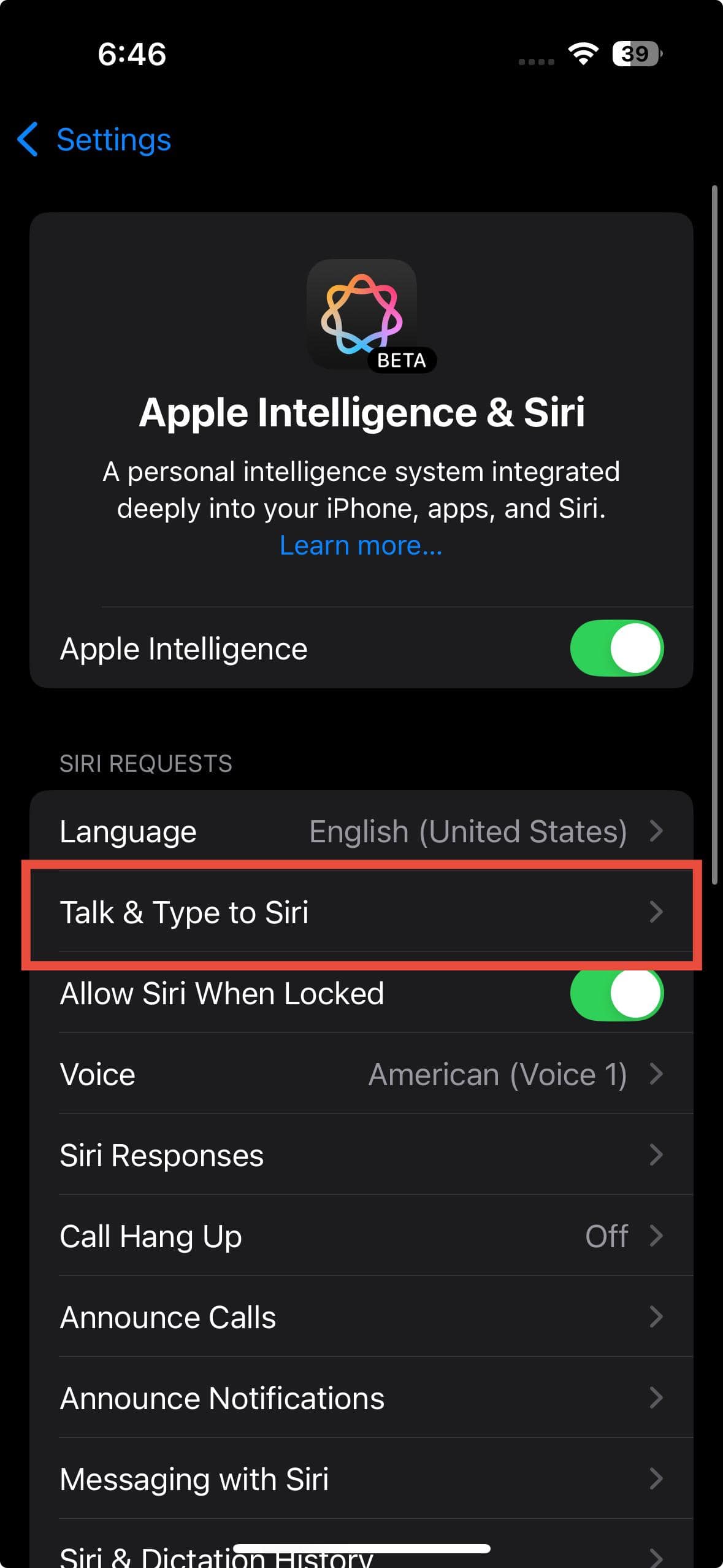
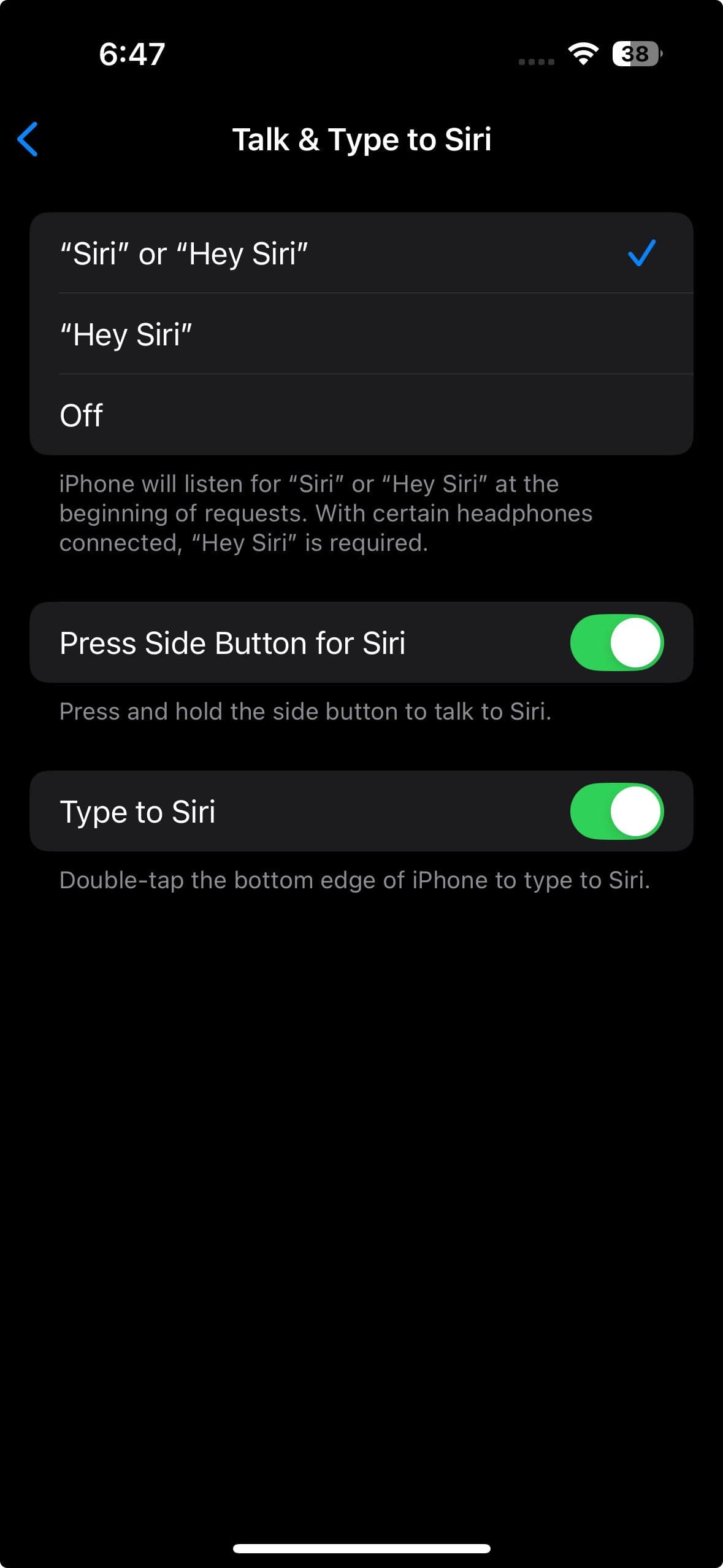
4. Make Sure Siri is Enabled
Siri needs to be enabled for CarPlay to work.
- Open the Settings app on your iPhone.
- Tap Apple Intelligence & Siri.
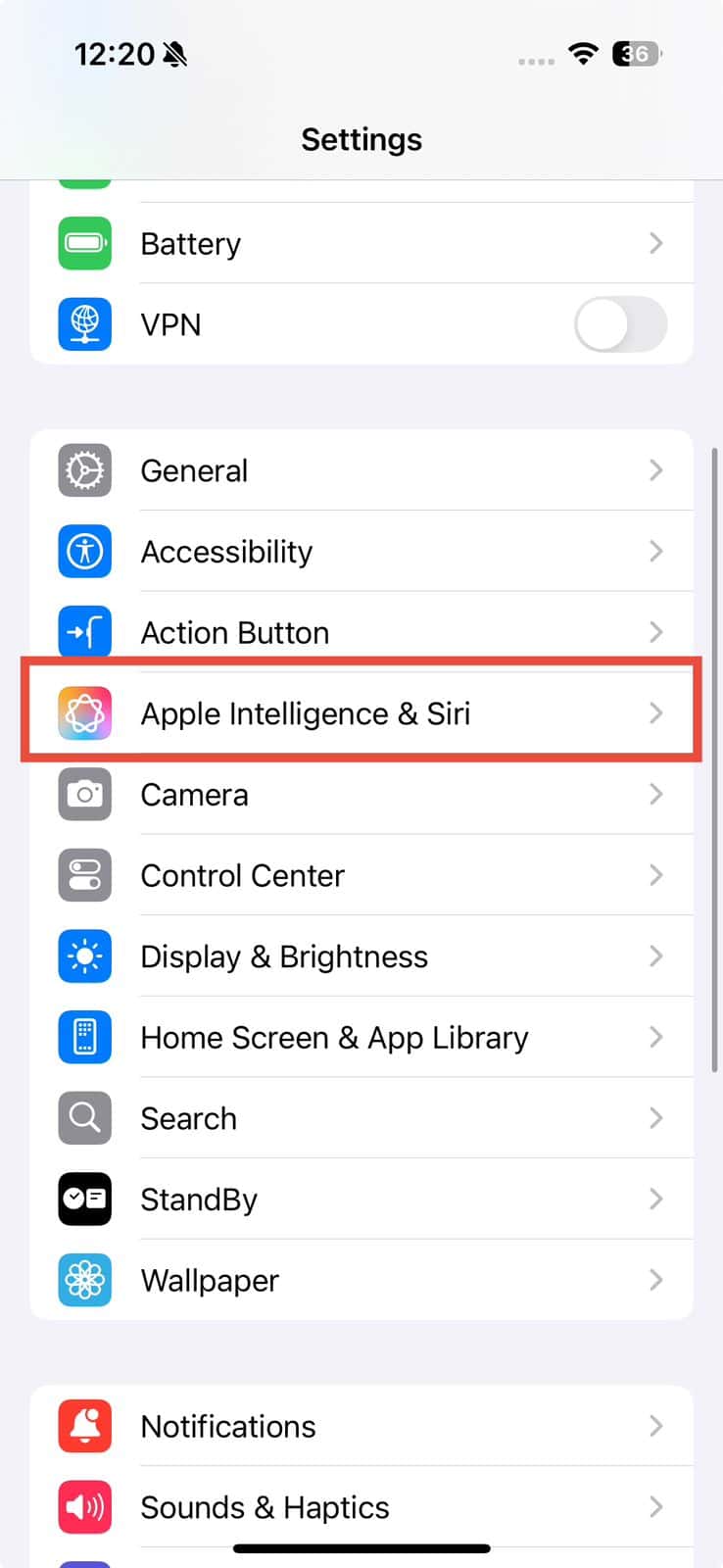
- Tap Talk & Type to Siri, then tap “Hey Siri”/“Siri” or “Hey Siri” if it’s set to Off. Follow the instructions to set Siri up.


5. Check Content Restrictions on iPhone
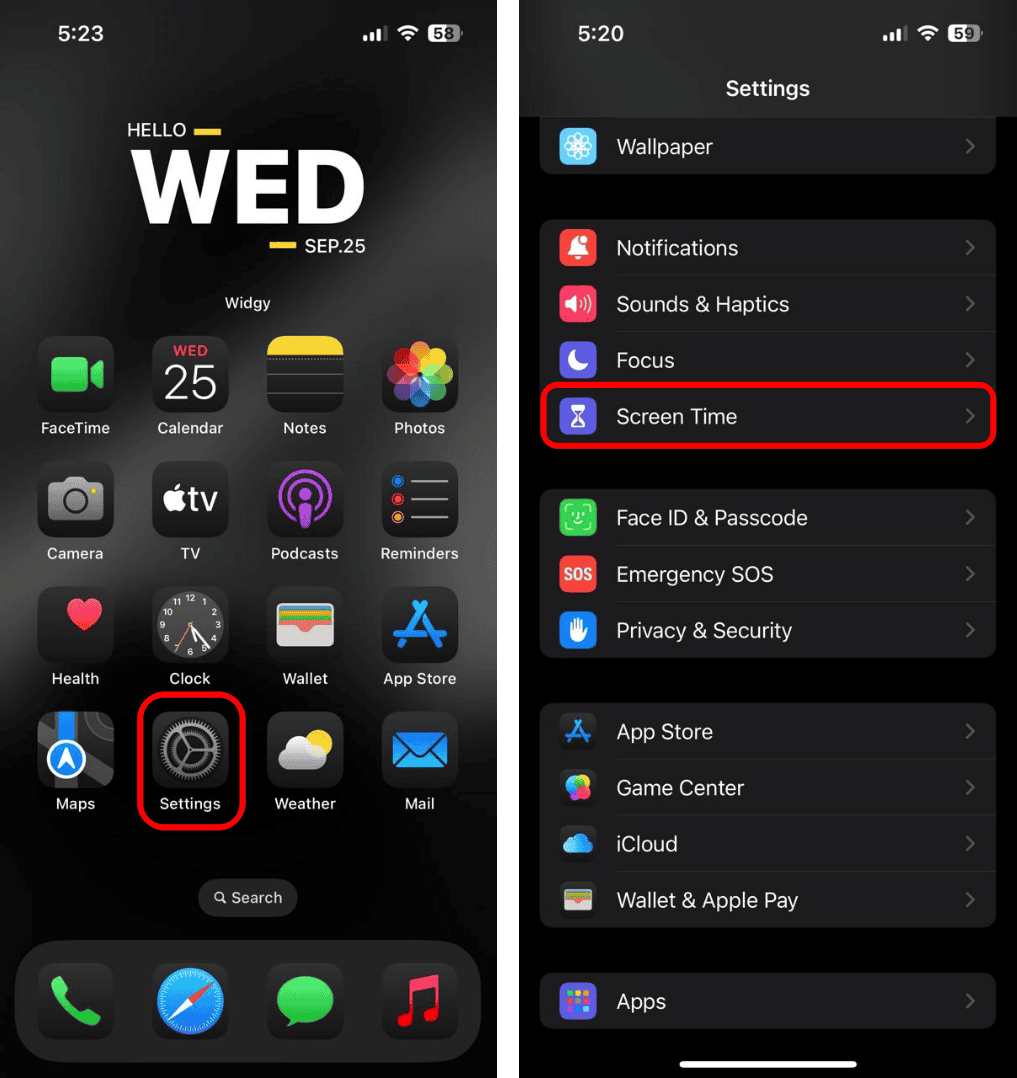
If your iPhone doesn’t connect to Apple CarPlay, you might have CarPlay restricted on your device. To check, open your Screen Time settings and review the content and privacy restrictions by following these steps:
- Go to Settings > Screen Time.
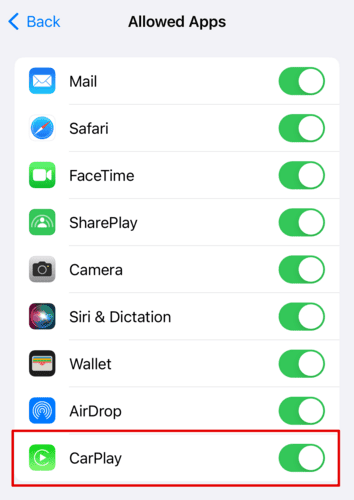
- Tap Content & Privacy Restrictions > Allowed Apps & Features.

- Make sure the CarPlay toggle is turned on.


6. Restart the App
Since CarPlay is an extension of your iPhone, the apps you see on your car’s display are actually running on your iPhone. So when you’re navigating with Google Maps, it’s your iPhone’s Google Maps app doing the heavy lifting.
If that app crashes or starts acting up, you’ll notice it right away on your display. The simplest fix? Just force close the app on your iPhone like you normally would, and start it again. That usually gets things back on track.
- Swipe up from the bottom of the screen to bring up the App Carousel.
- Swipe up on the buggy app to close it.
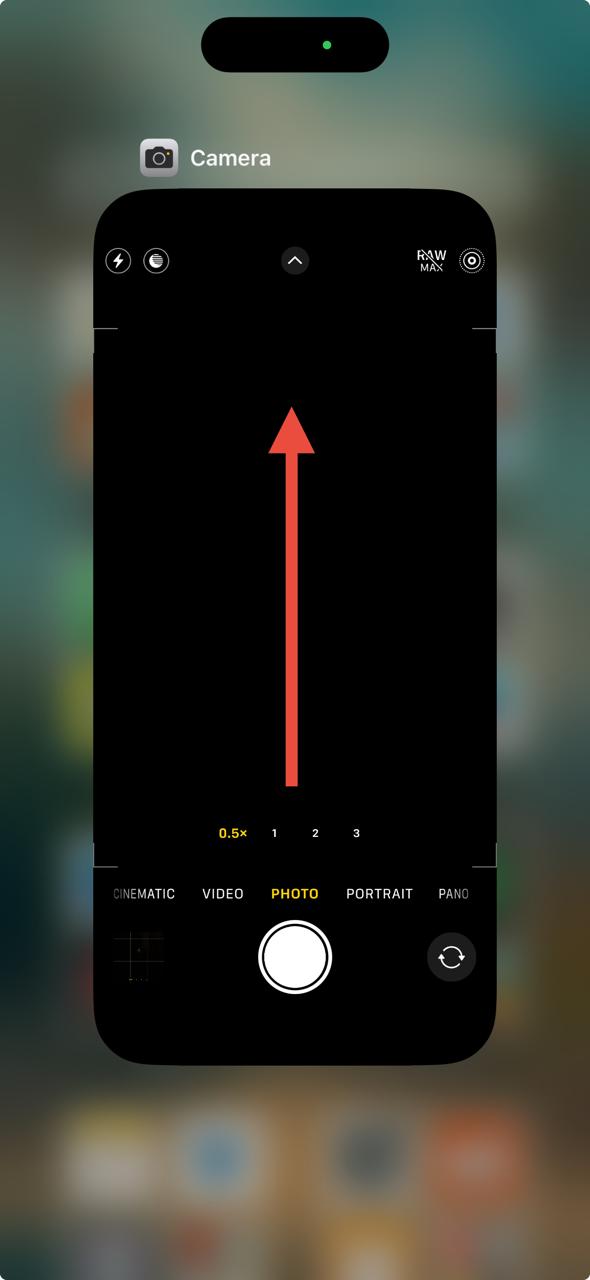
- Tap the icon on the Home Screen to start it again.

7. Make Sure You’re Not in Airplane Mode
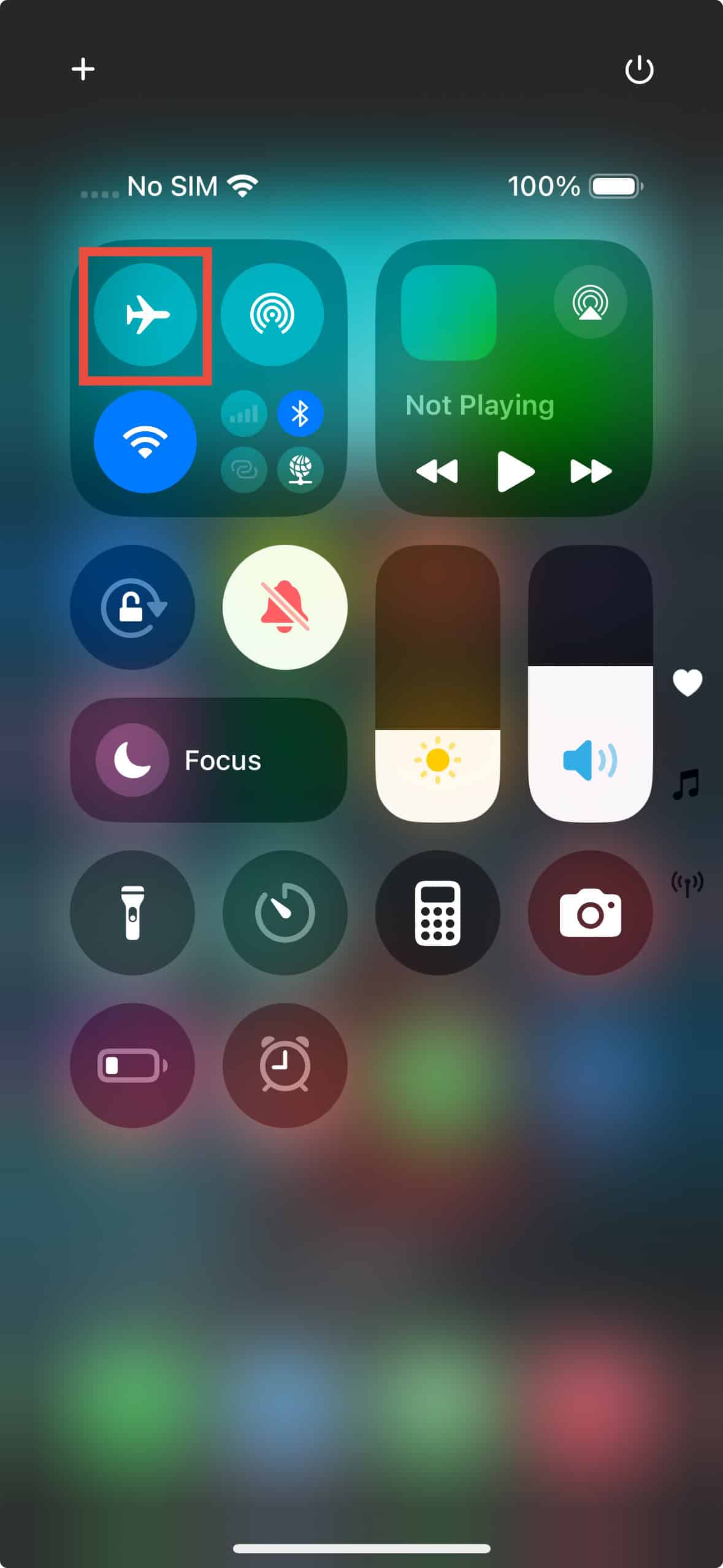
When you turn on Airplane Mode, your phone stops making wireless connections, so CarPlay won’t work. If you’re using a wireless connection in your car, make sure Airplane Mode is turned off. Here’s how to check:
- Swipe down from the top-right corner of your iPhone screen to open the Control Center.
- Tap on the Airplane Mode icon to turn it off.

8. Reset Your iPhone
If none of the earlier solutions fix your CarPlay problems, you might need to reset your iPhone completely. Here’s how you can do it:
- Go to Settings > General.
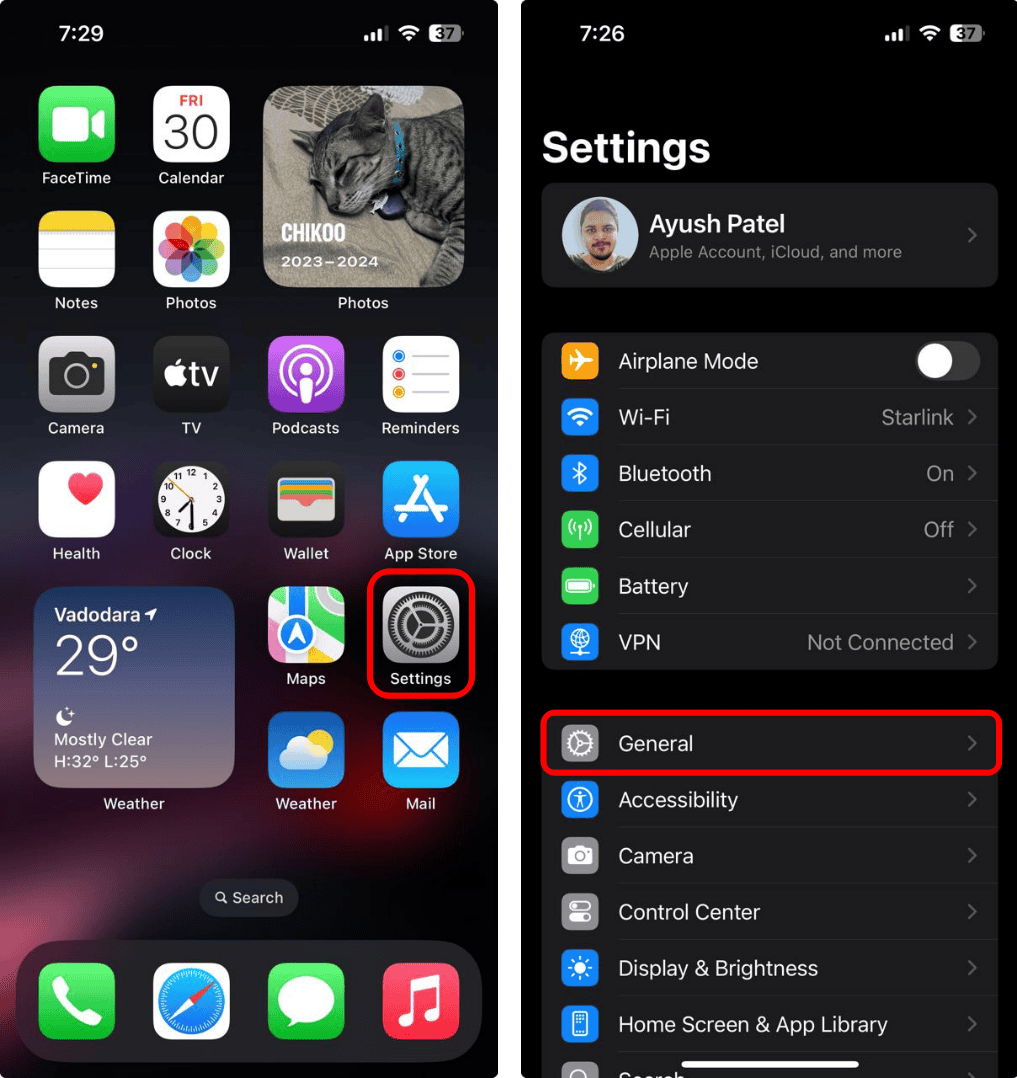
- Tap Transfer or Reset iPhone > Erase All Content and Settings.

- Tap Continue and follow the on-screen instructions to complete the process.


If none of the above steps solve the issue, contact Apple Support or visit an authorized service center for more help. They can give you guidance tailored to your device model and iOS version. You can also reach out to your car’s manufacturer. They might have additional troubleshooting tips specific to your car’s infotainment system.


