

WhatsApp Web lets you access your WhatsApp conversations on a Mac using Safari, Chrome, or another supported browser while keeping your account connected to your iPhone. You can send messages, share files, and manage conversations directly from your computer without installing the desktop app. Setting it up takes only a few steps, and WhatsApp’s multi-device support allows you to continue using it even when your iPhone is offline.
How to Set Up WhatsApp Web on Mac Using an iPhone
You need an active WhatsApp account on your iPhone and an internet connection on your Mac. Make sure you have updated WhatsApp to the latest version before linking your devices.
Follow these steps:
Don’t miss the best of The Mac Observer
Set us as a preferred source and our Apple reporting ranks higher in your Google Search results and Discover feed — one tap, no account changes.
- Open Safari on your Mac and visit web.whatsapp.com.
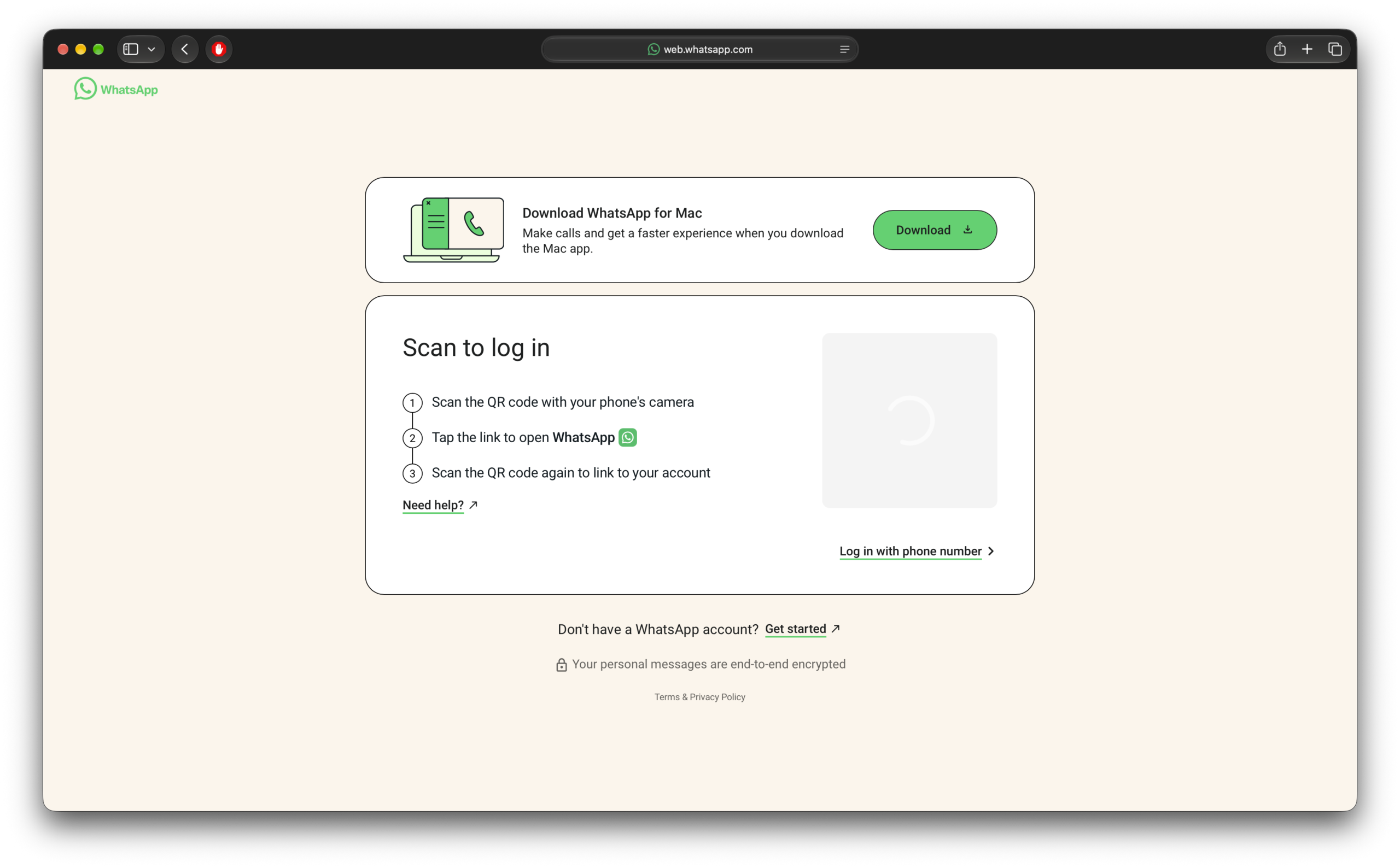
- Wait for the WhatsApp Web login screen to display a QR code.
- Open WhatsApp on your iPhone.
- Tap Settings or your profile picture, then select Linked Devices.
- Tap Link a Device and authenticate using Face ID, Touch ID, or your iPhone passcode.
- Point your iPhone camera at the QR code displayed in Safari.
- Wait for WhatsApp to synchronize your conversations and open the web interface.
Once connected, you can access your chats, send messages, and share photos or documents directly from Safari.
If the QR code fails to scan, check your internet connection and try refreshing the page. You can also follow these fixes for WhatsApp not linking to your desktop if the connection repeatedly fails.
Can You Use WhatsApp Web Without Keeping Your iPhone Online?
Yes. WhatsApp’s multi-device feature allows you to link up to four additional devices to your primary account, and each linked device maintains its own encrypted connection.
This means you can continue sending and receiving messages from your Mac even when your iPhone loses its internet connection or runs out of battery.
However, WhatsApp requires you to use your primary phone periodically. If you leave WhatsApp inactive on your iPhone for more than 14 days, the service automatically disconnects your linked devices.
The same functionality also works when you use one WhatsApp account on multiple phones.
How to Fix WhatsApp Web Not Working in Safari
WhatsApp Web officially supports recent versions of Safari, so you should be able to use it without installing Chrome. If the website refuses to load or your messages stop synchronizing, try the following solutions.
1. Clear Safari Website Data
Corrupted website data or outdated session cookies can interfere with WhatsApp Web authentication.
- Open Safari > Settings > Privacy.
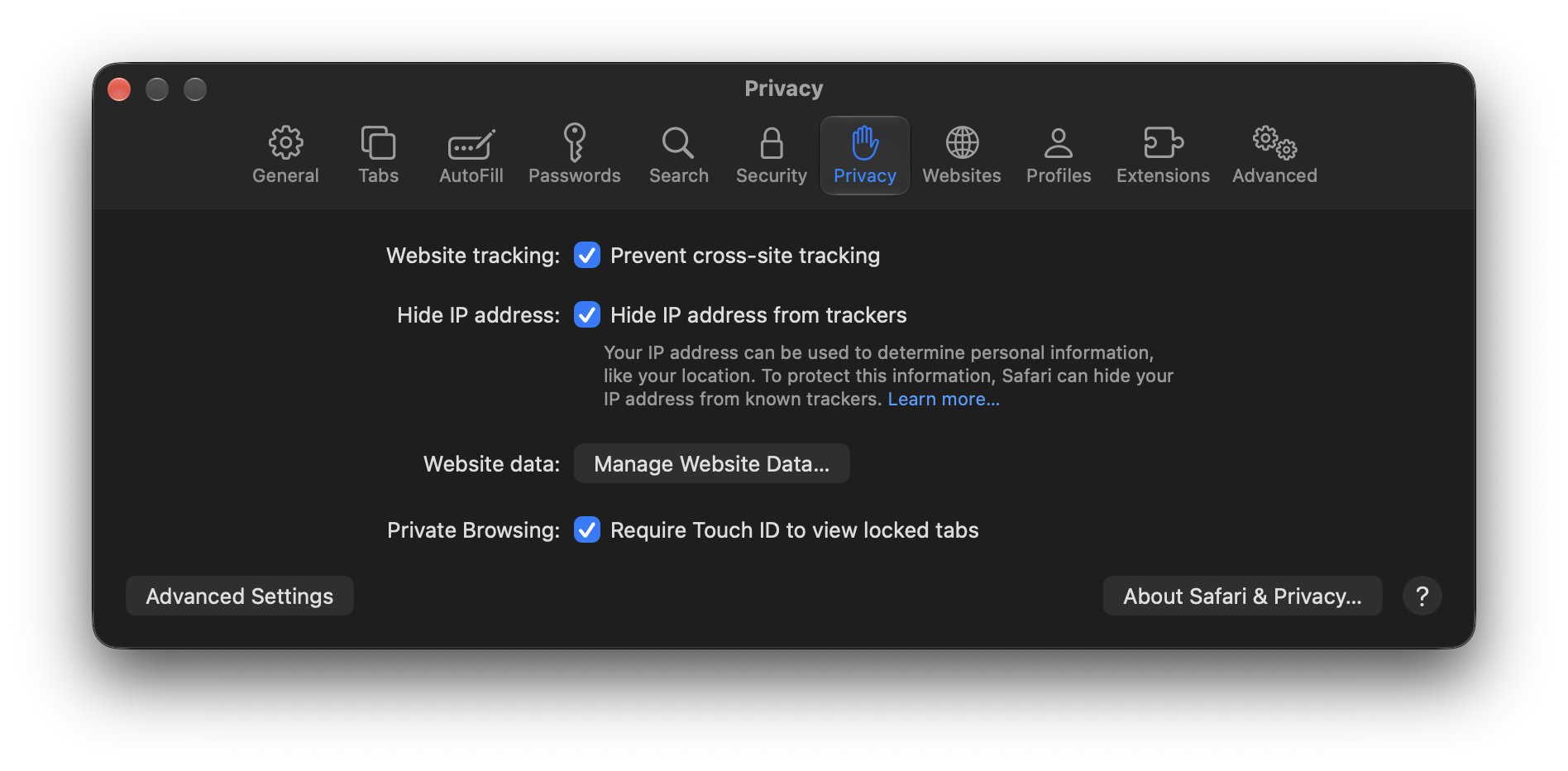
- Click Manage Website Data.
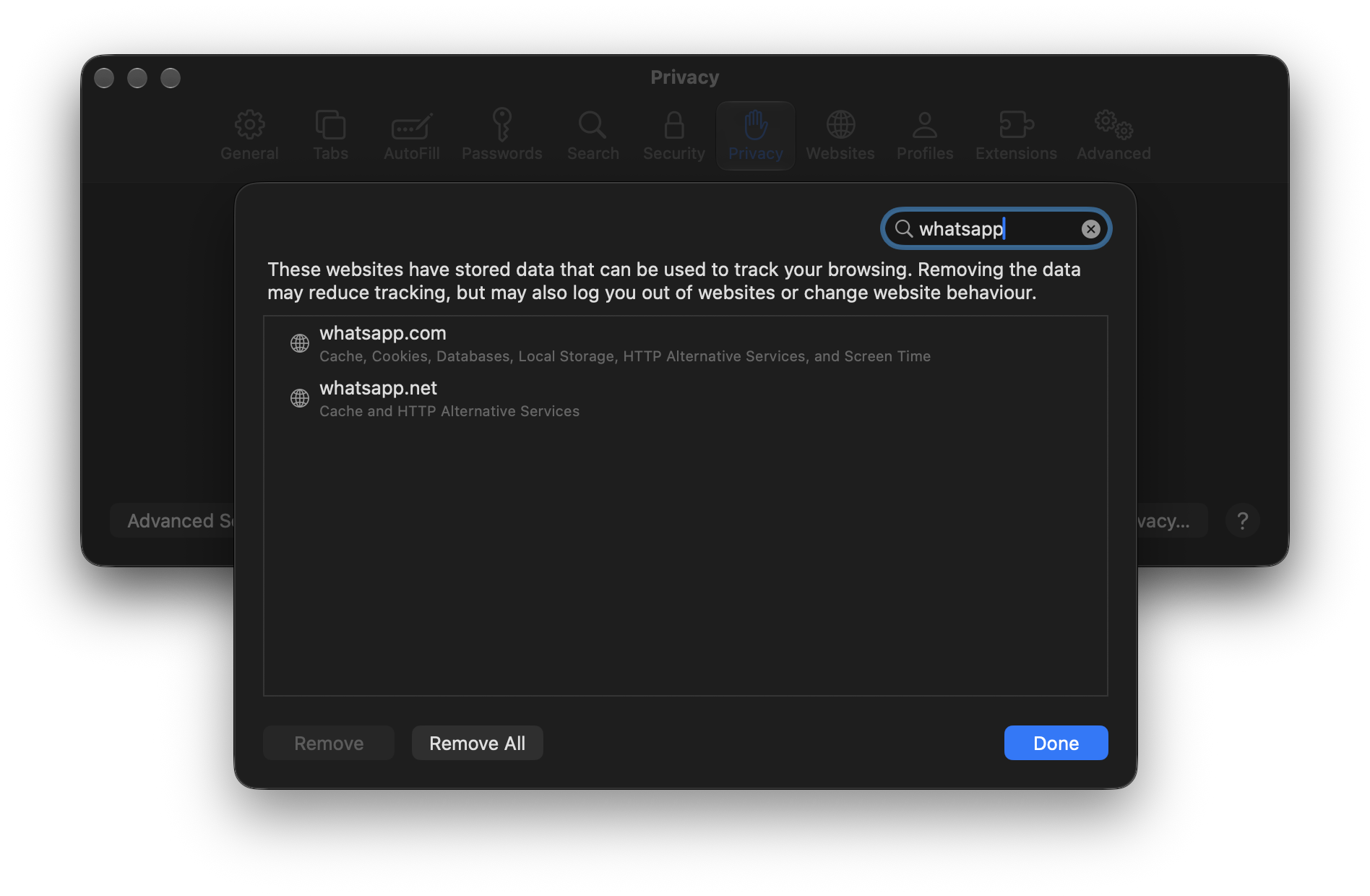
- Search for whatsapp.
- Select the relevant website data and click Remove.
- Reload WhatsApp Web and link your iPhone again.
Removing website data signs you out of the affected website. If Safari continues behaving unexpectedly, try these additional Safari troubleshooting steps.
2. Check Your Internet Connection
Both devices need working internet connections during the initial setup. If WhatsApp Web disconnects repeatedly, switch your Mac to another Wi-Fi network, temporarily disable your VPN, and refresh the browser.
3. Update Safari and WhatsApp
Install available macOS updates to keep Safari current, then open the App Store on your iPhone and update WhatsApp. Older browser versions can cause compatibility problems with the web client.
How to Log Out of WhatsApp Web Remotely
If you used WhatsApp Web on a shared computer or forgot to sign out, you can disconnect that session directly from your iPhone.
- Open WhatsApp > Settings > Linked Devices.
- Review the list of connected devices.
- Select the Mac or browser session you want to disconnect.
- Tap Log Out.
WhatsApp will remove that device’s access to your conversations. For better account security, regularly review your linked devices and disconnect any sessions you no longer recognize or use.




Discussion