
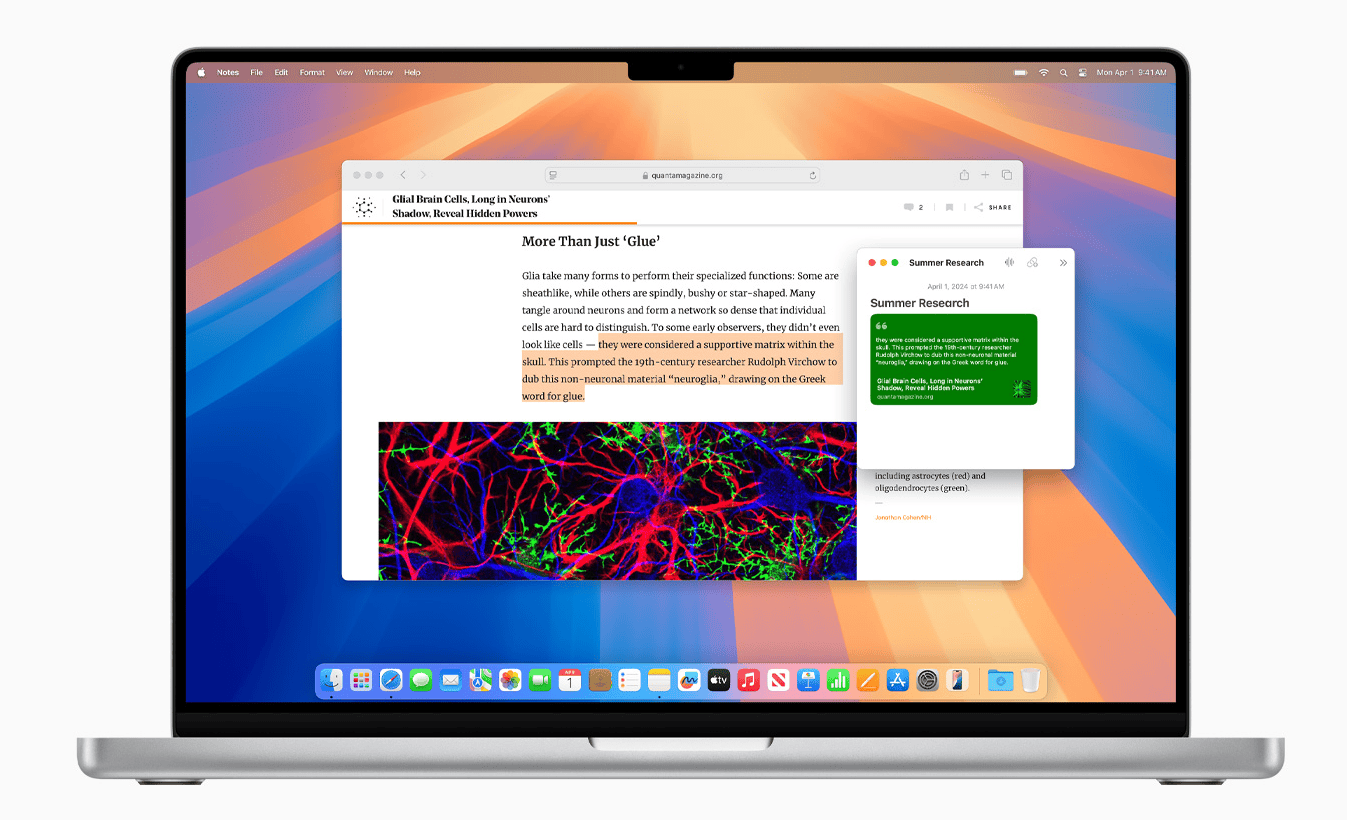
So you updated your Mac to macOS Tahoe and now Safari’s acting strange — pages won’t load, tabs freeze, or everything feels slower than it used to. You’re not alone. After big macOS updates, Safari is often one of the first apps to show signs of trouble. It’s deeply tied to the system, so when Apple tweaks how things work under the hood, small compatibility hiccups can turn into annoying problems.
The good news is that most Safari issues on macOS Tahoe aren’t serious. They come down to cached data, misbehaving extensions, or settings that didn’t play nicely with the update. Let’s break down what’s going on and how to get Safari running smoothly again.
Why Safari Misbehaves After the macOS Tahoe Update
When Safari starts acting up after a macOS update, it’s rarely because of Safari itself. Here are the usual suspects:
Don’t miss the best of The Mac Observer
Set us as a preferred source and our Apple reporting ranks higher in your Google Search results and Discover feed — one tap, no account changes.
- Incompatible extensions or plug-ins — Some extensions haven’t been updated for Tahoe yet and can cause crashes or slowdowns.
- Old cache and cookies — Leftover website data can conflict with Safari’s new version.
- Too many open tabs — Each tab eats up memory and processing power, especially with media-heavy pages.
- Network problems — DNS hiccups or Wi-Fi issues can make it look like Safari’s broken.
- macOS bugs — Early builds of a new macOS version can have minor glitches that affect system apps.
Now that you know what might be behind it, let’s talk about how to fix it.
1. Clear Safari’s Cache and Cookies
Caches are meant to speed things up, but after a major update, old cache data can do the opposite. The simplest fix? Start fresh.
Here’s how:
- Open Safari.
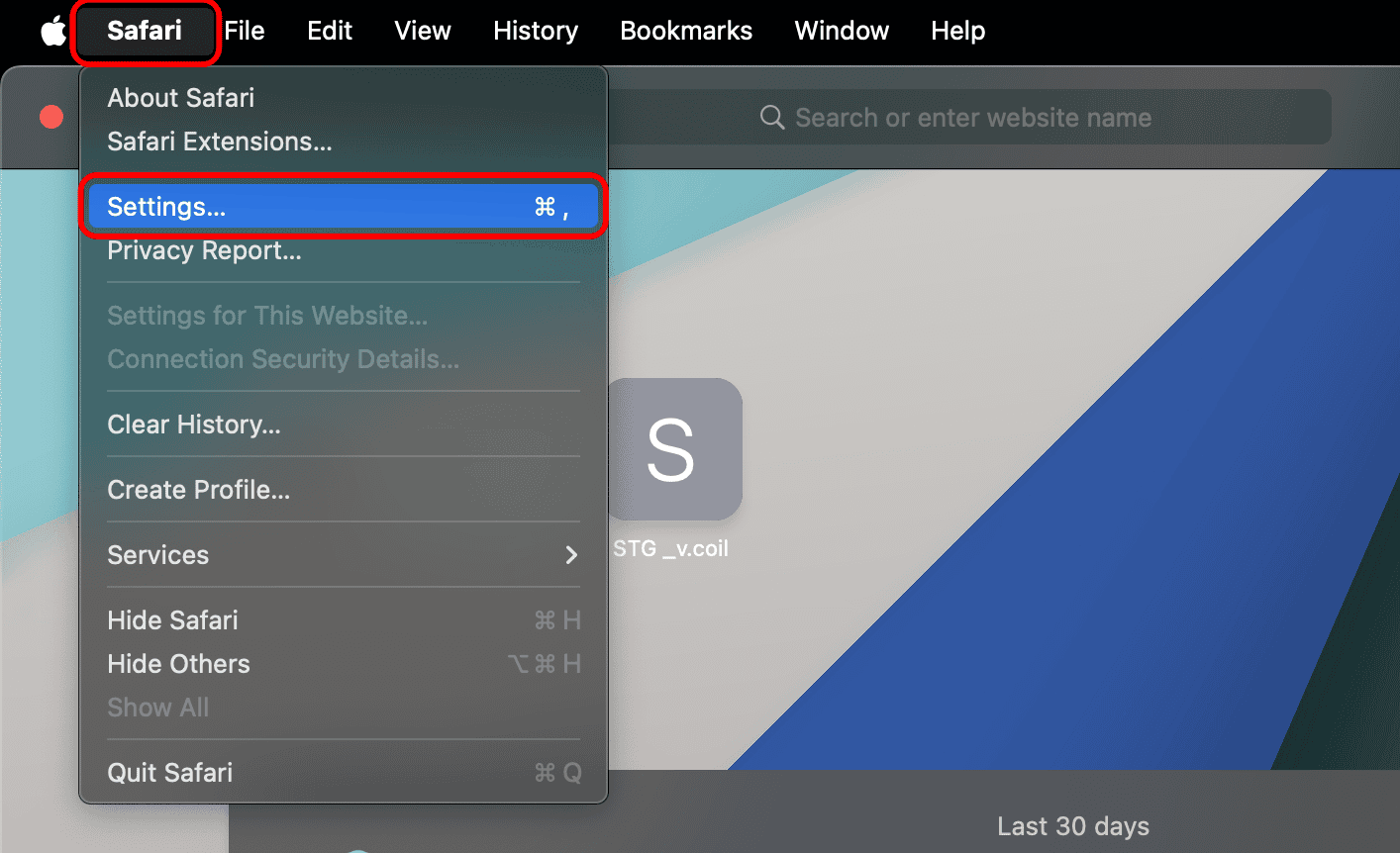
- Click Safari in the menu bar, then Settings.
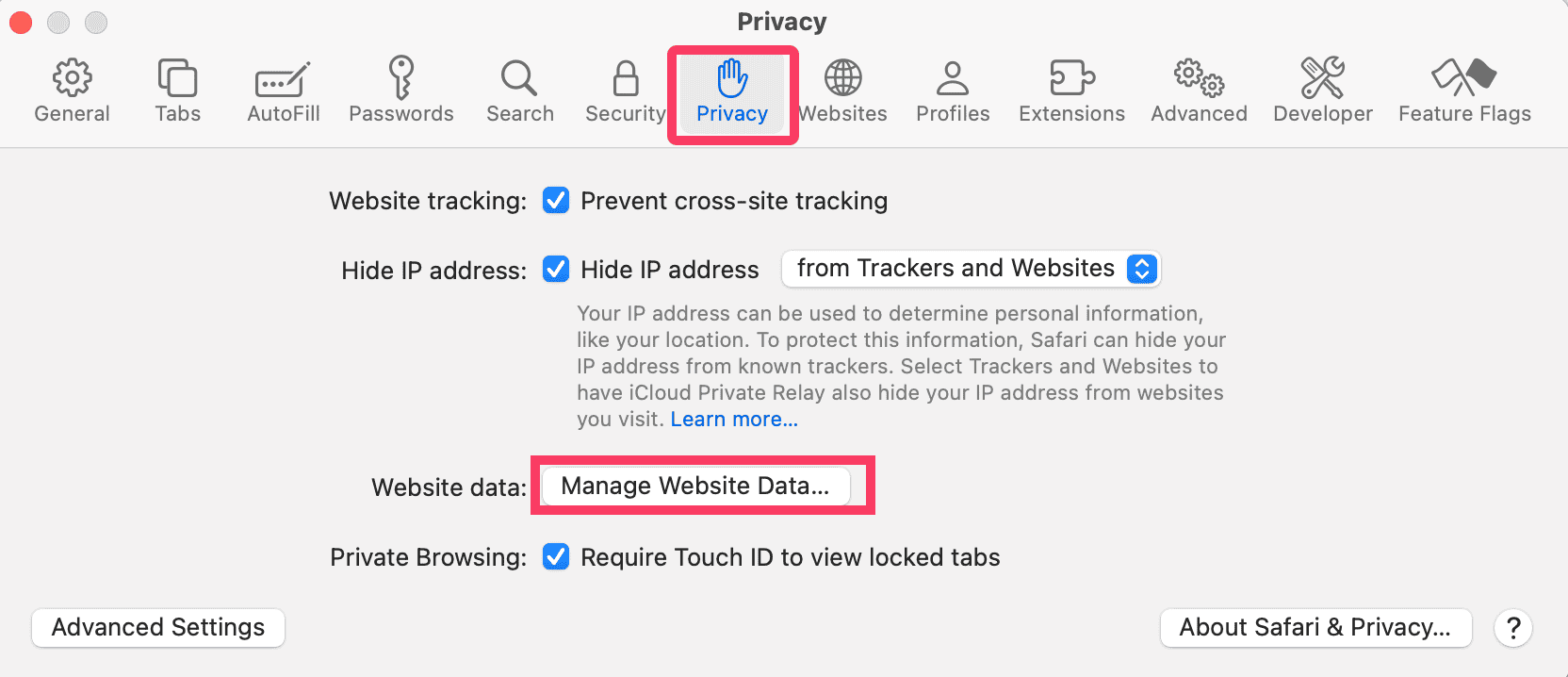
- Go to Privacy > Manage Website Data and choose Remove All.
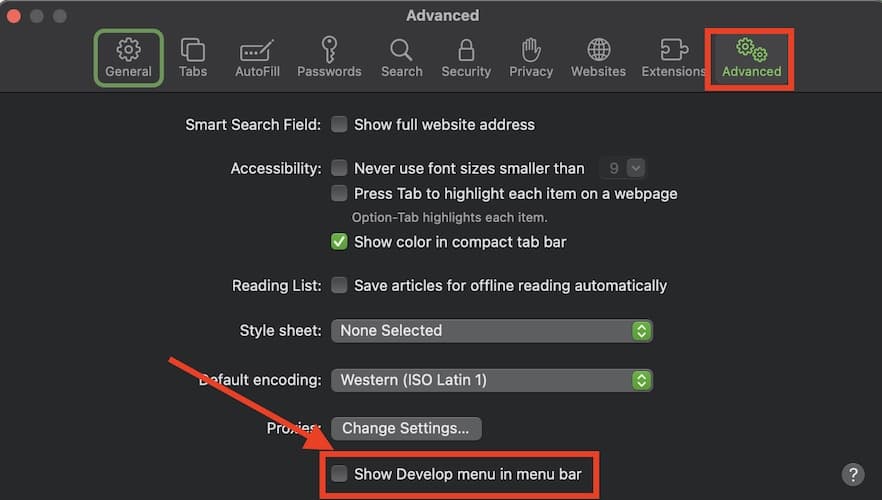
- To clear caches, enable the Develop menu by going to Safari > Settings > Advanced, then check Show Develop menu in menu bar.
- Click Develop > Empty Caches.
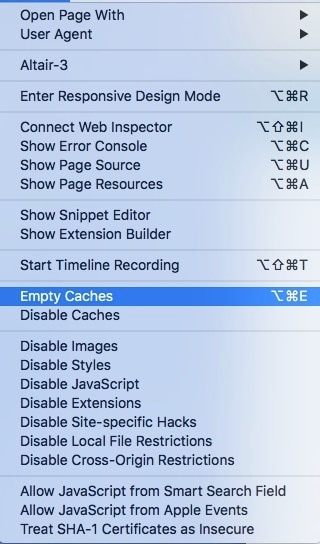
This gives Safari a clean slate, often enough to fix slow or frozen pages.
2. Remove Problem Extensions
Some extensions stop working correctly after a macOS update. They can slow down Safari or prevent it from opening sites properly.
To remove them:
- Open Safari.
- Go to Safari > Settings > Extensions.
- Uninstall any extensions you don’t recognize or no longer need.
- Restart Safari.
If things improve after removing an extension, you’ve found your culprit.
3. Check Your Internet Connection
Before you dive too deep into Safari fixes, make sure the problem isn’t your Wi-Fi or broadband. Try loading a page on another browser or device.
If everything’s slow across the board, restart your router. If only Safari is misbehaving, move on to the next step.
4. Verify Safari’s Settings
Some pages won’t load correctly because of Safari’s security or privacy settings. Maybe a setting got changed during the update.
Here’s what to check:
- Open Safari > Settings.
- Go through the Privacy, Security, and Websites tabs.
- Make sure things like JavaScript and cookies are enabled for sites you trust.
- If you’ve blocked pop-ups or cross-site tracking, try relaxing those settings temporarily to see if that fixes the issue.
5. Clear the DNS Cache
A corrupted DNS cache can stop Safari from finding websites even when your internet works fine. Flushing the DNS cache forces your Mac to look up fresh data.
- Open Terminal (in Applications > Utilities).
- Type this command:
sudo dscacheutil -flushcache; sudo killall -HUP mDNSResponder - Press Return and enter your admin password.
Safari should now be able to find sites without the old DNS conflicts.
6. Restart Safari and Your Mac
Sometimes the simplest fix is the right one. Restarting Safari clears temporary data and refreshes system memory.
To quit Safari completely:
- Right-click its Dock icon and select Quit, or use Command + Q.
- If it’s frozen, press Command + Option + Esc, select Safari, and hit Force Quit.
Then restart your Mac. This clears temporary processes and resets background services that Safari relies on.
7. Disable Firewall or Antivirus Temporarily
Some third-party security software interferes with Safari’s ability to load pages. Temporarily disable your firewall or antivirus software to test it.
If Safari works fine afterward, check your software’s settings to whitelist Safari. Don’t leave your protection off permanently — this is just a diagnostic step.
8. Reset Safari to Default
If you’ve tried everything and Safari still feels off, resetting it to factory settings might help.
Safari no longer has a single “Reset” button, but you can mimic it:
- Clear cache and cookies.
- Remove all extensions.
- Delete Safari preferences (located in ~/Library/Preferences/com.apple.Safari.plist).
- Restart Safari.
It’s tedious but effective — you’re essentially giving yourself a brand-new browser without reinstalling macOS.
9. Update macOS
Apple often releases small follow-up patches after major macOS updates to fix early issues. If Safari keeps crashing or freezing, it might not be you — it might be the OS.
Go to System Settings > General > Software Update and see if there’s a newer version available. Install it, restart your Mac, and test Safari again.
10. Tackle Slow Safari Performance
Sometimes Safari works, but just feels sluggish — pages take forever to load or scrolling stutters.
Here’s what helps:
- Close unused tabs. Each open tab consumes memory, especially if it’s streaming or auto-refreshing content.
- Turn off VPNs or iCloud Private Relay. Both route your traffic through third-party servers, which can slow things down.
- Change your DNS servers. Try Google’s free DNS (8.8.8.8 and 8.8.4.4) for faster lookups.
- Renew your DHCP lease. In System Settings > Wi-Fi > TCP/IP, click Renew DHCP Lease to refresh your connection.
The Bottom Line
Safari problems after the macOS Tahoe update are frustrating but fixable. Whether you’re dealing with crashes, blank pages, or sluggish performance, the fixes usually come down to clearing junk data, updating extensions, or refreshing network settings.
If Safari’s still giving you grief after you’ve tried everything, consider using another browser temporarily while Apple polishes out the early bugs in Tahoe. But in most cases, a quick cleanup, a restart, and a few smart settings tweaks will bring Safari back to its usual smooth, fast self.




I have been running macOS Tahoe, version 26.3.1. If I try to use Safari I get a message that Safari cannot be found. I am upgrading Tahoe. I hope that fixes it. This is NOT the user Apple I have used for years
You did not mention that TABs on Safari/(Mac OS 26.3.1) are disappearing sometimes like when a form is displayed and the only way to do something else with another tab is to close whatever caused the TABs to disappear. This is very hard to work around so I want my TABs to remain on the top of the screen at all times.
How can I fix this.