

Cookies store small bits of information about the websites you visit—like logins, preferences, and browsing history. While cookies can make browsing faster, they also take up space and may raise privacy concerns. If Safari feels slow or you want a fresh start, here’s how to delete cookies from Safari on your iPhone and iPad.
Table of contents
Before You Start
- Make sure your device is updated to the latest iOS or iPadOS.
- Know the difference: Clearing cookies and data logs you out of websites, while clearing history only removes browsing history.
- Decide if you want to remove cookies for specific sites or all websites.
New to Safari? Don’t miss our beginner’s guide on how to check history in Safari on iPhone and Mac.
How to Delete Cookies from Safari
1. Delete All Cookies and Website Data
- Open Settings on your iPhone or iPad.
- Scroll down and tap Safari.
- Tap Clear History and Website Data.
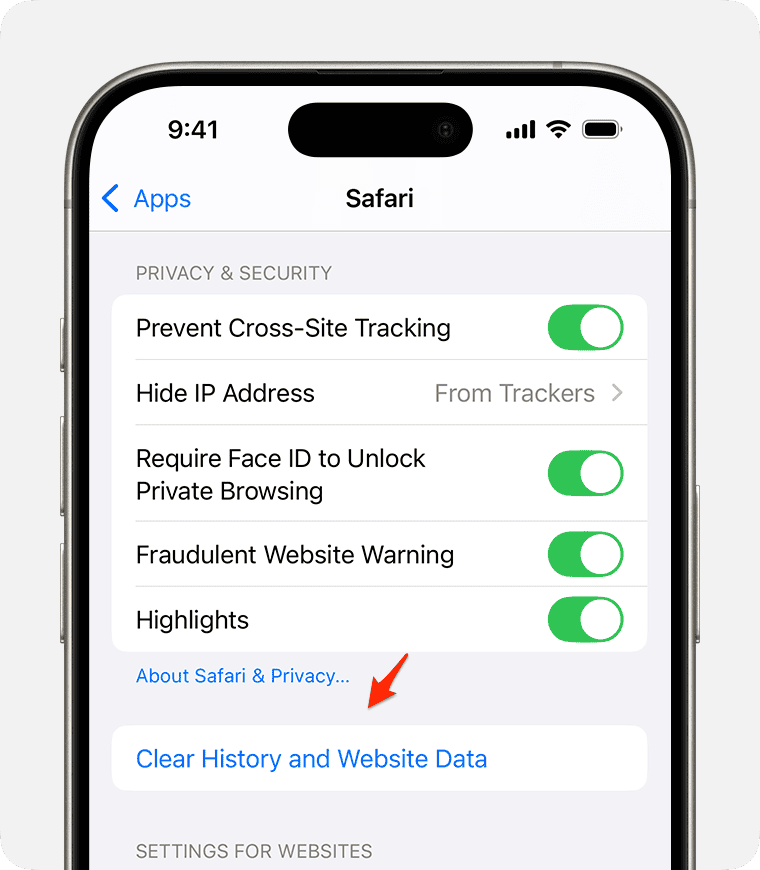
- Confirm by tapping Clear History and Data.

This removes cookies, cache, and browsing history across all websites.
Don’t miss the best of The Mac Observer
Set us as a preferred source and our Apple reporting ranks higher in your Google Search results and Discover feed — one tap, no account changes.
2. Delete Cookies for Specific Websites
- Open Settings › Safari.
- Scroll down and tap Advanced.
- Tap Website Data.
- Find the website you want, then swipe left and tap Delete.
- Or tap Remove All Website Data to delete everything at once.
Wondering how to clear app cache on iPhone? Check out our dedicated guide for a full breakdown.
3. Use Private Browsing to Avoid Cookies in the Future
- Open Safari.
- Tap the Tabs icon (two overlapping squares).
- Tap Private and then Done.

- Websites visited in Private mode won’t save cookies or history.

Tips for Managing Safari Cookies
- Use Content Blockers: Apps from the App Store can block tracking cookies without removing useful ones.
- Regular Clean-Up: If Safari feels slow, clear cookies every few weeks.
- Keep Passwords Safe: Use iCloud Keychain or a password manager so you don’t lose logins when deleting cookies.
- Balance Privacy vs. Convenience: Clearing cookies improves privacy but means you’ll need to sign in again.
For further reading, check out how to view your Private Browsing history in Safari on Mac.
FAQs
No. Saved passwords are stored in iCloud Keychain, not cookies.
Try clearing cache and restarting your device, or check for iOS updates.
Yes. In Settings › Safari › Block All Cookies, but some websites may not work properly.
Not always. Only clear them if you’re troubleshooting issues or want more privacy.
Summary
- Go to Settings › Safari › Clear History and Website Data to remove all cookies.
- Use Advanced › Website Data to delete cookies for specific sites.
- Try Private Browsing if you don’t want cookies saved at all.
- Balance convenience with privacy, cookies can be helpful but clearing them keeps your browsing private.
Conclusion
Deleting cookies on Safari is a simple way to fix browsing issues, protect your privacy, and free up space. Whether you want a clean slate or just need to reset a single site, your iPhone and iPad make it easy. With regular clean-ups and smart use of Private Browsing, you can enjoy a faster and more secure Safari experience.


Discussion