

Clearing the iPhone cache can help if your device feels slow, keeps running out of storage, or websites load oddly.
For those who don’t know, cache is temporary data saved by browsers, apps, or system services to make things load faster. Over time, it builds up and can slow your phone down!
Let’s go step by step and see the best ways to clear cache on iPhone.
Don’t miss the best of The Mac Observer
Set us as a preferred source and our Apple reporting ranks higher in your Google Search results and Discover feed — one tap, no account changes.
How to clear cache on your iPhone?
1. Clear Safari cache and website data
- Open the Settings app.
- Scroll down, expand Apps, and tap Safari.
- Tap Clear History and Website Data.
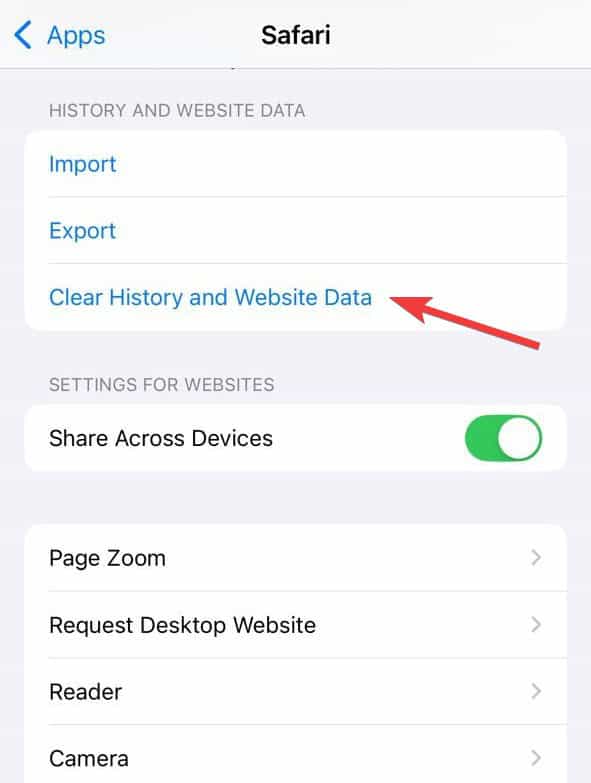
- Confirm your choice.

This removes browsing history, cookies, and cached web data.
2. Use advanced Safari website data removal
- In Settings > Apps > Safari, scroll down to the bottom and tap Advanced.
- Tap Website Data.
- Swipe left on individual sites to delete them, or tap Remove All Website Data to clear everything.


3. Clear the cache from other browsers
- Chrome: Open Chrome, tap the three-dots menu, go to History, then Delete Browsing Data. Select Cached Images and Files and confirm.
- Firefox: Open Firefox, tap the menu (three lines), go to Settings, then Data Management. Toggle Cache and clear.
- Edge: Open Edge, tap the menu, go to Settings > Privacy, then choose Clear Browsing Data and confirm.
- Opera: Open Opera, go to Settings > Clear Browser Data, then select cached files and clear them.
- Brave: Open Brave, go to Settings > Privacy, enable cache clearing, then tap Clear Data Now.

4. Clear cache for individual apps
Most apps do not have a direct “clear cache” button. Instead:
- Go to Settings > General > iPhone Storage.
- Select an app, and:
- Tap Offload App to remove the app but keep its data.
- Tap Delete App to remove the app and its cache completely. You can reinstall it from the App Store.

5. Clear keyboard cache
Your keyboard learns words and suggestions over time. To reset it:
- Go to Settings > General > Transfer or Reset iPhone > Reset.
- Tap Reset Keyboard Dictionary and confirm.

6. Restart your iPhone to clear system cache
Restarting helps flush small system temporary files.
- For Face ID models: press and hold the Side button with a Volume button, slide to power off, wait, then turn it back on.
- For Home button models: press and hold the Power button until the slider appears.
Tips
- Use iPhone Storage under Settings to check which apps use the most space.
- Offload apps you rarely use to free storage without losing important data.
- Be cautious with third-party “cache cleaner” apps, as most are unnecessary.
- Clearing the cache may sign you out of accounts, so keep your login details handy.
- Restart your iPhone once in a while for smoother performance.
Frequently Asked Questions
Cache is temporary data that apps and browsers save to speed things up. Clearing it can fix glitches, free up storage, and improve performance.
Yes. Clearing browser cache or website data may sign you out of sites and remove some saved preferences.
You can offload the app in Settings to remove it but keep documents and data, or delete and reinstall it to fully clear the cache.
Restarting clears small temporary system files, but it does not fully clear the browser or app cache. For that, you need to manually delete the files in Settings.
Summary
- Clear Safari or other browser cache in Settings.
- Remove website data selectively using Safari’s advanced settings.
- Offload or delete apps to clear their cache.
- Reset the keyboard dictionary if predictive text is cluttered.
- Restart your iPhone to refresh the system cache.
Conclusion
Clearing the cache on an iPhone is simple and effective for fixing app issues, boosting performance, and freeing up space. Whether you clear Safari data, reset other browsers, offload apps, or just restart your phone, each method plays a role in keeping your device smooth and responsive.
Make it a habit to clear the cache once in a while, especially if your iPhone starts to feel sluggish.


Discussion