

Closing apps on an iPad is simple once you know the right gestures. The method depends on whether your iPad has a Home button or relies on gesture navigation. While Apple advises that iPadOS manages background apps automatically, you may still need to close an app if it freezes, slows down, or behaves erratically. In such cases, using the App Switcher and swiping the app away often resolves the issue.
If you need a performance boost for your iPad, then check out this guide on how to speed up your iPad.
Table of contents
Methods to Close Apps
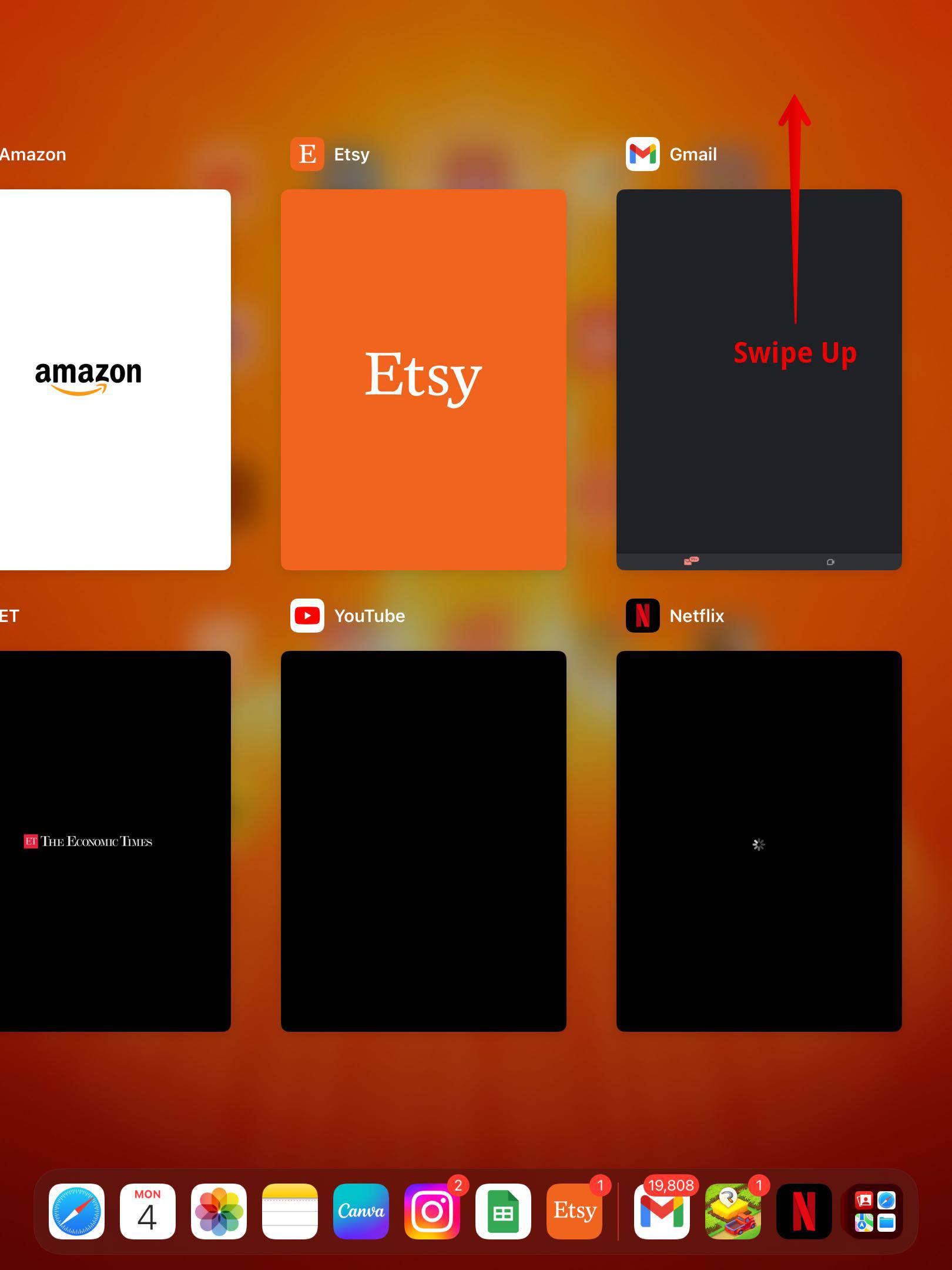
The App Switcher is central to closing or force closing apps. You either open it with a swipe gesture on newer iPads or by double-pressing the Home button on older models. Once inside, you dismiss the app by swiping its preview card up.
Don’t miss the best of The Mac Observer
Set us as a preferred source and our Apple reporting ranks higher in your Google Search results and Discover feed — one tap, no account changes.
1. iPads without Home button
On modern iPads, such as the iPad Pro and newer Air models, navigation relies entirely on gestures since there is no physical Home button. Closing apps on these devices involves using the App Switcher, which displays a row of recently used apps as cards. From there, you can dismiss any app that you no longer want to run in the background.
- From any screen, swipe up from the bottom edge and pause in the middle until the App Switcher appears.
- Scroll left or right to find the app you want to close.
- Place your finger on the app’s preview and swipe it upward off the screen.
- To reopen the app, return to the Home Screen or App Library and tap its icon.

2. iPads with Home button
Older iPads that still include a physical Home button, such as certain iPad, iPad Mini, and iPad Air models, use a different method to access the App Switcher. Instead of swiping, you rely on the button itself to bring up your active apps.
- Quickly double press the Home button to open the App Switcher.

- Swipe left or right until you locate the app you want to quit.
- Swipe the app’s preview up and off the screen to close it.
- Press the Home button once to return to the Home Screen, then tap the app icon if you want to relaunch it.

3. Force close a frozen app
Sometimes an app freezes or refuses to respond. In these cases, you need to force quit it. The process is similar to a normal closure but is specifically aimed at terminating unresponsive apps so you can relaunch them cleanly.
- Open the App Switcher: swipe up and pause on newer iPads or double-press the Home button on older ones.
- Look for the frozen app among the cards.
- Flick the app’s preview upward and off the top of the screen to force close it.
- Return to the Home Screen or App Library and tap the app icon to relaunch it fresh.

If force-closing an app doesn’t help and it keeps freezing, check out our guide on how to fix apps freezing on iPad for next steps. You can even force-restart your iPad for a clean reboot.
4. Close multiple apps quickly
When several apps are open, you may want to clear them out in one go. While iPadOS does not have a “close all apps” button, you can still dismiss multiple apps at once by using more than one finger. This method is useful for clearing several cards in rapid succession.
- Open the App Switcher using the appropriate method for your iPad model.

- Position your fingers on two or three app previews at the same time.
- Swipe up with all fingers simultaneously to dismiss multiple apps.
- Repeat across different rows until you’ve closed as many apps as needed.

5. Reopen apps
After you’ve closed or force closed an app, you may need to launch it again to continue your work. Relaunching ensures you’re starting fresh, which often resolves glitches or temporary slowdowns.
- Return to your iPad’s Home Screen or open the App Library.
- Find the app you previously closed.
- Tap the app icon to launch it again with a clean session.
Tips
- Only force close apps when necessary, iPadOS handles background processes efficiently.
- If the App Switcher doesn’t appear, pause slightly longer mid-screen before lifting your finger.
- Use multiple fingers to flick up more than one app card at a time.
- Remember, there is no “close all apps” option on iPad.
FAQs
No. You need to dismiss apps individually or a few at a time in the App Switcher.
Generally no. Apple recommends closing apps only when unresponsive, as reopening them uses more power than leaving them suspended.
Switching brings another app forward. Closing removes an app from memory until you reopen it.
Go to the Home Screen or App Library and tap the app icon.
On newer iPads, swipe up and pause slightly longer. On older models, double-press the Home button.
Summary
- Open the App Switcher (swipe up and pause or double-press Home).
- Swipe the app preview up to close it.
- Use multiple fingers to dismiss several apps at once.
- There is no “close all” command in iPadOS.
- Reopen apps by tapping their icons on the Home Screen or App Library.
Conclusion
To close apps on iPad, open the App Switcher with the right gesture for your device and swipe the app’s card up. This method works for both routine closures and frozen apps. Use it selectively, since iPadOS already manages background processes effectively. When needed, a quick quit and relaunch often clears glitches without restarting your entire device.


Good round-up of techniques.
The key, overriding point is that swipe upwards to quit an app remains the same!
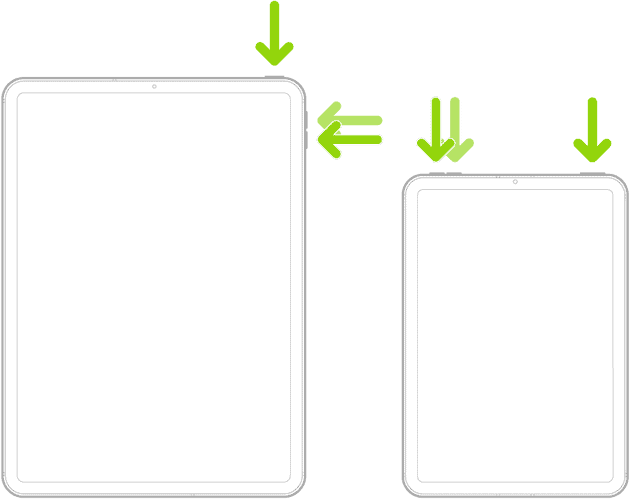
It’s just how you get there that’s changed. As to that, though, the diagrams under “1. iPads without Home button” make no sense! Why are you showing locations of buttons when getting to the app switcher requires a gesture?!