

Apple AirPods work surprisingly well with Windows PCs. While you won’t get Apple-exclusive features like automatic device switching, Siri, or Personalized Spatial Audio, you can still use AirPods for music, videos, gaming, online meetings, and voice calls on a Windows 10 computer. Since AirPods use standard Bluetooth technology, connecting them to a PC takes only a few minutes.
In this guide, you’ll learn exactly how to connect AirPods to a PC running Windows 10, along with troubleshooting tips if they don’t appear or fail to connect.
Don’t miss the best of The Mac Observer
Set us as a preferred source and our Apple reporting ranks higher in your Google Search results and Discover feed — one tap, no account changes.
Table of contents
How to Connect AirPods to a PC Using Bluetooth
The easiest and most reliable method is pairing your AirPods through Windows Bluetooth settings.
Before you start, make sure:
- Your PC has Bluetooth support enabled.
- Your AirPods have sufficient battery charge.
- AirPods are inside their charging case.
- Bluetooth is turned on in Windows.
Step 1: Open Windows Settings
- Click the Start button.
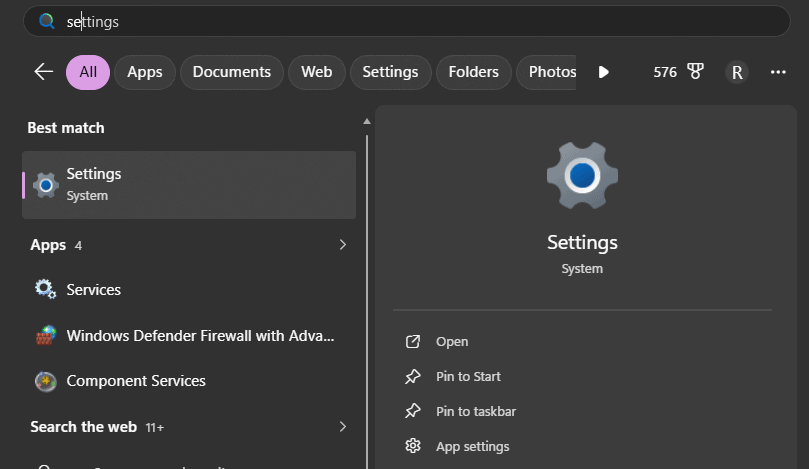
- Select the Settings icon (gear icon).

This opens the main Windows Settings menu.
Step 2: Open Devices Settings
- Click Devices.
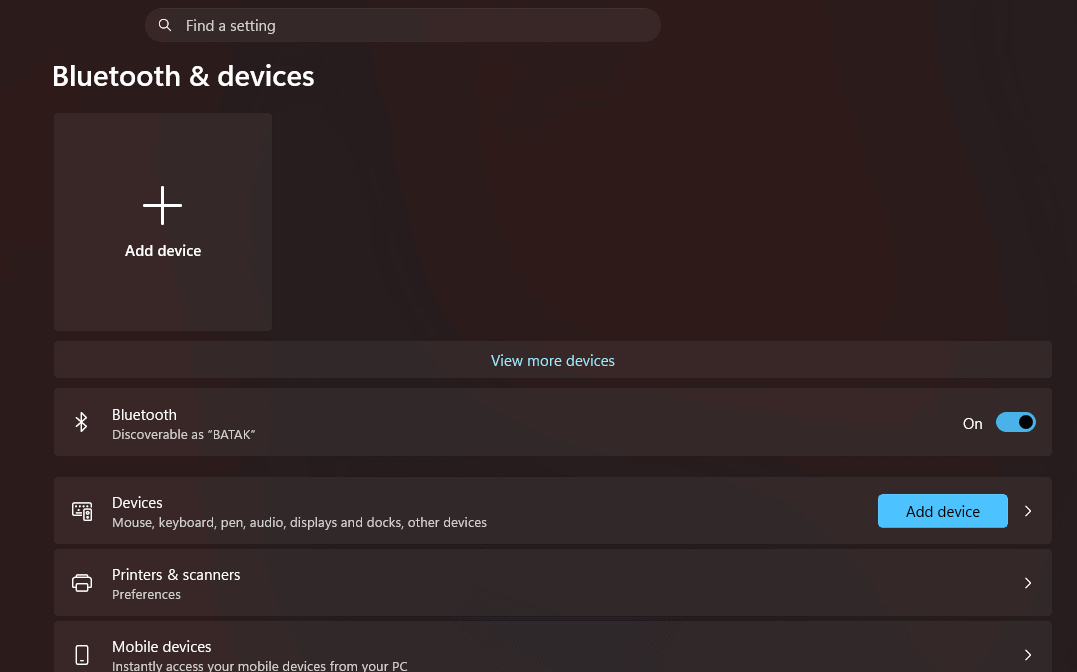
- Select Bluetooth & other devices from the left sidebar.
- Make sure the Bluetooth toggle is turned On.

Step 3: Add a New Bluetooth Device
- Click Add Bluetooth or other device.
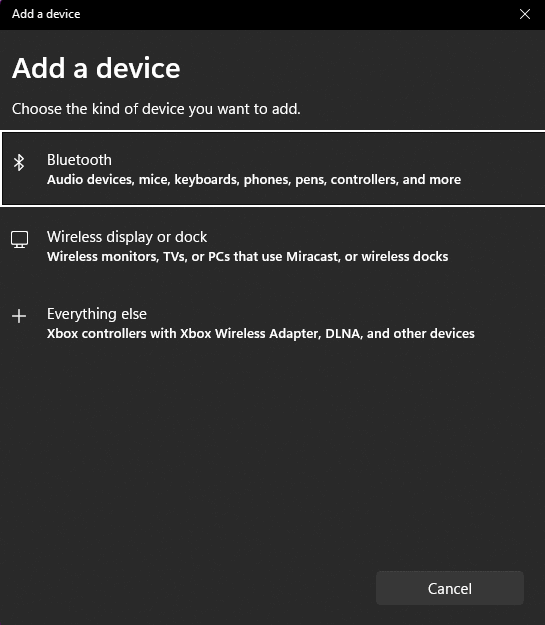
- In the pop-up window, select Bluetooth.

Windows will begin searching for nearby Bluetooth devices.
Step 4: Put AirPods in Pairing Mode
- Place both AirPods inside the charging case.
- Open the lid.
- Press and hold the small button on the back of the case.
- Keep holding until the LED light starts flashing white.
A flashing white light means your AirPods are discoverable and ready to pair.
Step 5: Select Your AirPods
- Wait for your AirPods to appear in the list of available devices.
- Click AirPods, AirPods Pro, or the custom name you assigned to them.
- Windows will start the pairing process.
Step 6: Complete the Connection
- Wait for Windows to finish pairing.
- When you see a confirmation message, click Done.
Your AirPods are now connected to your PC and ready to use.
How to Set AirPods as the Default Audio Device
Sometimes AirPods connect successfully, but sound still comes from your laptop speakers.
- Click the Speaker icon in the Windows taskbar.
- Open the audio output menu.
- Select AirPods from the list of available devices.
If multiple AirPods profiles appear, choose Headphones (Stereo) for the best audio quality.
How to Reconnect AirPods to Your PC Later
After the first pairing, reconnecting is usually automatic.
- Turn on Bluetooth on your PC.
- Open your AirPods case near the computer.
- Wait a few seconds.
Windows should reconnect automatically when both devices are within range.
If they don’t reconnect:
- Open Settings > Devices > Bluetooth & other devices.
- Select your AirPods.
- Click Connect.
How to Fix AirPods Not Connecting to a PC
If your AirPods don’t appear or fail to pair, try these fixes.
1. Charge Your AirPods
Low battery can prevent AirPods from entering pairing mode or maintaining a stable connection.
2. Turn Off Bluetooth on Other Devices
AirPods may automatically connect to a nearby iPhone, iPad, or Mac.
Try temporarily disabling Bluetooth on those devices before pairing with Windows.
3. Remove and Re-Pair AirPods
- Go to Settings > Devices > Bluetooth & other devices.
- Select your AirPods.
- Click Remove device.
- Pair them again from the beginning.
4. Restart Bluetooth
- Turn Bluetooth off.
- Wait about 10 seconds.
- Turn Bluetooth back on.
- Try pairing again.
5. Update Windows and Bluetooth Drivers
Outdated Bluetooth drivers can cause connection drops, audio delays, or pairing failures.
Install the latest Windows updates and manufacturer driver updates whenever possible.
AirPods Features That Work on Windows
When connected to a Windows PC, AirPods function as standard Bluetooth headphones.
You can:
- Listen to music
- Watch videos
- Join Zoom and Teams meetings
- Use the built-in microphone
- Control volume through Windows
- Use noise cancellation on supported AirPods models
However, some Apple-exclusive features are unavailable on Windows.
Features That Do Not Work Fully on Windows
- Automatic device switching
- Siri voice commands
- Personalized Spatial Audio
- Apple ecosystem integration
- Find My AirPods
FAQs
Yes. AirPods work with Windows 10 through Bluetooth just like any other wireless headphones.
Make sure:
– Bluetooth is enabled.
– AirPods are in pairing mode.
– The LED light is flashing white.
– AirPods are not actively connected to another nearby device.
Yes. The pairing process is nearly identical for AirPods, AirPods Pro, and AirPods Max.
Windows may select the headset profile instead of the stereo profile. Open Sound Settings and choose the Headphones (Stereo) option for better sound quality.
Yes. AirPods can be used for both audio playback and voice calls on Windows PCs.
Summary
- Open Settings on Windows 10.
- Go to Devices > Bluetooth & other devices.
- Turn Bluetooth on.
- Click Add Bluetooth or other device.
- Select Bluetooth.
- Open your AirPods case.
- Hold the pairing button until the light flashes white.
- Select your AirPods from the device list.
- Complete the pairing process.
- Set AirPods as the default audio output if needed.
Conclusion
If you’ve been wondering how to connect AirPods to a PC, the process is much simpler than many people expect. Windows 10 recognizes AirPods as standard Bluetooth headphones, so pairing usually takes less than a minute. Once connected, you can use them for streaming, gaming, video calls, and everyday listening.
If you run into issues, the most common fixes are putting the AirPods back into pairing mode, disconnecting them from nearby Apple devices, and re-pairing them through Windows Bluetooth settings. After the initial setup, your AirPods should reconnect automatically whenever Bluetooth is enabled and they’re nearby, making them a convenient wireless audio option for Windows users.


Discussion