

Apple devices make it easy to store and manage passwords using iCloud Keychain and the built-in Passwords feature. While this is convenient, many users sometimes prefer to remove saved credentials for privacy, security, or organizational reasons. Whether it’s an old account or one that’s no longer used, deleting saved passwords on an iPhone or iPad is quick and secure.
Here’s how you can delete saved passwords and user names directly from your iPhone or iPad.
Table of contents
Here’s How to Delete Saved Passwords and Usernames on iPhone or iPad
Delete Saved Passwords on iOS 18 / iPadOS 18 and Later
With iOS 18 and iPadOS 18, Apple introduced the Passwords app—a dedicated space for managing all your stored credentials, Wi-Fi passwords, and verification codes. This app replaces the old Passwords section in Settings, making password management more intuitive.
Don’t miss the best of The Mac Observer
Set us as a preferred source and our Apple reporting ranks higher in your Google Search results and Discover feed — one tap, no account changes.
- Open the Passwords app from the home screen
- Browse the list or use the search bar to find the specific password
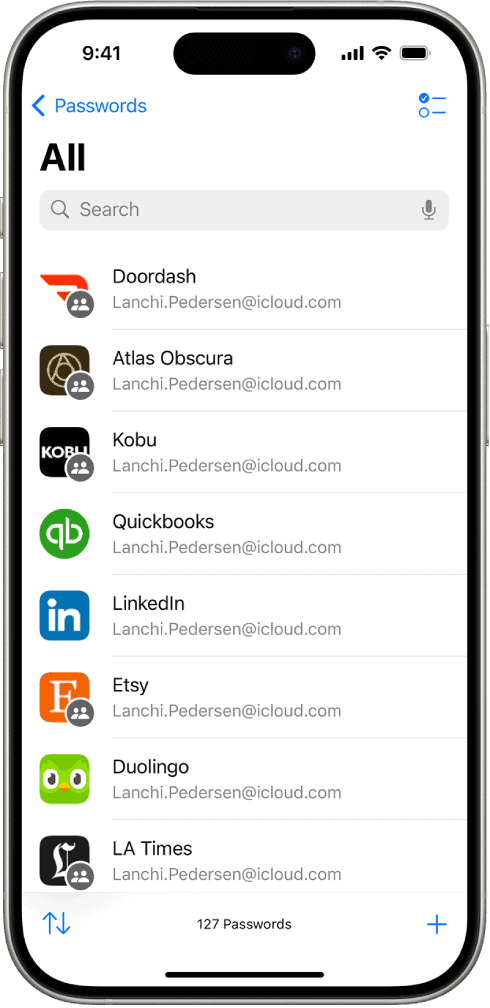
- Tap on the password entry to open it
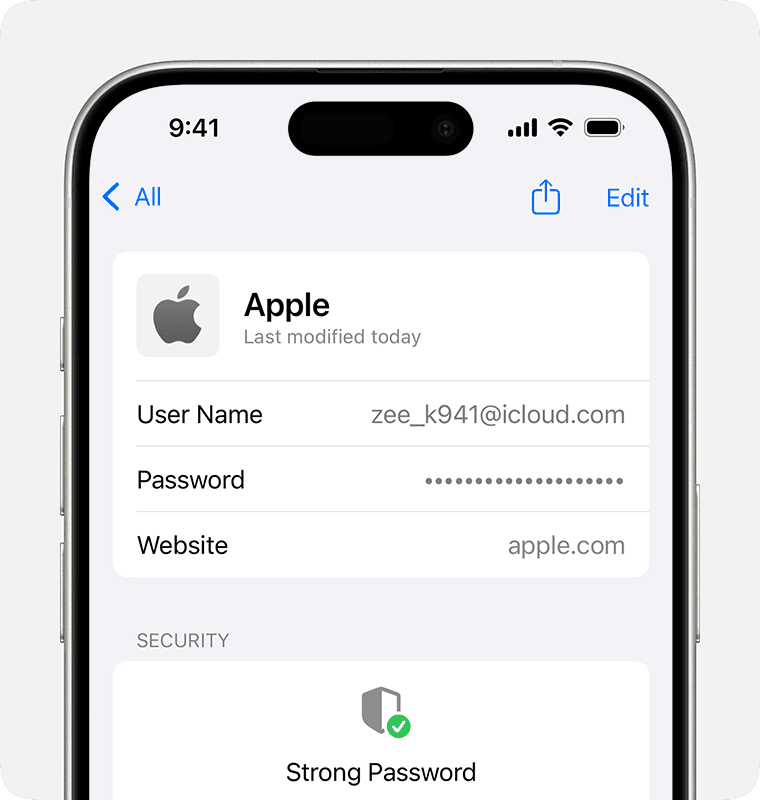
- Tap Delete Password at the bottom of the screen
- Confirm the deletion when prompted


If you want to explore more about the Passwords app features, you can read how to manage your passwords with the Apple Passwords app.
Delete Saved Passwords on iOS 17 and Earlier
If your iPhone or iPad runs iOS 17 or an earlier version, passwords are still managed through the Settings app instead of a dedicated Passwords app.
- Open the Settings app
- Scroll down and tap Passwords
- Authenticate using Face ID, Touch ID, or the device passcode
- Locate the password to delete from the list
- Tap on the specific entry
- Tap Delete Password at the bottom
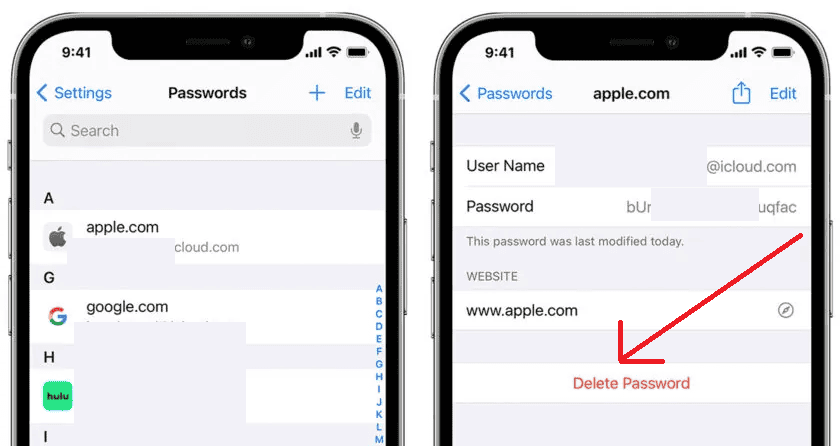
- Confirm by tapping Delete Password again

Deleting Multiple Passwords at Once
To remove several passwords in one session:
- Open the Passwords app (iOS 18+) or go to Settings > Passwords (iOS 17 and earlier)
- Tap Edit in the top-right corner
- Select all the passwords to delete by tapping the circle next to each entry
- Tap Delete at the bottom of the screen
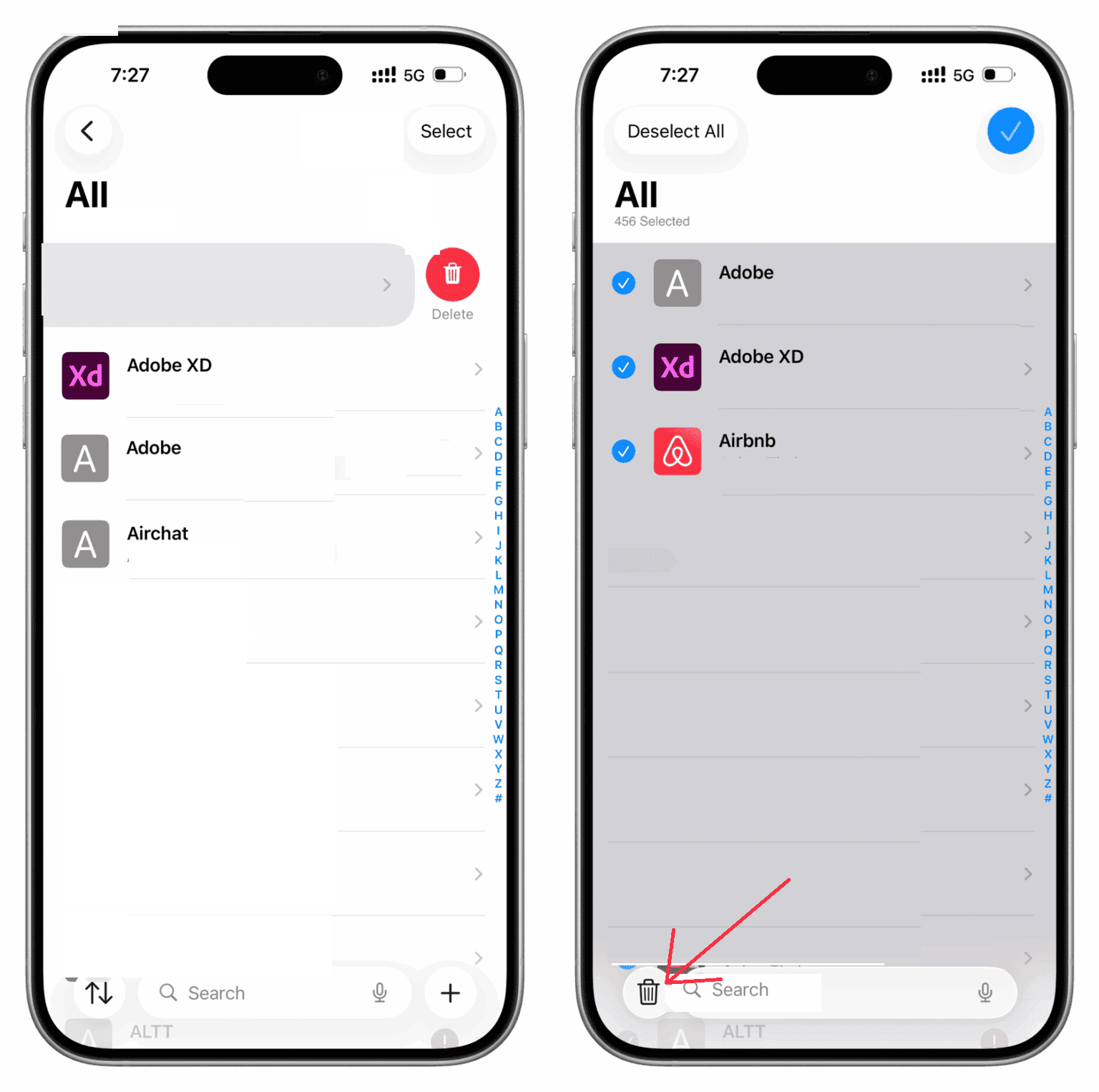
- Confirm the action

This method saves time when cleaning up multiple old accounts or consolidating password management to a different system. If you’re interested, read this guide on how to manage Keychain passwords on iPhone and iPad
What Happens After You Delete a Password
Once a password is deleted from the iPhone or iPad, it disappears from all devices signed in with the same Apple ID through iCloud Keychain. The browser will no longer autofill credentials for that website or app. Users will need to manually enter login information the next time they access that service.
If the deleted password is needed again later, there is no recovery option. The password must be reset through the website or app’s password recovery process.
Additional Tips for Managing Saved Passwords
- Back up important logins: Before deletion, consider saving essential credentials in a secure password manager.
- Turn off iCloud Keychain: If deleted passwords reappear, navigate to Settings > [Your Name] > iCloud > Passwords and Keychain and toggle it off.
- Update instead of deleting: You can change outdated passwords directly, so learn how to change your email password on iPhone.
- Organize with the Passwords app: The new Passwords app makes managing saved credentials simpler and safer. You can explore how to manage your passwords with the Apple Passwords app to get familiar with its interface.
- Fix masking or autofill issues: If your passwords aren’t displaying correctly, you can follow this guide to fix password masking issues on iOS.
Conclusion
Deleting saved passwords on an iPhone or iPad helps maintain digital hygiene and enhances privacy. Whether it’s clearing outdated accounts or preparing a device for someone else, iOS makes the process smooth and secure.
You can easily manage your different credentials in the Passwords section in the Settings or with Apple’s Passwords app, ensuring that only relevant and up-to-date login information stays stored on your devices.
FAQs
Yes. If iCloud Keychain is enabled, deleting a password removes it across all synced Apple devices.
No. Once deleted, passwords are permanently removed unless they were backed up in another password manager or service.
Currently, iOS doesn’t offer a “Delete All” option. However, multiple passwords can be selected and deleted together using the Edit option.
Only apps and websites that used those saved credentials through autofill will be affected. You’ll need to re-enter your login details the next time you sign in.
It’s good practice to review and update saved passwords every few months to remove old or unused accounts.


Discussion