

Seeing No Location Found pop up in Find My can be confusing. You open the app to check where someone is (or where your device went) and instead of a map, you get a blank screen. It doesn’t always mean the person stopped sharing their location or that your phone is lost. Usually, it’s something simpler: a weak internet connection, GPS glitch, or outdated setting.
Let’s go through what this message actually means, why it happens, and what you can do to fix it fast.
Table of contents
What “No Location Found” Really Means
When the Find My app shows No Location Found under a device or contact, it means the app can’t get a current location. It’s not necessarily a privacy issue or someone cutting off sharing, it’s more often a technical hiccup. The app can’t connect to Apple’s servers or can’t read GPS data at that moment.
Don’t miss the best of The Mac Observer
Set us as a preferred source and our Apple reporting ranks higher in your Google Search results and Discover feed — one tap, no account changes.
Most of the time, it’s temporary. Once the phone reconnects to the network or restores GPS access, the location appears again automatically.
Common Reasons You See “No Location Found”
Let’s break down what’s usually behind the message.
1. Connectivity issues
If either you or the person you’re tracking has poor signal (cellular or Wi-Fi) the app can’t fetch location data. Even a weak GPS connection can cause the same thing. Make sure both devices are online and have a clear line to the sky for GPS to work properly.
2. Low or dead battery
If the phone you’re tracking has powered down or is running on very low battery, location sharing stops. iPhones also limit background activity in Low Power Mode, which can pause location updates until it’s recharged.
3. Location services turned off
Find My needs access to GPS and location services. If those are disabled, the app can’t see where the phone is, even if it’s online. You can check by going to Settings > Privacy & Security > Location Services and making sure it’s on for Find My.
4. Airplane mode
Airplane mode blocks all wireless connections, which means Find My can’t communicate with the phone. The device might still show its last known location, but it won’t update until airplane mode is off and the phone reconnects.
5. Outdated iOS or app glitch
An old version of iOS or a temporary software bug can mess with location tracking. Updating to the latest iOS release often clears this up.
6. Signed out of iCloud
If the person signed out of iCloud or reset their phone, it disconnects from the Find My network entirely. Until they sign back in, their device won’t appear on the map.
7. Incorrect date and time
It sounds minor, but if your phone’s date or time is wrong, it can confuse location services. Setting it to update automatically fixes this in seconds.
How to Fix the “No Location Found” Message
Try these steps in order—they’ll resolve most cases quickly.
1. Check Apple’s system status
Sometimes the issue isn’t your phone, it’s Apple’s servers. Visit Apple’s System Status page to see if Find My or Location Services are down. If they are, you just have to wait.
2. Make sure your phone is online
Open Safari or any app that needs internet access. If it won’t load, reconnect to Wi-Fi or check mobile data under Settings > Cellular. If you’re trying to locate someone else, send them a quick message to confirm they’re connected too.
3. Turn off airplane mode
- Swipe down from the top-right corner and look for the airplane icon.
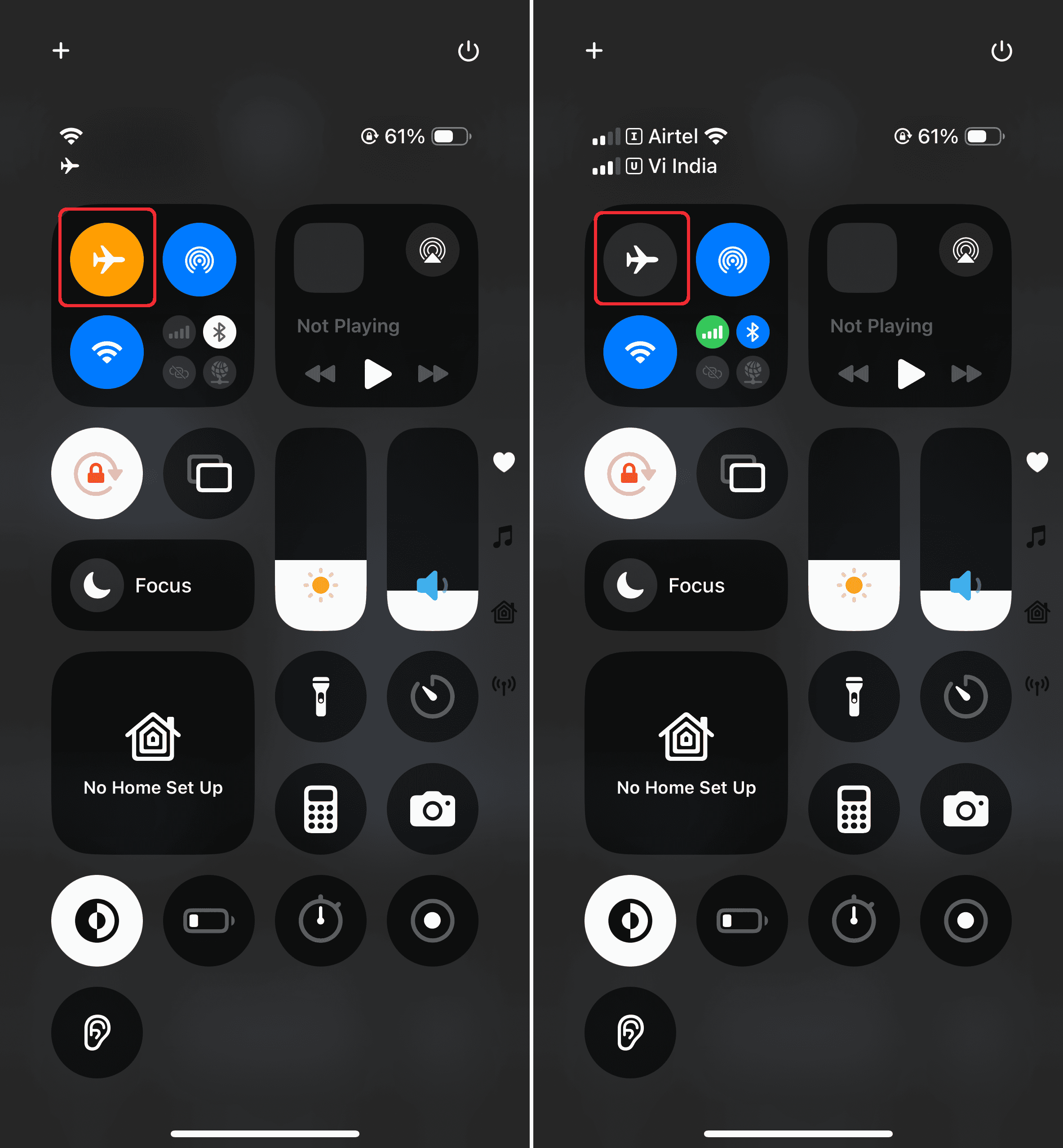
- If it’s orange, tap it to disable airplane mode.
- Once your phone reconnects, reopen Find My to see if the location updates.

4. Restart your iPhone and the Find My app
A quick restart can fix temporary bugs. Close Find My, power off your iPhone, wait a few seconds, and turn it back on. Do the same for your friend’s device if possible.
5. Enable location services
- Go to Settings > Privacy & Security > Location Services and make sure they’re turned on.
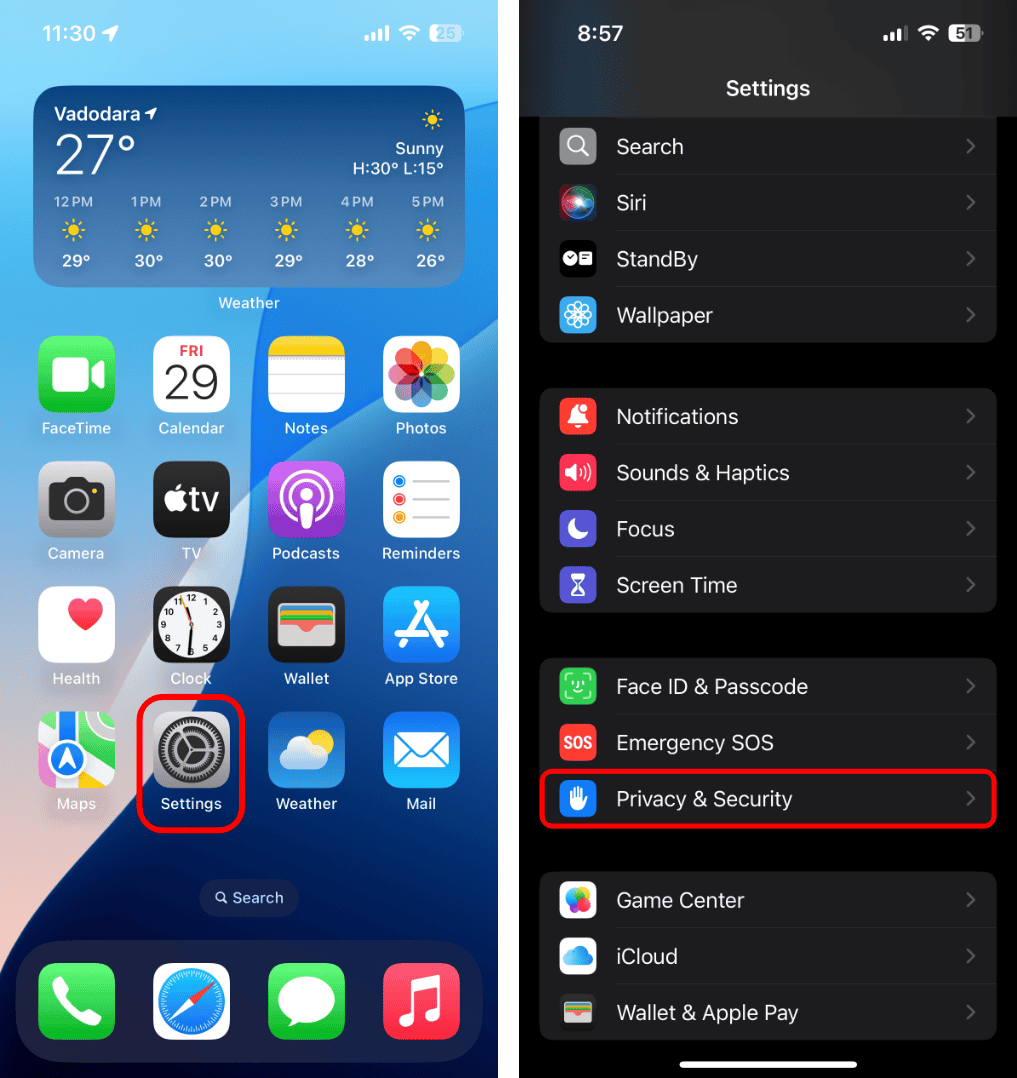
- Scroll down to Find My and confirm that both While Using the App and Precise Location are enabled.

6. Check date and time
Under Settings > General > Date & Time, switch on Set Automatically. This keeps your device in sync with Apple’s servers and helps avoid tracking errors.
The Bottom Line
The No Location Found message almost never means something serious. It’s just the app’s way of saying it can’t connect right now. Once your iPhone (or your friend’s) gets a stable signal, enough battery, and location access, everything usually snaps back into place.
If none of these steps work, check Apple’s support site or contact their help team—but in most cases, patience or a quick settings tweak is all it takes to get Find My working again.


Discussion