

Staring at your phone wondering, “Who is this person and why do they listen to so much Peppa Pig?” Apple’s algorithm is usually sharp, but it’s easily confused by shared devices and sleep habits. Here is a deep dive on why your Replay 2025 stats are messed up, what (little) you can do to salvage it right now, and how to bulletproof your stats for 2026.
Table of contents
Can you edit your 2025 Replay?
Let’s rip the band-aid off first: Mostly, no.
Unlike a playlist you curate manually, Apple Music Replay is a server-side calculation based on your listening history throughout the year. There is no “Delete Song” button inside the Replay interface. Once the data is logged to Apple’s servers, it is effectively etched in stone for that year’s recap.
Don’t miss the best of The Mac Observer
Set us as a preferred source and our Apple reporting ranks higher in your Google Search results and Discover feed — one tap, no account changes.
However, if your data is missing (blank screen) or you want to ensure this never happens again, we have solutions.
Troubleshooting
If your stats look like they belong to a stranger, it’s usually one of three culprits.
1. “HomePod Hijack”
If you have a HomePod in the kitchen or living room, by default, every request made to it counts toward your profile. If you’re at work and your kids/roommates/partner spend 4 hours blasting the Frozen soundtrack on the HomePod, Frozen is now your personality.
2. Sleep Sound Trap
Do you listen to rain sounds, white noise, or ambient drone to fall asleep? Apple counts these just like any other track.
3. “Use Listening History” Toggle
This is the master switch.
- If it was OFF: Apple Music didn’t track anything you listened to. You might see a “Not Enough Data” error or a suspiciously empty Replay.
- If it was ON (on the wrong device): You might have an old iPad playing music for the dog at home, and it’s all syncing to your account.
What you can do right now
While you can’t manually edit the play counts, you can try these steps to refresh the data or hide the evidence.
1. Force a Re-Sync
If you see a blank screen or the data hasn’t updated since October, it might just be a cache glitch.
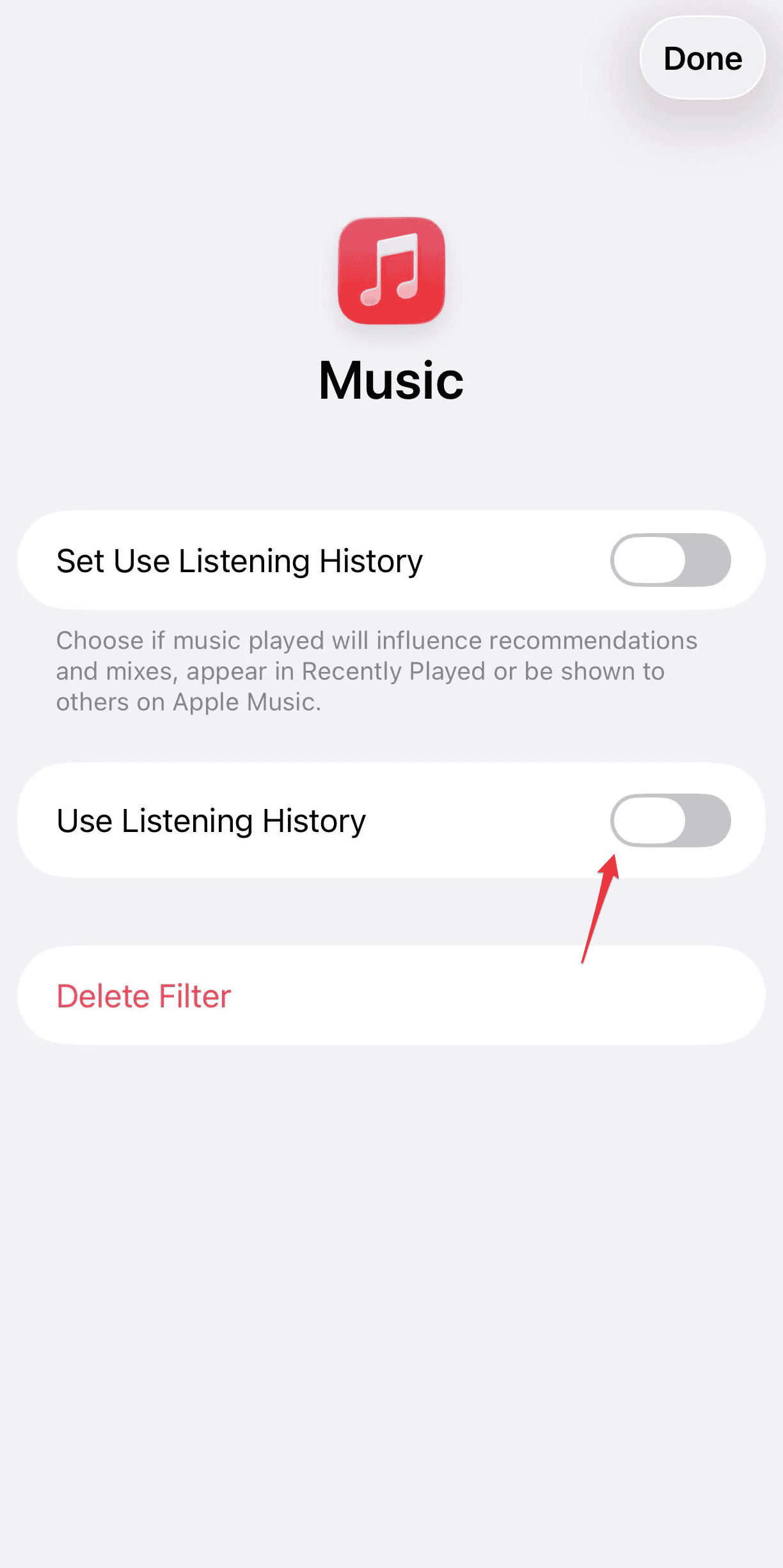
- On iPhone: Go to Settings > Music and toggle Use Listening History OFF, wait 10 seconds, and turn it back ON. (Note: This won’t delete old data, but it forces the device to re-handshake with the server).
- On Web: Visit
replay.music.apple.comon a desktop browser. Sometimes the web version displays accurate stats even when the iOS app is bugging out.
2. Check the HomePod Settings
Stop your family from ruining your 2026 Replay today.
- Open the Home App on your iPhone.
- Tap the Playhouse/Home icon > Home Settings.
- Tap your name under People.
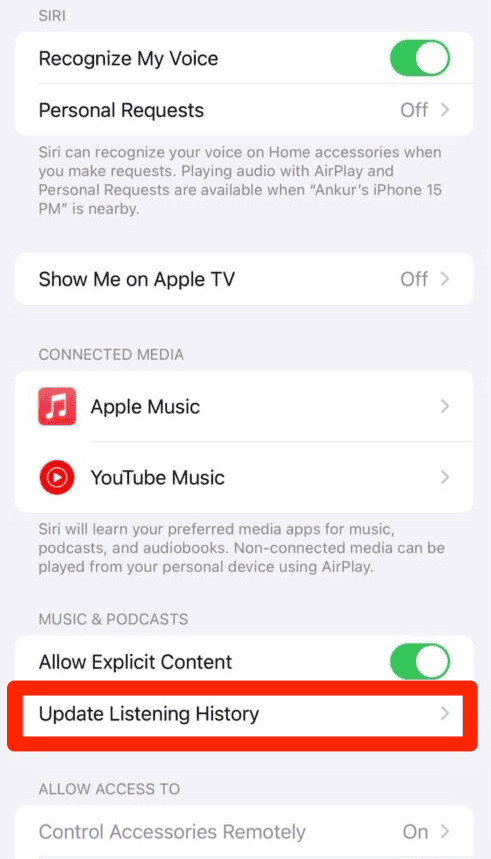
- Look for Update Listening History and toggle it OFF for shared HomePods, but keep it ON for your personal iPhone/AirPods.
3. “Focus Mode” Trick
This is the ultimate power-user move introduced in recent iOS updates. You can tell your phone: “When I am sleeping, do not count my music.”
- Go to Settings > Focus.
- Create a new Focus (or edit your existing “Sleep” focus).
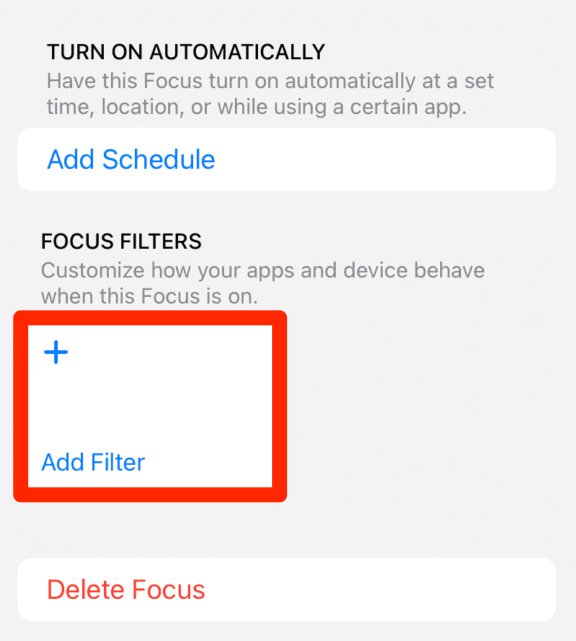
- Scroll down to Focus Filters > Add Filter.
- Select Music.
- Toggle Use Listening History to OFF.
- Click Add.
Now, whenever your phone is in Sleep Focus, you can blast white noise all night long, and Apple Music will essentially “incognito mode” those streams.
Is your Apple Music Replay acting up? Check out our top fixes.
FAQ
No. You can delete it from your library and your “Recently Played” history locally, but the play count for Replay is stored on Apple’s backend. It’s permanent for this year.
ou likely had “Use Listening History” turned off in Settings for most of the year. Sadly, you cannot recover that data. It wasn’t tracked, so it doesn’t exist.
Replay stats (the top 100 list) usually update weekly (Sundays), but the fancy “Highlight Reel” is often a one-time generated snapshot at the end of the year. If you listened to a bunch of new music today, give it 3-4 days to reflect in the playlist.
Summary
If your Replay 2025 is a mess, here is the cheat sheet:
- You cannot edit the past: Once a song is counted in Replay, it stays there.
- Check your Toggles: Ensure “Use Listening History” is ON for your phone but OFF for shared family devices (like iPads or HomePods).
- Use Focus Filters: Set up a “Sleep” or “Work” Focus that automatically disables Listening History to keep rain sounds and focus tracks off your charts.
- Web vs. App: If the App is blank, check the Replay website.
It can be a bummer when your year-in-review doesn’t reflect your actual taste, but think of it this way: Your Replay is honest. If it says you listened to the Bluey soundtrack 400 times, well… you probably did.




Discussion