

Getting your iPhone to recognize a portable monitor can be tricky, especially when dealing with different connection standards and cable types. The issue usually comes down to cable compatibility, incorrect display modes, or your portable monitor requiring specific input types that your iPhone doesn’t natively support. I’ll show you how to troubleshoot and fix this problem based on working solutions from Apple Support Communities.
Table of contents
Understanding iPhone Display Output
Before troubleshooting, it’s important to understand how iPhones output video signals. iPhones don’t use wireless AirPlay for wired connections. Instead, they use adapters or cables that convert the signal to HDMI or DisplayPort.
For Lightning iPhones (iPhone 14 and earlier), the Lightning port doesn’t directly output video. Apple’s official adapters compress and convert the signal to HDMI or VGA. For USB-C iPhones (iPhone 15 and later), the phone supports DisplayPort Alt Mode, allowing direct video output through compatible USB-C cables.
Don’t miss the best of The Mac Observer
Set us as a preferred source and our Apple reporting ranks higher in your Google Search results and Discover feed — one tap, no account changes.
The key issue with portable monitors is that many require specific input types. Some only accept HDMI, others only USB-C with DisplayPort Alt Mode, and some support DisplayLink technology. If there’s a mismatch between what your iPhone outputs and what your monitor accepts, the connection won’t work.
1. Check Your Cable and Adapter Compatibility
The most common reason iPhones won’t recognize portable monitors is cable incompatibility. Not all USB-C cables support video transmission, and not all adapters work with every monitor type.
For USB-C cables:
- Standard USB-C charging cables do not carry video signals.
- You need a USB-C cable that specifically supports DisplayPort Alt Mode.
- Look for cables labeled “4K video,” “DP Alt Mode,” or “DisplayPort” in the specifications.
For adapters:
- Use Apple’s official Lightning Digital AV Adapter or USB-C Digital AV Multiport Adapter.
- Third-party adapters vary in quality and compatibility. Some work well, others cause problems.
- VGA adapters do not carry audio signals.
2. For iPhone 15 and Later (USB-C Models)
iPhone 15, 16, and later models with USB-C support DisplayPort Alt Mode for direct connection to compatible monitors. However, several settings and compatibility issues can prevent recognition.
Fix Display Mode Settings
Based on solutions from Apple Support Communities, one of the most common fixes for iPhone 15 and later models is changing the display mode settings. Users report that HDR and Dolby modes often cause flickering or black screens with portable monitors.
- Connect your iPhone to the portable monitor using a USB-C video cable.
- Go to Settings on your iPhone.
- Tap Display & Brightness.

- You should see options for both your iPhone screen and the external display.
- Tap the external display section.
- Select SDR Mode instead of HDR or Dolby Vision.

This simple change resolves display issues for most users, particularly with 4K portable monitors and TVs.
Verify Cable Supports Video
The USB-C cable that came with your iPhone for charging cannot transmit video. You must use a USB-C cable that explicitly supports DisplayPort Alt Mode.
Check your cable specifications:
- It should mention “4K video,” “DP Alt Mode,” or “video transmission.”
- High-quality cables from brands like Anker, Belkin, or Cable Matters typically work well.
- The cable should be rated for at least USB 3.1 with video support.
Check Portable Monitor Input Type
Not all portable monitors with USB-C ports support DisplayPort Alt Mode. Some only accept:
- HDMI input (requiring a USB-C to HDMI adapter)
- DisplayLink technology (requiring special drivers that iOS doesn’t support)
- Proprietary USB-C implementations
Check your portable monitor’s specifications for “USB-C DP Alt Mode” or “DisplayPort over USB-C.” If your monitor only supports DisplayLink, it won’t work with iPhone without using an HDMI adapter as an intermediary.
3. For iPhone 14 and Earlier (Lightning Models)
Older iPhones with Lightning ports require Apple’s official adapters to connect to external displays. The process differs from USB-C models.
Use the Correct Adapter
You need one of these official Apple adapters:
- Lightning Digital AV Adapter (for HDMI output)
- Lightning to VGA Adapter (for VGA output, no audio)
Third-party Lightning adapters often fail or provide unreliable connections. Apple’s proprietary video output method requires specific chips that many third-party adapters lack.
Connect via HDMI
If your portable monitor only has USB-C input and you have a Lightning iPhone, you’ll need a two-step connection:
- Connect the Lightning Digital AV Adapter to your iPhone.
- Connect an HDMI cable from the adapter to an HDMI input on your portable monitor (not USB-C).
Many portable monitors have both USB-C and HDMI ports. Use the HDMI port for Lightning iPhones. USB-C to Lightning cables do not support video output, only charging and data transfer.
Troubleshoot Power Issues
According to Apple Support Communities, some users encounter “Accessory requires too much power” errors after iOS updates. This happens when:
The Lightning adapter isn’t receiving enough power from your iPhone. The HDMI cable or monitor is drawing too much power. There’s an iOS software issue.
To fix this:
- Connect the Lightning adapter’s additional Lightning port to a power source while using the display.
- Try a different HDMI cable (some draw less power than others).
- Restart your iPhone by powering it off completely and turning it back on.
- Update to the latest iOS version, as Apple frequently patches power delivery issues.
4. When Your Portable Monitor Only Has USB-C
Many modern portable monitors only feature USB-C ports without HDMI. This creates compatibility challenges for iPhones, particularly Lightning models.
For Lightning iPhones: Unfortunately, there’s no simple adapter solution. Lightning to USB-C cables don’t support video output. Your options are:
- Check if your portable monitor has a mini-HDMI or micro-HDMI port (many do).
- Use a Lightning to HDMI adapter, then an HDMI to USB-C adapter (adds bulk and may introduce lag).
- Consider upgrading to an iPhone 15 or later with native USB-C support.
For USB-C iPhones: Ensure your portable monitor’s USB-C port supports DisplayPort Alt Mode. Look for these indicators:
- A “D” or “DP” symbol next to the USB-C port.
- Product specifications mentioning “DP Alt Mode” or “video input.”
- Compatibility with laptops for video output (a good sign it supports standard video protocols).
If your monitor only supports DisplayLink technology, it won’t work with iPhones. DisplayLink requires driver software that iOS doesn’t support.
Additional Troubleshooting Steps
If your iPhone still won’t recognize your portable monitor after checking cables and settings, try these solutions from Apple Support Communities:
Restart both devices:
- Power off your iPhone completely (not just sleep mode).
- Turn off your portable monitor and unplug it from power.
- Wait 30 seconds.
- Power on the monitor first, then your iPhone.
- Connect them with the cable.
Try a different HDMI cable: Not all HDMI cables are created equal. Some older cables don’t support the full HDMI specification and cause compatibility issues. Use a certified High Speed HDMI cable rated for 4K if possible.
Check the monitor’s input source: Most portable monitors have multiple input options. Make sure:
- Press the menu or source button on your monitor.
- Select the correct input (HDMI 1, HDMI 2, USB-C, etc.) that matches your cable connection.
- Give it a few seconds to detect the signal.
Update iOS: Some screen mirroring issues are caused by iOS bugs, particularly after major updates:
- Go to Settings > General > Software Update.
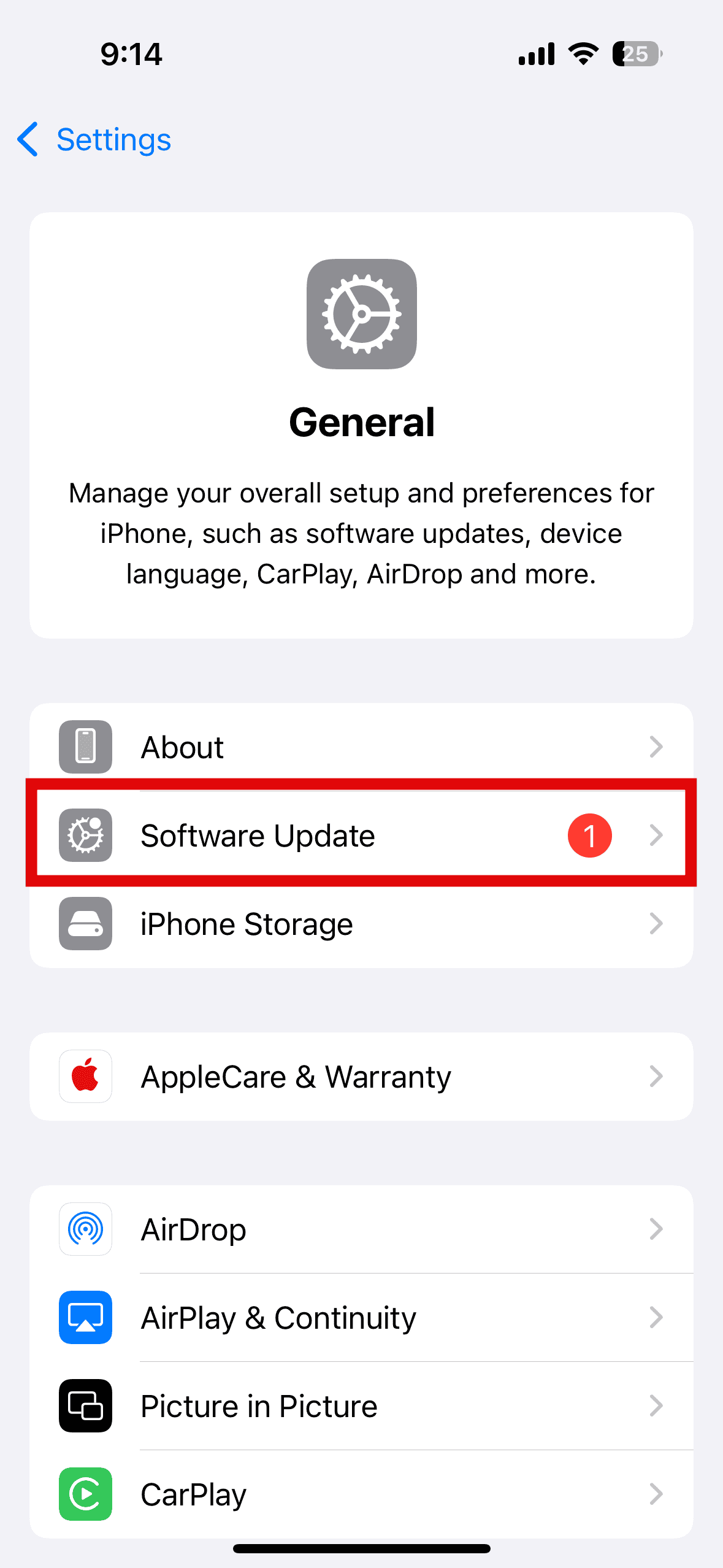
- Install any available updates.
- Restart your iPhone after updating.

Test with another display: To isolate whether the issue is with your iPhone or the portable monitor:
- Try connecting your iPhone to a regular TV or computer monitor using the same adapter/cable.
- If it works with other displays, the problem is likely with your portable monitor’s compatibility.
- If it doesn’t work with any display, the issue is with your iPhone, cable, or adapter.
Reset all settings: As a last resort, you can reset your iPhone’s settings without erasing data:
- Go to Settings > General > Transfer or Reset iPhone.
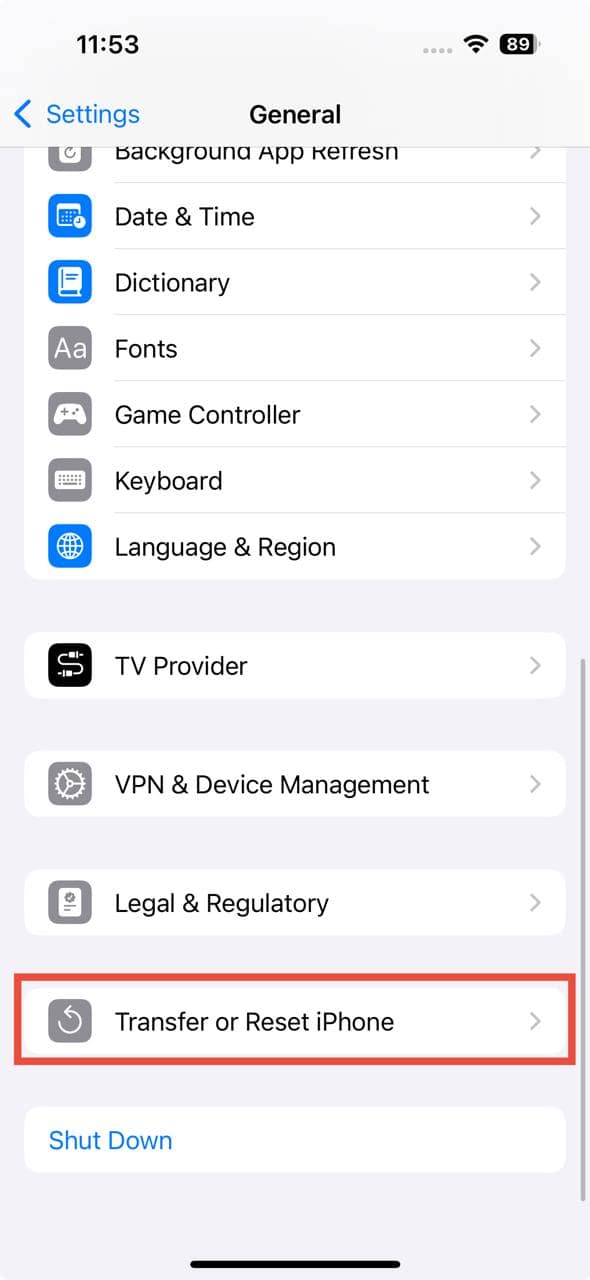
- Tap Reset > Reset All Settings.
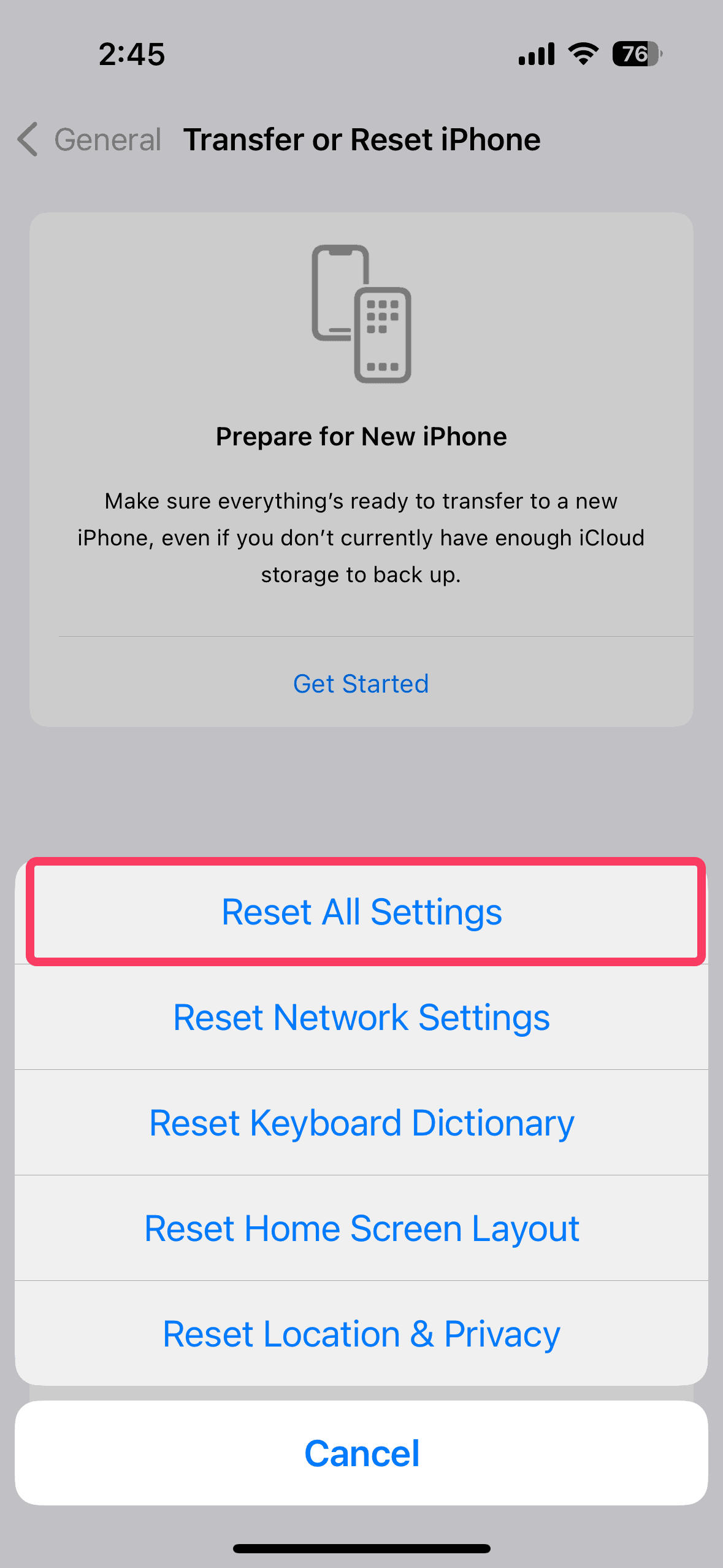
- Enter your passcode and confirm.
- This won’t delete your data but will reset display, network, and other preferences.


Tips for Successful Connection
Based on our tests, here are the best practices for connecting iPhones to portable monitors:
- Always use official Apple adapters for Lightning iPhones. Third-party adapters are hit-or-miss and often fail after iOS updates.
- Check monitor specifications before purchasing. Look for “HDMI input” or “USB-C DP Alt Mode” explicitly stated in the specs.
- Invest in quality cables. Cheap cables cause more problems than they’re worth. Stick with reputable brands like Anker, Belkin, or Apple.
- Keep adapters powered. When using Lightning adapters, connect the additional Lightning port to power for stable operation.
- Disable HDR/Dolby modes on iPhone 15 and later if you experience black screens or flickering with external displays.
- Landscape apps only fill the screen. iPhone’s home screen displays vertically on external monitors. Only apps that support landscape orientation will fill a horizontal monitor properly.
- Some apps block the external display. Streaming services like Netflix, ESPN, and Disney+ may restrict HDMI output due to copyright protection (DRM).
Conclusion
Getting your iPhone to work with a portable monitor comes down to using the right cables, adapters, and settings for your specific iPhone model. Lightning iPhones work best with HDMI connections through Apple’s official adapter, while iPhone 15 and later models can connect directly via USB-C cables that support video transmission. Remember to check your display mode settings and ensure your portable monitor supports the input standard your iPhone uses.
FAQs
This error typically means your adapter or the connected display is drawing more power than your iPhone can provide. Connect the adapter’s additional port to a power source, try a different cable, or update iOS to the latest version as Apple frequently fixes power delivery issues.
iPhones only support screen mirroring, not desktop extension like iPads with Stage Manager. Whatever appears on your iPhone screen will be mirrored to the external display.
No, USB-C to Lightning cables only support charging and USB data transfer. They cannot carry video signals from a Lightning iPhone to a USB-C monitor.
For iPhone 15 and later, this is usually caused by HDR or Dolby Vision mode. Go to Settings > Display & Brightness, select your external display, and change it to SDR Mode. For Lightning iPhones, flickering often indicates a power delivery issue. Connect your adapter to a power source while using the display.
No, standard USB-C charging cables don’t carry video signals. You need a USB-C cable that specifically supports DisplayPort Alt Mode or video transmission. Look for cables marketed for video output or monitor connections.
Portable monitors designed for laptops often support multiple video input standards. Your laptop might use standard DisplayPort or HDMI protocols, while your iPhone (especially Lightning models) uses proprietary video output that requires specific adapters. Additionally, some monitors use DisplayLink technology that works with laptop drivers but isn’t supported by iOS.


Discussion