

MacBooks running macOS Tahoe may heat up more easily due to higher background activity, app processes that are still adapting to the new update, or indexing tasks that begin immediately after installation. By adjusting settings, checking CPU usage, and refreshing system behavior, users can stabilize temperatures and restore normal performance.
The following fixes offer a reliable way to avoid overheating across all MacBook models running macOS Tahoe.
Table of contents
- Why is this happening?
- Here’s how to fix the problem
- 1. Restart the MacBook to clear the temporary system load
- 2. Identify heavy apps in Activity Monitor
- 3. Check if macOS is indexing photos or files
- 4. Update macOS and your apps for better optimization
- 5. Refresh thermal behavior on Apple Silicon models
- 6. Manage background and startup apps
- 7. Reduce screen brightness to ease GPU load
- 8. Disconnect accessories that may increase system activity
- 9. Switch to Safari for lower CPU usage
- 10. Improve airflow and device placement
- Tips
- Conclusion
- FAQs
Why is this happening?
Overheating on macOS Tahoe is often linked to increased CPU and GPU activity after updating. Tasks such as indexing, photo analysis, search rebuilding, and iCloud syncing can run for several hours, which raises system temperatures. Some apps may still be adjusting to Tahoe’s new frameworks, causing additional background processes.
Don’t miss the best of The Mac Observer
Set us as a preferred source and our Apple reporting ranks higher in your Google Search results and Discover feed — one tap, no account changes.
Heat spikes sometimes appear alongside system slowdowns similar to the behavior described in reports of freeze and lag issues on macOS Tahoe. External drives and accessories may also cause resource spikes if macOS takes longer to detect them, similar to findings in troubleshooting for Tahoe not recognizing external hard drives.
Here’s how to fix the problem
The steps below offer detailed actions that help lower heat and stabilize performance.
1. Restart the MacBook to clear the temporary system load
Restarting clears short-term processes and resets thermal management.
- Save open files and close apps.
- Open the Apple menu and choose Restart.
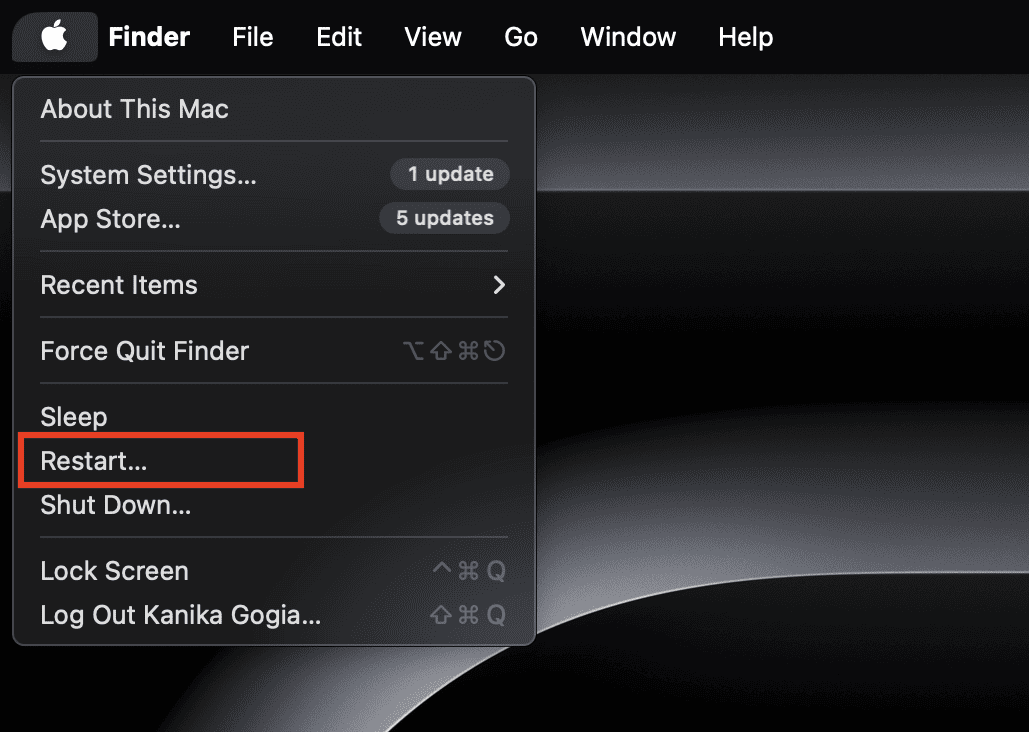
- Once the device reboots, leave it idle for a minute to settle.
- Check if fans slow down and temperatures begin to drop.

A restart often clears leftover processes from app updates or incomplete tasks that cause heat spikes.
2. Identify heavy apps in Activity Monitor
Activity Monitor shows which apps and processes are creating the most heat.
- Open Activity Monitor from Spotlight.
- Select the CPU tab.
- Sort by % CPU to identify heavy tasks.
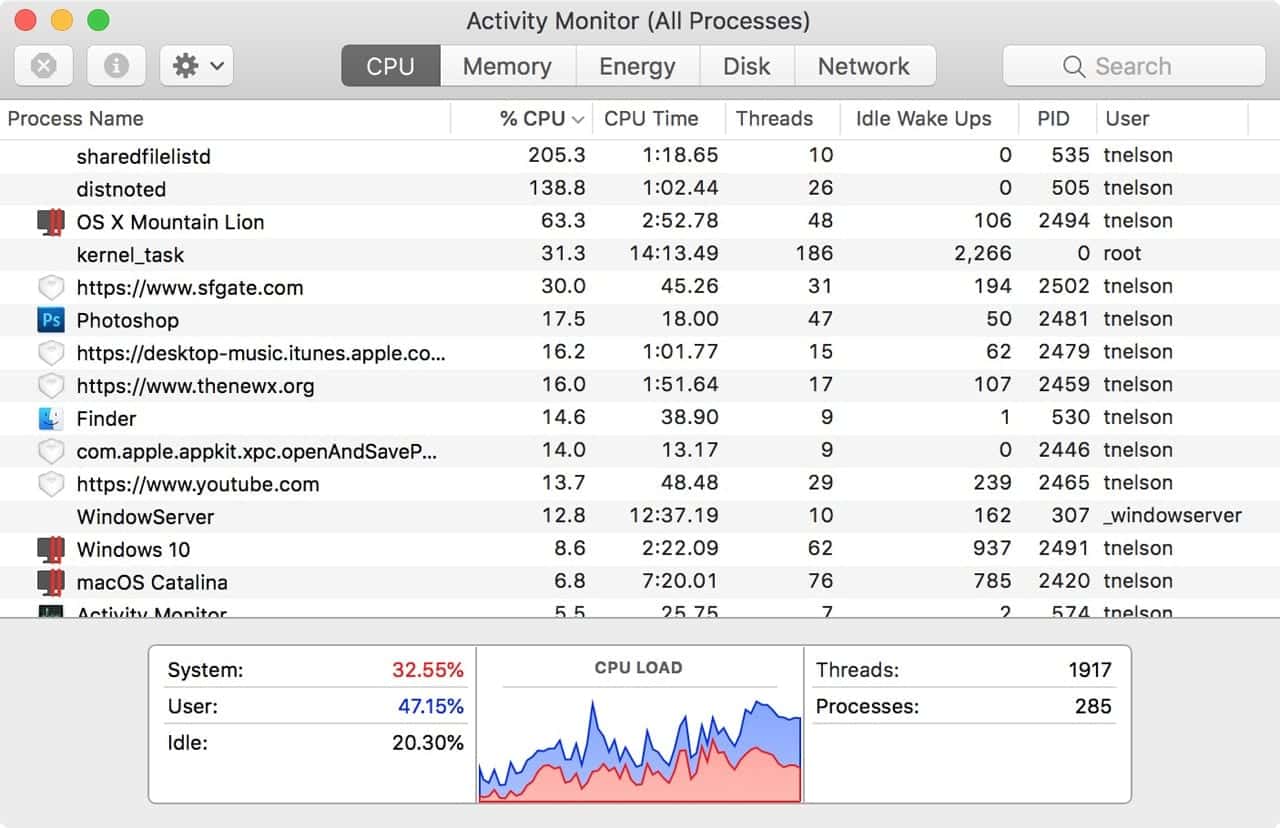
- Highlight an abnormally high app and click X > Force Quit.
- Monitor temperature for a few minutes afterward.

Browsers, photo editors, and cloud sync tools often run background jobs after updates. Stopping them temporarily helps stabilize the system.
3. Check if macOS is indexing photos or files
Indexing can significantly increase the heat until it finishes.
- Click the Spotlight icon.
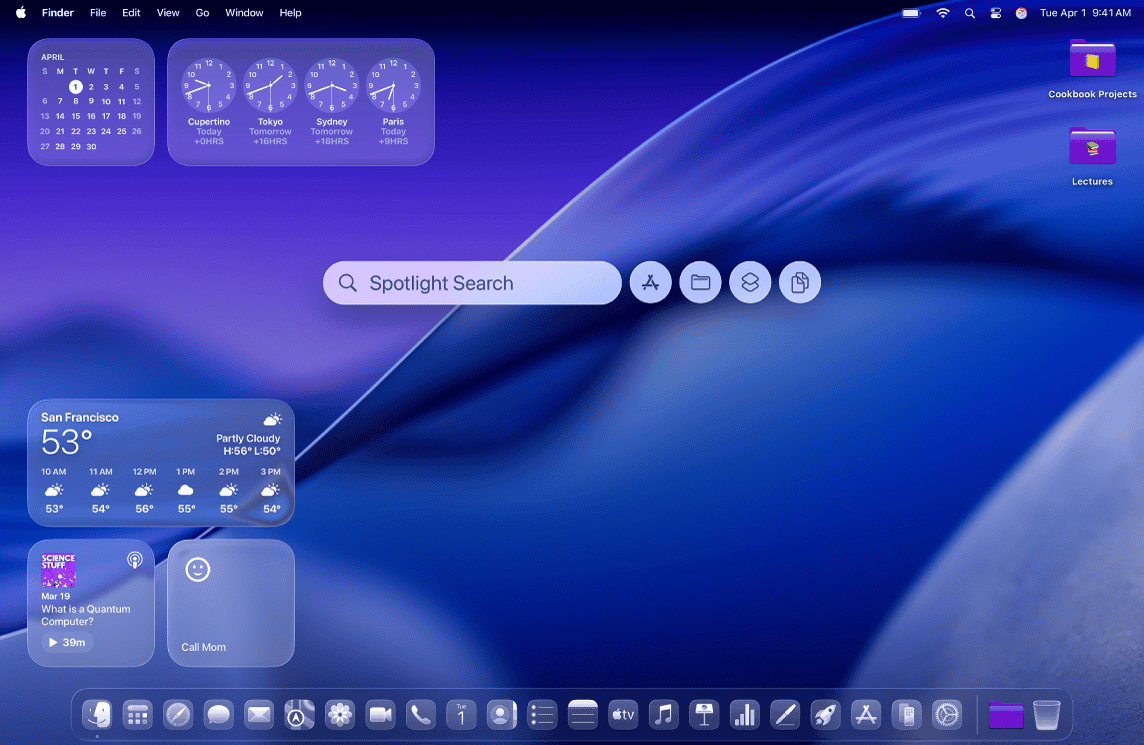
- Check if a message says indexing is in progress.
- Open Photos to see if it is analyzing your library.
- Keep the Mac plugged in and allow the process to complete.
- Expect temperatures to lower once indexing finishes.

Indexing usually runs only once after major updates.
4. Update macOS and your apps for better optimization
App and system updates reduce unnecessary background tasks.
- Open System Settings > General > Software Update.
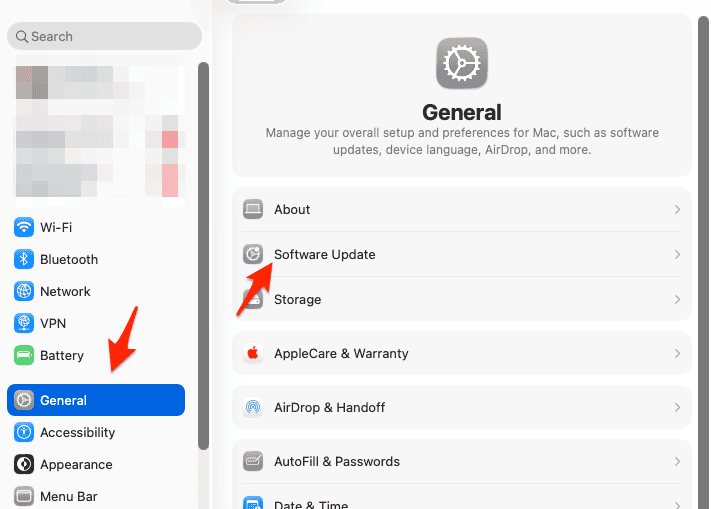
- Install any pending macOS updates.
- Open the App Store and update installed apps.
- Restart the Mac after updating.

Developers release patches shortly after major macOS updates to improve stability and thermal efficiency.
5. Refresh thermal behavior on Apple Silicon models
Apple Silicon devices use built-in thermal controls that may benefit from a reset.
- Shut down the Mac completely.
- Leave it powered off for 30 seconds.
- Turn it back on normally.
- Use the device for a few minutes to check for improvement.
This can recalibrate thermal response after system-level changes.
6. Manage background and startup apps
Login items can create constant activity that increases heat.
- Open System Settings > General > Login Items.
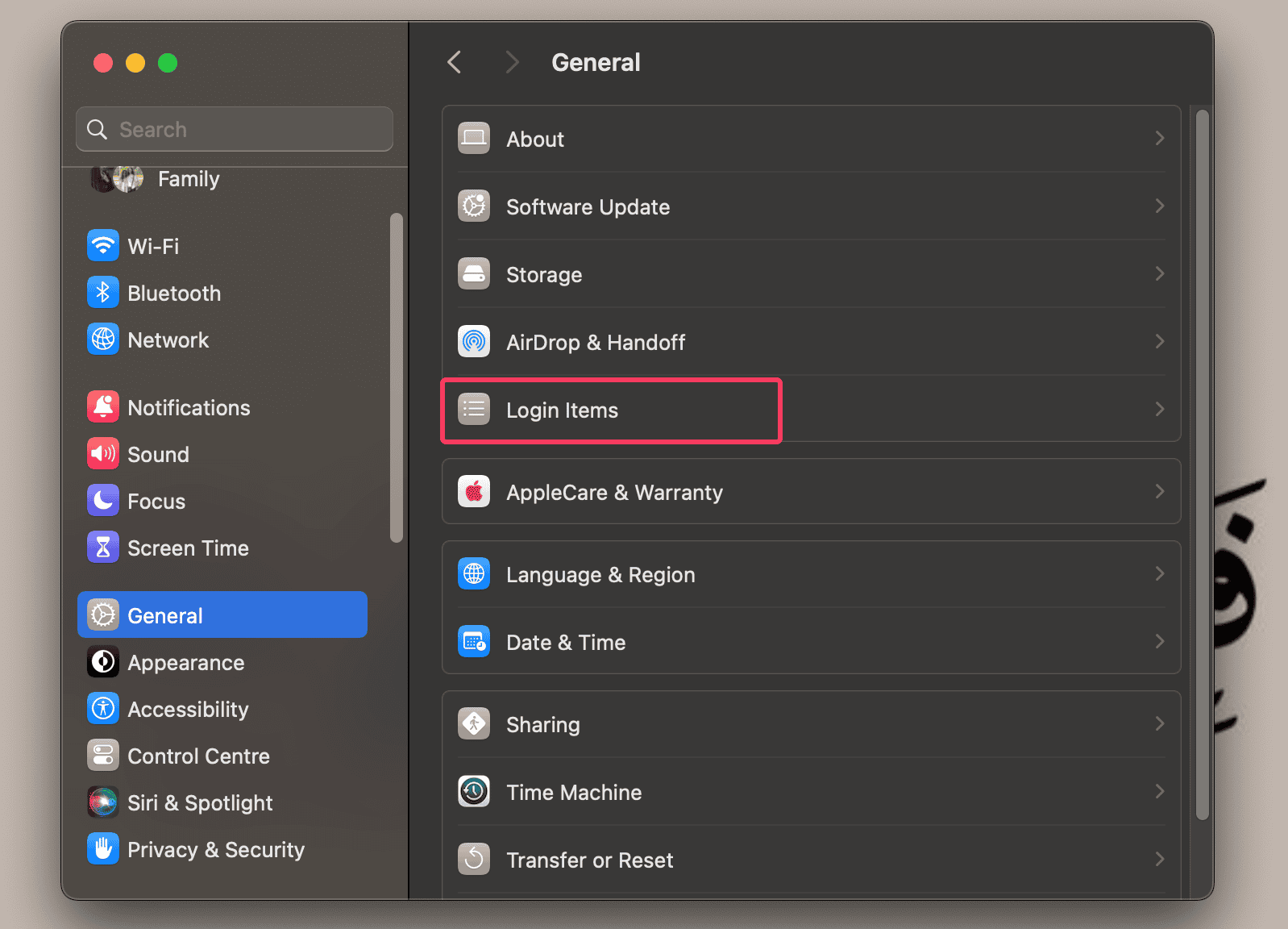
- Review the list of apps that open automatically.
- Remove any apps you do not need during startup.
- Scroll to Allow in Background and toggle off unnecessary entries.
- Restart the Mac to apply changes.

Reducing background apps often lowers heat while improving battery life.
7. Reduce screen brightness to ease GPU load
Brightness affects battery and heat, especially on MacBooks with large displays.
- Press the brightness keys or use Control Center.
- Bring brightness to a comfortable but lower level.
- Use the Mac for a few minutes to observe temperatures.
This is a small change that can make a noticeable difference.
8. Disconnect accessories that may increase system activity
External devices can trigger repeated system checks.
- Unplug external hard drives or hubs.
- Remove docks, card readers, and printers temporarily.
- Wait to see if the heat decreases.
- Reconnect each accessory one by one to identify any problematic devices.
Some peripherals require extra power or drivers that increase system load.
9. Switch to Safari for lower CPU usage
Third-party browsers often consume more CPU and memory.
- Open Safari and perform your typical browsing tasks.
- Close Chrome or Edge completely through Activity Monitor.
- Check if temperatures drop over time.
Safari is optimized more closely with macOS and typically runs cooler.
10. Improve airflow and device placement
MacBooks regulate heat through vents and surface cooling.
- Place the MacBook on a hard surface.
- Avoid soft materials that block airflow.
- Consider using a laptop stand to improve ventilation.
- Keep the area around the sides and back unobstructed.
Better airflow allows the MacBook to cool itself more efficiently.
Tips
- Update macOS regularly for thermal improvements.
- Avoid installing unoptimized apps right after major updates.
- Close unused browser tabs during long sessions.
- Restart the device weekly for consistent performance.
- Keep the MacBook plugged in during heavy indexing.
- Avoid stacking items near the vents.
- Battery strain can increase workload as well, so fix macOS Tahoe battery drain issues.
Conclusion
MacBook overheating on macOS Tahoe usually results from background indexing, unoptimized apps, or device processes working harder after the update. By reviewing CPU usage, adjusting background activity, updating software, and improving airflow, you can significantly reduce heat and restore stable performance.
FAQs
Not all, but some systems show a higher workload after the update.
It depends on your libraries and storage size. It may take a few hours.
MacBooks include thermal protection, but consistent heat can shorten component lifespan.
Fans speed up when indexing or background tasks increase CPU load.
Only if heat issues persist after updates and optimization.


The article is more suitable to older macOS (macOS 15 or below). For macOS 26s, these solution did not works as expected as older macOS.
To be honest, the overheat issue on macOS 26 is more caused by how bad Apple develop their software is nowadays. For older macOS, the overheat problem more appears only after first initial major updates from previous version (like upgrades from macOS 14 to 15), but could fix by itself after a week or wait for the first patch updates. But for macOS 26, even after nearly one year with 5 major patch updates, the overheat problem, especially problems that did not happen on older macOS, still much serious.
So my suggest is instead to try solution above, which works well for older macOS but won’t working as espected on macOS 26, downgrades to macOS 15 if using non-M5 and non-A18 Macs and wait if Apple finally fix all issues in upcoming macOS 27, is the best solution