

When the iPhone screen stops rotating, it’s often a simple setting or background process that’s causing the problem. Most of the time, it’s not a hardware issue. Whether the display is stuck in portrait mode or won’t switch in apps like Safari or Messages, adjusting a few settings can usually fix it.
If you are also facing the same issue, here’s everything that actually works to restore screen rotation on an iPhone.
Table of contents
Common Causes for the Screen Rotation Issues
When screen rotation doesn’t respond, it’s usually because the orientation lock is enabled or the app you’re using doesn’t support rotation. Other causes may include software bugs, accessibility settings, or sensor calibration issues. Even certain display modes, like Zoomed View, can limit how rotation works in apps.
Don’t miss the best of The Mac Observer
Set us as a preferred source and our Apple reporting ranks higher in your Google Search results and Discover feed — one tap, no account changes.
Multiple Ways to Fix Screen Rotation on iPhone
Here are several confirmed solutions that have helped iPhone users fix display rotation issues.
1. Check Orientation Lock
- Swipe down from the top-right corner of the screen to open Control Center.
- Look for the rotation lock icon (a lock with a circular arrow).
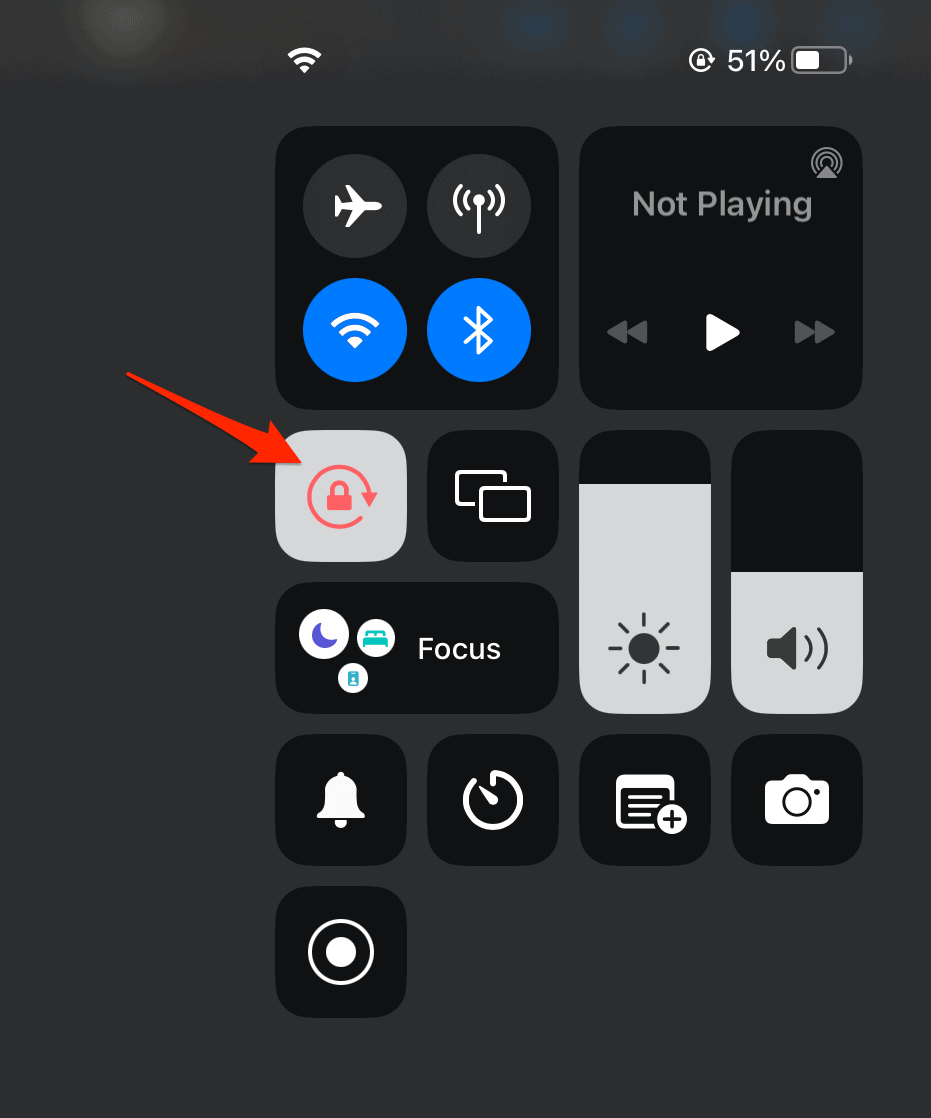
- If it’s highlighted, tap it to disable rotation lock.

Apps like Messages and Photos should now rotate automatically. If the feature is still not working, move on to the next steps.
For users who often want rotation disabled for specific apps, Apple allows setting orientation preferences in certain versions of iOS.
2. Restart the iPhone
A quick restart can clear temporary glitches.
- Press and hold the Side button and either Volume button until the power slider appears.
- Drag the slider to turn off the device.

- Wait a few seconds, then hold the Side button again to restart.

After restarting, test rotation in Safari or Messages.
3. Check if the App Supports Rotation
Not all apps allow screen rotation. For instance, some iPhone home screens and banking apps are locked in portrait mode. Open apps like Safari or YouTube, which always support rotation, and see if the feature works there.
If videos don’t rotate properly, you can also manually rotate them using the built-in Photos editor or third-party apps.
4. Disable Display Zoom
Display Zoom changes how the interface scales on the screen and may prevent landscape mode on some models.
- Go to Settings > Display & Brightness > Display Zoom.
- Select Standard instead of Zoomed.
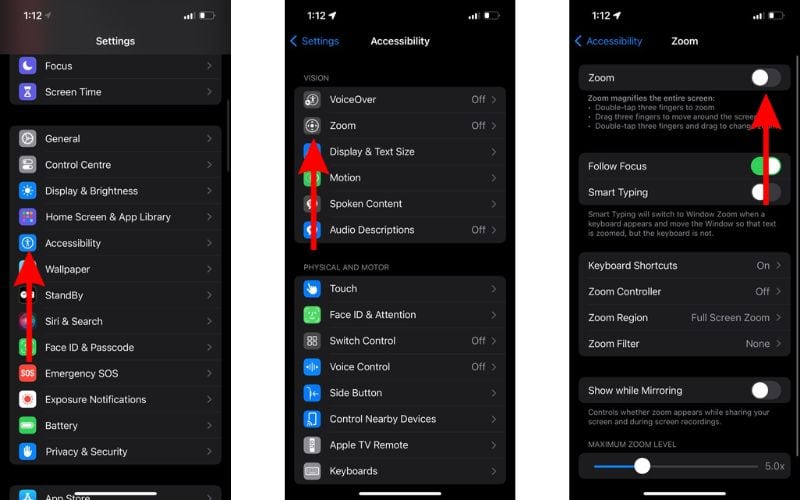
- Tap Set and restart the iPhone.

This often restores rotation functionality, especially on larger models like the iPhone 14 Plus or iPhone 15 Pro Max.
5. Reset All Settings
If the issue persists, resetting settings can fix hidden configuration errors.
- Go to Settings > General > Transfer or Reset iPhone > Reset > Reset All Settings.
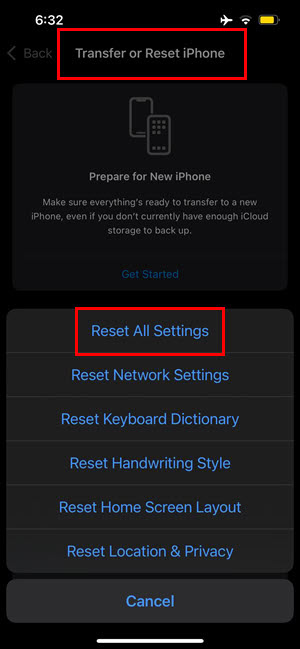
- Enter the passcode and confirm.

This doesn’t delete data but resets system preferences such as display layout and accessibility options.
6. Check Motion Settings
If rotation still doesn’t respond, verify that Reduce Motion or Motion Restrictions aren’t enabled.
- Go to Settings > Accessibility > Motion.
- Ensure Reduce Motion is turned off.
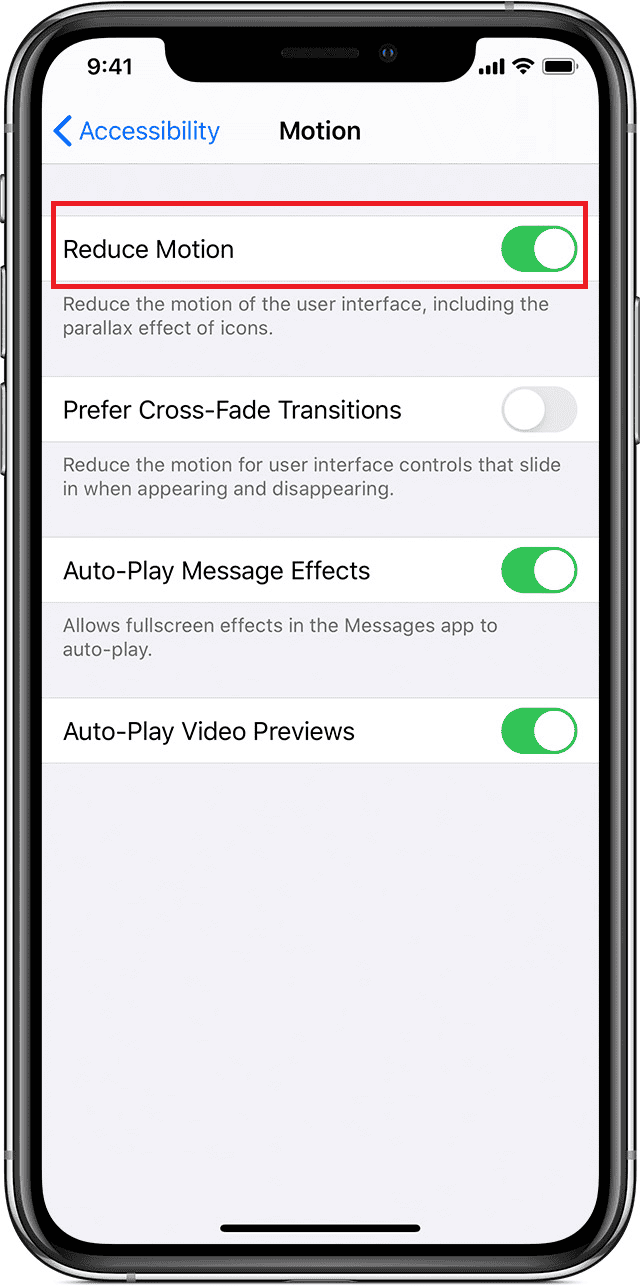

These settings can affect animation transitions between portrait and landscape modes.
7. Update iOS or Contact Support
Install the latest iOS update to fix software bugs that affect sensor responsiveness.
- Go to Settings > General > Software Update.
- Download and install the update if available.
If none of the fixes work, it could be a gyroscope or accelerometer issue. Apple Support can check for hardware faults.
Additional Tips
- Avoid Touch Lag: If rotation doesn’t trigger when tilting, it might be related to touch responsiveness. Learn how to fix an unresponsive iPhone screen.
- Test in Different Apps: Use both system apps and third-party apps to confirm whether the issue is app-specific.
- Clean Sensor Area: Dirt or a thick case can sometimes obstruct sensors that detect movement.
- Try “Tap to Rotate” Gestures: On iPhone 17 and later, Apple’s new Tap to Rotate feature allows screen orientation to change with a quick tap.
Conclusion
When screen rotation stops working, it’s usually a small setting like orientation lock or Display Zoom. Checking these first often solves the problem instantly. Restarting, updating iOS, or adjusting accessibility settings can handle more persistent cases. Once corrected, the iPhone returns to seamlessly rotating between portrait and landscape modes as expected.
FAQs
The app you’re using might not support rotation. Test in Safari or Photos to confirm.
Yes. Enabling Display Zoom can limit landscape mode on certain iPhone models. Switch to Standard view to fix this.
Open Compass or a motion-based game. If they don’t respond to tilts, it could be a hardware issue requiring Apple Support.
Yes. iPhone 17 introduces Tap to Rotate, a new gesture that simplifies screen orientation.


Discussion