

If you just got a new pair of Beats earbuds or headphones and you’re ready to pair them with your iPhone, good news: the process takes less than a minute. Whether you’re using Beats Fit Pro, Beats Studio Buds, Powerbeats Pro, or Solo3 headphones, the setup is quick and consistent across all models.
Here’s how to connect your Beats to your iPhone, and what to do if they don’t show up right away.
Table of contents
How to Pair Beats to iPhone
Here’s the step-by-step:
Don’t miss the best of The Mac Observer
Set us as a preferred source and our Apple reporting ranks higher in your Google Search results and Discover feed — one tap, no account changes.
- Turn on your Beats.
Press and hold the power button until you see the LED light flash. That flashing light means your Beats are now in pairing mode. - Bring them close to your iPhone.
Keep your Beats within a few feet of your iPhone. A pop-up animation should appear on your iPhone screen showing your Beats model. - Tap “Connect.”
Once the prompt appears, tap Connect to pair. If it doesn’t appear, go to Settings > Bluetooth, and you’ll see your Beats listed under “Other Devices.” Tap the name to connect manually.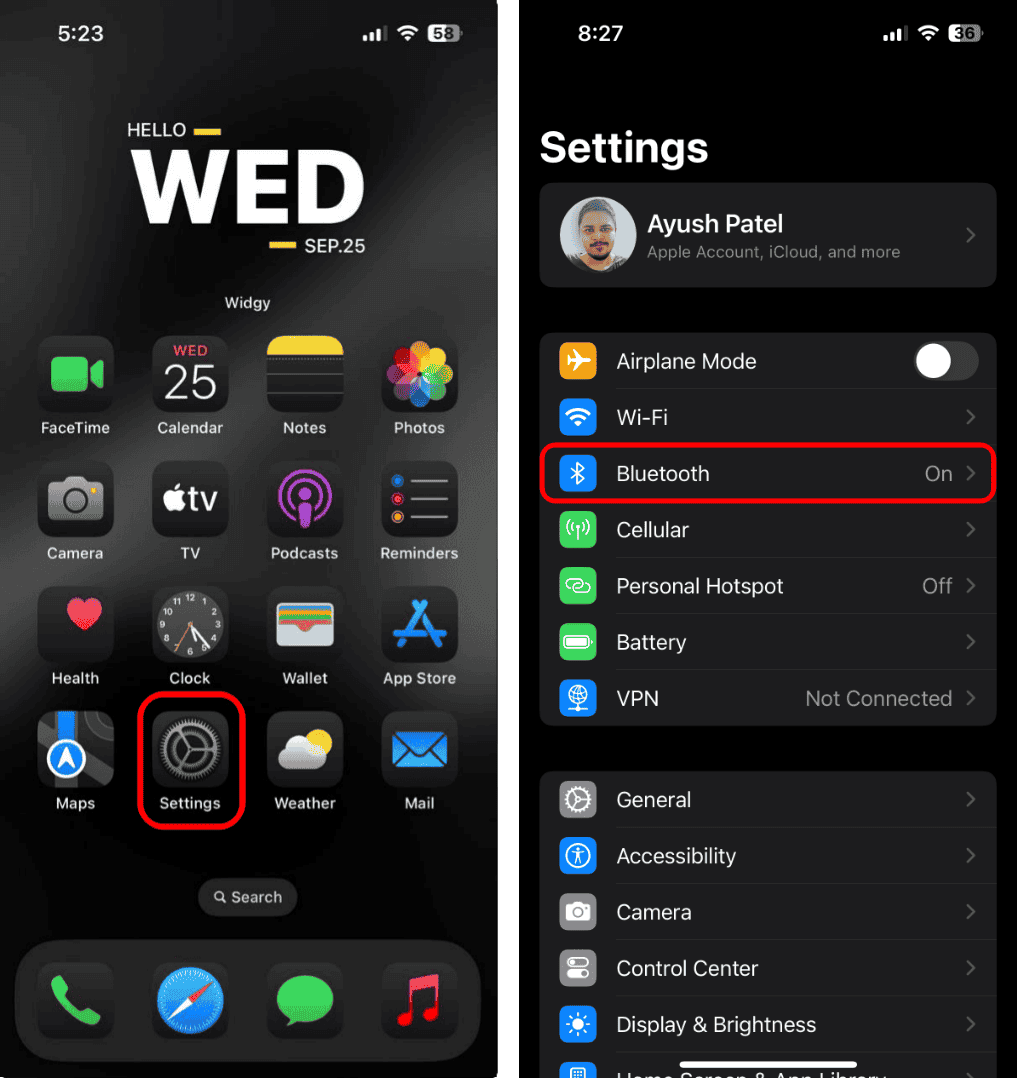
- Wait for confirmation.
When the connection is successful, your Beats will appear as “Connected” in your Bluetooth list, and you’re good to go.

That’s it. Your Beats are now paired and ready to play music, take calls, or stream whatever you want.
How to Fix Beats Not Connecting to iPhone
If your Beats won’t connect, don’t panic. It’s usually something simple. Here’s how to troubleshoot it.
1. Check the battery

If your Beats are dead or nearly out of charge, they won’t connect. Plug them in for at least 20 minutes before trying again. Keep in mind that Beats don’t turn off automatically after use; you need to do it manually, or the battery will drain faster than you expect.
2. Make sure Bluetooth is on
It sounds obvious, but it’s easy to forget. Go to Settings > Bluetooth and make sure the toggle is green. If it’s off, turn it on and check if your Beats appear in the list.
3. Restart both devices

Turn your Beats off and back on. Do the same with your iPhone. This simple reset often clears up temporary connection glitches. After restarting, put your Beats back into pairing mode and try connecting again.
The Bottom Line
Connecting your Beats to your iPhone is quick and simple. Turn them on, wait for the pairing prompt, tap Connect, and you’re ready to go. If they don’t connect right away, it’s usually a matter of low battery, Bluetooth being off, or needing a quick restart.
Once paired, your Beats will automatically connect every time you use them. So charge them up, hit play, and enjoy your music the way it was meant to sound.



Discussion