

Facing brightness issues in iOS 26? There are several causes for that: accessibility toggles, ambient-light sensor misbehavior, software bugs, and so on. If your iPhone display behaves erratically, like looking too dark even when the slider is at full, or auto-adjust seemingly not working, check the solutions below.
Table of contents
- Solutions To Fix Brightness Issues in iOS 26
- 1. Disable Low Power Mode
- 2. Disable/Re-Enable Auto-Brightness
- 3. Check Reduce White Point and Other Accessibility Settings
- 4. Toggle True Tone, Night Shift and Always On Display (AOD)
- 5. Force-Restart and Reset All Settings
- 6. Check for Software Updates / Consider Downgrade Delay
- 7. Hardware & Ambient Sensor Check
- FAQ
- Summary: Quick Fixes for iOS 26 Brightness Issues
Solutions To Fix Brightness Issues in iOS 26
1. Disable Low Power Mode
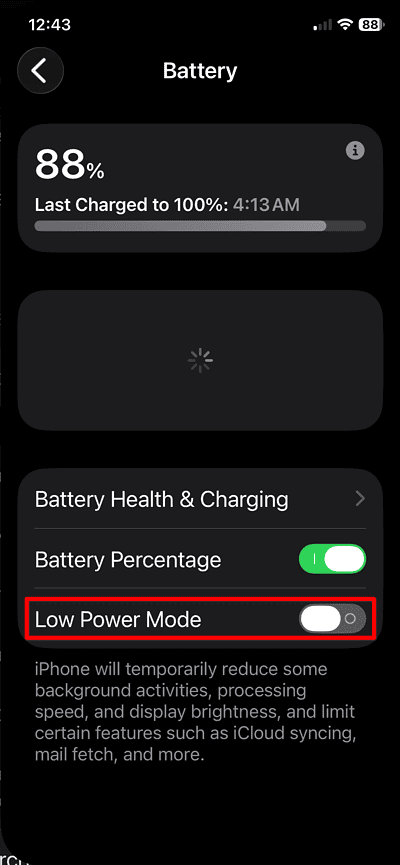
If your iPhone is in Low Power mode, the brightness will be reduced. That’s easy to recognize: on this mode, the battery icon will be yellow/orange. To fix that:
Time needed: 2 minutes
- Go to Settings > Battery
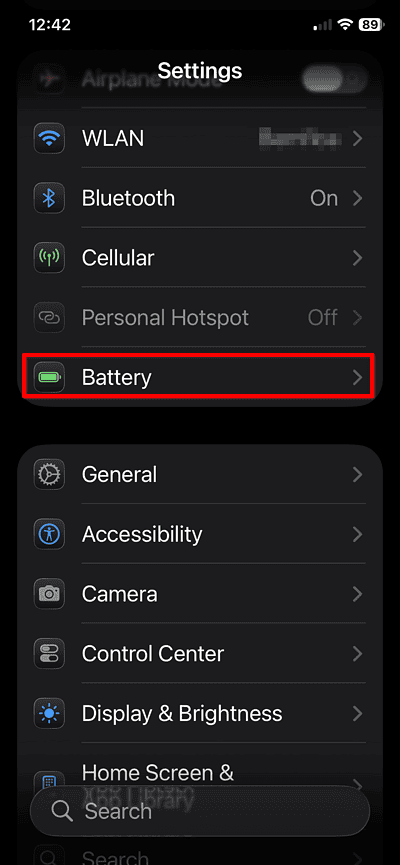
- Toggle Low Power Mode off.


2. Disable/Re-Enable Auto-Brightness
If your screen seems too dark or “stuck” at a low brightness despite the slider, the auto-brightness function may have glitched. Here’s how to fix that:
Don’t miss the best of The Mac Observer
Set us as a preferred source and our Apple reporting ranks higher in your Google Search results and Discover feed — one tap, no account changes.
- Go to Settings > Accessibility > Display & Text Size.

- Toggle Auto-Brightness off, wait a moment, then toggle it back on.
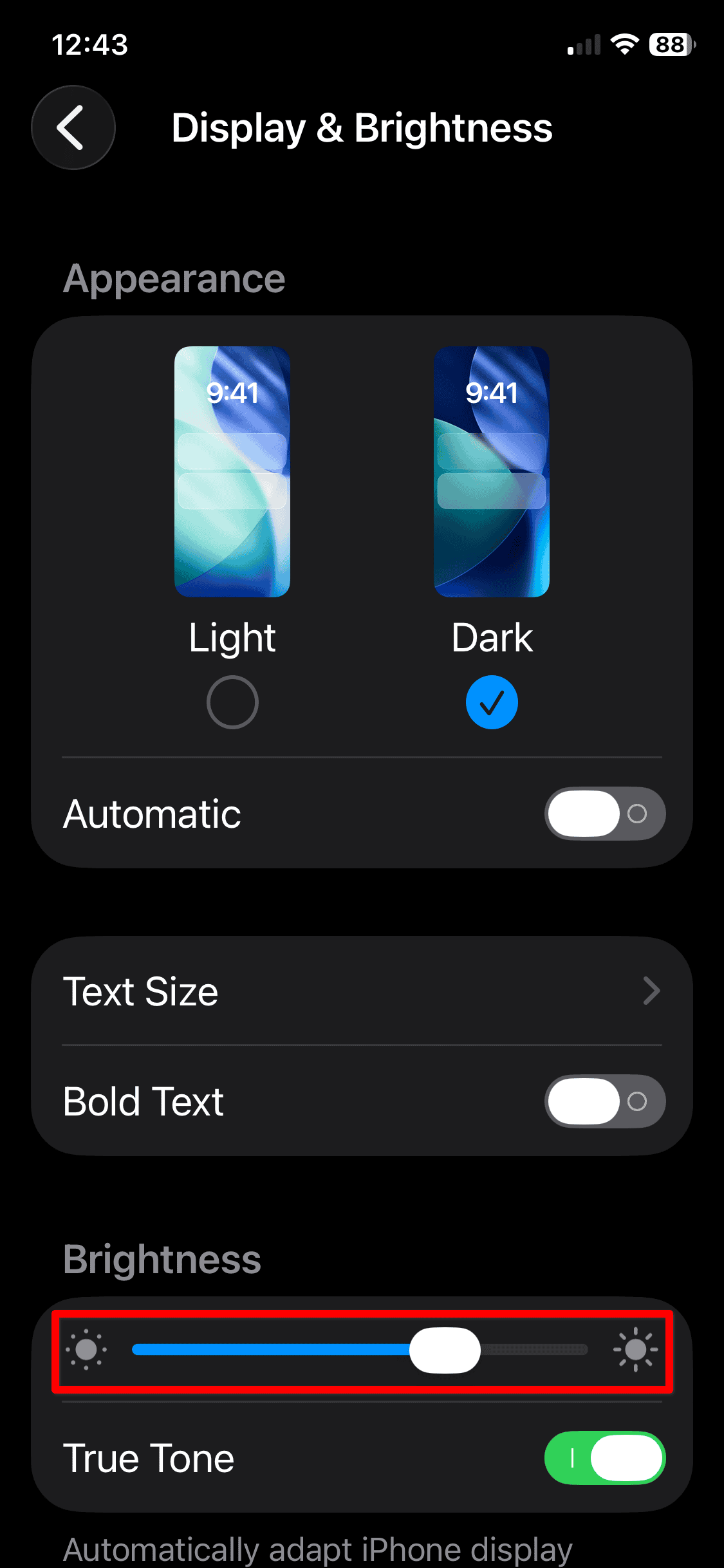
- After toggling, manually set brightness to a higher level in Settings > Display & Brightness or via Control Center.

If you see improvement, leave it for a while; if not, move to the next step.
3. Check Reduce White Point and Other Accessibility Settings
Even if you didn’t intentionally enable them, some users report that settings like Reduce White Point (which reduces intensity of bright colors) got toggled (or stuck) after updating.
- Go to Settings > Accessibility > Display & Text Size.
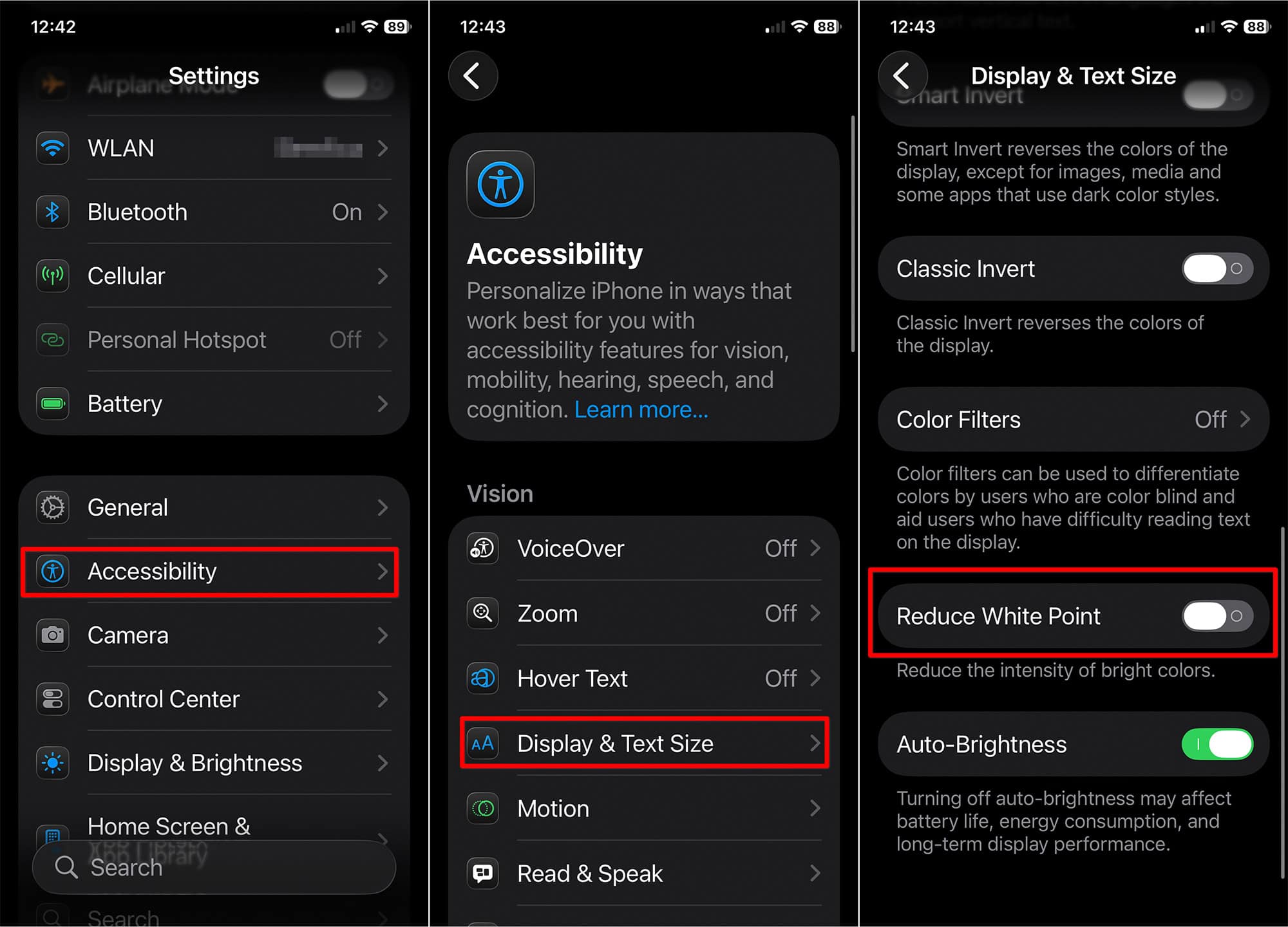
- Scroll to Reduce White Point. If it’on, toggle it off.
- Also in this menu: check Increase Contrast, Reduce Transparency and ensure nothing else is making the screen appear dimmer.

Afterward, manually increase the brightness slider and check if it restores to expected levels.
4. Toggle True Tone, Night Shift and Always On Display (AOD)
These features can interfere with brightness perception (often in adverse lighting conditions). Do the following:
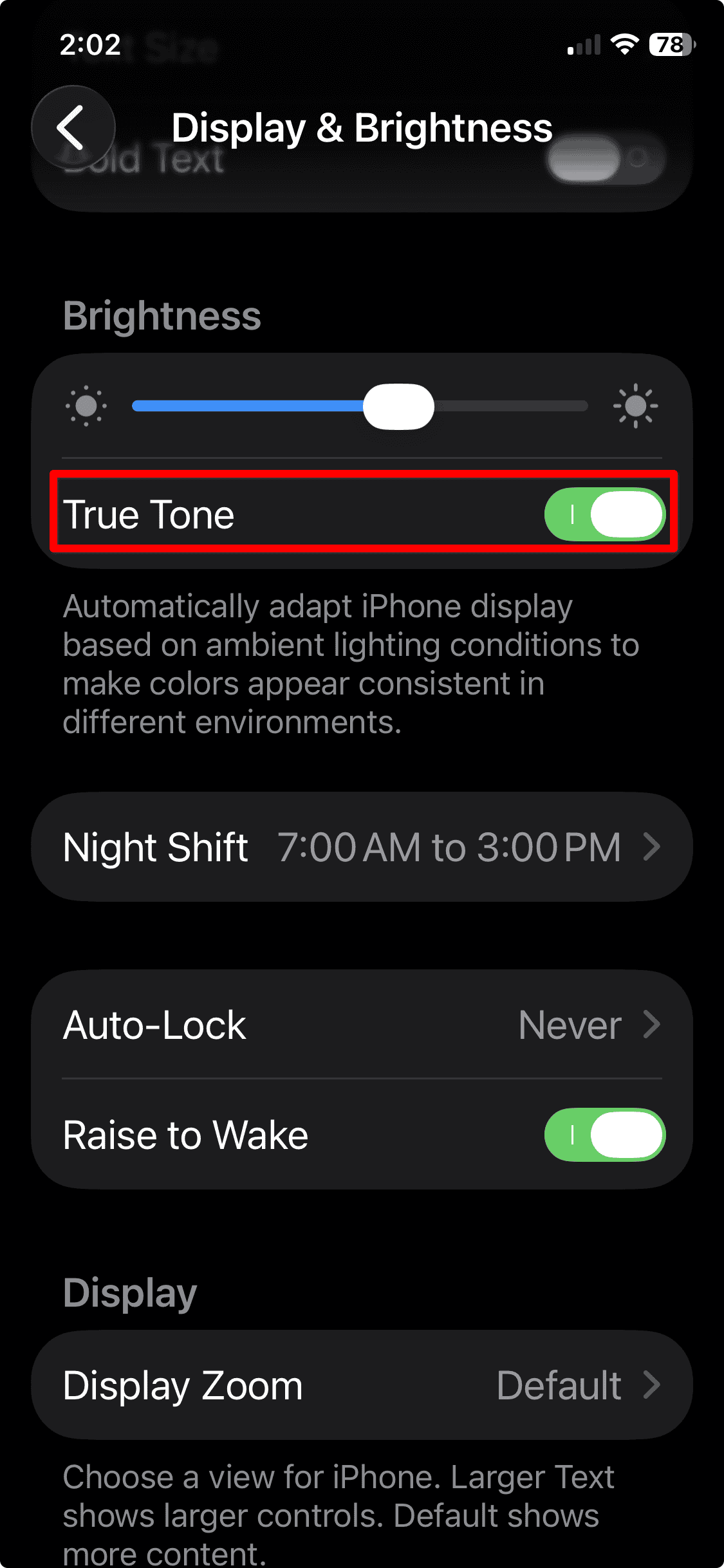
- Go to Settings > Display & Brightness > True Tone. Try toggling it off.
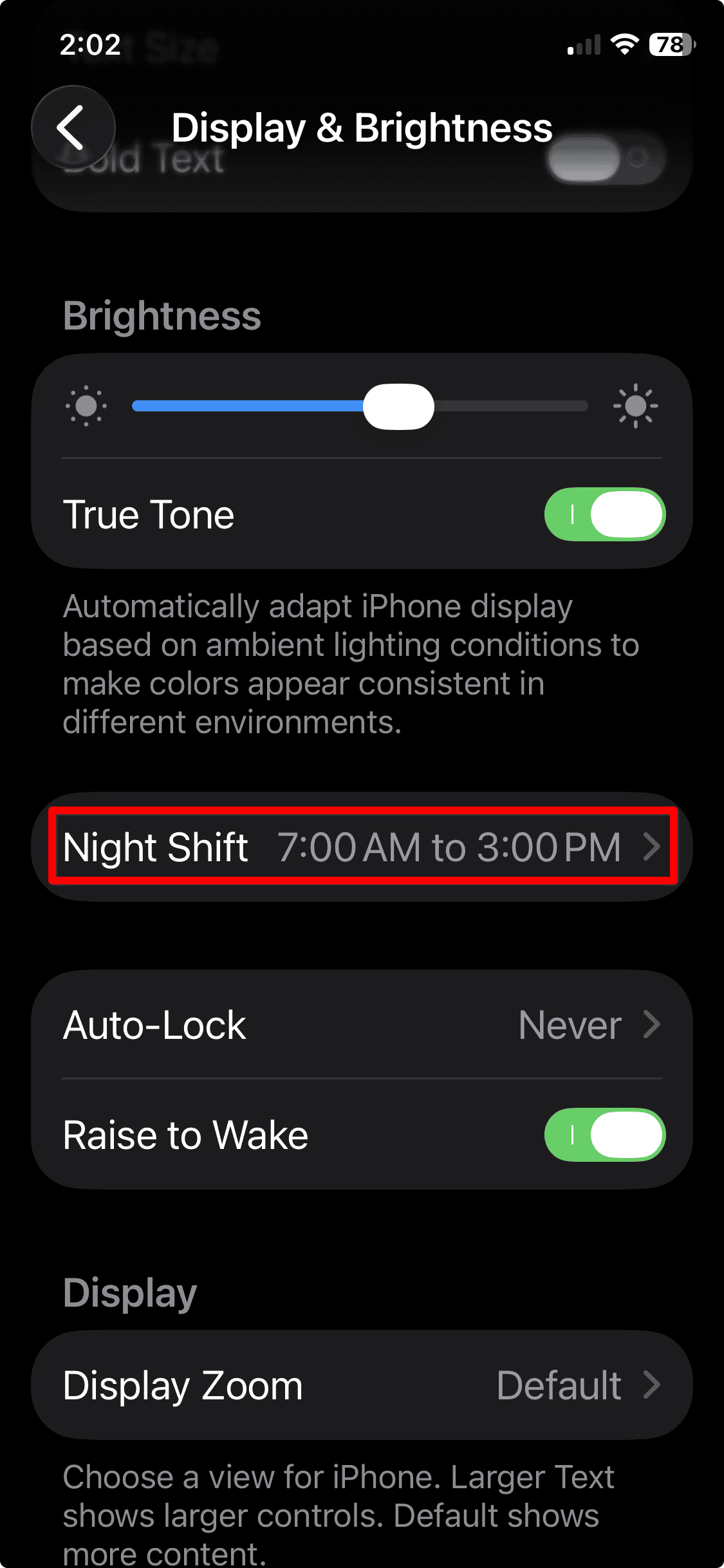
- Go to Settings > Display & Brightness > Night Shift. Temporarily disable to test if the problem persists.
- On Pro-models with AOD (Always On Display): toggle AOD off then on again.


5. Force-Restart and Reset All Settings
If none of the above work, the problem may be deeper, like a software bug or corrupted setting.
Some users reported that force-restarting your iPhone may fix brightness issues. To do that, press the Volume Up, then Volume Down, and then hold the side button until the Apple logo appears.

After restart, check brightness behavior again. If that doesn’t help, try resetting the settings. Go to Settings > General > Transfer or Reset iPhone > Reset > Reset All Settings. This won’t erase your data, but resets system settings including display, network, etc.
6. Check for Software Updates / Consider Downgrade Delay
Brightness issues are among the known bugs in iOS 26. If you have been facing the issue for a while, there may already be a patch available. Open Settings > General > Software Update and install any available update.

If you rely on your iPhone for critical work, however, you might consider waiting on further updates rather than pushing ahead. Newer versions may fix old quirks, but they may introduce new bugs and instabilities as well.
7. Hardware & Ambient Sensor Check
Lastly, if your brightness is persistently too low despite above steps, consider a hardware/ambient sensor issue:
- Ensure no heavy screen protector or case is covering the ambient light sensor (usually near the notch or front-camera area).
- If the screen was replaced or repaired, non-genuine parts might interfere with the sensor or True Tone/auto-brightness calibration.
- As a final test: open a bright HDR photo in the Photos app and observe screen behavior; some users found this triggers correct brightness auto-adjustment.
- If you still can’t restore expected brightness, contact Apple Support or an authorized service provider.
FAQ
That’s common. Try disabling True Tone and Night Shift (see above), and manually slide brightness higher while in sunlight. Some panels also reduce brightness as part of thermal/ABL (automatic brightness limiting) behavior.
Try disabling Reduce White Point, and force-restart the device. If unchanged, it may be the ambient sensor or a bug in iOS 26.
Yes. Low Power Mode can limit maximum brightness and some background operations; check Settings > Battery and disable Low Power to test.
No, it only resets system settings (display, keyboard, network, etc.). Your data (apps, photos, music) remain intact. You might, however, need to re-sign into some accounts and re-configure some preferences.
Summary: Quick Fixes for iOS 26 Brightness Issues
- Disable Low Power Mode.
- Toggle Auto-Brightness off > on under Settings > Accessibility > Display & Text Size.
- Turn Reduce White Point off and check other Accessibility settings.
- Toggle True Tone, Night Shift (and AOD if applicable) under Display & Brightness.
- Force-restart your iPhone, then if needed: Reset All Settings.
- Check for iOS updates; consider waiting if issue is persistent.
- Verify ambient-light sensor / hardware — especially if repaired or replaced.
Brightness issues in iOS 26 are often result of interaction between new software, ambient sensors, display technologies, and user settings. By trying the steps above, you’ll cover most cases. If the behavior persists, the fault may lie with a bug in iOS 26 (which Apple will hopefully patch). It may also be your device’s sensor/display hardware, though. In either case, you’ll be in an informed position to decide your next step.


Keyboard is finally about to be fixed soon (or so insiders say) but the brightness issues is a nightmare. Can see circles under ones eyes in minutes. Tinted does nothing and accessibly which I’ve an always used before this horrible overhaul does nothing either . What were they thinking? Oh wait they weren’t. Horrible for eyes across the board and there are a lot of us
I am vision impaired and use the i phone to see the time by hitting the on button but now the clock is grey with a white line around it and is much harder to see
ios 26.2
you can try adjusting the Display & Brightness settings, enabling Bold Text, or increasing the Contrast under Settings → Accessibility → Display & Text Size. or you can customize the Lock Screen clock with a high-contrast color through Settings → Wallpaper → Customize, which can make it much easier to read at a glance.
Settings: Display & Brightness: Liquid Glass
Turn on Liquid Glass. See if that helps.